
Removing Orphaned Legal Item Polygons
What is an Orphaned Polygon?
An orphaned polygon is a polygon that had its matching record in Land deleted. If the polygon is an orphaned legal item polygon, then the parent legal item has been deleted, but the legal item polygon still exists.
The same goes true respectively for orphaned tract and agreement polygons.
Why would a client remove orphaned polygons?
In the ideal world, clients would unlink the GIS polygon prior to deleting the matching Land record. However, since the Land and GIS Analysts are often different people within the client organization and this is not always communicated between the 2 people, this does not always happen. As a result orphaned polygons exist.
Orphaned polygons should be removed since they inaccurately appear on the map as owned property, a possible prospect, etc. when it should not be there.
How to Know if an Orphaned Polygon Exists?
One indication that orphaned polygons exists is if there are more polygon records in all_legals than ws_legals and/or more polygon records in all_tracts than ws_tracts. This is because the polygon only exists in the ws_* spatial views if the matching record exists.
How to Confirm if an Orphaned Polygon Exists
One legal item polygon exists in all_legals but not ws_legals.
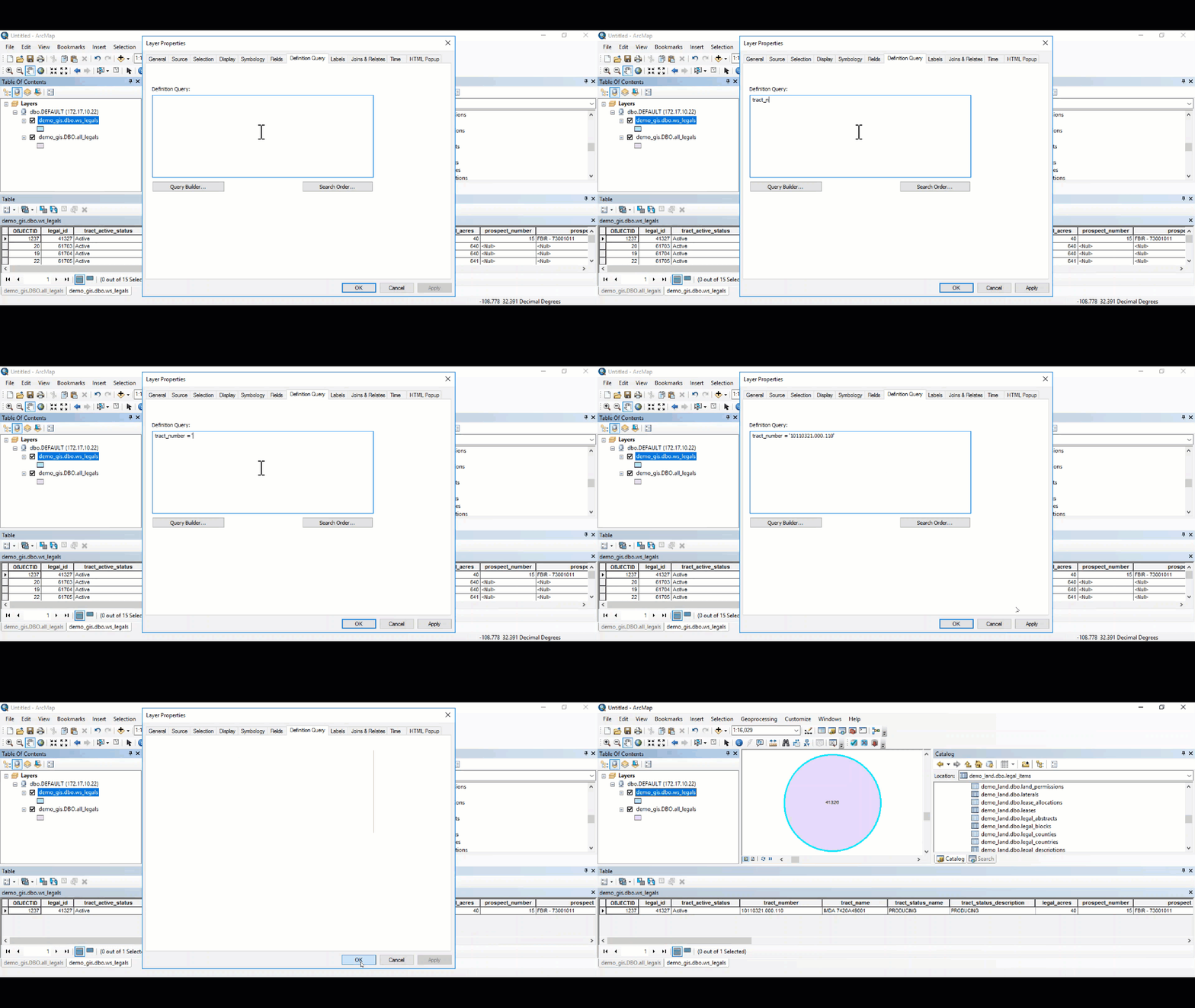
To confirm if the parent Land legal item exists, drag and drop the dbo.legal_items table into the data frame. This table is not in the GIS database but rather in the main database.
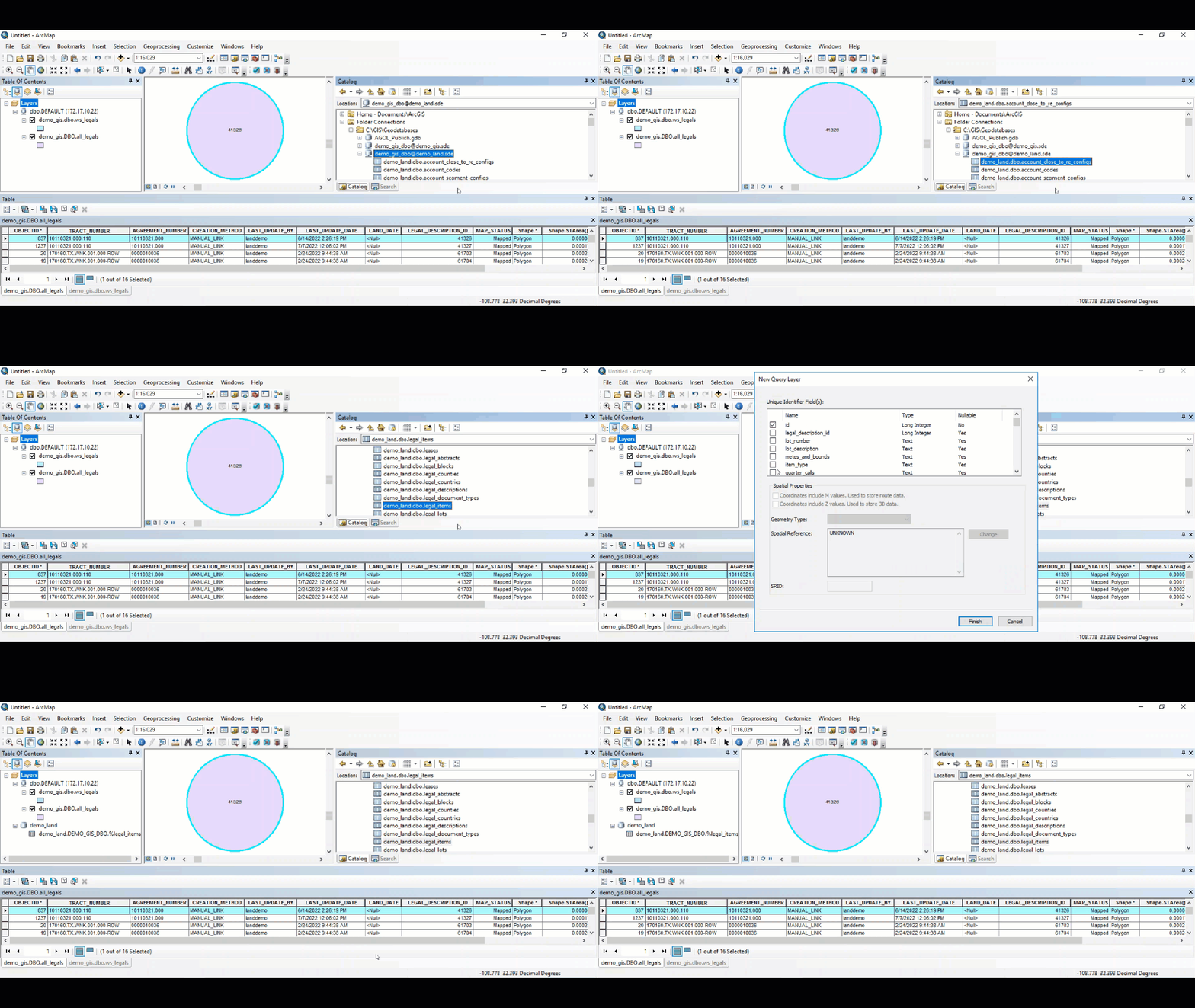
In the Table of Contents, right-click on the added layer and select Open to open the table.
Right-click on the layer once more, and select Properties.
Paste a Definition Query to see if the particular legal item exists in this table.
Because no records returned when applying the Definition Query, this proves the legal item does not exist in the Land module anymore.
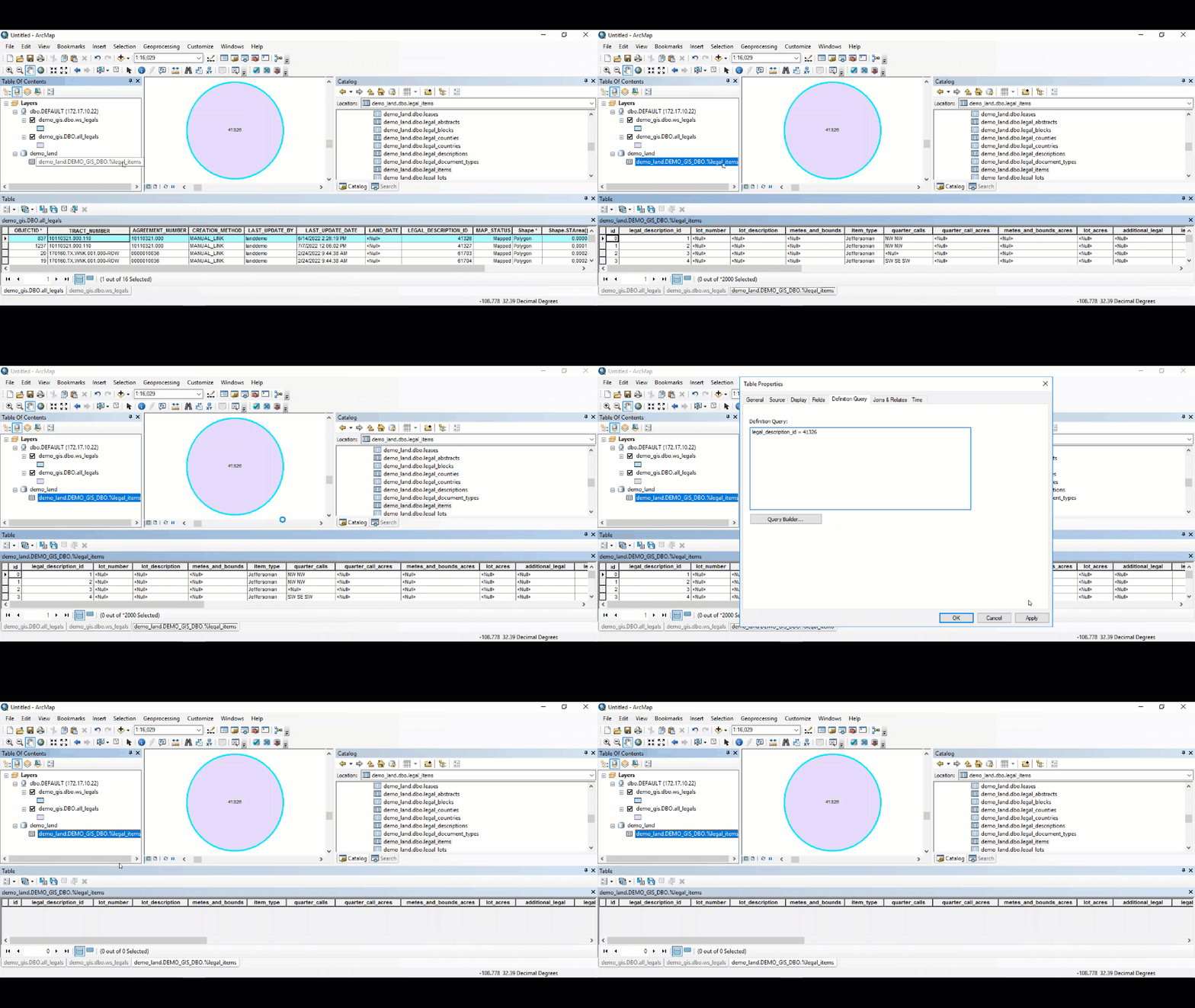
Remove the legal_items table from the Table of Contents.
Alternative Method to Find Orphaned Polygons
The following method is a simpler way to find orphaned polygons. The caveat is this process only works if the client has the Enterprise Geodatabase functionality enabled.
Open Microsoft SQL Server Management Studio.
Authenticate into SQL using the credentials found in the client_gis_config.yaml file.
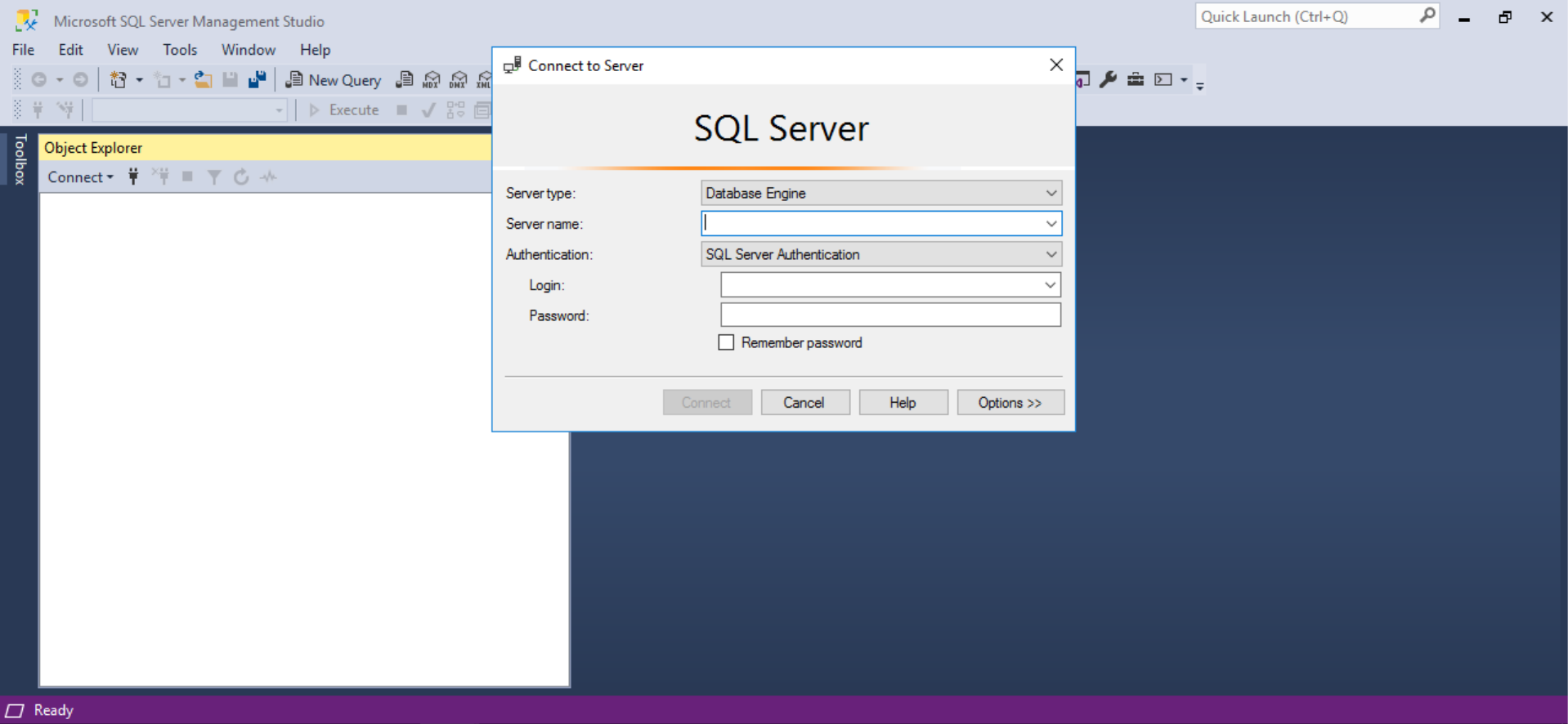
For more information on the credentials, please refer to Interpreting the client_gis_config.yaml File 📁.
Right-click on the GIS environment and select New Query.
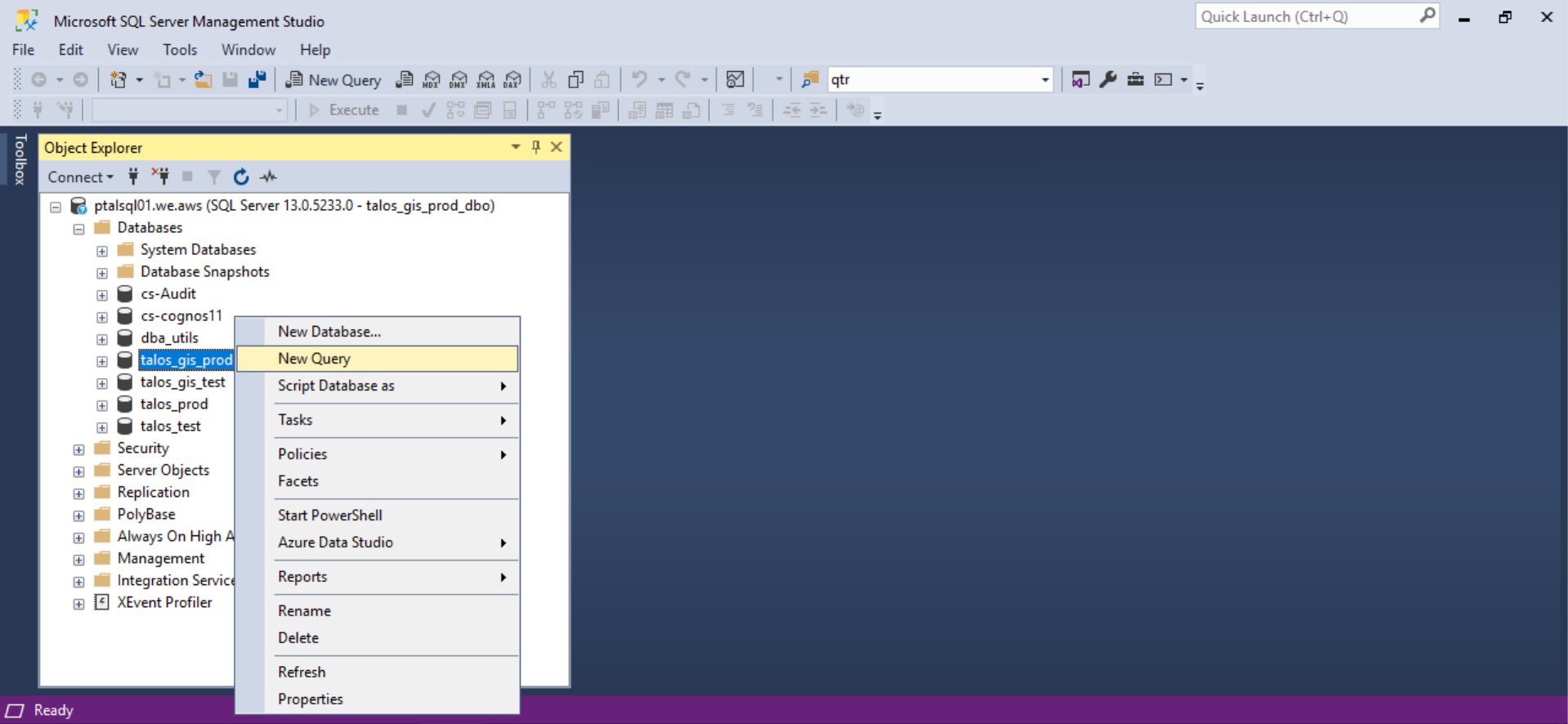
The following queries can be used to see if there are orphaned polygons at the legal item and tract levels respectively: -- legal item orphaned polygons select * from all_legals al where not exists (select id from talos_prod.dbo.legal_items li where al.legal_description_id = li.id);
-- tract orphaned polygons select * from all_tracts at where not exists (select id from talos_prod.dbo.tracts t where at.tract_number = t.number);
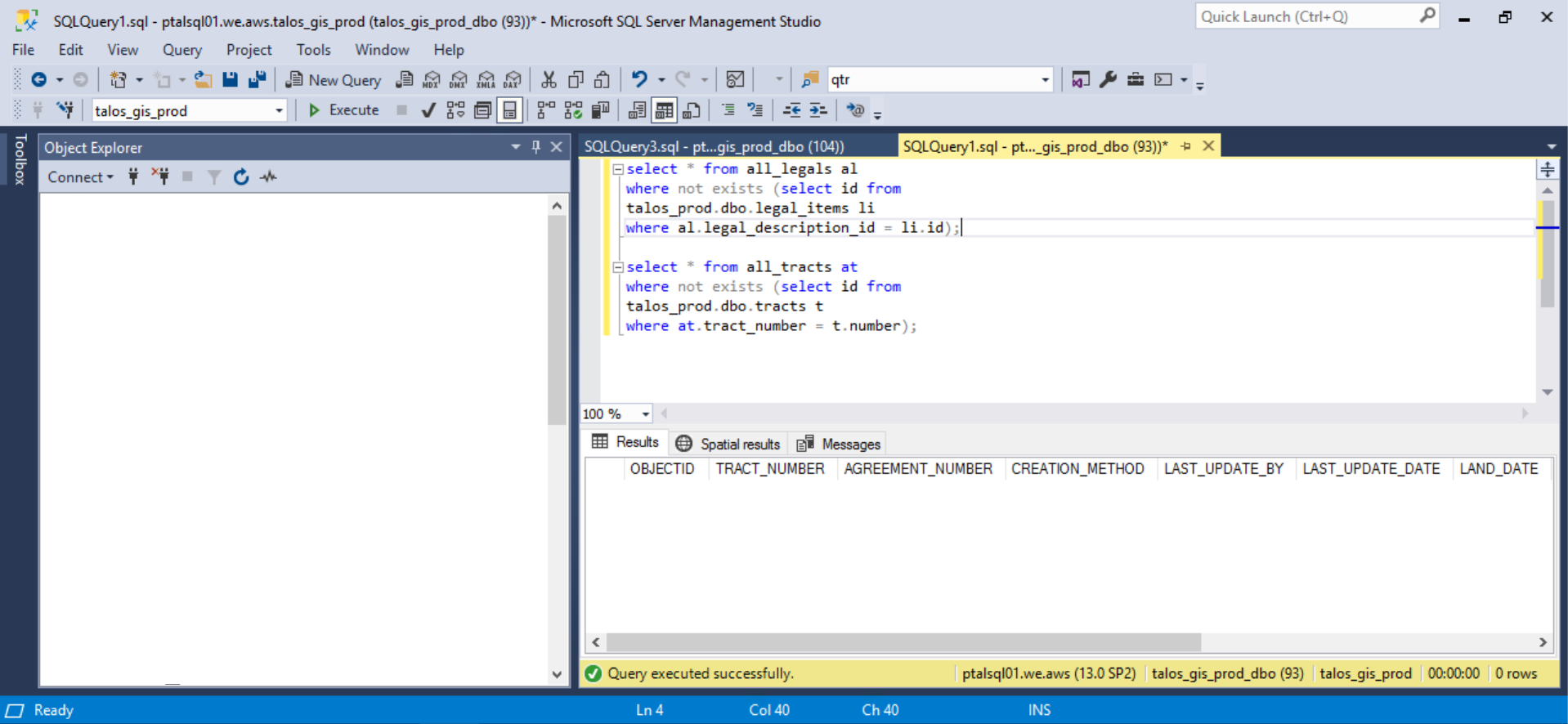
Since no results were returned for both queries, no orphaned polygons exist in this scenario.
Note: each query prefixes a table referenced in another database. “talos_prod“ will need to be replaced with the client specific environment such as ““surge_test” or “rosewood_land“.
Alternative Method II to Find Orphaned Polygons
The following technique is another way to identify orphaned polygons. This process can be used for all GIS clients, regardless if the client has the Enterprise Geodatabase enabled.
Copy the all_legals layer.
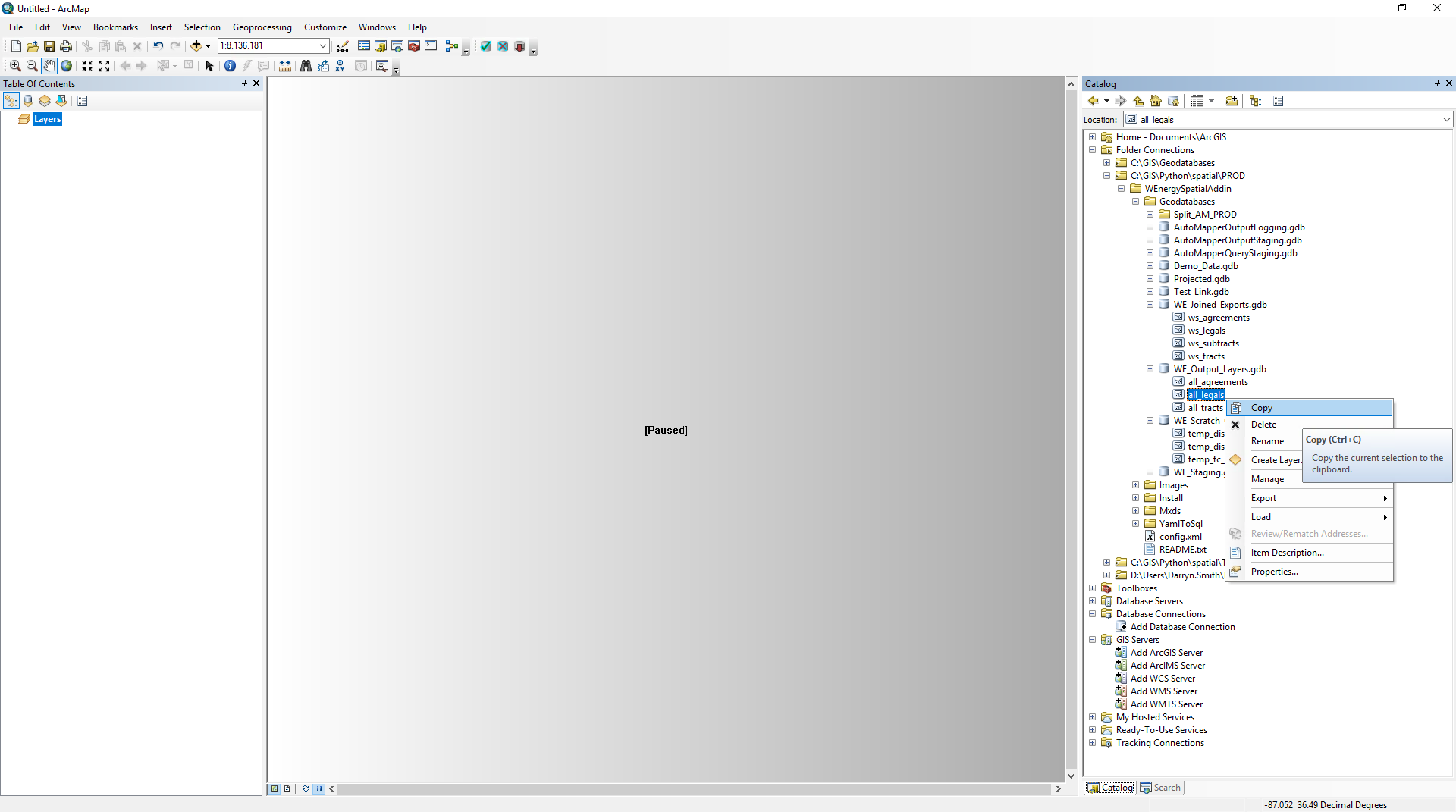
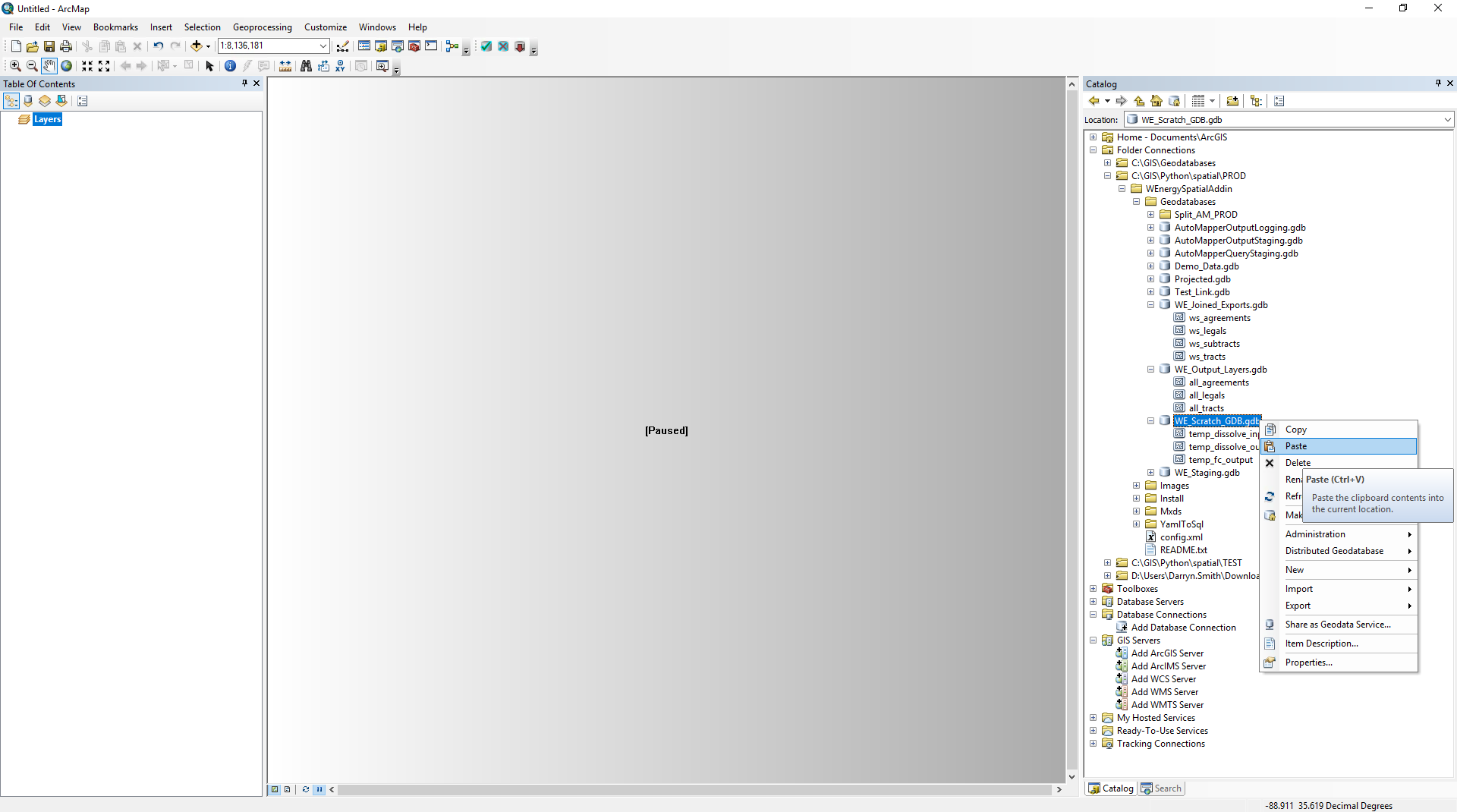
Paste the layer into a scratch file geodatabase and rename it to signify that this layer is different from all_legals (Ex. all_legals_1).
Drag and drop the all_legals_1 and ws_legals layers to the dataframe.
Right-click on ws_legals_1 and select Joins and Relates → Join…
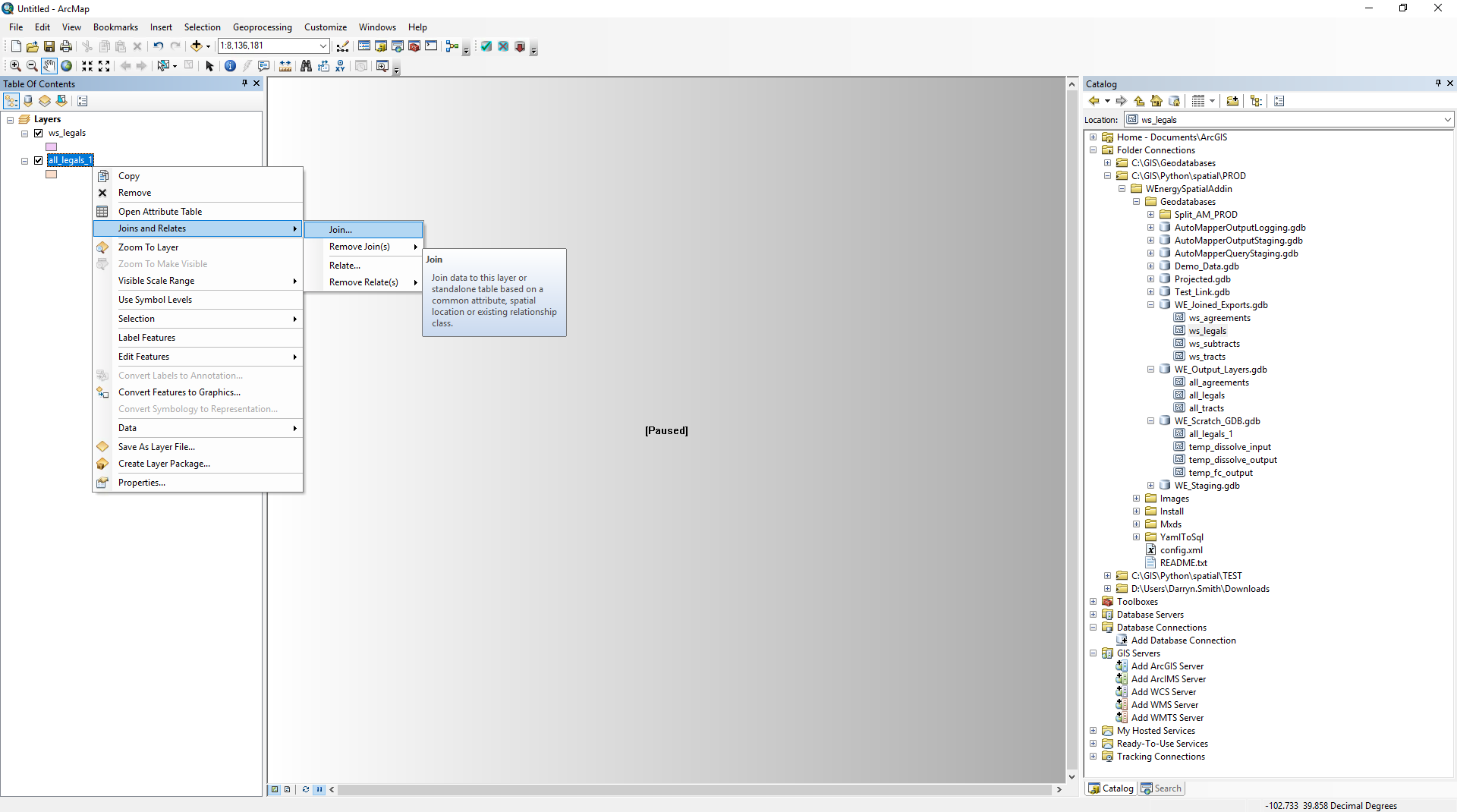
Input the following variables:
What do you want to join to this layer? Join attributes from a table
Choose the field in this layer that the join will be based on: LEGAL_DESCRIPTION_ID
Choose the table to join to this layer, or load the table from disk: ws_legals
Choose the field in the table to base the join on: legal_id
Join Options: Keep all records
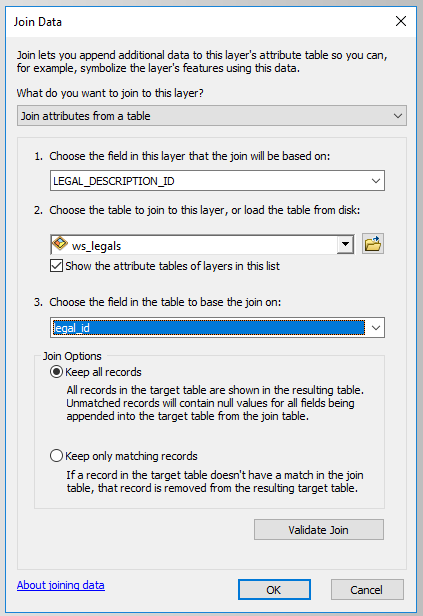
Hit OK.
Open the Attribute Table of the all_legals_1 layer.
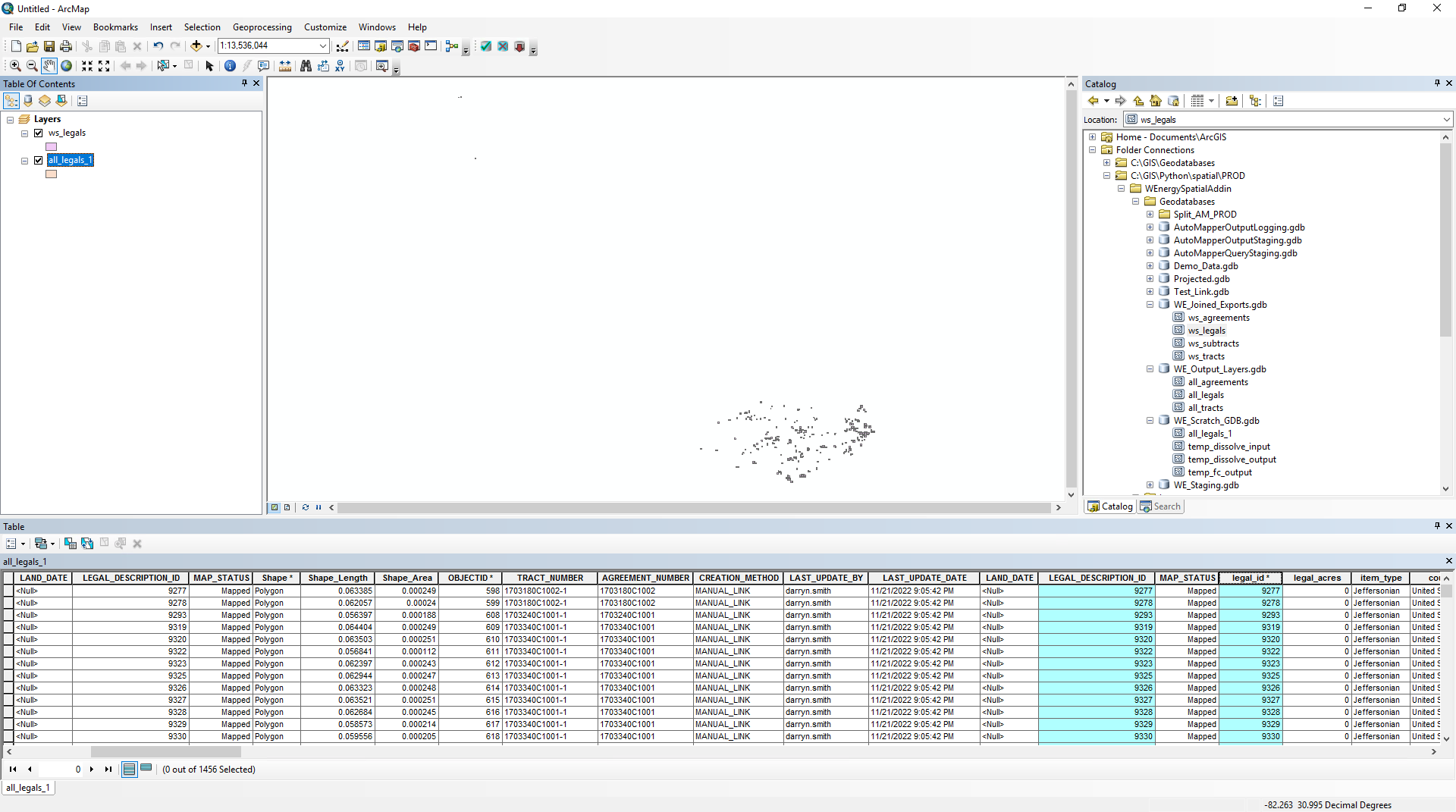
Any record that has a LEGAL_DESCRIPTION_ID value but is missing the legal_id field is an orphaned legal item polygons.
This is because the legal_id field comes from the ws_legals layer which is derived from a view that only contains records that have both a polygon and a legal item.
If the polygon does not have a legal item from the Land module that exists, the record does not exist in the view and does not exist in ws_legals.
How to Confirm if the Orphaned Polygon Has Remaining Sibling Polygons
It is important to identify if the orphaned legal item polygon has remaining “sibling“ legal item polygons that still exist.
A sibling legal item polygon is a legal item polygon that shares the same parent tract as another legal item polygon.
If sibling legal item polygons exist, we cannot simply delete the orphaned legal item polygon from all_legals, delete the parent tract polygon from all_tracts, and delete the agreement header polygon from all_tracts.
If no sibling polygons exists, then the above method can be performed.
To verify if siblings exist, copy the parent tract number of the orphaned legal item polygon from all_legals.
Right-click on ws_legals and select Properties…
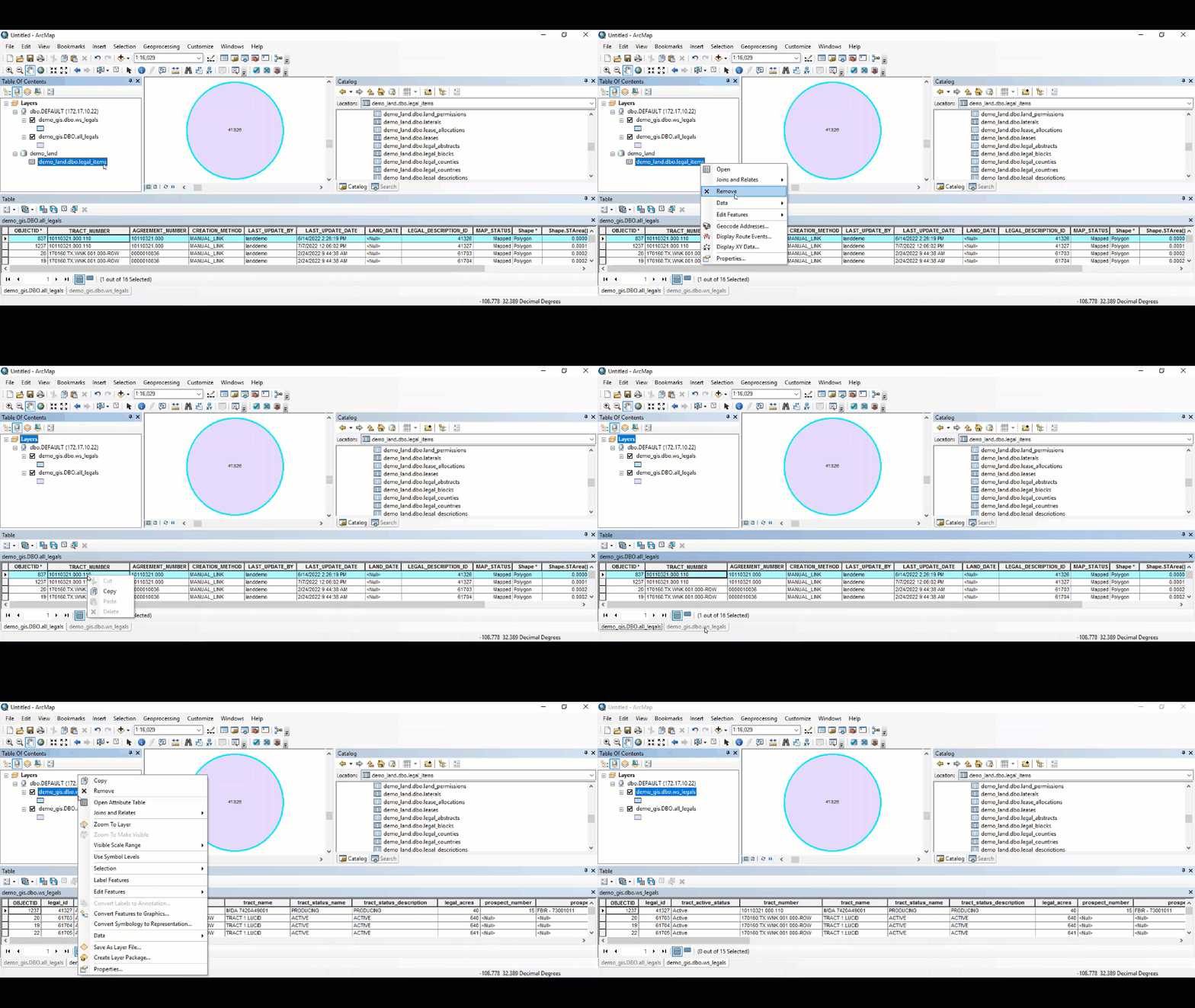
Toggle over to the Definition Query tab and paste the copied tract number into a definition query.
Hit Apply.
In this scenario, there is 1 sibling legal item polygon that exists.
How to Remove an Orphaned Polygon with Remaining Sibling Polygons
Because a sibling legal item polygon exists, we will first copy over the sibling polygon into a feature class in a file geodatabase. We will delete the orphaned legal polygon from all_legals and relink the existing sibling polygon.
This methodology will ensure the parent tract and agreement polygon of this sibling polygon are rolled up correctly and reflect the existing child legal item polygon appropriately.
Saving the Sibling Legal Item Polygon
Drag and drop the feature class in the file geodatabase that is used for linking.
Please see the Manually Linking a Polygon 🔗 walkthrough for details on creating the schema for this feature class.
Right-click on the legals_link layer and select Open Attribute Table.
Right-click on ws_legals, Selection -> Make This the Only Selectable Layer.
Right-click on the legals_link layer and select Edit Features -> Start Editing.
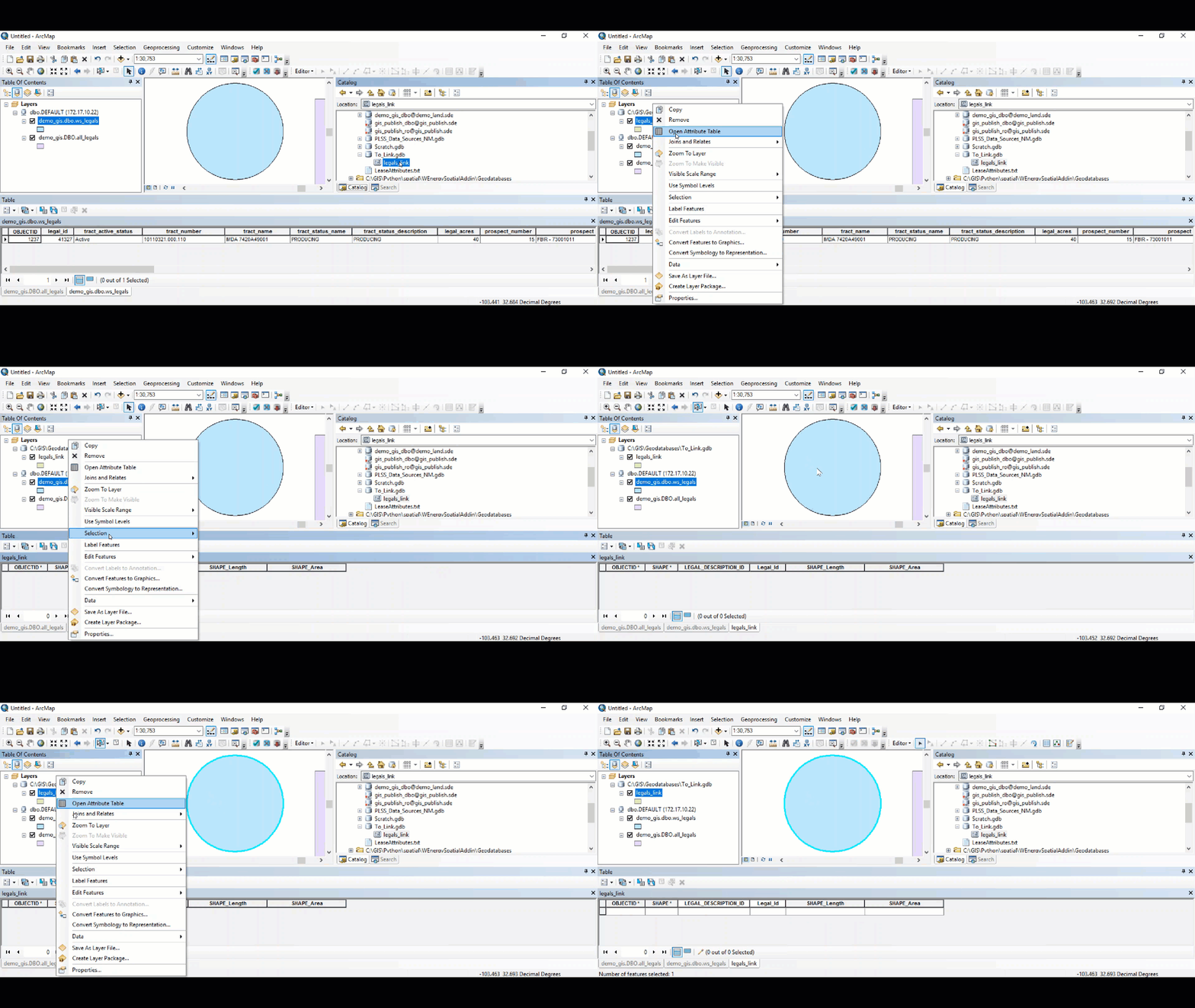
If the Edit Tool in the Editor Toolbar at the top is not highlighted, please select it.
Right-click on the polygon in the dataframe and select Copy.
Right-click in the dataframe and select Paste.
The target layer to paste the polygon in is legals_link.
Type in the legal item number in the LEGAL_DESCRIPTION_ID field.
Save the edits and stop the edit session.
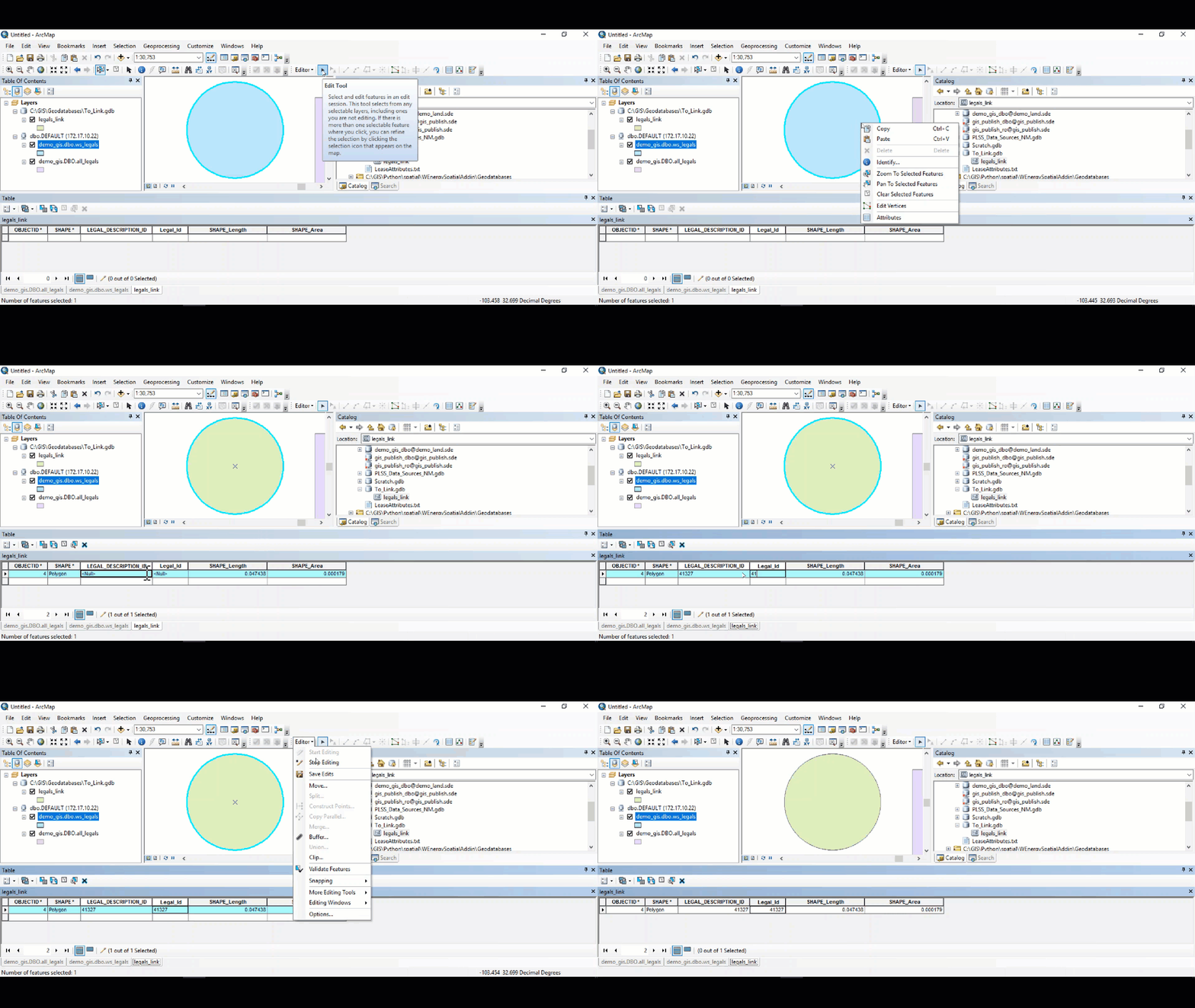
Now that we have saved the sibling legal item polygon in a file geodatabase, we can delete the orphaned legal item polygon from all_legals.
Deleting the Orphaned Legal Item Polygon
Right-click on all_legals and select Edit Features / Start Editing.
If a pop-up window appears saying the data is not editable, please select Continue.
The window pops up because there is at least one layer which is not editable. In this case, it’s referring to the ws_legals spatial view not being editable.
Delete the orphaned legal item polygon from all_legals.
Save the edit session and stop editing.
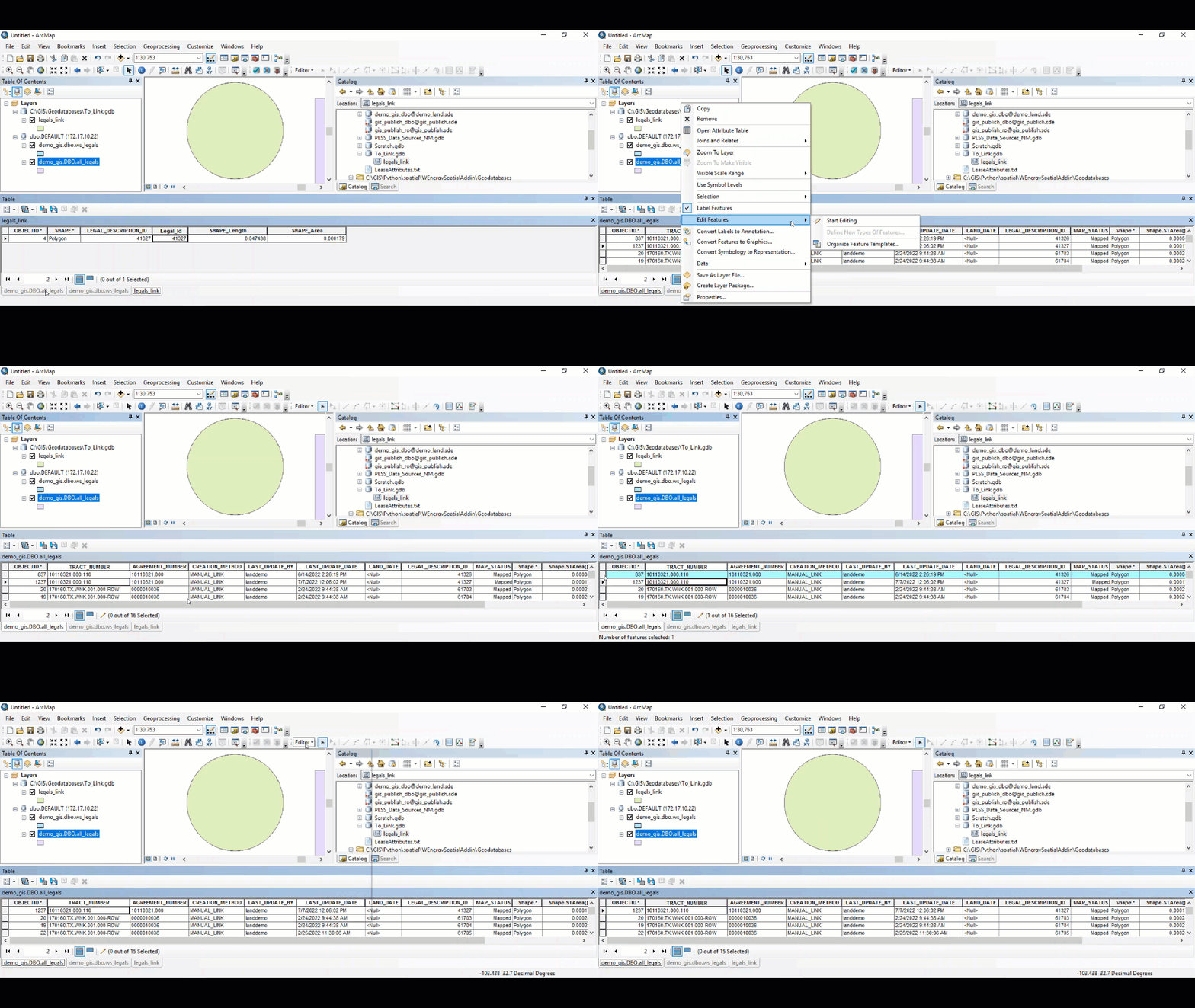
Now we will re-link the sibling polygon to adjust the tract and agreement layer appropriately.
Remove all layers except the legals_link layer.
Right-click on legals_link, Selection / Make This The Only Selectable Layer.
In the toolbar above, click on the Select Features tool
Click on the polygon in the dataframe in which we will link.
In the W Energy Spatial Add-In, select the Link Polygons tool.
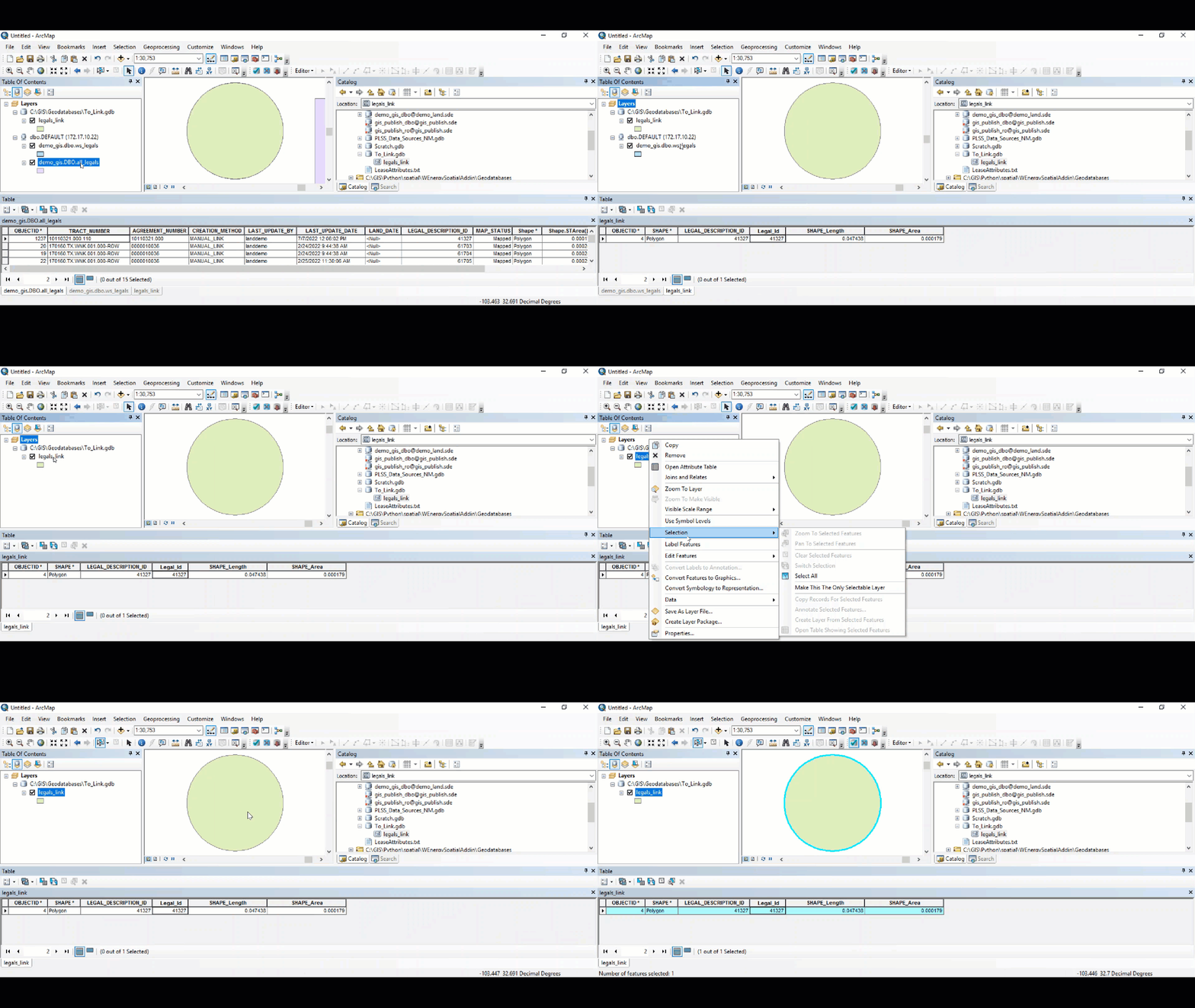
In the pop-up window select OK.
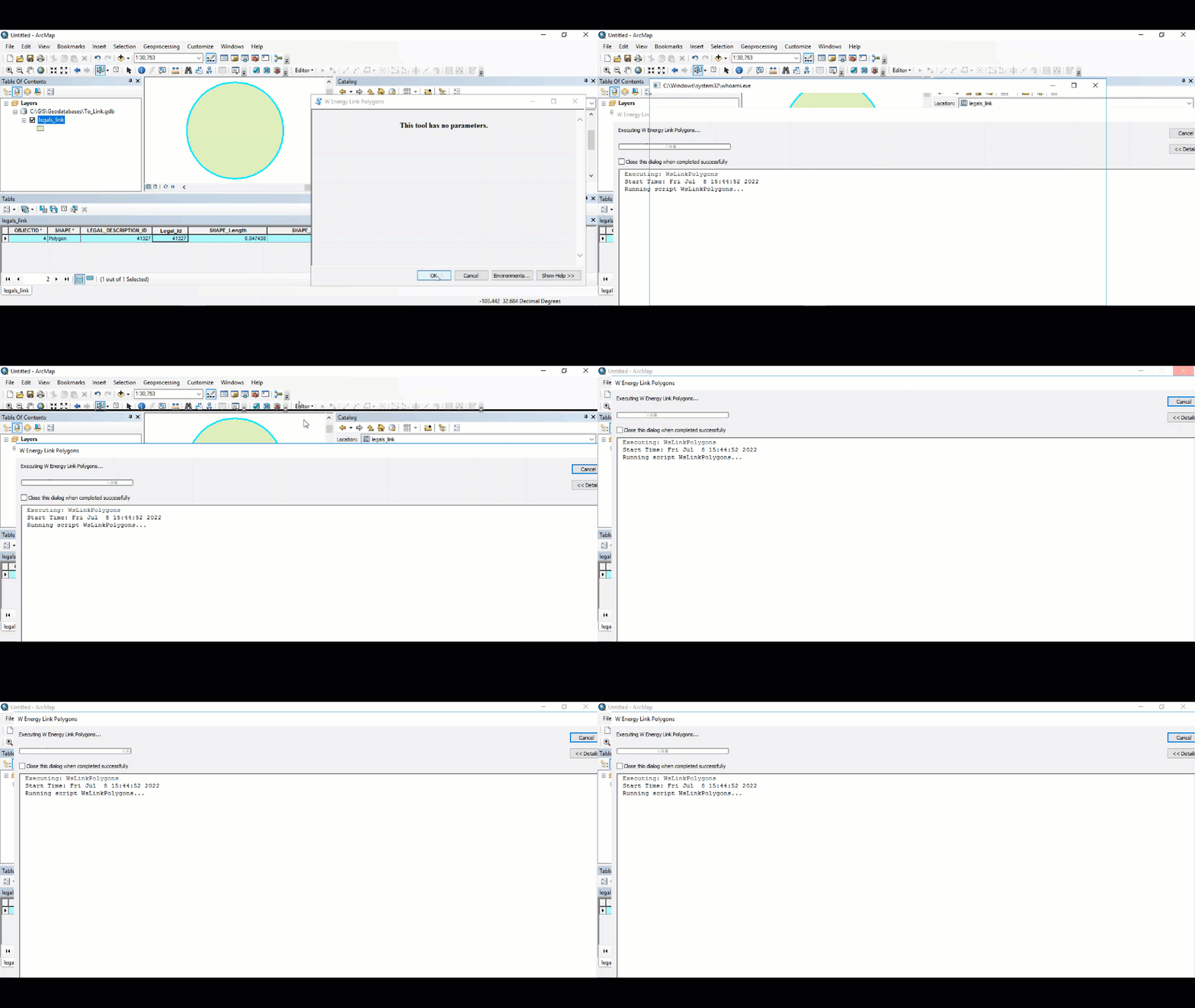
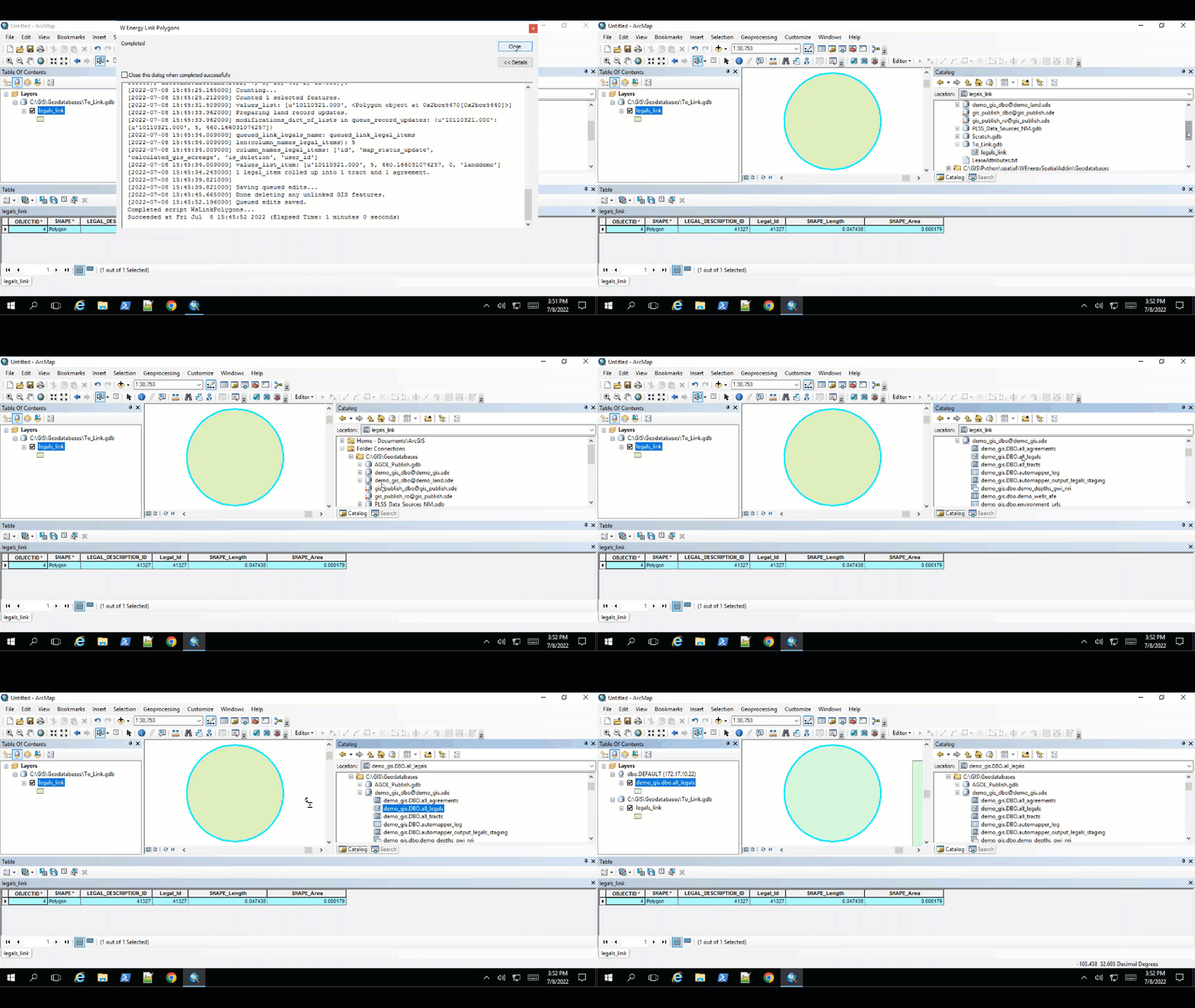
Once the tool completes, the pop-up window can be closed.
To validate, drag and drop the all_legals feature class to the dataframe.
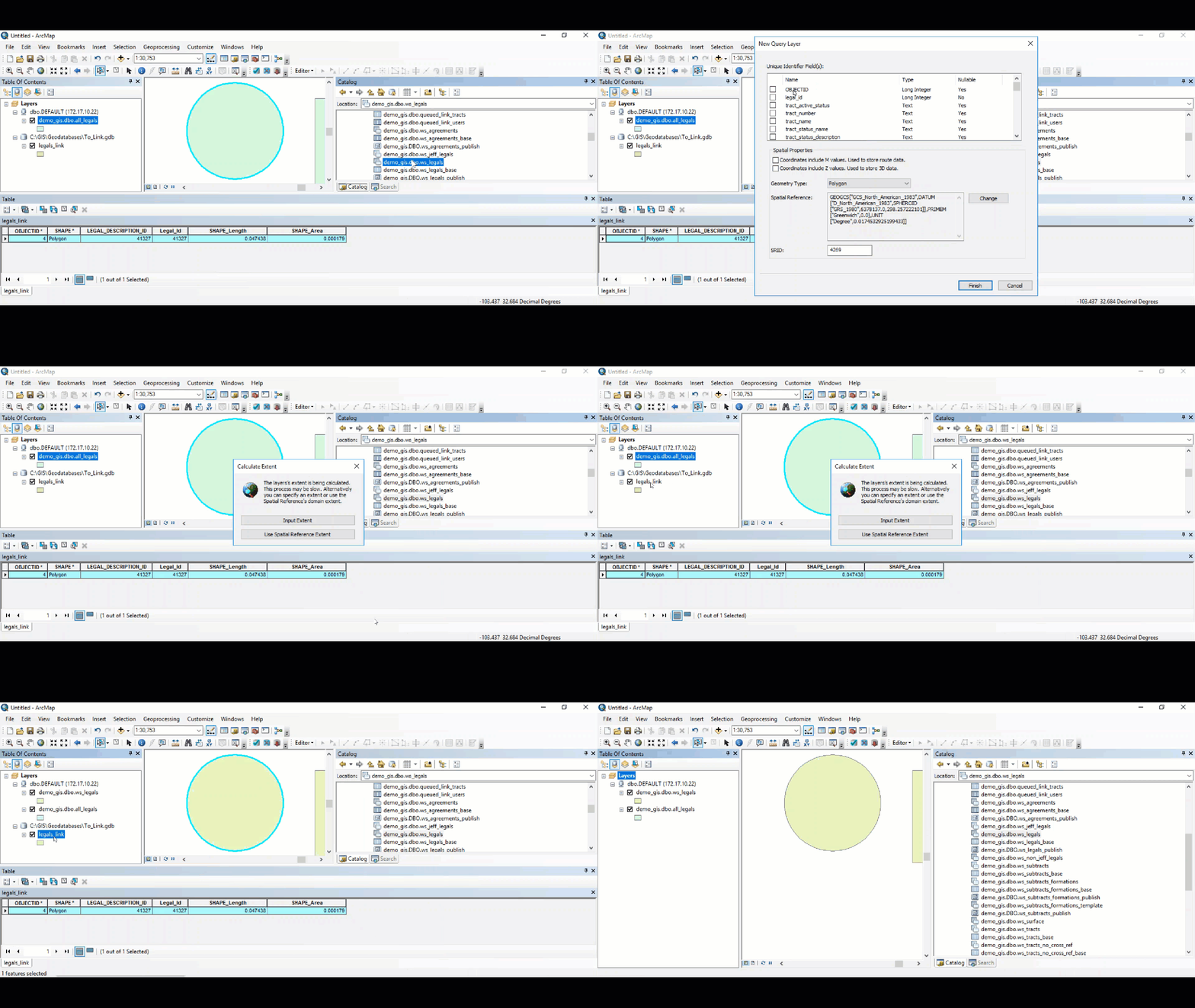
Drag and drop the ws_legals layer to the dataframe as well.
Remove the legals_link layer.
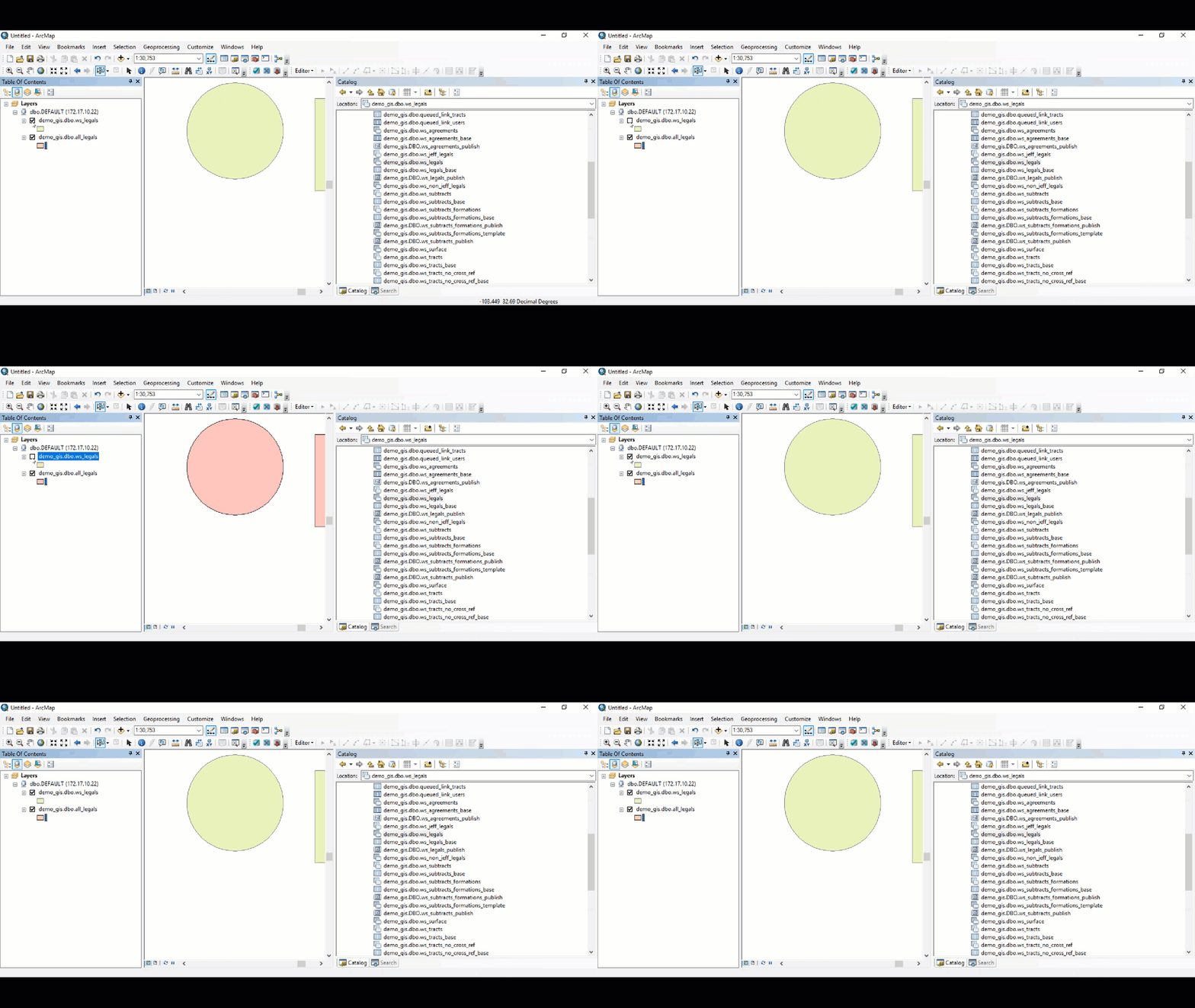
Ws_legals and all_legals should now have the same number of polygon records in both layers.
In addition, the polygon coverage between the Feature Class Rollup and the ws_* layers should all overlap exactly with one another.
Other items worth noting that would impact the process.
Changes coming soon
WEMAIN-4558