
Scheduled Nightly Task 🌙
What is the Scheduled Nightly Task?
The Scheduled Nightly Task (SNT) is a Windows Task Scheduler job created to automate certain processes while the GIS Analyst is not working outside of business hours.
Why would a client use the SNT?
The SNT can be set up to different processes but the jobs are set up primarily to run the Query Staging Tool and Automapper each night.
How to setup the SNT
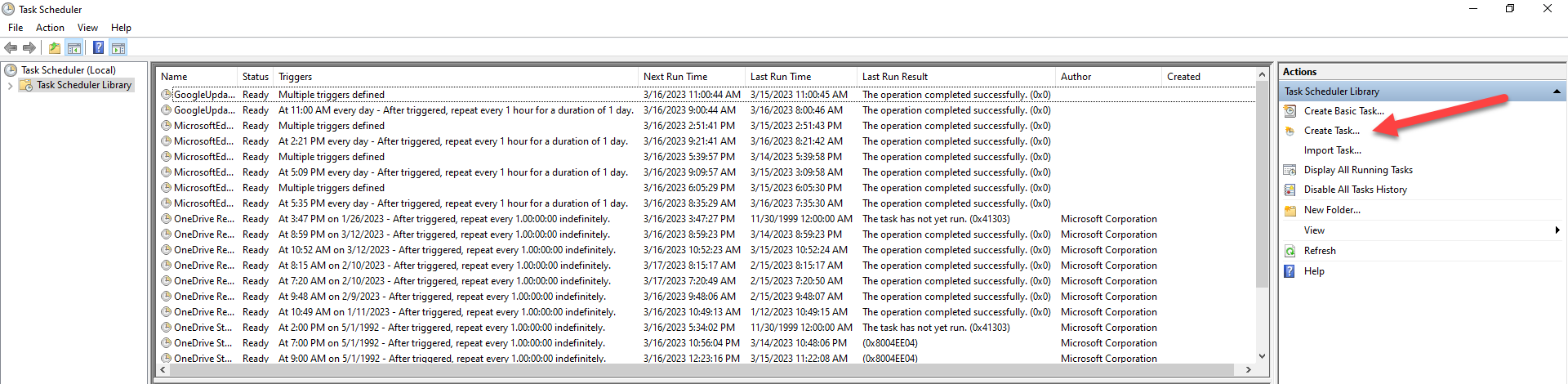
Open the Task Scheduler desktop application.

Select Create Task…
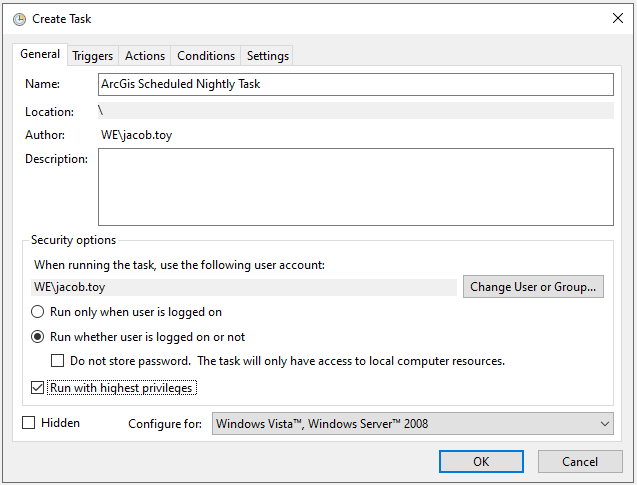
Under the General Tab, provide a name for the job.
Select the “Run whether user is logged on or not“ radio button.
Check off the “Run with highest privileges“ box.
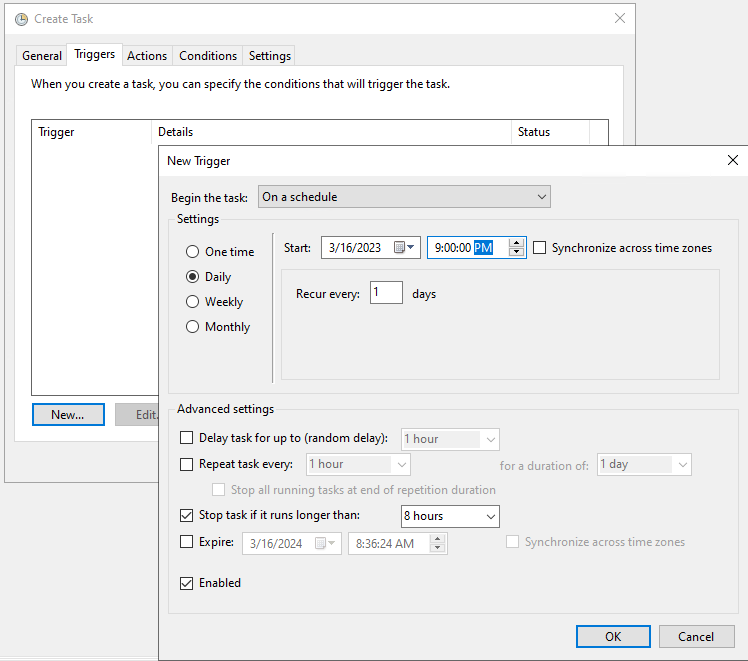
Toggle to the Triggers tab and add a trigger.
Change the Settings to Daily.
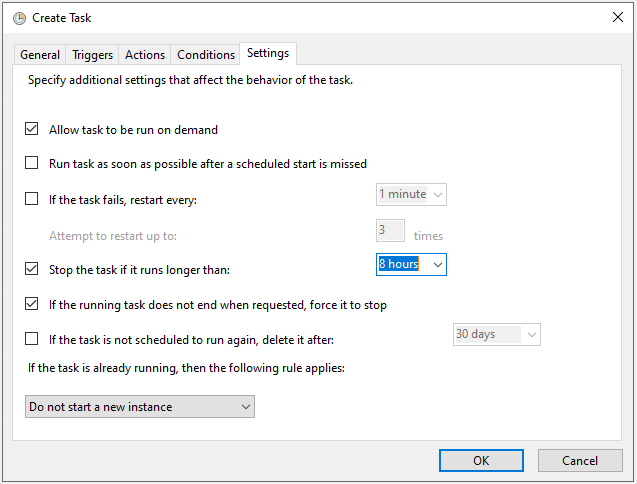
Set the Start time to 9pm to recur every 1 days and it is up to the person setting up the job if the job should stop if it runs over a specified time.
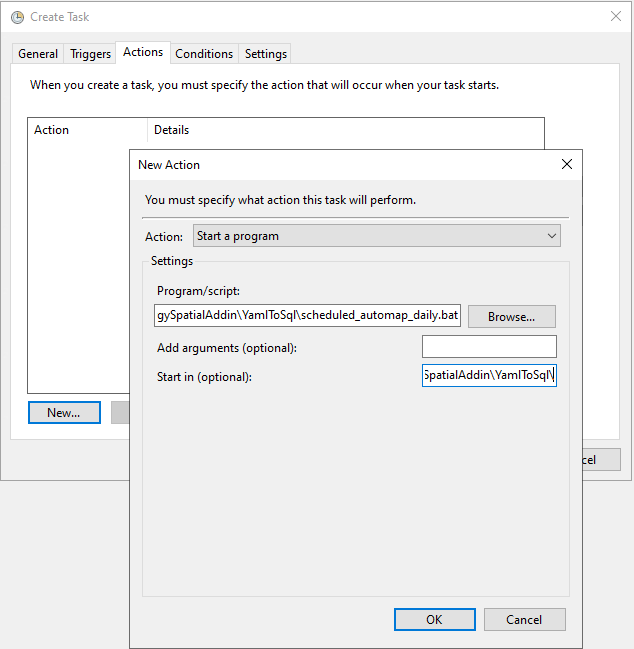
Toggle to the Actions tab.
Set the Program/script to the file path of the batch file we wish to run: C:\GIS\Python\Spatial\TEST\WEnergySpatialAddin\YamlToSql\scheduled_automap_daily.bat
Set the Start in (optional) field to the folder of the file: C:\GIS\Python\Spatial\TEST\WEnergySpatialAddin\YamlToSql\
If the creator of the task wishes for the task to end after a period of time, please also specify that under the Settings tab.
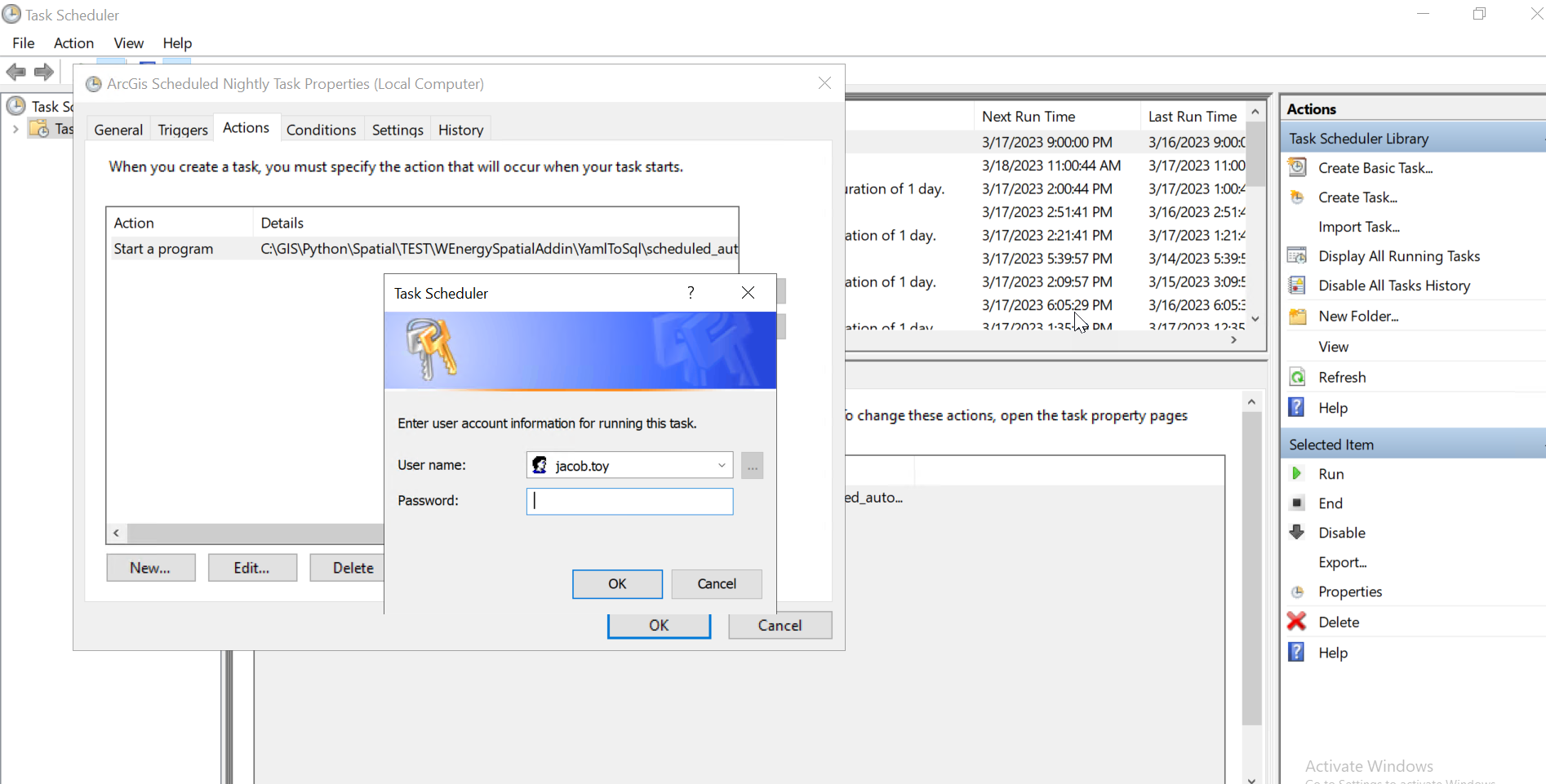
The Windows password is needed anytime the job is created/updated.
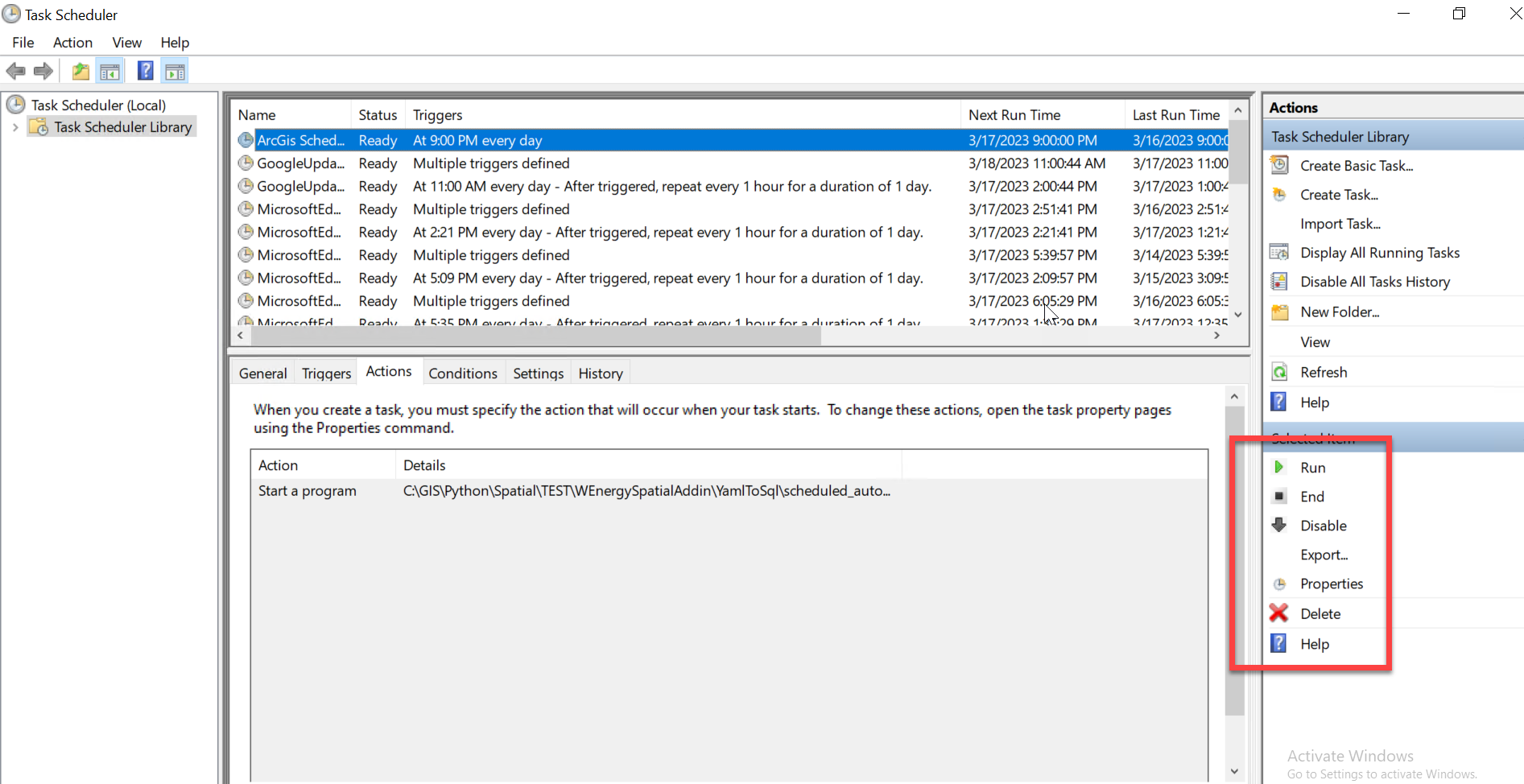
The job has been scheduled but it can be ran manually by selecting Run.
The job can be enabled/disabled as well using the commands in the lower right corner.
Selecting End will end a job that is currently running.
To verify if the SNT has been setup properly, add a Land Legal Description to be automapped.
Please refer to Upload the Land Legal Descriptions 📜 for directions on how to do this.