
Run_Ruby_Script
What is the Run_Ruby_Script Job?
The Run_Ruby_Script job runs Rails command scripts in the form of .txt files.
How to Run a Ruby Script
Click on the Run_Ruby_Script in the Support folder.
Click on Build with Parameters on the left sidebar.
Choose account from the dropdown menu.
Choose the app_server.
Found using Get Weinfo
Example: gme-project2 for GME Project2
Attach Ruby script as a .txt file. Always attach Ruby script as a .txt file
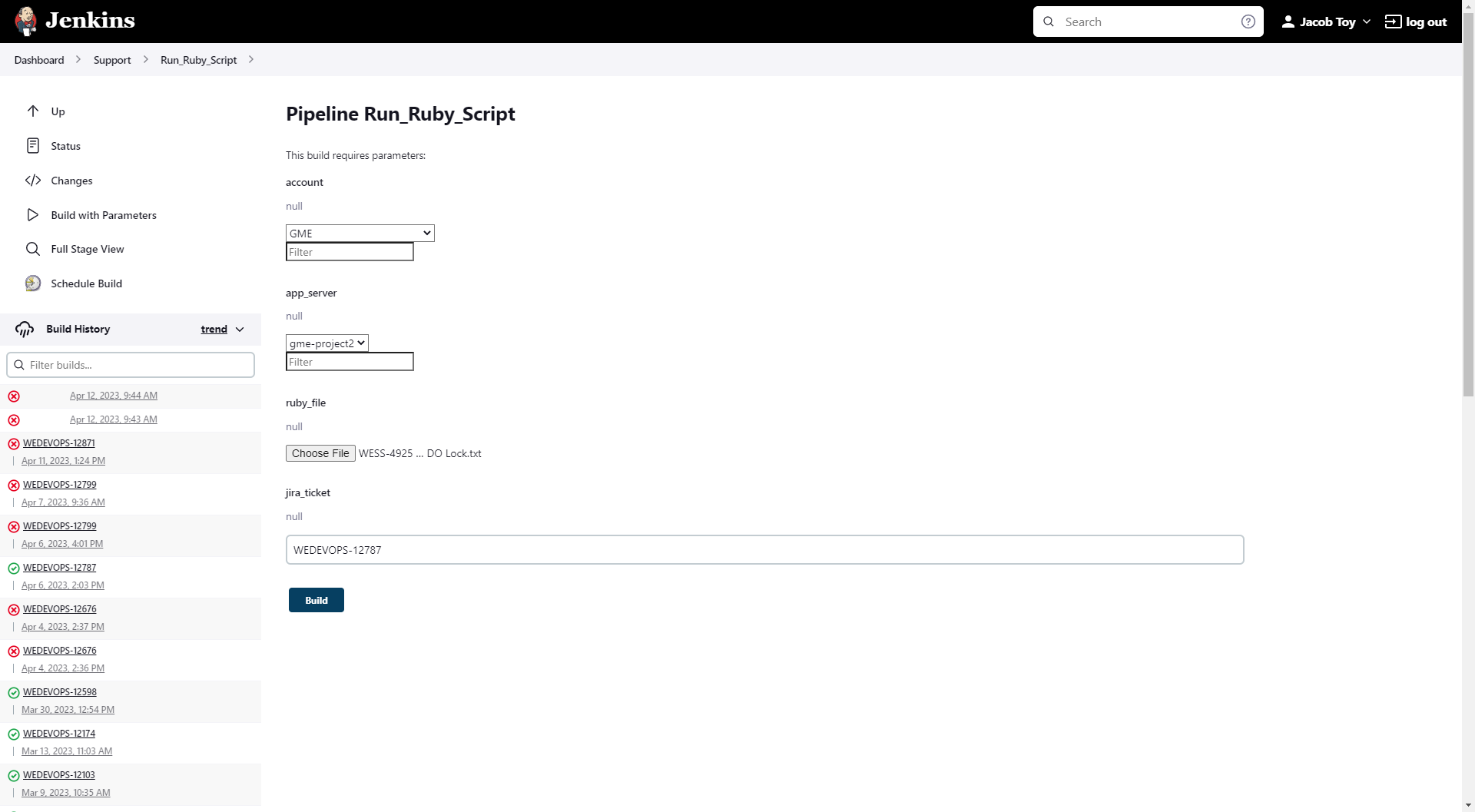
Populate the jira_ticket field and click Build.
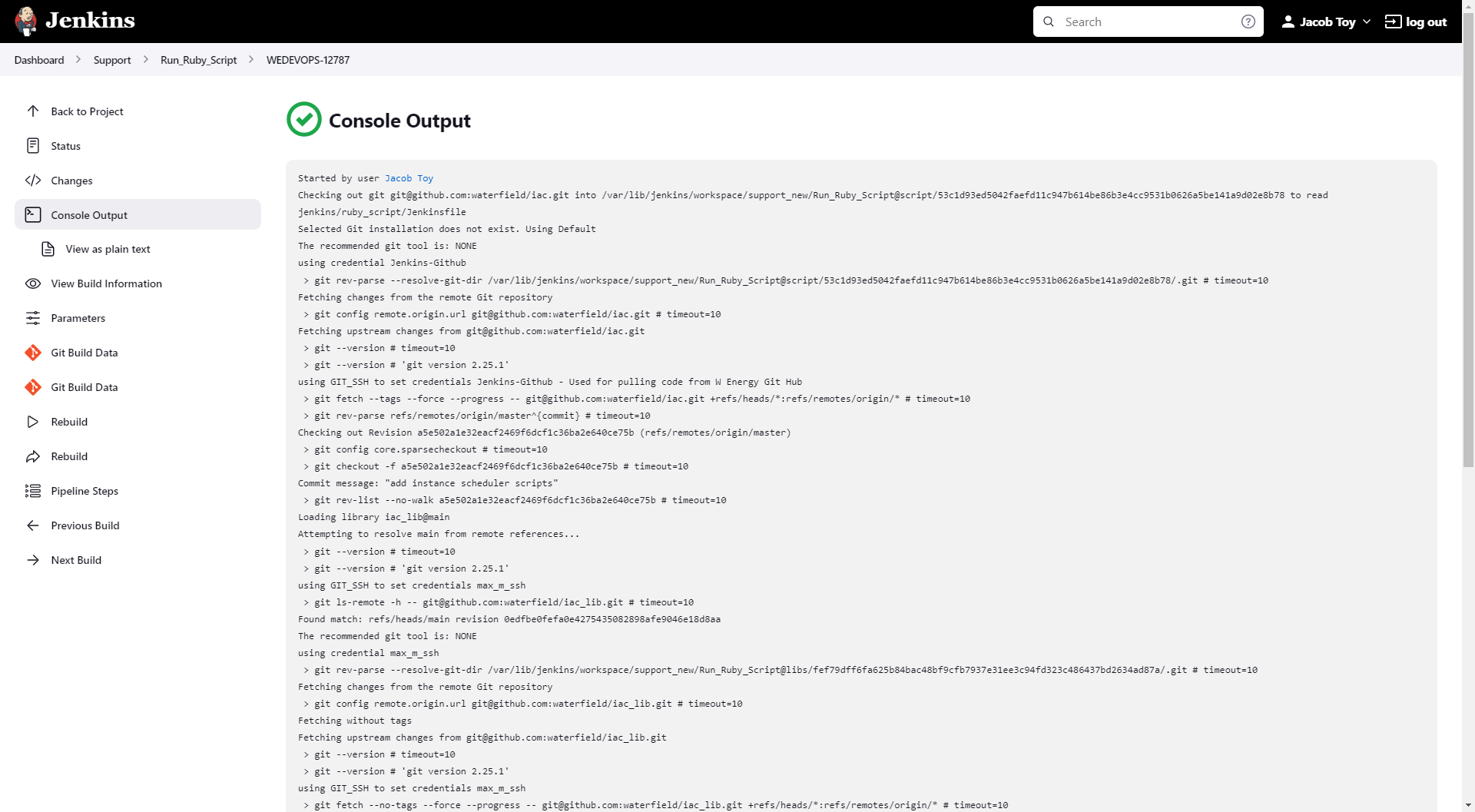
Click Console Output on the left side of the screen.
Scroll down to the bottom of the page to when the job is finished
📘 If there are multiple ways to do this setup list each one out
Running Ruby scripts can also be completed through mRemoteNg.
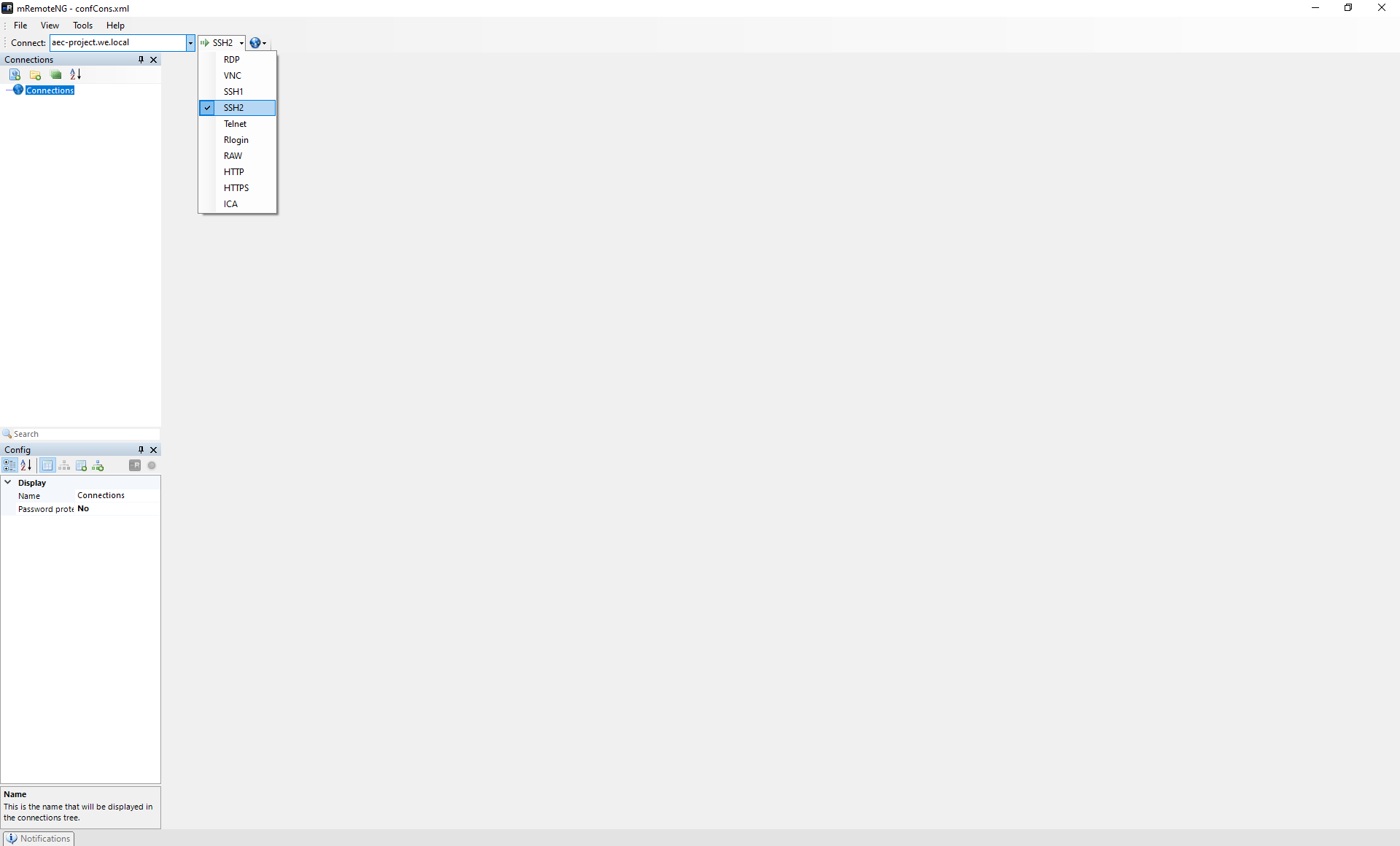
Launch the mRemoteNg application.
Under the Connect field, type in the application server.
Select SSH2 in the field to the right of Connect.
Type in wti as the login and press enter.
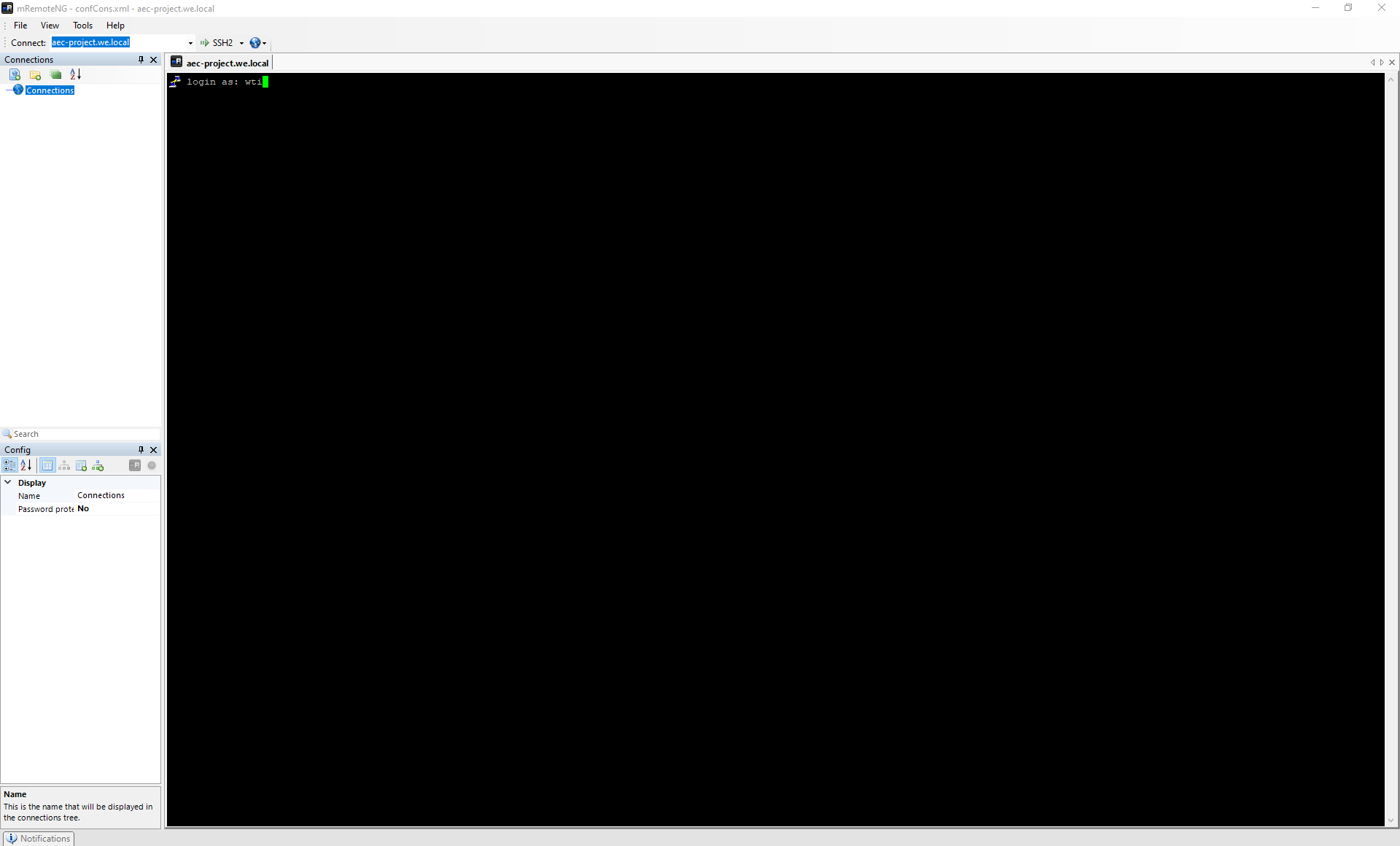
Type in the password and press enter.
Type in railsc.
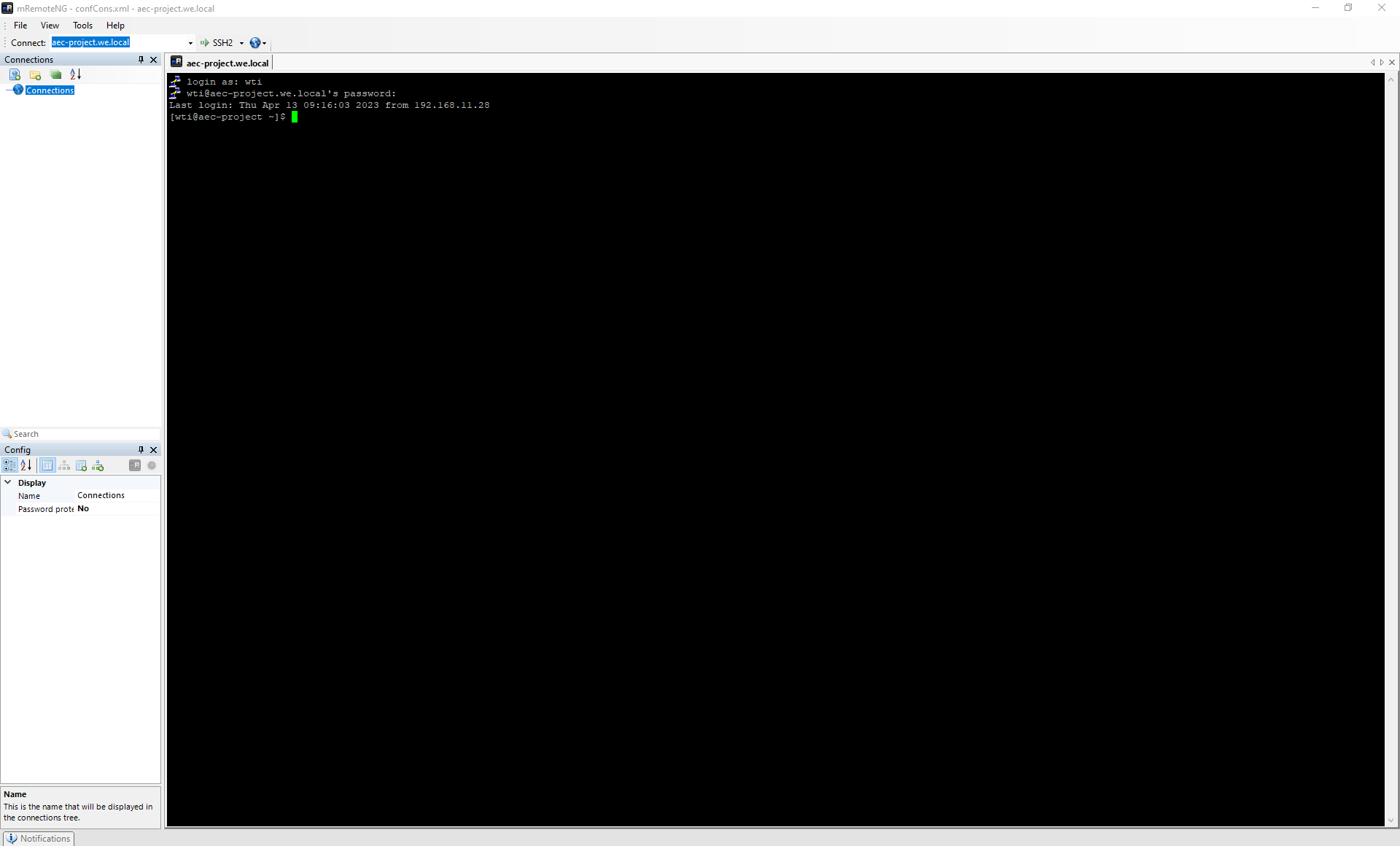
Wait a few minutes for the application to say irb (main).
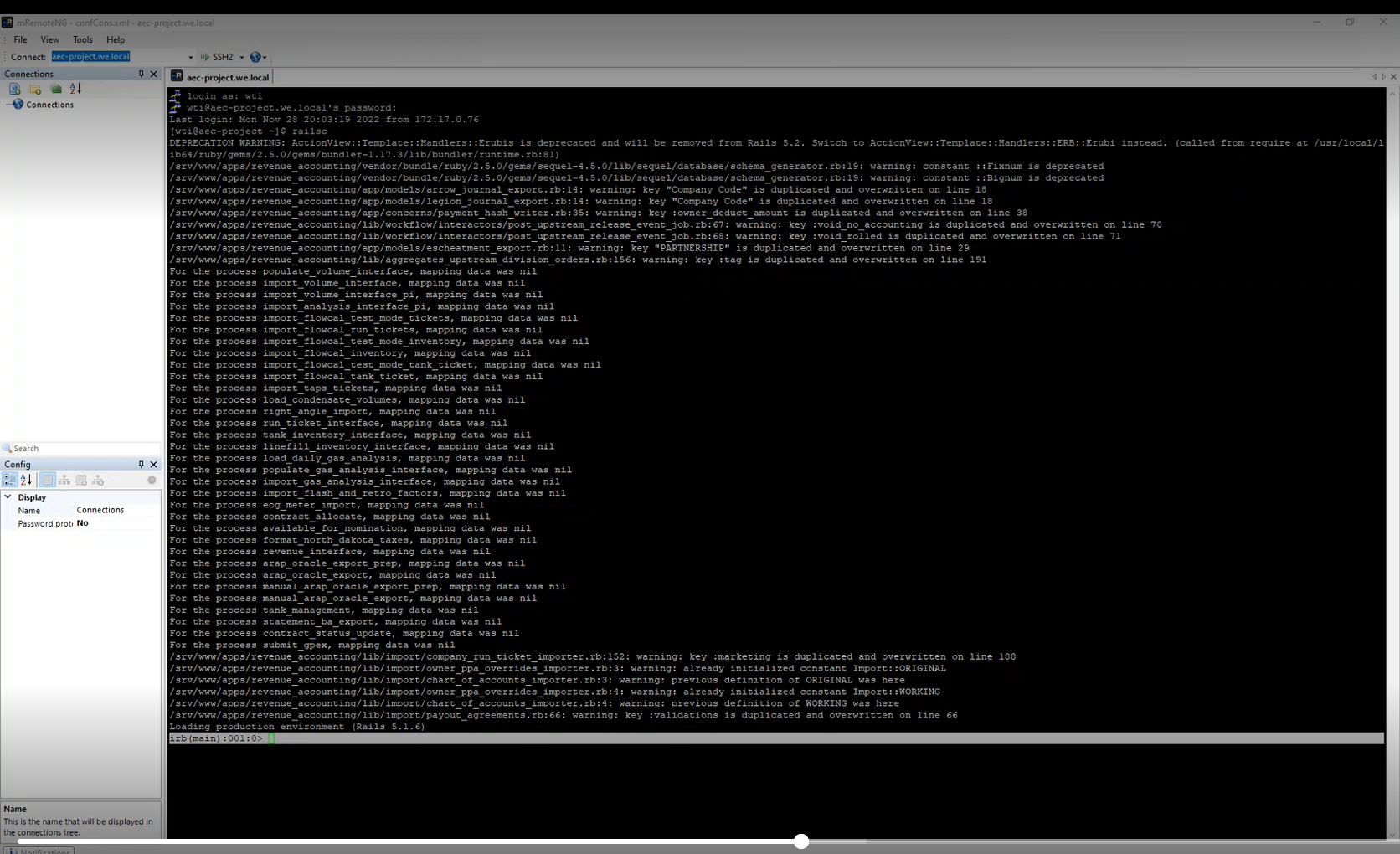
The text from the Ruby script can be copied and pasted into mRemoteNg.
NOTE: right-clicking into mRemoteNG automatically pastes and hits enter to run the command.

Press enter to run.

Once complete, another line will appear to know you are ready to run the next command or can to quit to exit.

Other items worth noting that would impact the process.
Changes coming soon
Known issues with the process
Related Documentation
Frequently Asked Client Questions
Links provided are from W Energy Software Support Confluence Space @a user