
Query Staging and Automapper Tools 🔧
What are the Query Staging and Automapper Tools?
The Query Staging Tool is a GIS command that queries for potential Land Legal Items that are eligible for automapping. The command returns these items from the main database over to the GIS database to be automapped.
The Automapper is a GIS tool that reads the Land Legal Items that are eligible for our system to automatically map rather than have the GIS Analyst manually map the item.
Why would a client use a the Query Staging and Automapper Tools?
Combined, these tools can save tens of thousands of manual mapping and linking hours by the GIS Analyst. This system automates the job for the legal items that can be mapped by a machine so that the GIS Analyst can focus on other tasks.
How to setup the Tools in the System
The tool setup is completed by the GIS Software Developer. Once the setup is completed, either the Services Consultant or the QA Analyst will validate the work and close out the ticket. Below is an example ticket:
WESS-2774
How to Run the Tools
Query Staging Tool
If the VDI has the Query Staging Tool shortcut on the Desktop, you can double-click it which will open a window. The window will close once the tool has completed.
If the VDI does not have the shortcut on the Desktop, navigate to the Install folder on the VDI which will be in a file path similar but not exactly like: C:\GIS\Python\spatial\WEnergySpatialAddin\Install
Copy the file path directory.
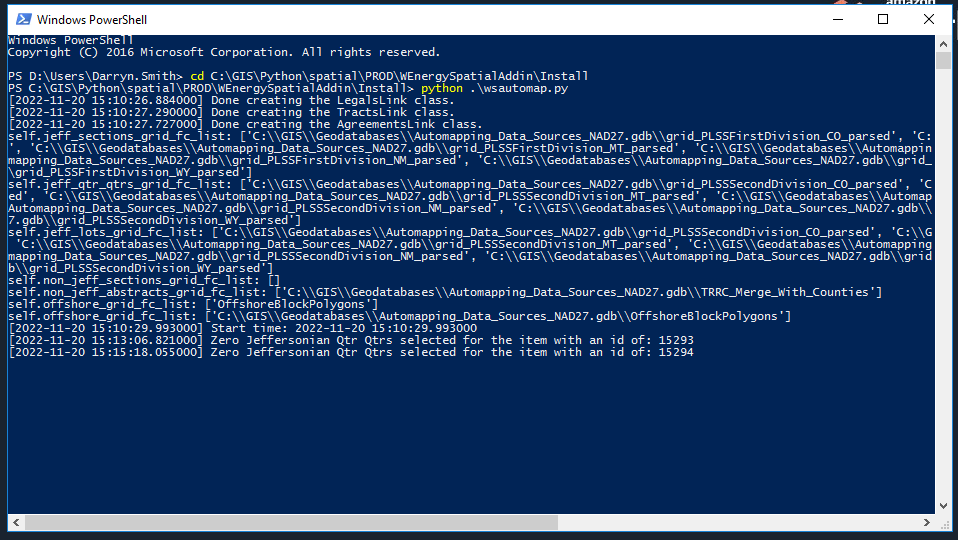
Open Windows PowerShell on the VDI.
Switch the directory by typing in the following and hitting Enter: cd C:\GIS\Python\spatial\WEnergySpatialAddin\Install
To run the Query Staging Tool, type in the following: python .\wsquerystaging.py
The PowerShell window will not close if this method is used. The tool will complete once the window displays how many records have been retrieved.
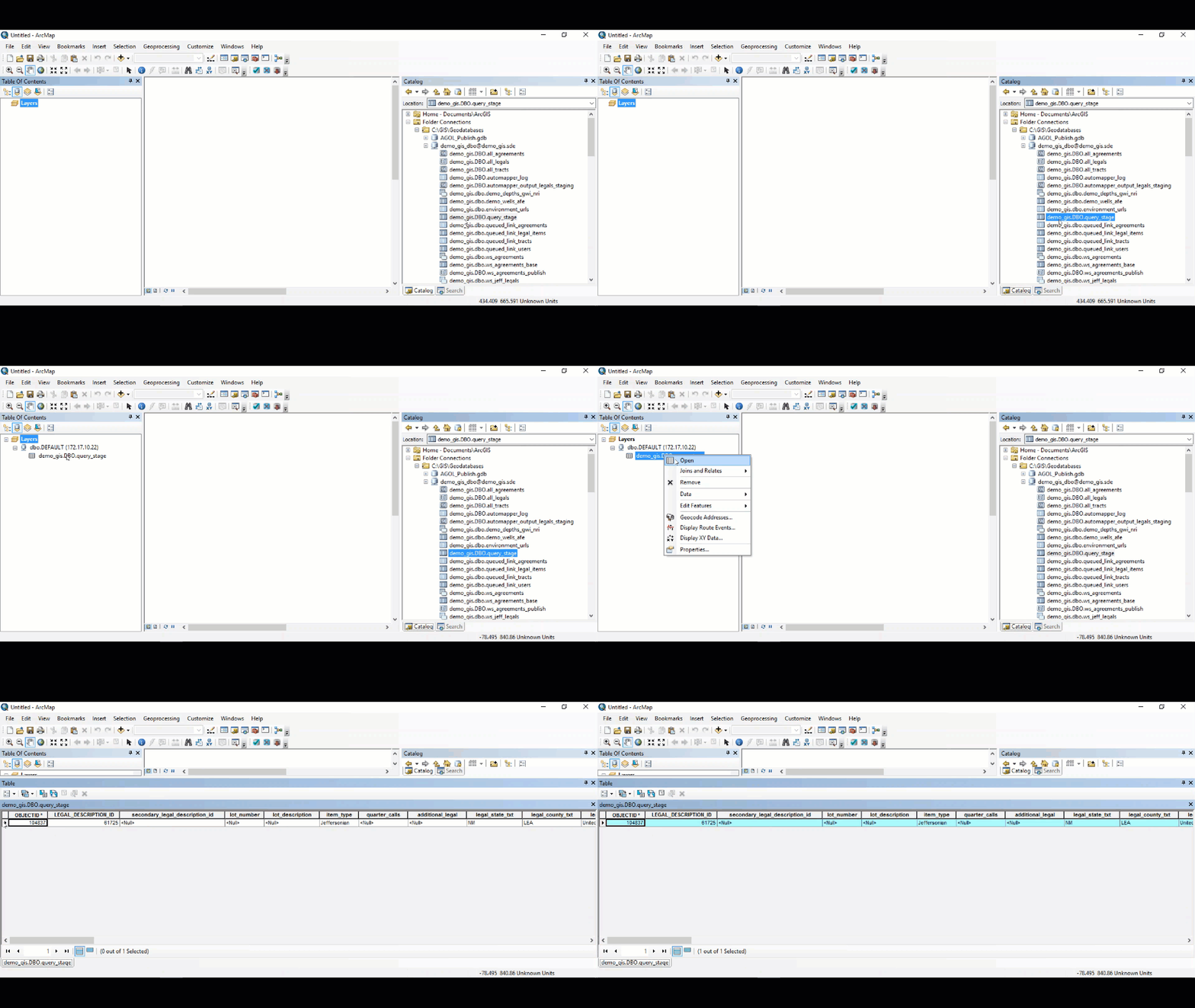
To see which Land Legal Items have been retrieved, launch ArcGIS Desktop.
Drag and drop the query_stage table into the Dataframe.
In the Table of Contents, right-click on the query_stage table and select Open.
Automapper
If the VDI has the Automapper shortcut on the Desktop, you can double-click it which will open a window. The window will close once the tool has completed.
If the VDI does not have the shortcut on the Desktop, navigate to the Install folder on the VDI which will be in a file path similar to but not exactly like: C:\GIS\Python\spatial\WEnergySpatialAddin\Install
Copy the file path directory.
Open Windows Powershell on the VDI.
Switch the directory by typing in the following and hitting Enter: cd C:\GIS\Python\spatial\WEnergySpatialAddin\Install
To run the Automapper, type in the following: python .\wsautomap.py
The PowerShell window will not close if this method is used. The tool will complete once the window displays how many records have automapped.
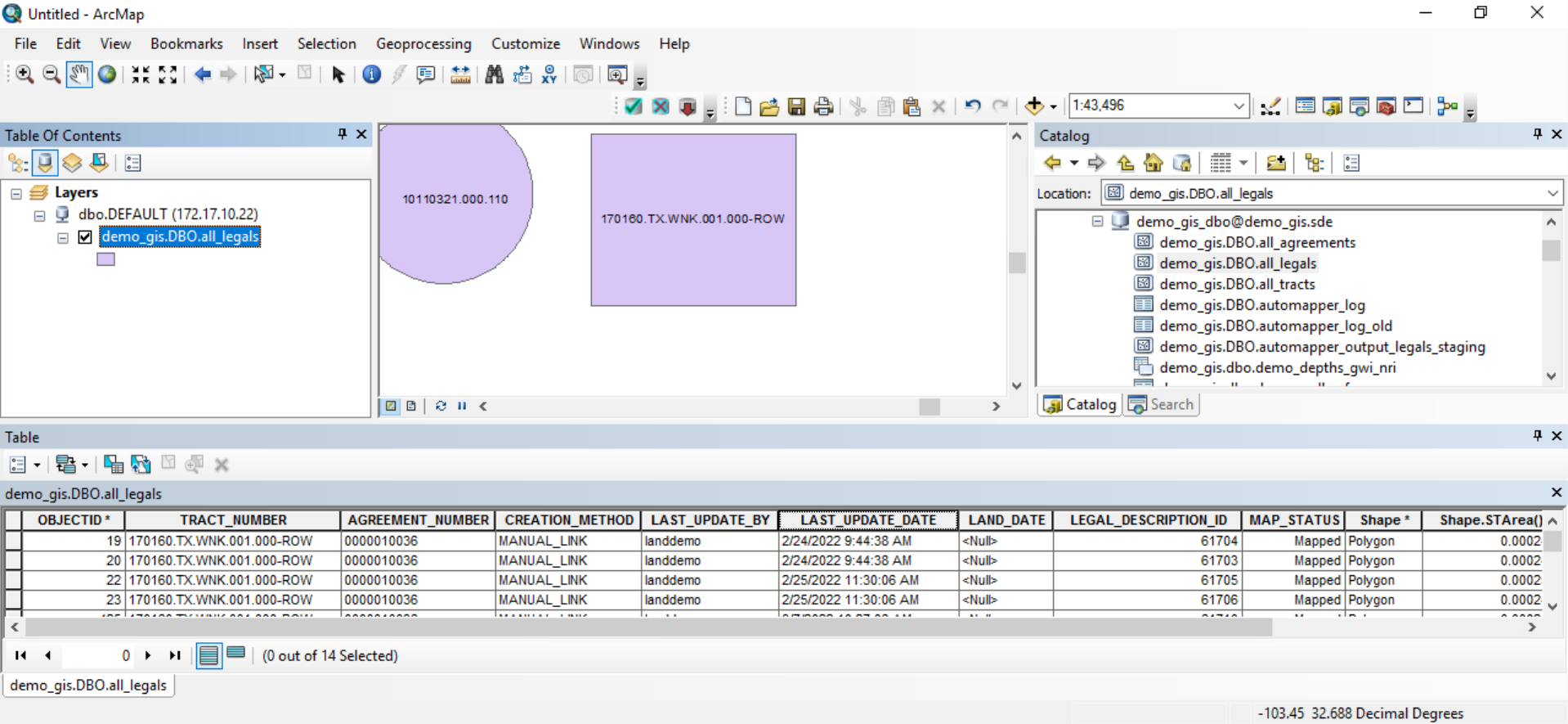
To view the mapped legal item(s), launch ArcMap.
Drag and drop the all_legals layer into the dataframe.
In the Table of Contents, right-click on the layer and select Open Attribute Table.
Double-click on the LAST_UPDATE_DATE field to sort the polygons from oldest to most recently mapped.
Setting up the Scheduled Nightly Task
The Query Staging and Automapper Tools can not only be kicked off manually, but can also be initiated as part of a Scheduled Nightly Task. This is possible if the client provides a Concurrent Standard ESRI license and client is taking Cognos Reporting. If the license is Single or Basic, the license will not work for the nightly task. If the client is not taking Cognos Reporting, there is no Cognos Server for the task to be placed on.
Once the Automapper has been configured and validated to work manually, the config file and the grid data can be handed off to DevOps to be placed on the Cognos Server which hosts the Scheduled Nightly Task.
WEDEVOPS-6622