
Prior Period Adjustments (PPA)
What is a PPA
A prior period adjustment (PPA) is a correction to a reported time, pay, or classification on a previous financial statement.
WES offers an easy PPA solution making it possible to track record-keeping data at a more granular level throughout the system by using “Timelines”. A Timeline is a way to organize process dates and data. A new Timeline can be created only when a new PPA is started. Asset process timelines are driven by Production Date.
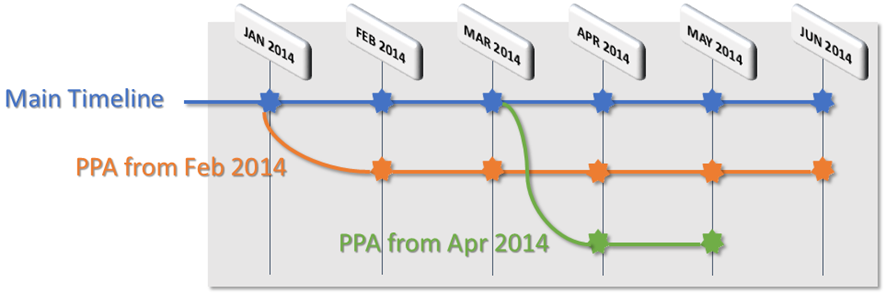
There will always be a “Main” timeline. A PPA timeline will be an off-shoot from the Main timeline.
Keep in mind…
There can only be one period open at a time in a timeline. For example, only one March Production Date per asset per timeline.
Results on different timelines would not interact EXCEPT when doing reversal/rebook, like a PPA.
Timelines (like a PPA) can reuse the same prod/acct dates as another timeline.
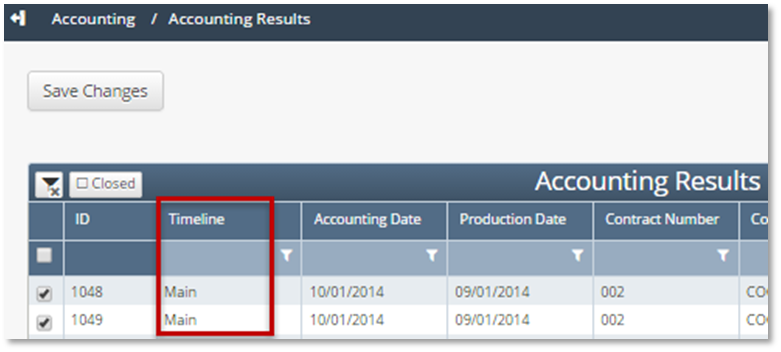
Many of the results pages have been updated to include the name of the associated Timeline.
Why would a client use a PPA
PPA’s are commonly needed in the energy industry because production and measurement data is constantly being audited and refined to produce more accurate monetary values. These refinements can often come after a monthly accounting close, in which case a PPA may be necessary.
How to run a PPA in the system
To create a Prior Period Adjustment, first make sure all pertinent system data has been revised (volumes, analyses, etc.), either from the Physical Setup pages, or by uploading the data on the Process Control page.
The Accounting Date used for the PPA must first be created on the Asset Process Control / Accounting Dates page.
The Asset-Level PPA addresses updates for asset level processes. If updates are needed for Distribution, that will be handled on the Company Process Control / Process Control page.
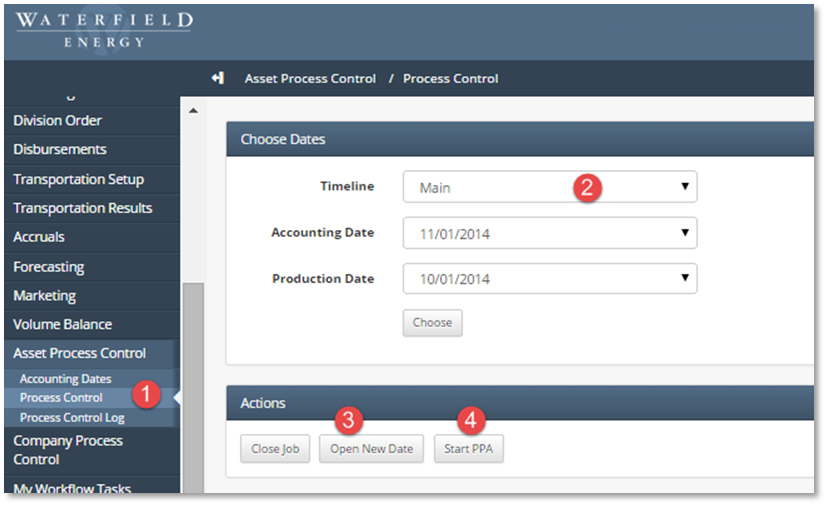
Go to Asset Process Control / Process Control
Select a Timeline to start from (defaults to “Main”). A PPA can only be created from the Main timeline.
If needed, click on “Open new Date” to create a new Production Date.
Click on the “Start PPA” button
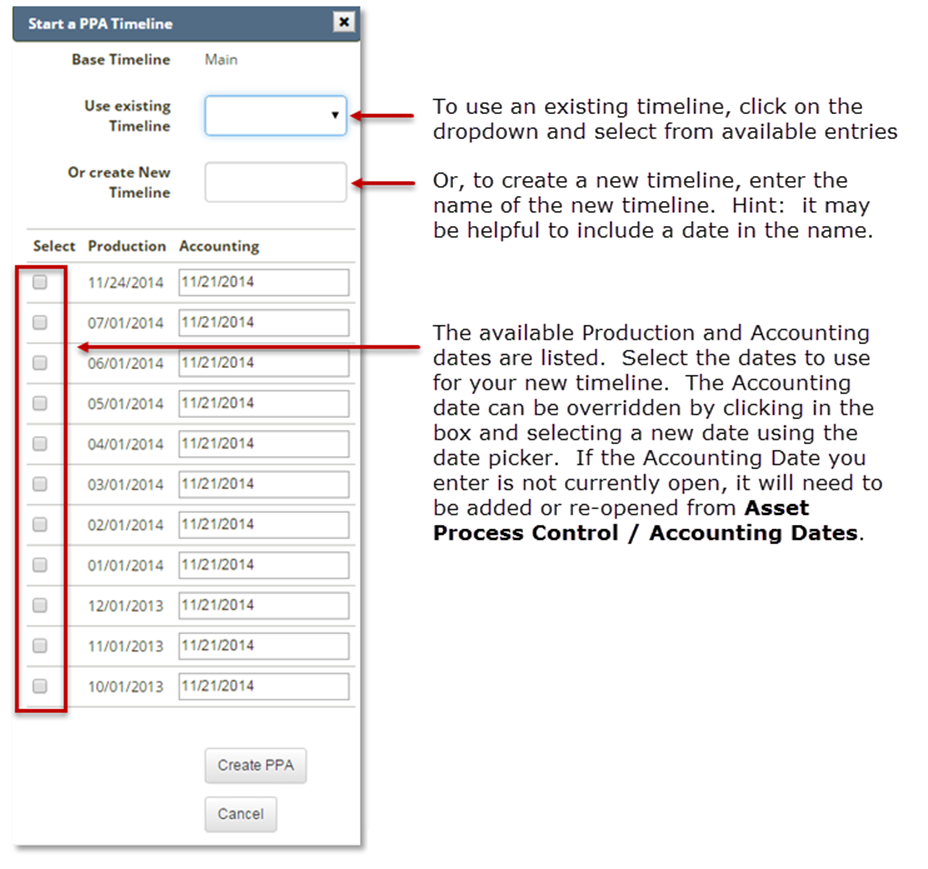
Click on the “Create PPA” button
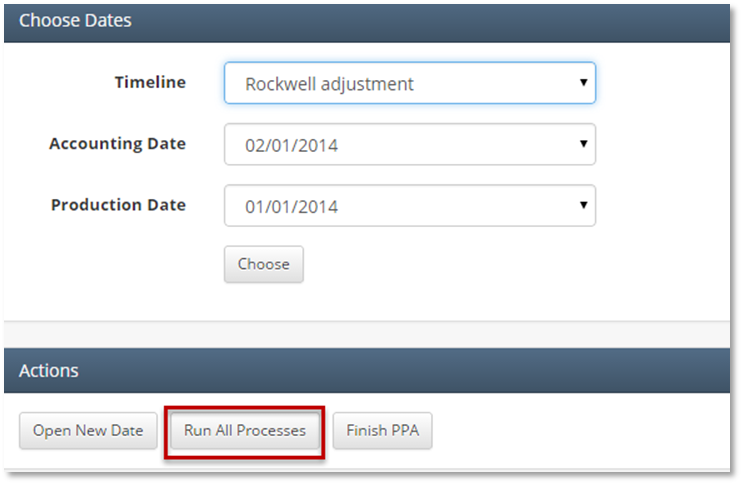
All processes can be run from the main timeline automatically by clicking on the “Run All Processes” button.
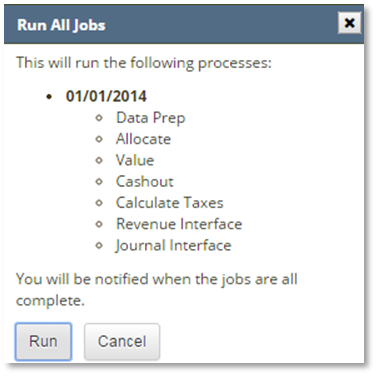
A warning popup will display all processes that will run and the start date.
To abort, click on the “Cancel” button.
To proceed, click on the “Run” button.
After a PPA is created, it can either be discarded or it can be promoted to become the new "Main" timeline.
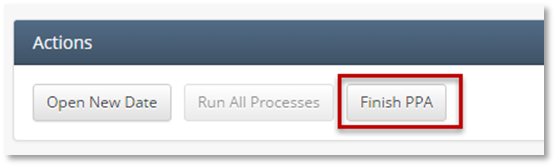
Click on the “Finish PPA” button.
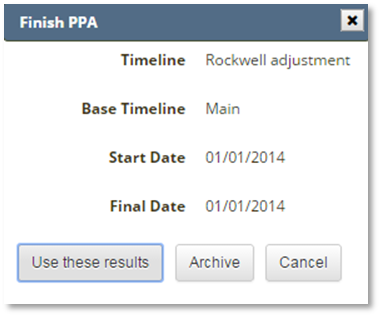
To use the PPA as the new Main timeline, click on the “Use these results” button
To discard the results from the PPA, click on the “Archive” button

Highlight important information in a panel like this one. To edit this panel's color or style, select one of the options in the menu. For example, processes must be run through value and month closed to generate data that would be needed for this concept.
📘 If there are multiple ways to do this setup list each one out
How does this concept impact/feed other areas in the application?
For example, Check input is required for Revenue to to allocate funds to correct owners.
Other items worth noting that would impact the process.
Changes coming soon
Known issues with the process
Frequently Asked Client Questions
Links provided are from W Energy Software Support Confluence Space @a user