
Process Control
What is Process Control
The Process Control page is the command center for processes. Use this page to start a process, monitor its progress, and view the results of the process when it is completed.
The Process Control section is divided into groups created in the “Asset Batch Process Groupings” code table. The box to the left of the section will expand or collapse the section when clicked.
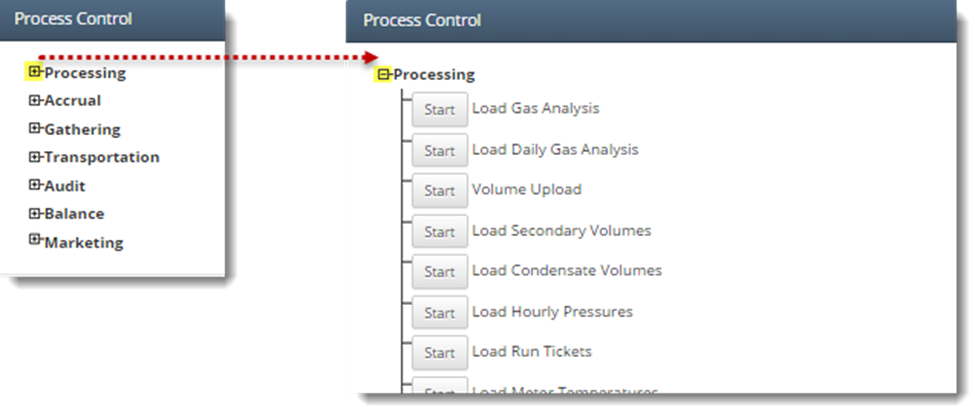
Each process is unique by name, and may appear in multiple groups. For instance, the Purge process is the same under Processing as it is in Transportation. Each occurrence of a process will display the run information, whether it was run in that grouping or another.
Keep in mind…
Do not select the “Close Job” button until all process for the selected accounting date/production date have been completed and confirmed. This action is non-reversible.
How to run a process in the system
The first step in running a process is to select the appropriate accounting and production dates.
Once accounting and production dates have been chosen, a variety of batch processes can be run. The processes are listed on the Process Control page in the typical order they would be executed. (Depending on the modules and profiles assigned to a user, different options are visible on the Asset Process Control Page.)
Press the start button to the left of the first process you would like to run.
WES displays the current status during the running of a process.
· “Queued”: process has been initiated, but is waiting on other processes to run
· “Running”: process is currently running
· “Finished. Running Reports.”: process is complete; reports are being generated
· “Finished”: process is complete; reports are available
The page will automatically refresh to provide an updated process status.
When a process is complete, Waterfield displays the number of warnings, errors, fatals, and informationals as a hyperlink. To view the details, click the hyperlink.
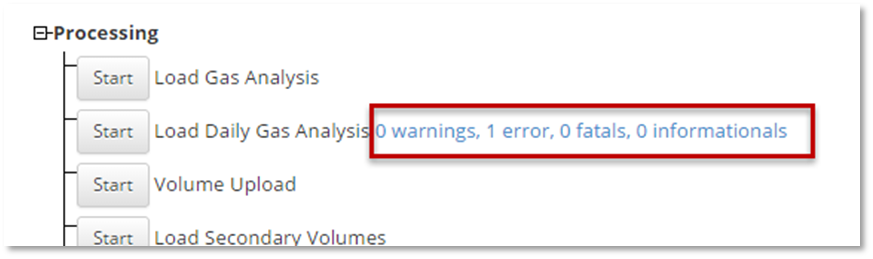
It is important to check and validate fatals, warnings, and errors prior to proceeding with other processes.
4. Close Job
a. Once all the processing for a particular Accounting Date / Production Date have been completed on the asset, clicking the “Close Job” button will mark all related records as closed. This step is required before many actions can be performed at the company level on the Company Process Control page
How to run monthly processes in the system
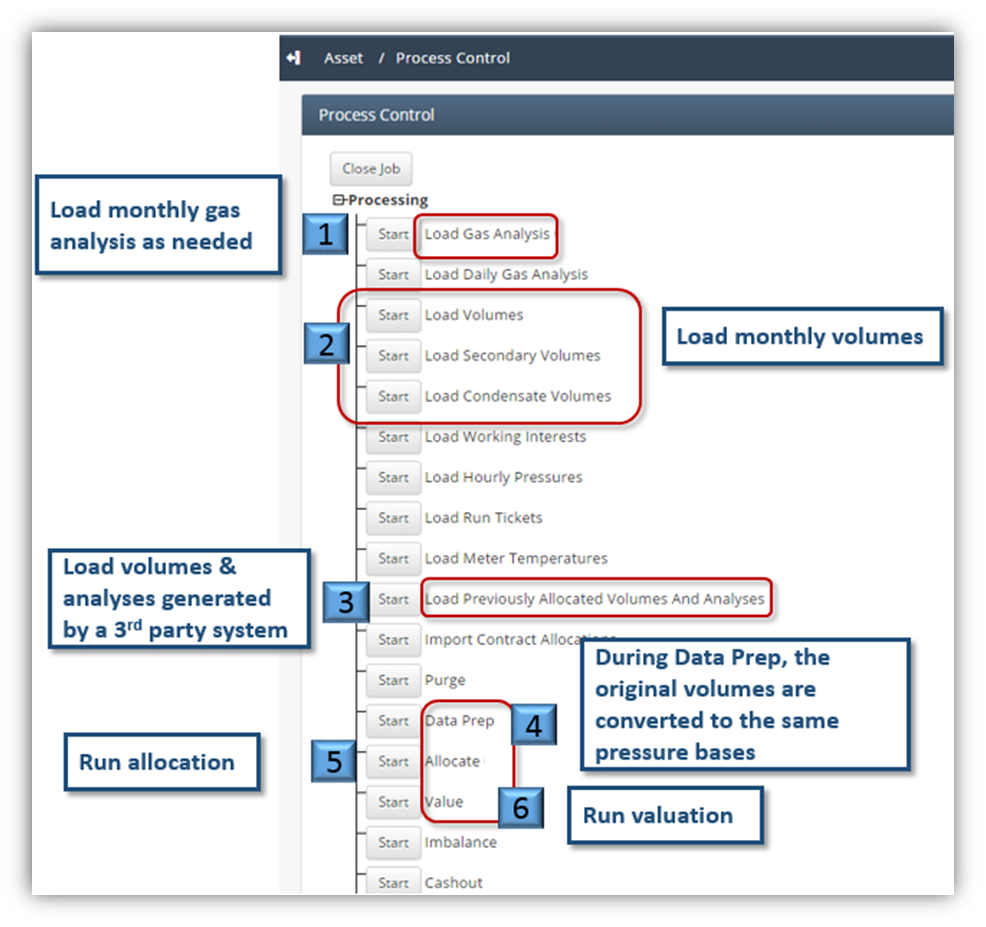
There are six main batch processes that are run each month. It’s important to run these processes in the order below.
2. Close Job
a. Once all the processing for a particular Accounting Date / Production Date have been completed on the asset, clicking the “Close Job” button will mark all related records as closed. This step is required before many actions can be performed at the company level on the Company Process Control page
📘 If there are multiple ways to do this setup list each one out
Process Dependencies
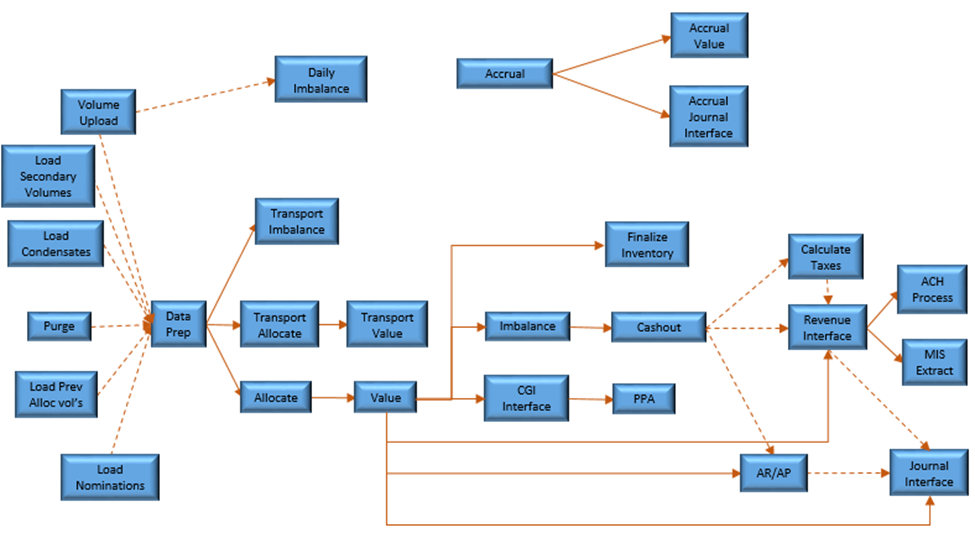
This diagram shows the asset-level process interrelationships. Solid lines are dependencies, i.e. the process on the left must be run before the process on the right. Dotted lines are “optional” relationships, so running the process on the left is not required, but will clear the data of the process on the right.
Loading batch data
For any process that begins with “Load” (such as Load Gas Analysis, Load Volumes, etc.) first select a file to upload by scrolling to the Upload section of the page.
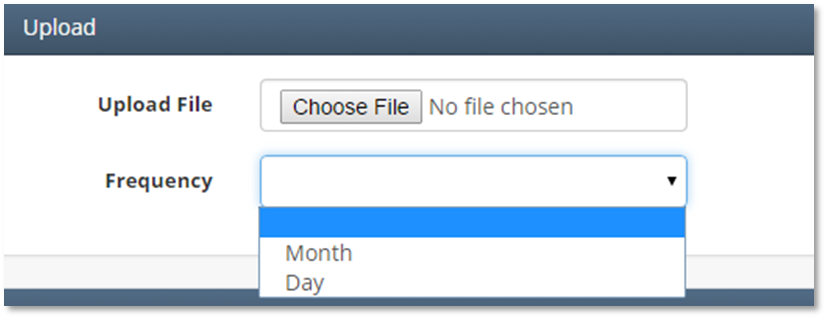
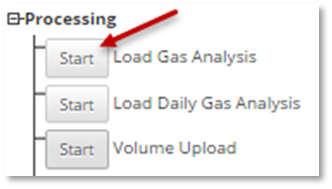
Once a file is selected, click on the “Start” button to the left of the appropriate process.
Keep in mind…
It is important to match up the data being imported with the asset and dates selected for Process Control. For instance, if the effective date of a meter has been incorrectly set, data may not load as expected.
How does this concept impact/feed other areas in the application?
For example, Check input is required for Revenue to to allocate funds to correct owners.
Other items worth noting that would impact the process.
Changes coming soon
Known issues with the process
Frequently Asked Client Questions
Warning Message | Resolution |
Identify contract allocations missing division order numbers | If any contract allocations, for the asset, have division orders configured, a warning message will occur for any contract allocations that are missing division orders. |
Identify contract numbers with conflicting division order numbers
| For any contract allocation where a division order is specified, the system will check the division order and see if there is a mismatch to the division order item row for this meter (there only has to be at least 1 row that has the division order. The code scans through each item and ensure that there is at least one item that has that division order specified). If the division order item row has a different contract specified than the contract allocation, a warning will be produced indicating the difference. |
Identify missing contract numbers on the division order items tab | For a division order item, end date the contract allocation / contract, which should create an orphaned division order item row (i.e. a division order item row with a blank contract specified). When this condition is present, and the Revenue process has been ran, a warning message will be created identifying this division order and indicating the missing contract information. |
Identify division orders not equal to 100% | It is possible to have division orders that “exceed” 100%, but require the flag on the Asset screen to be checked. However, whenever the condition exists where the interest % is not equal to 100%, the system will produce a message and let the user resolve / approve the condition. |
Payment Type = ACH; missing email address | For the list of business associates included in the division orders attached to contract allocations for this production date, the system will check the payment type on the business associate. If the payment type = ACH and the business associates email address is BLANK, then the system will issue this warning. |
business associate with blank tax code type | If the contract allocations have a tax group specified, the system will check the business associates (If division orders are defined, the system will check those business associates. If division orders aren’t defined, the system will check the contract owner business associate) for a BLANK tax type code. |
business associate with blank payment type | If division orders are defined, the system will check those business associates; if division orders aren’t defined, the system will check the contract owner business associate. If the payment type for these business associates is BLANK, then the system will issue this warning. |
Identify contracts where payment dates aren’t the same for all contracts in the asset for the production period being processed. | The system will check all active contracts for payment dates. If any contracts have different payment dates, the system will report those that are not in the majority.
|