
Manually Unlinking a Polygon
What is the Unlink Polygons Tool?
The Unlink Polygons Tool is a GIS tool that exists in the W Energy Spatial Add-In. This is a proprietary extension that lives on top of ArcGIS Desktop similar to how Google Chrome can host 3rd party vendor extensions such as Ad-Blocker.
This tool unlinks polygons to Land Legal Items and rolls the change up to the parent Tract and Agreement.
Why would a client use the Unlink Polygons Tool?
Reasons that a client may want to use the Link Polygons Tool include but are not limited to:
The client sold assets they no longer own, thus they wish to unlink the polygon.
Duplicate tracts/legal items were accidentally inputted with duplicate polygons drawn, thus one set needs to be unlinked.
The legal item/tract/agreement is about to be removed from Land and the polygons for those items should be unlinked before they are removed from Land.
How to Use the Unlink Polygons Tool
In this scenario, the GIS Analyst could use the polygon that was just drawn in the legals_link feature class to be unlinked from the Manually Linking a Polygon article. However, I will begin one step before that and display how to copy the polygon from all_legals into the blank legals_link feature class.
Drag and drop the all_legals feature class into the dataframe.
Open the Attribute Table and make this the only selectable layer.
In the dataframe, select the polygon that will be unlinked.
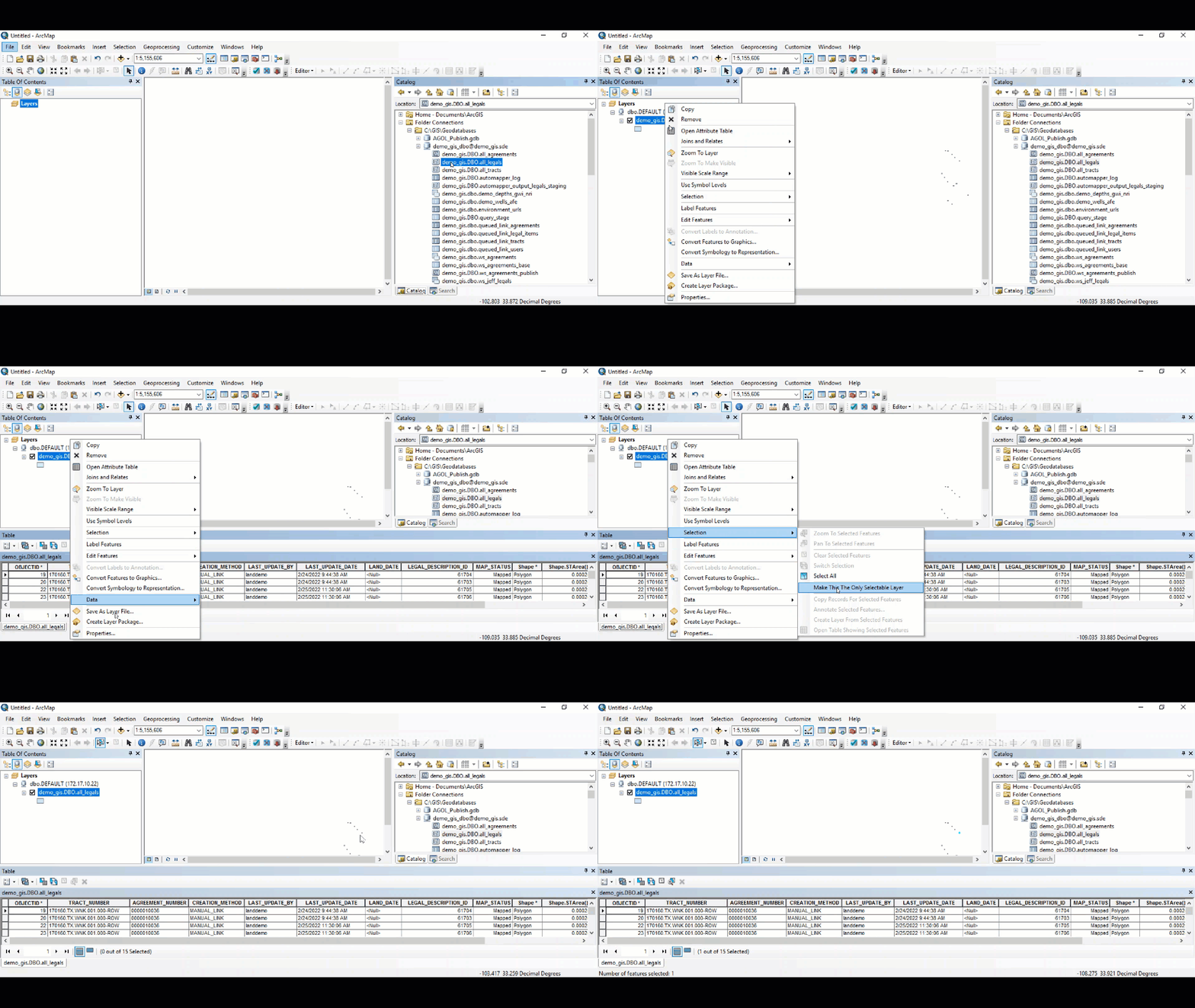
Drag and drop the legals_link layer to the dataframe.
Start an Edit Session on that layer.
With the Edit Tool, highlighted in the toolbar at the top, right-click on the polygon that we wish to copy from the all_legals layer and select Copy.
Right-click in the dataframe, and select Paste into the legals_link layer.
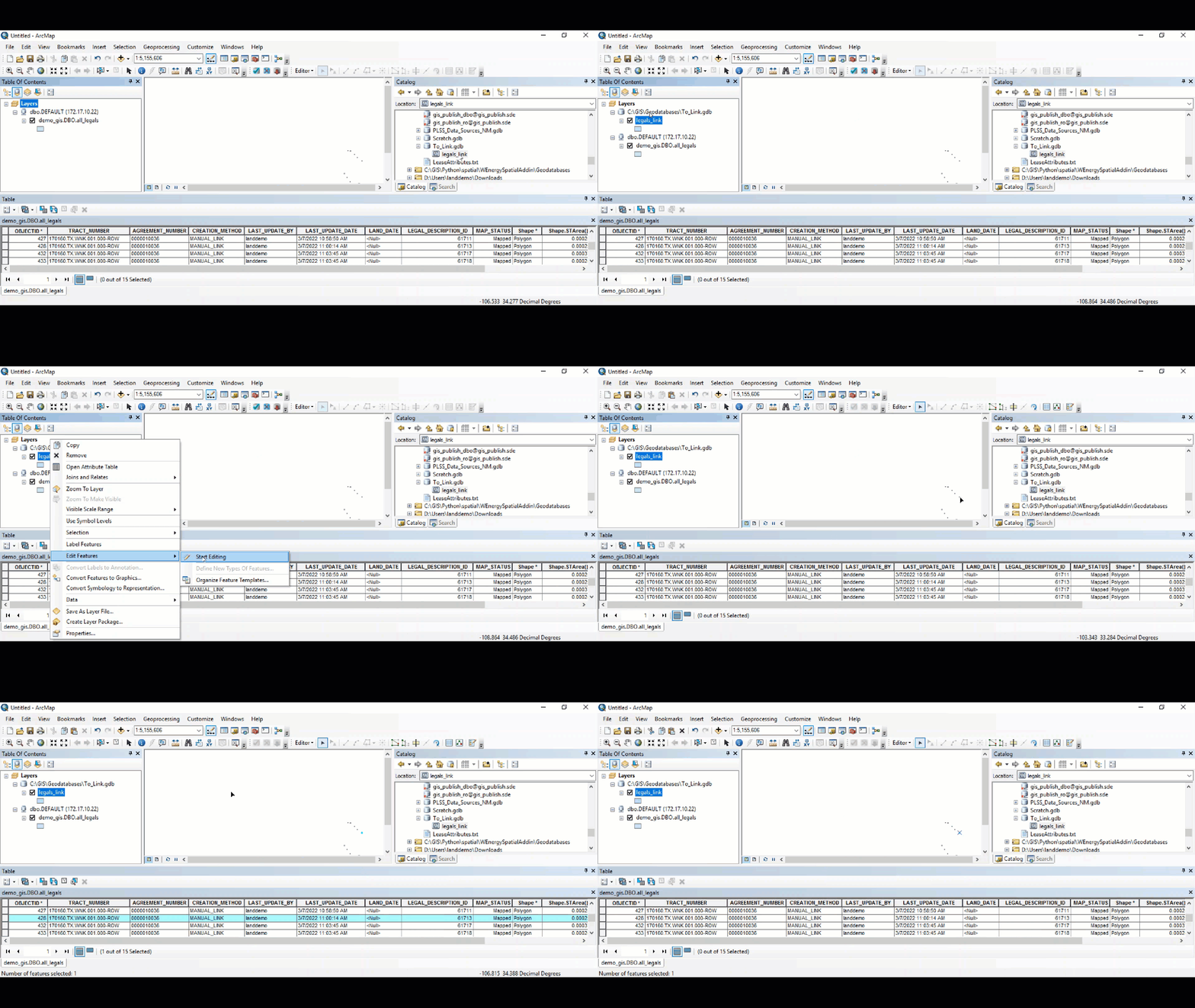
In the Table of Contents, right-click on the legals_link layer.
Select Open Attribute Table.
Save and stop the Edit Session.
Remove the all_legals layer from the Table of Contents.
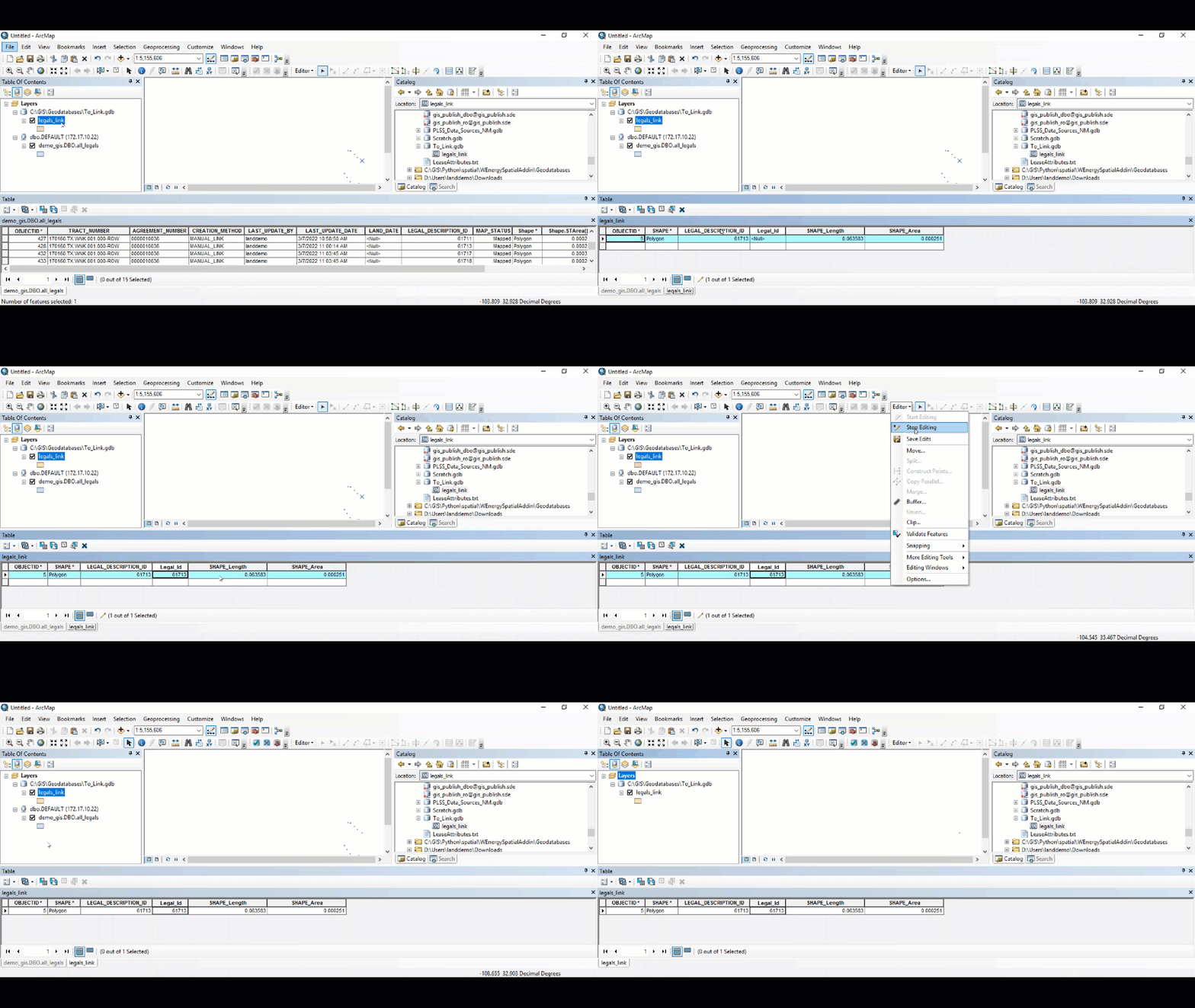
Zoom to the polygon that we wish to unlink by double-clicking the row header in the Attribute Table.
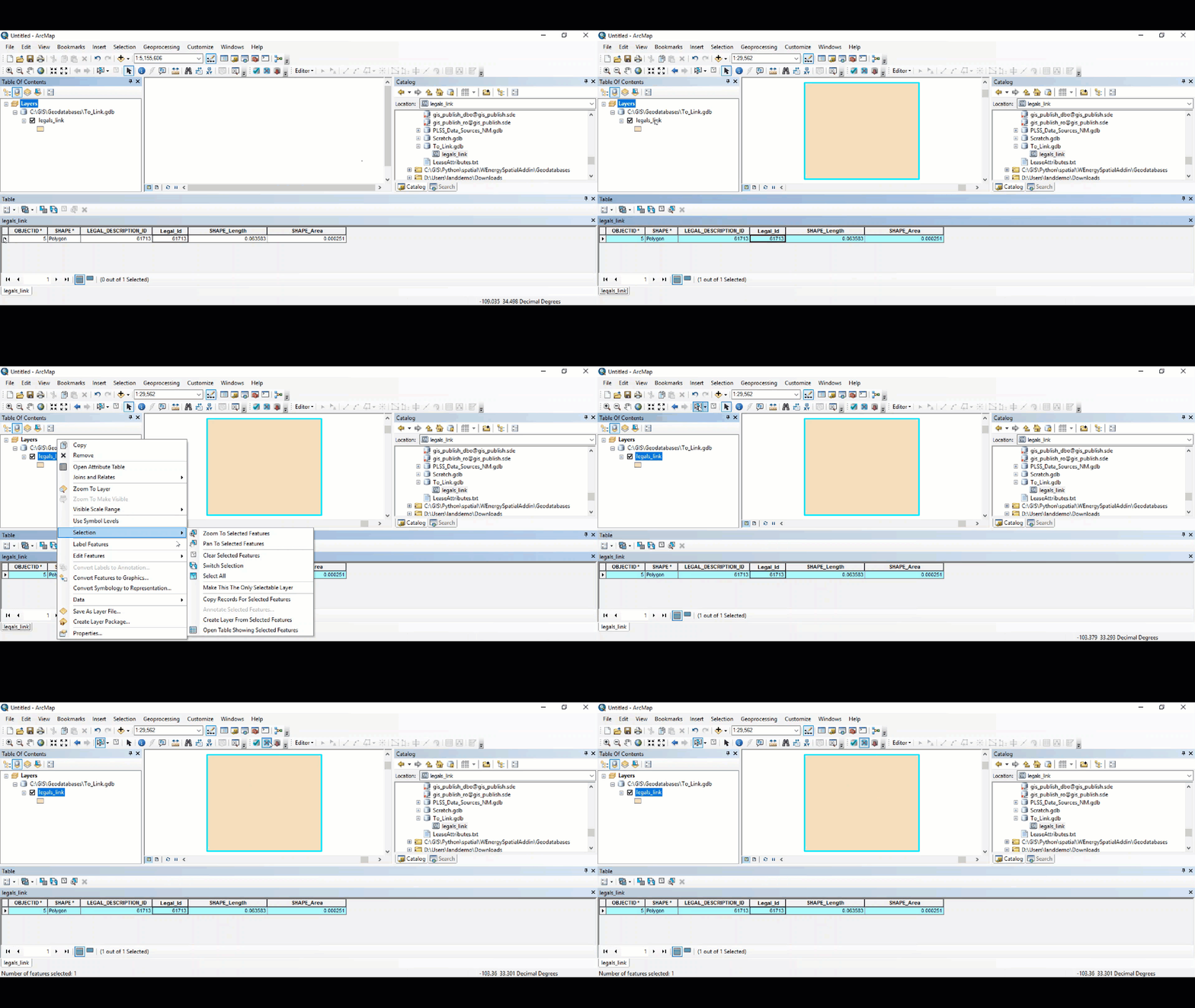
In the Table of Contents, right-click on the legals_link layer.
Click on Selection / Make This The Only Selectable Layer.
Click on the Select Features tool from the toolbar.
Select the polygon.
In the W Energy Spatial Add-In, select the Unlink Polygons Tool.
In the pop-up window, select OK.
The unlinking tool is running.
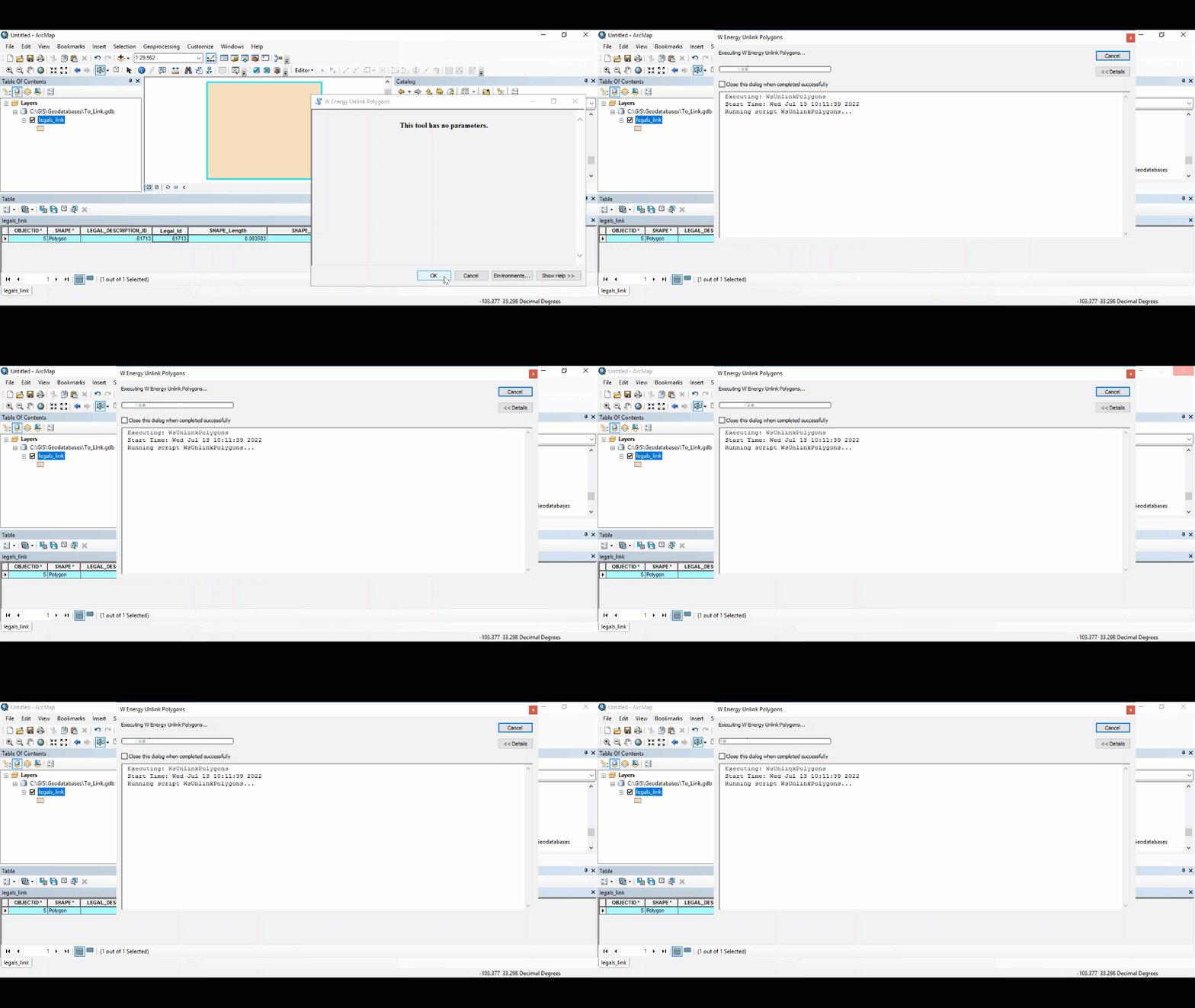
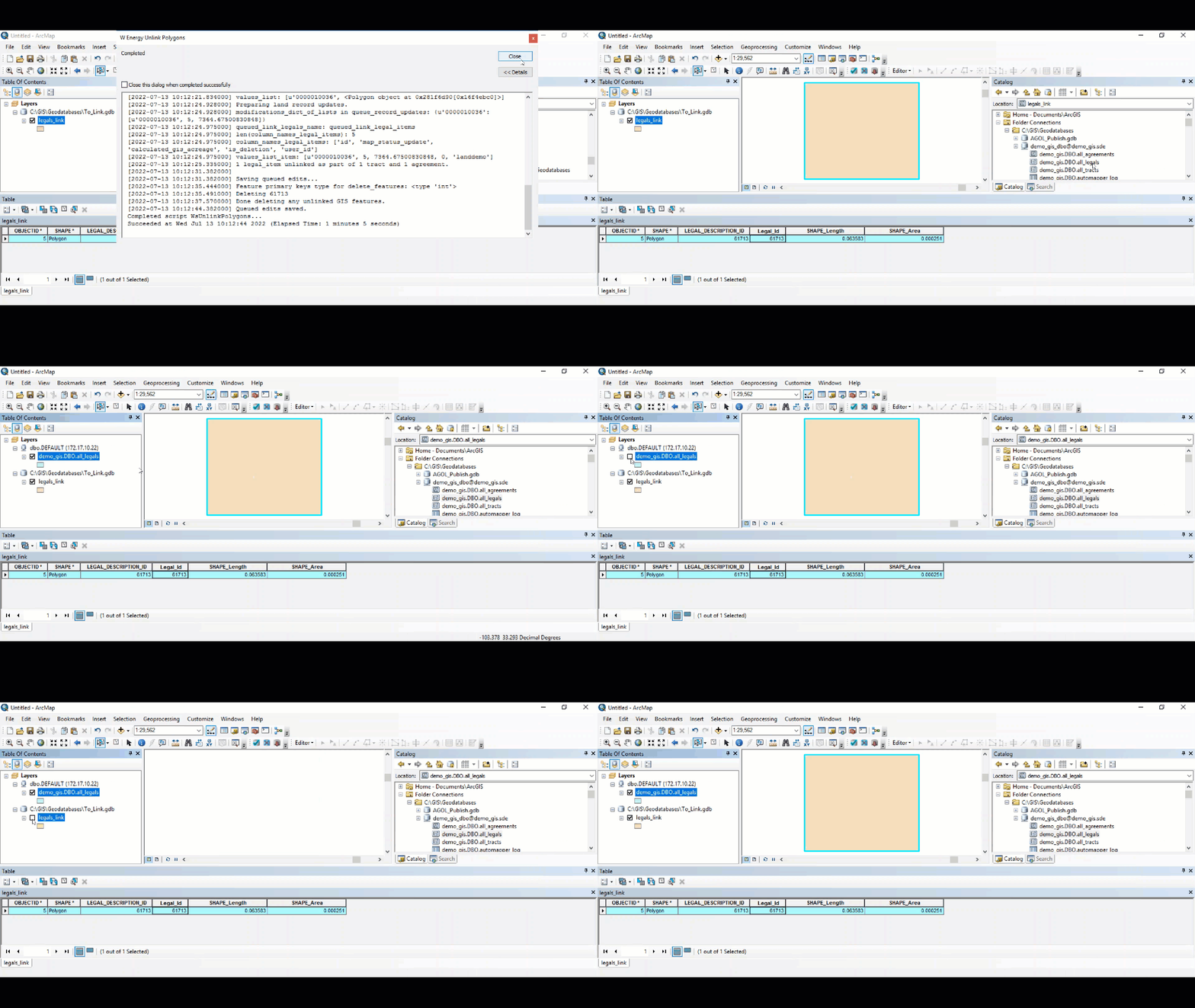
Once the job completes, close the window.
Drag and drop the all_legals feature class to the dataframe.
The unlinked polygon no longer appears in the all_legals layer, nor the other layers.
Frequently Asked Client Questions
Does one need to unlink the polygon first, edit the polygon, then relink the edited polygon in order to make an update? No, unlinking it not required in this scenario. One can simply link the edited polygon.