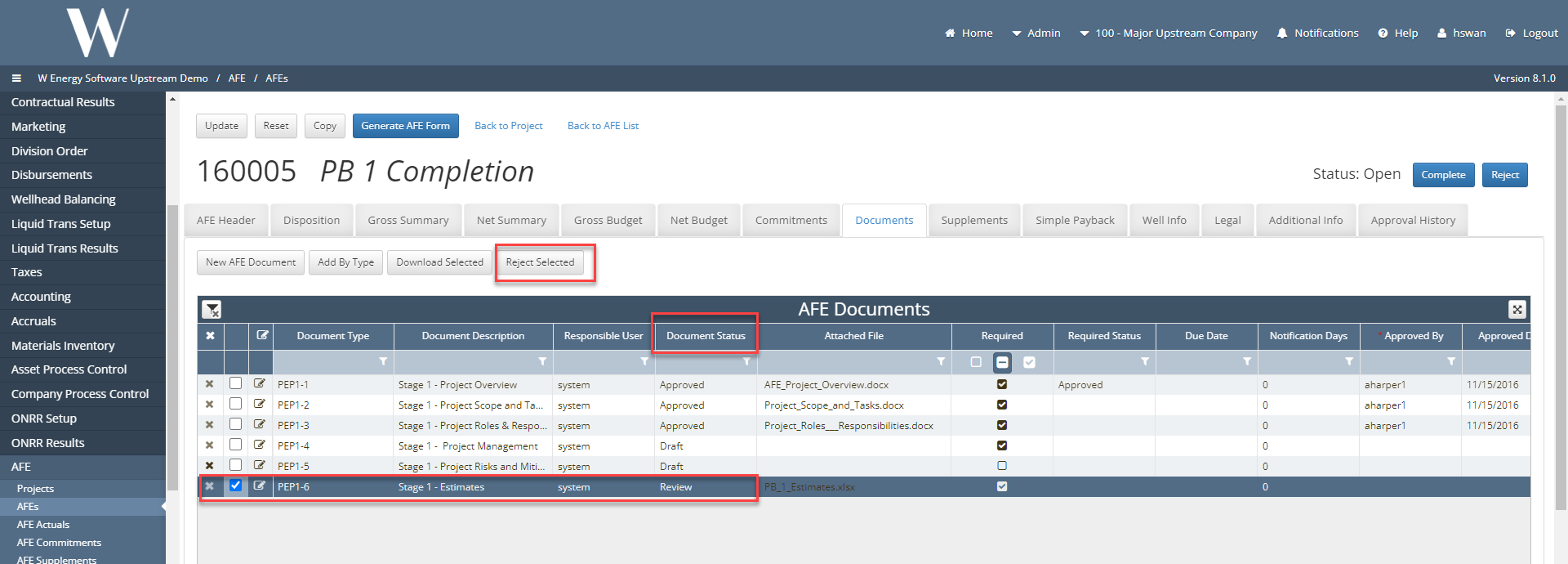
AFE Documents
Why would a client use AFE Documents?
Clients may want to house documents that they maybe want to reference back to when creating a Project/AFE in the W application.
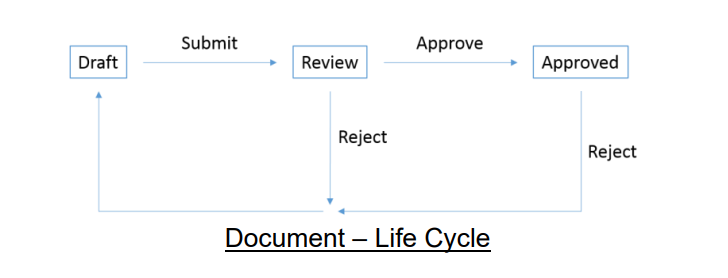
AFE Document Life Cycle:
How to setup AFE Documents in the system
Under Global Setup>Code Table>Document Types
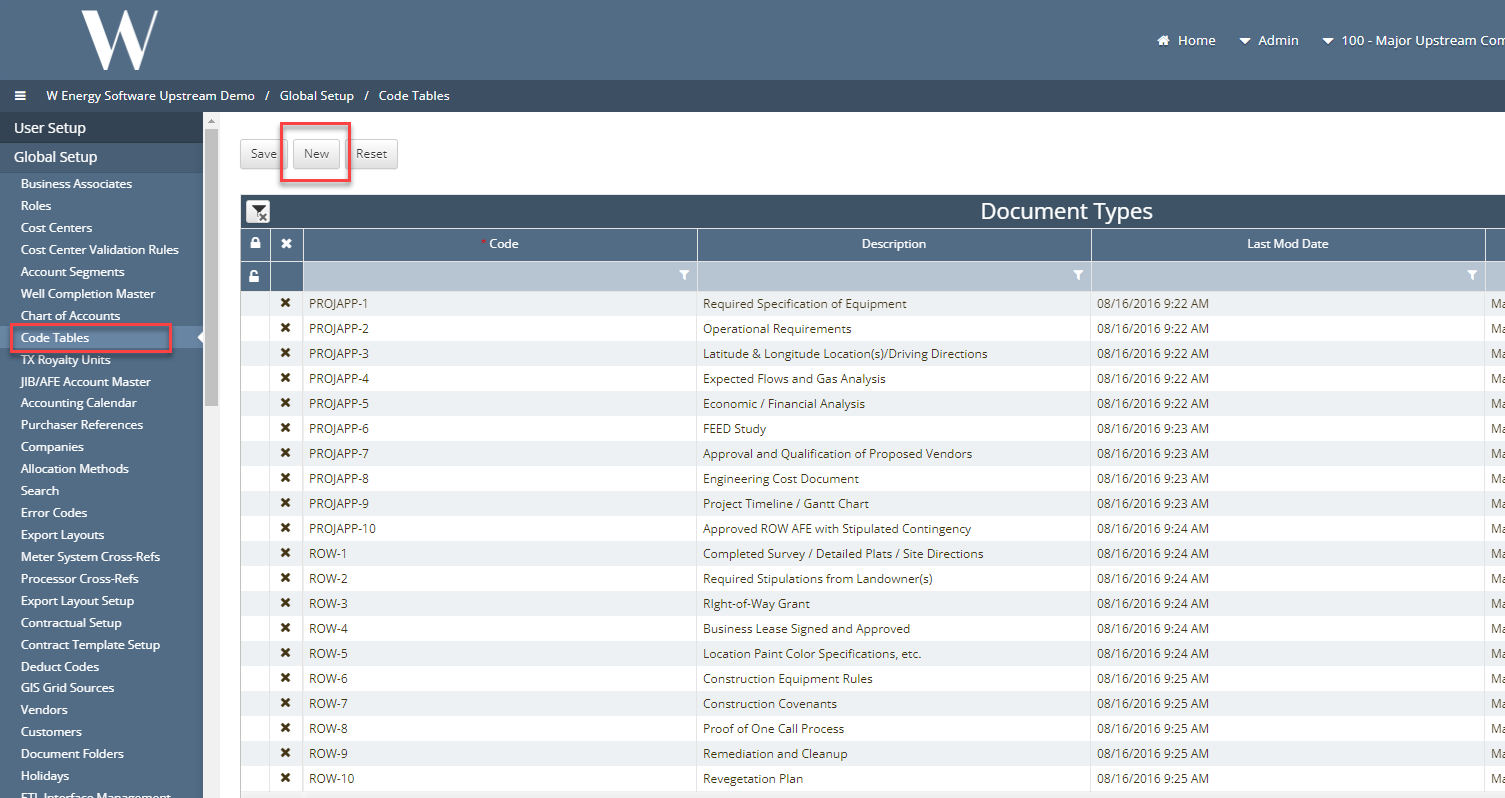
Click “New” button which will generate a blank record for the User to create a code name and description of the AFE document.
Click “Save” button once record has been completed.
Under AFE>AFEs, edit AFE user wishes to add document in
Locate Documents tab - Users can add documents two ways:
Click on “New AFE Document to generate a new record in the grid below.
Click on “Add by Type” if User wishes to assign Document Types to a specific Project Types and AFE Types through the code table “AFE Project Types” and “AFE Types”
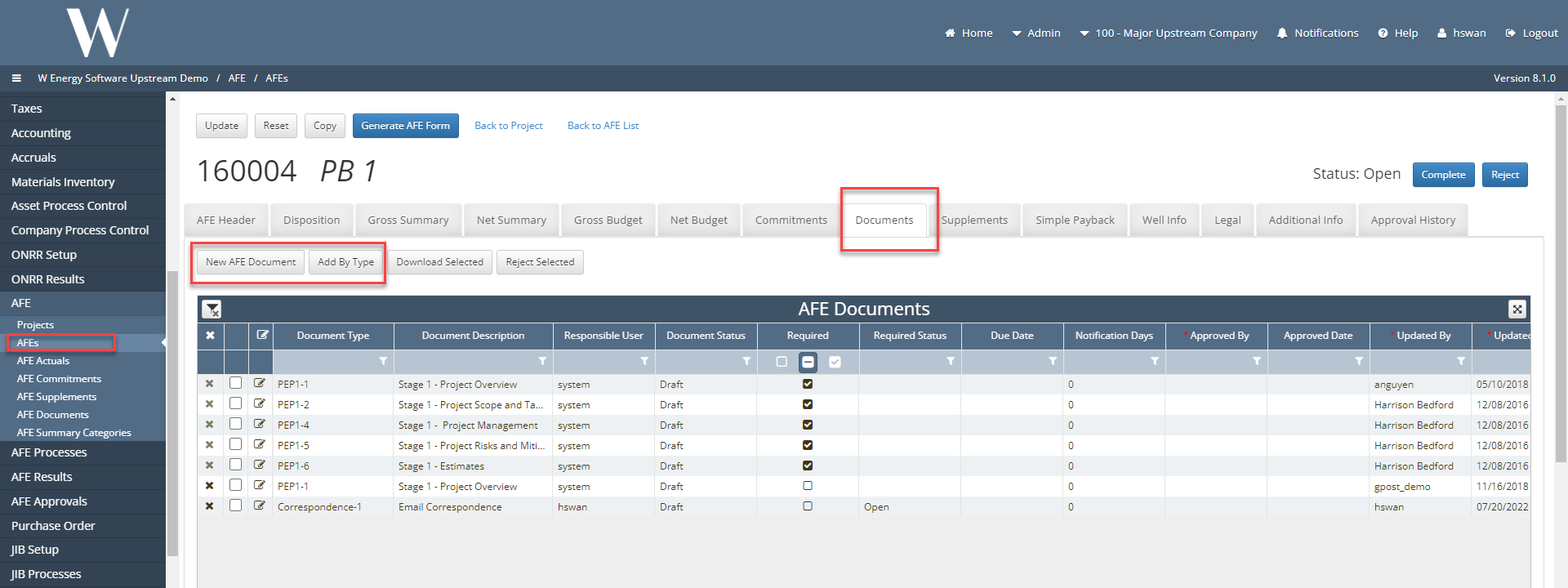
“Download Selected” button on Documents tab allows the user to download multiple attached files at one time. Users can accomplish this by clicking the check boxes that correspond to the Documents attachments that are to be downloaded and then clicking the “Download Selected” button.
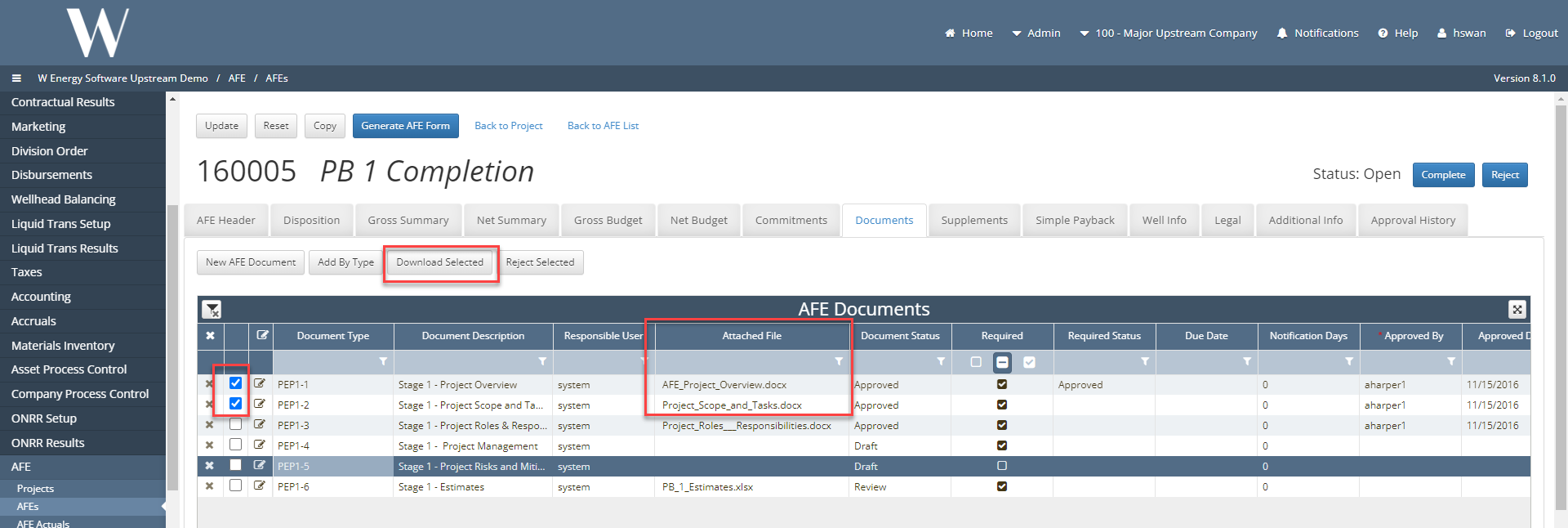
“Reject Selected” button allows the user to reject multiple documents at one time.
This is accomplished by clicking the check boxes that correspond to the document to be rejected and then clicking the “Reject Selected” button.