
Reassigning Obligations
What is a Land Reassignment?
Land reassignment is taking a Land Obligation that was originally intended to be approved by one user and sending it to a different user with the same title to approve.
Why would a client use a Land Reassignment?
Clients may wish for a preferred member of their organization to be the primary approver in the approval workflow. Having the power to reassign the obligation to another user with the same title allows for this preference to exist. This also allows administrators to move specific obligations out of the primary approver’s queue and into another user’s queue if the primary user is unavailable to approve.
Code Table and Workflow Set Up
Approval Types
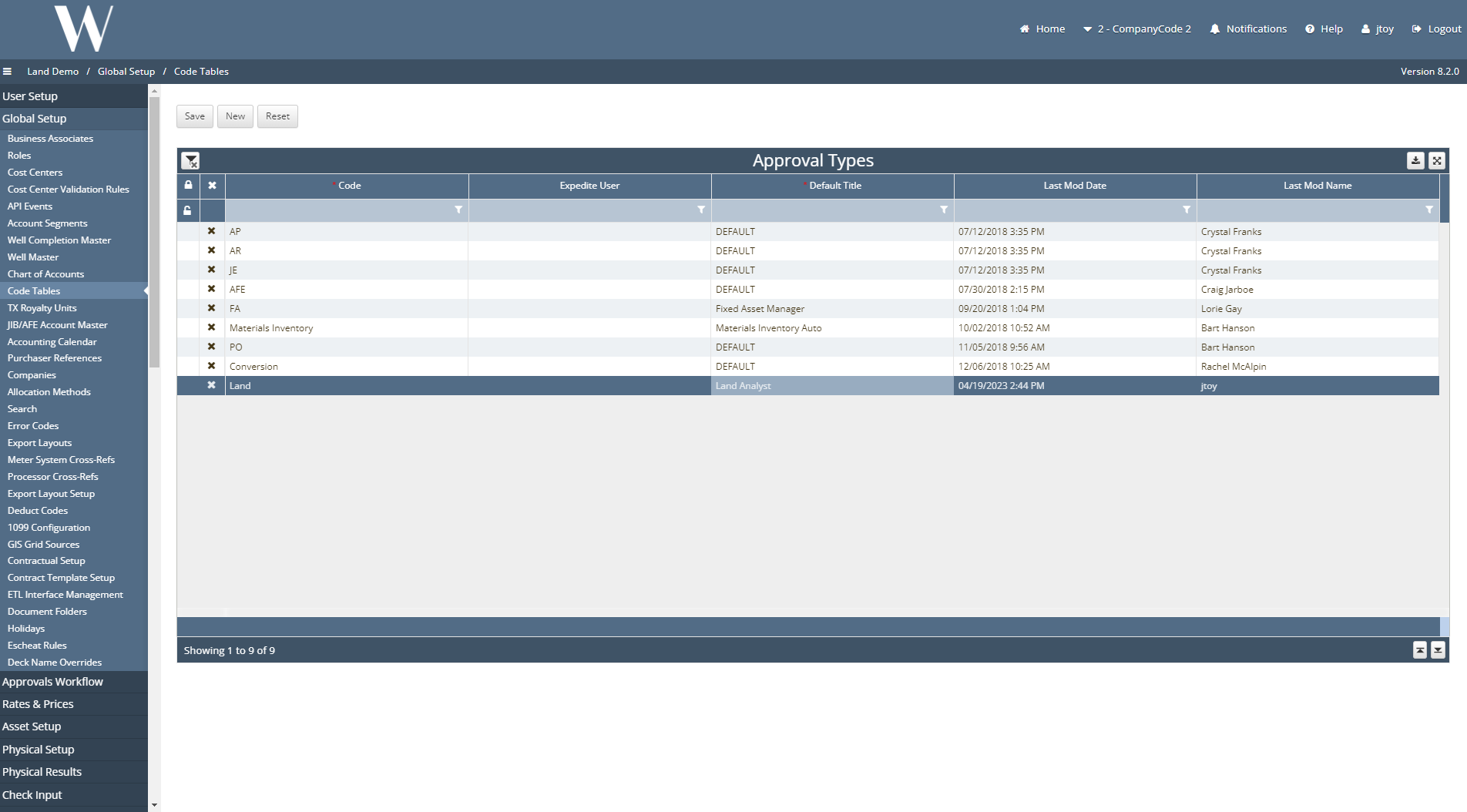
Ensure an approval type exists that matches the approval type under the approval chain. The title can be something along the lines of “Land” or “Land Payment” but naming convention is up to the creator’s choice.
Approval Chains
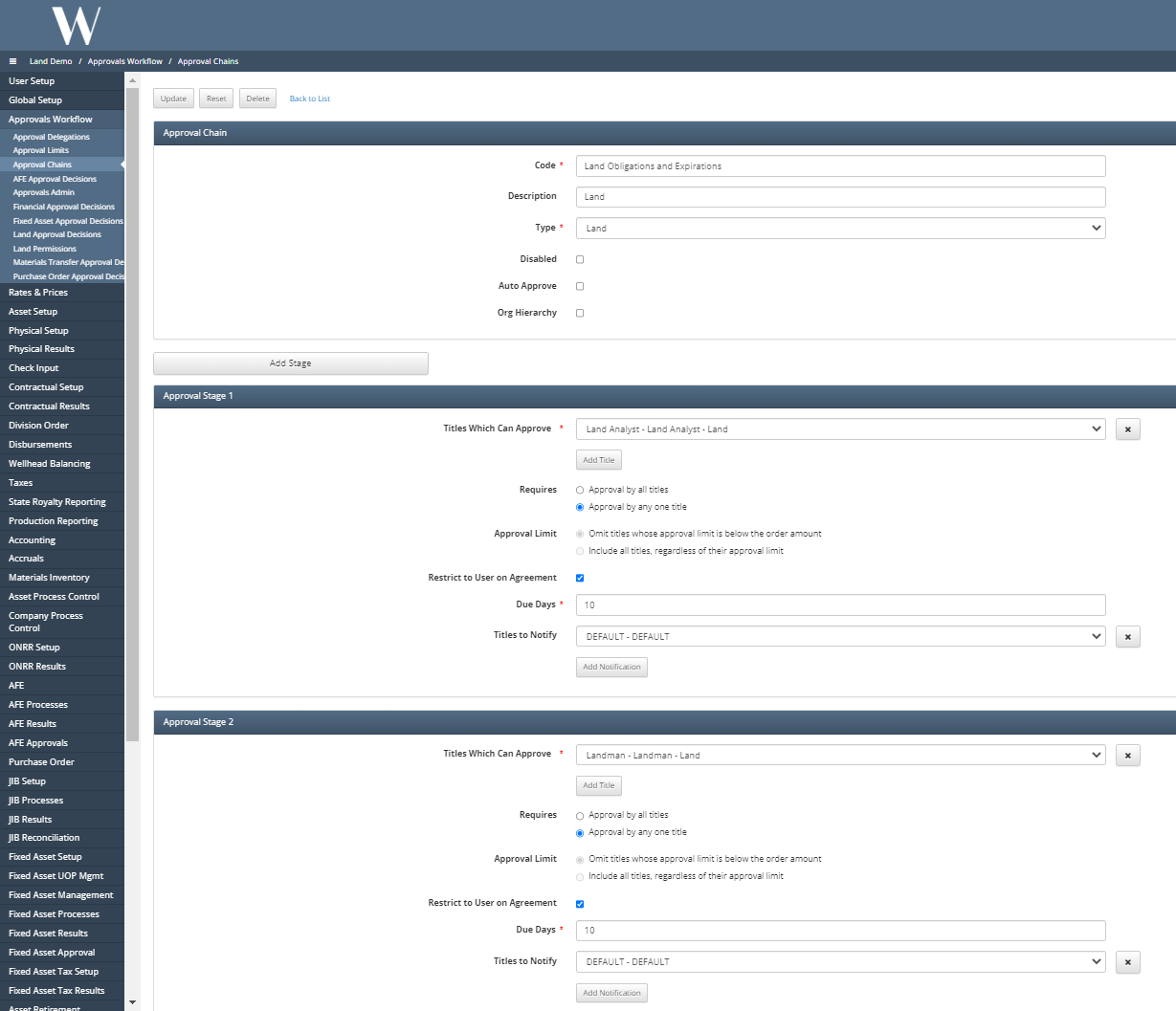
Ensure an approval chain is created/exists. The Disabled, Auto Approve, and Org Hierarchy boxes should all be unchecked.
Create the 1st stage in the approval chain to have the Land Analyst be the 1st to approve the obligation.
Create the 2nd stage in the approval chain to have the Landman be the 2nd to approve the obligation.
Both stages need to have the Restrict to User on Agreement box checked off.
Approval Titles
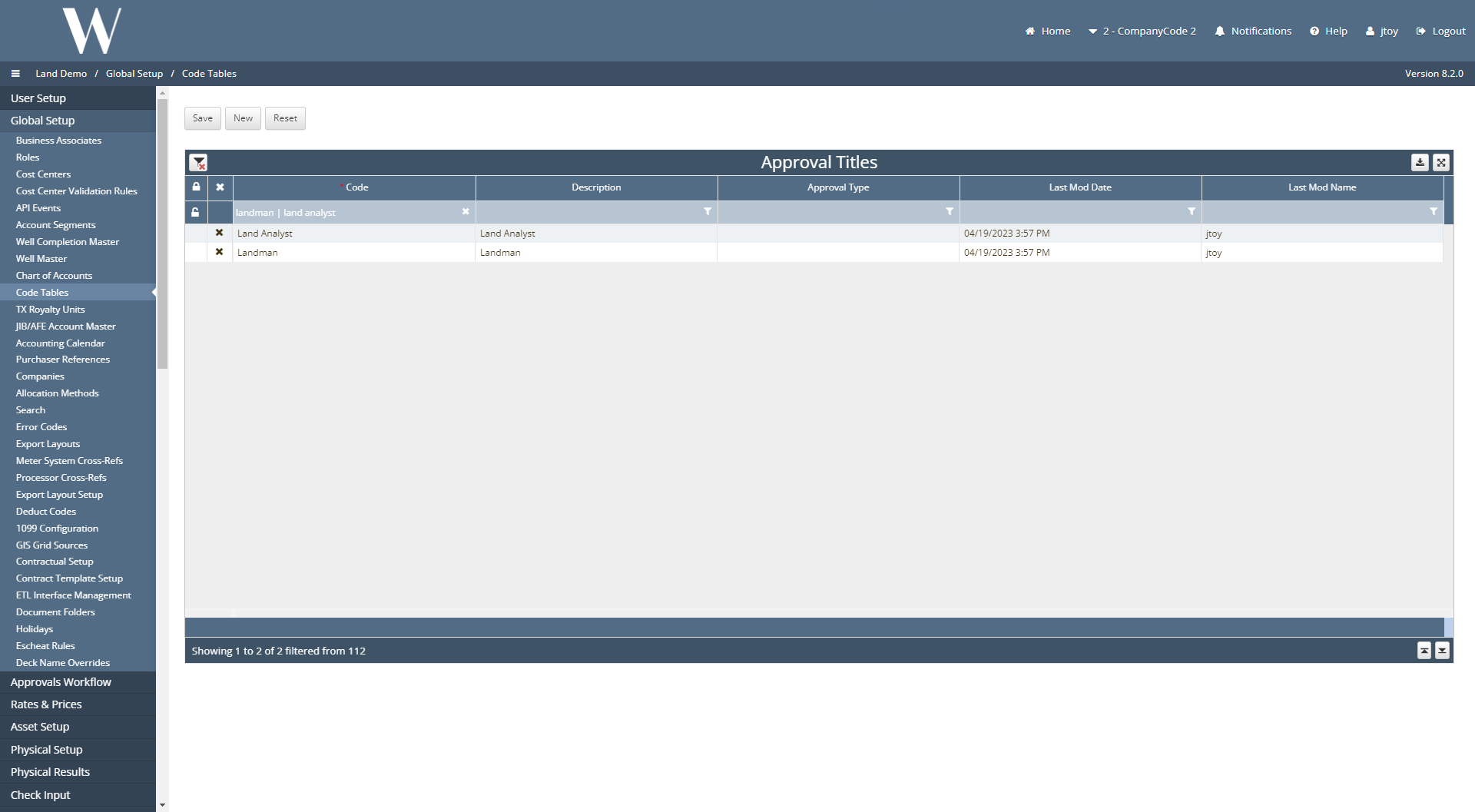
Ensure the Land Analyst and Landman line items exist under the Approval Titles code table.
Land Approval Decisions
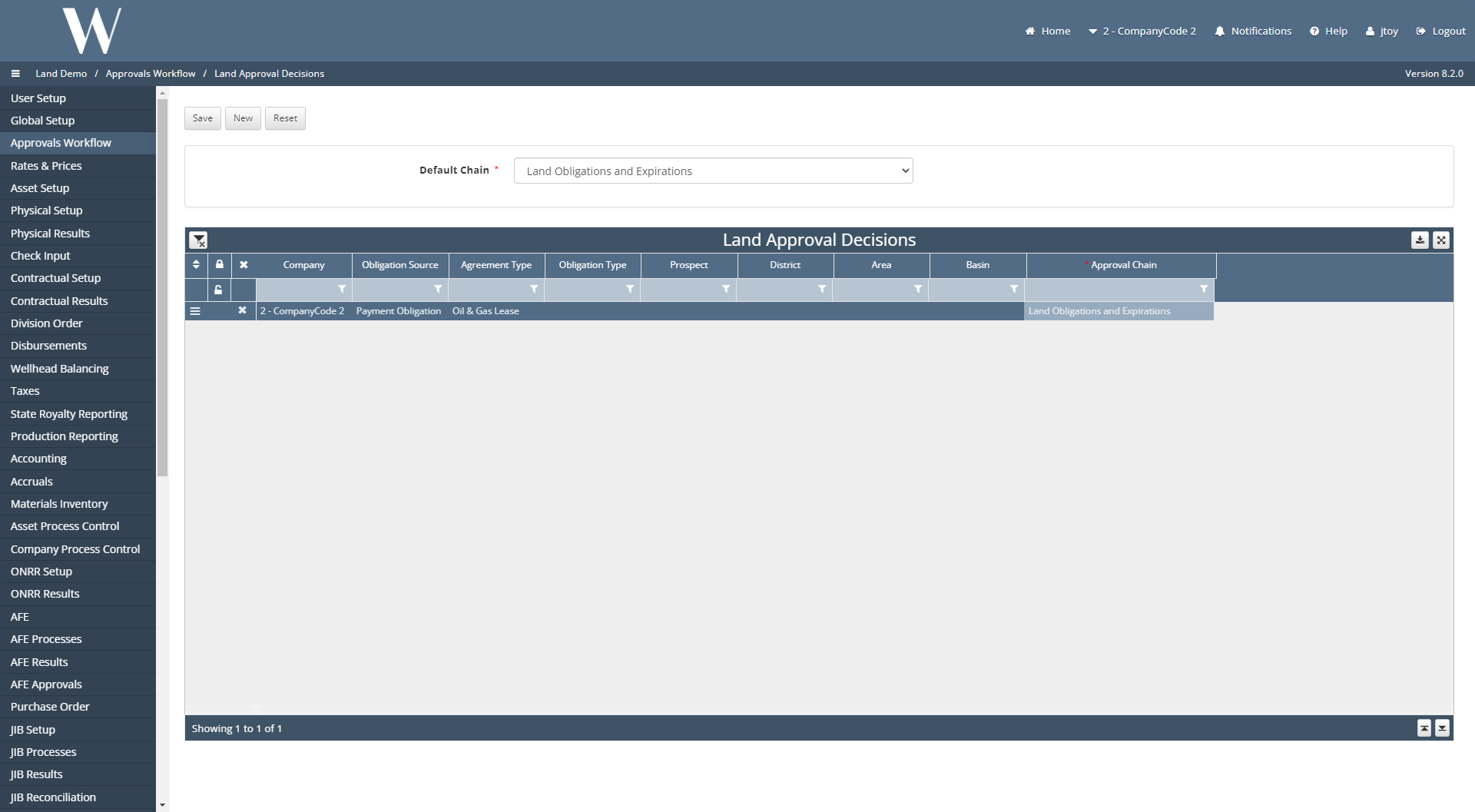
Ensure the following line item exists under the Land Approval Decisions screen. Set the approval chain to the one above. In this scenario, that is the Land Obligations and Expirations chain.
Approval Limits
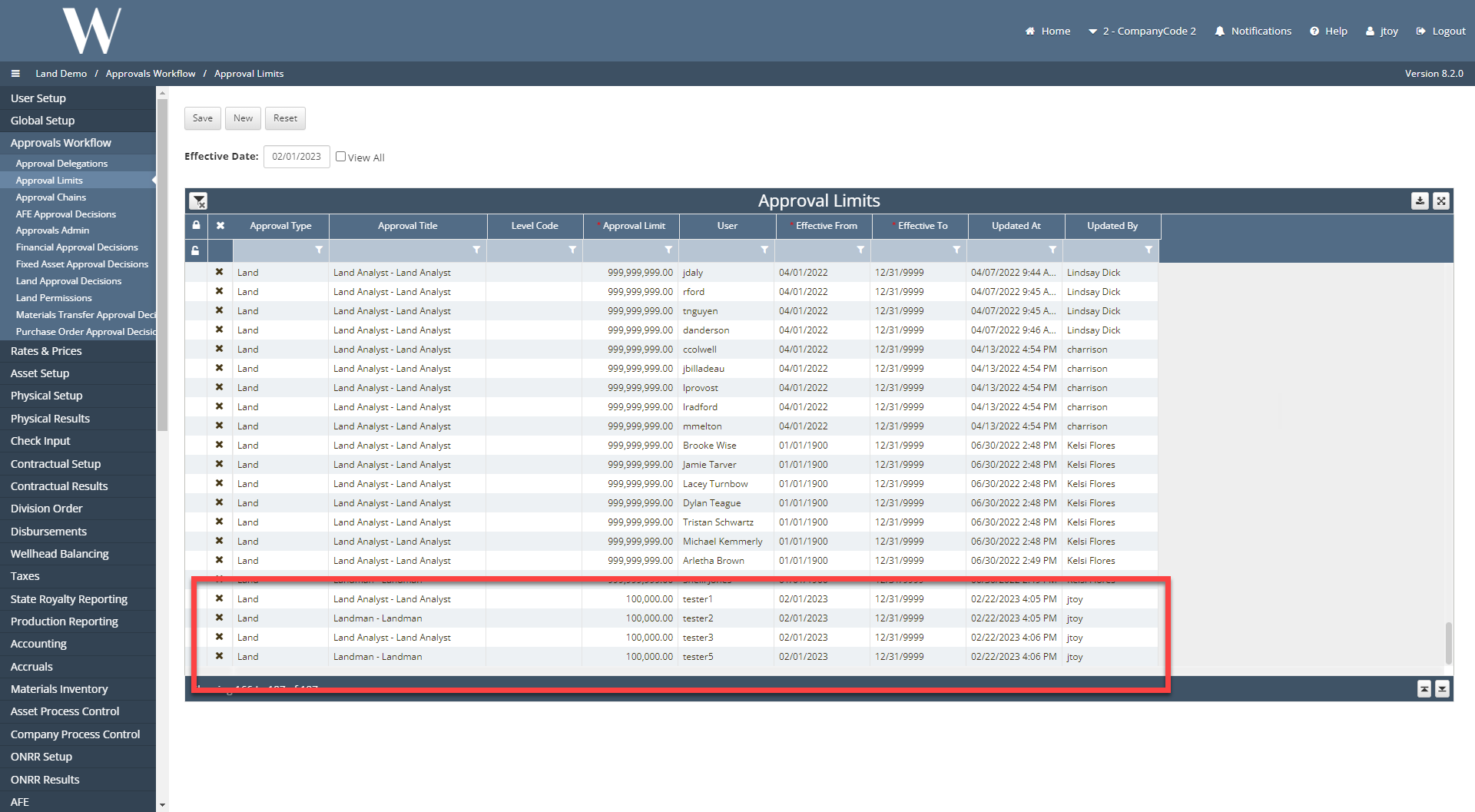
Set up 4 line items for 4 end users: 2 Land Analysts and 2 Landmen.
Setting Up the Obligation
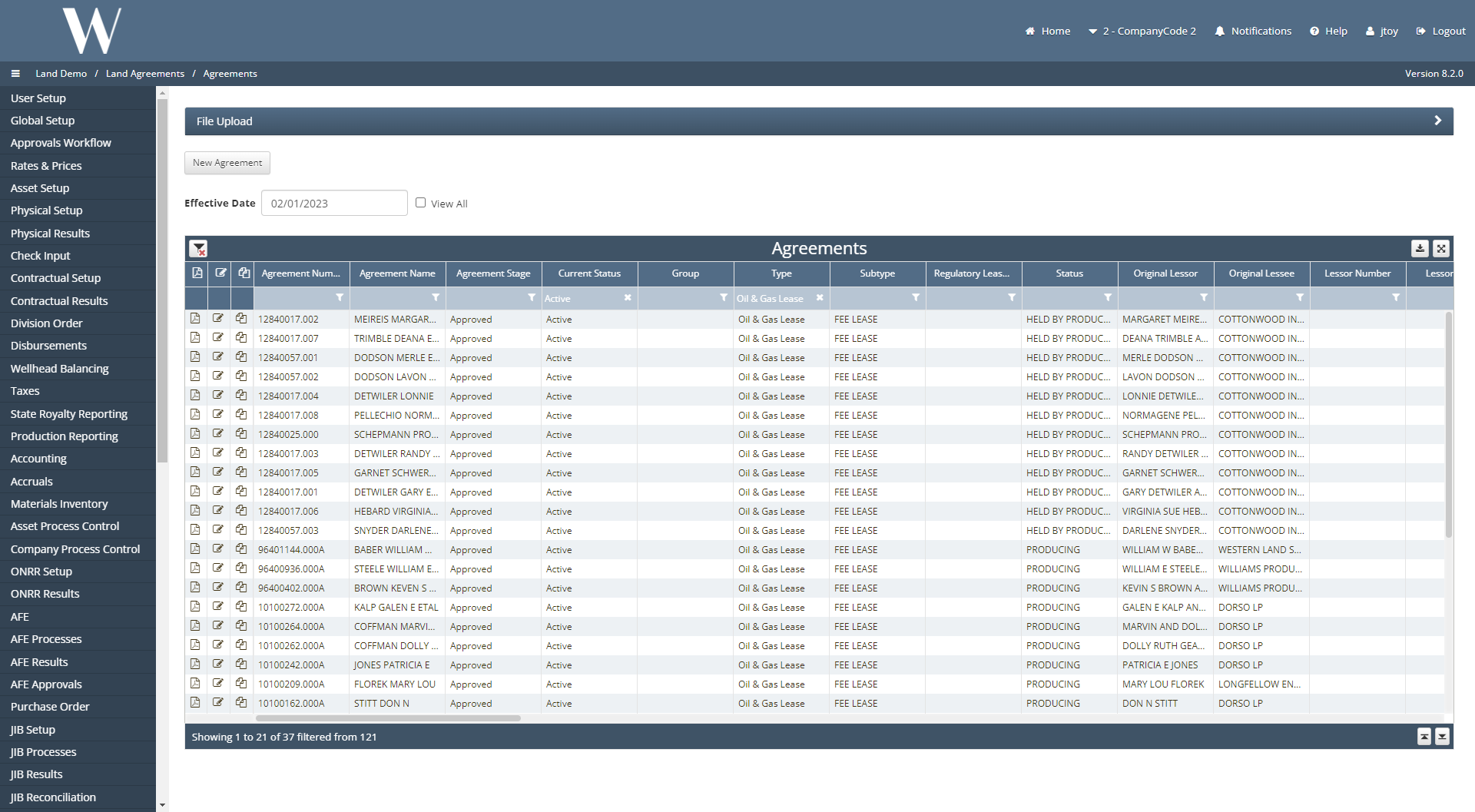
Navigate to Land Agreements / Agreements. Click into an Active Oil & Gas Lease Agreement.
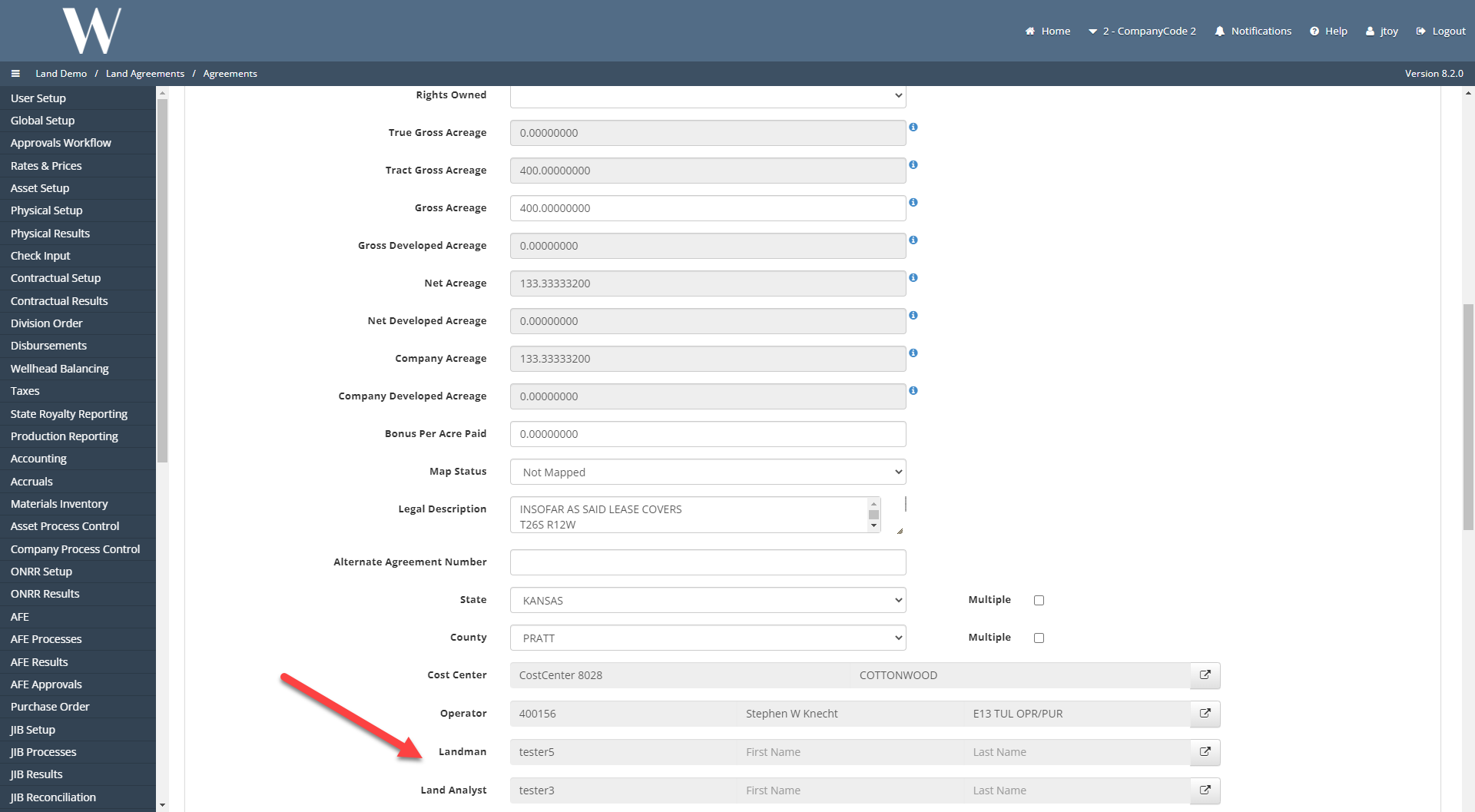
Set the Land Analyst and Landman to 2 of the end users that we set up under the Approval Limits code table.
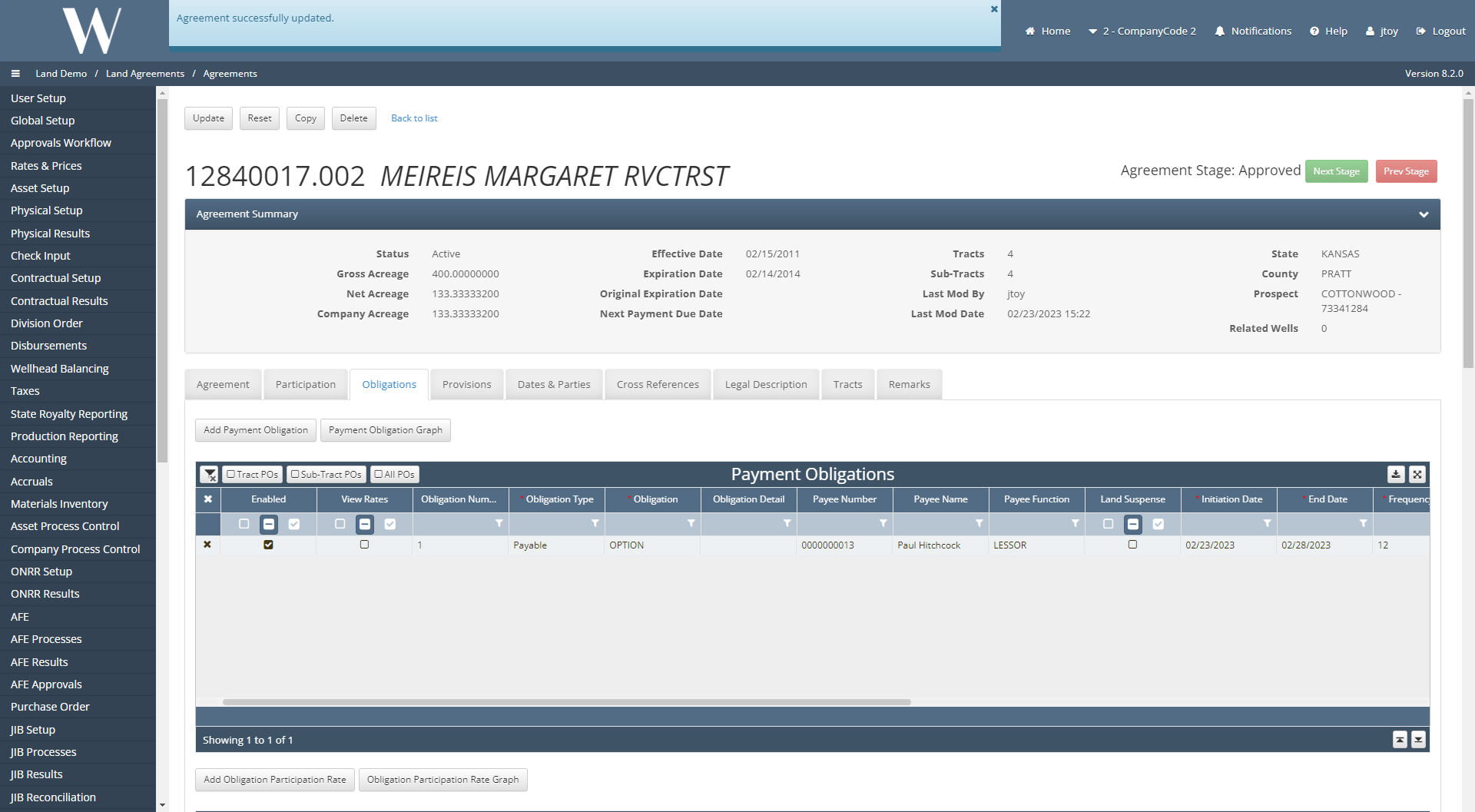
Create a new Payment Obligation and save the Agreement.
Creating and Running the Land Payment Processes
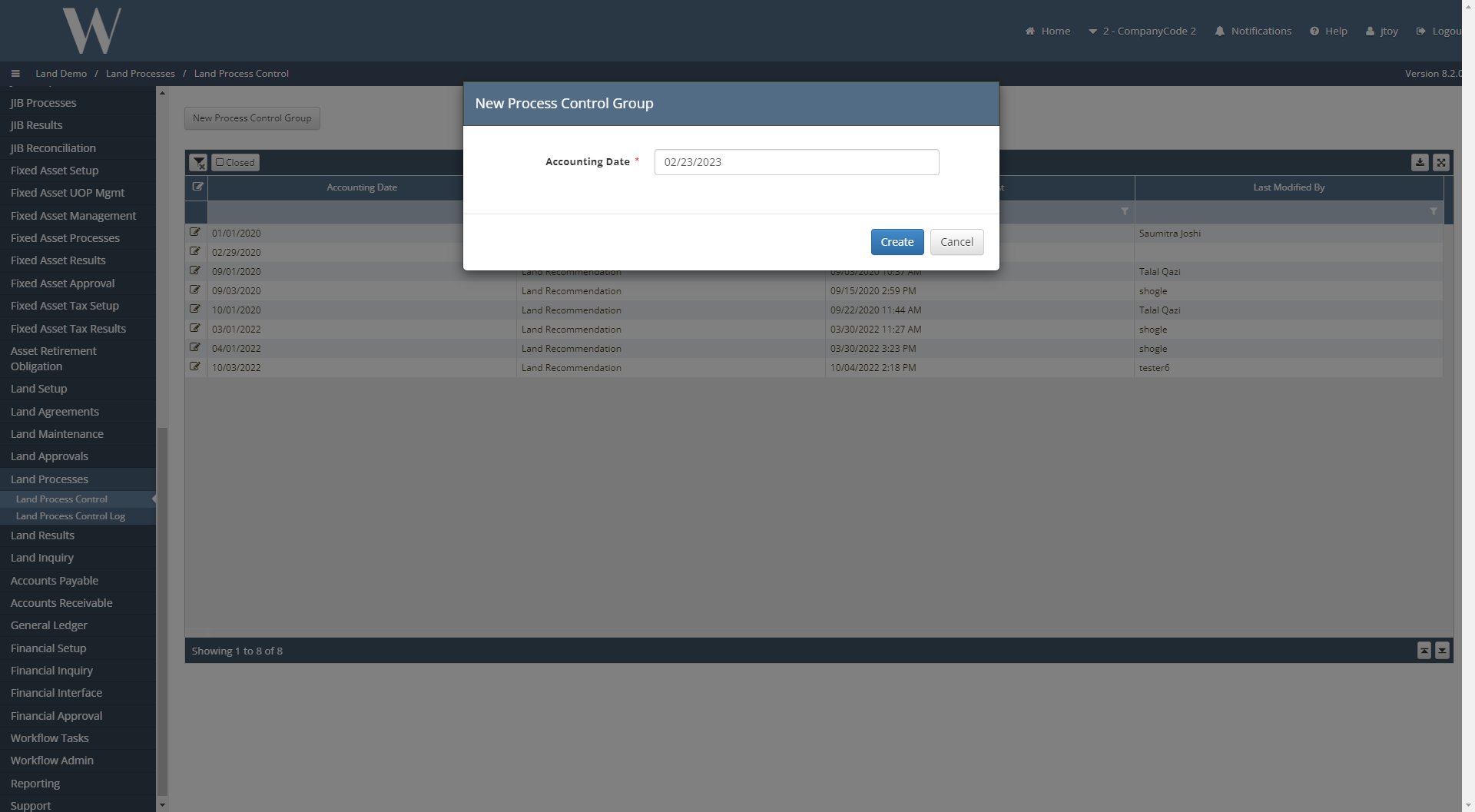
Navigate to Land Processes / Land Process Control. Create a new process control group with a unique accounting date.
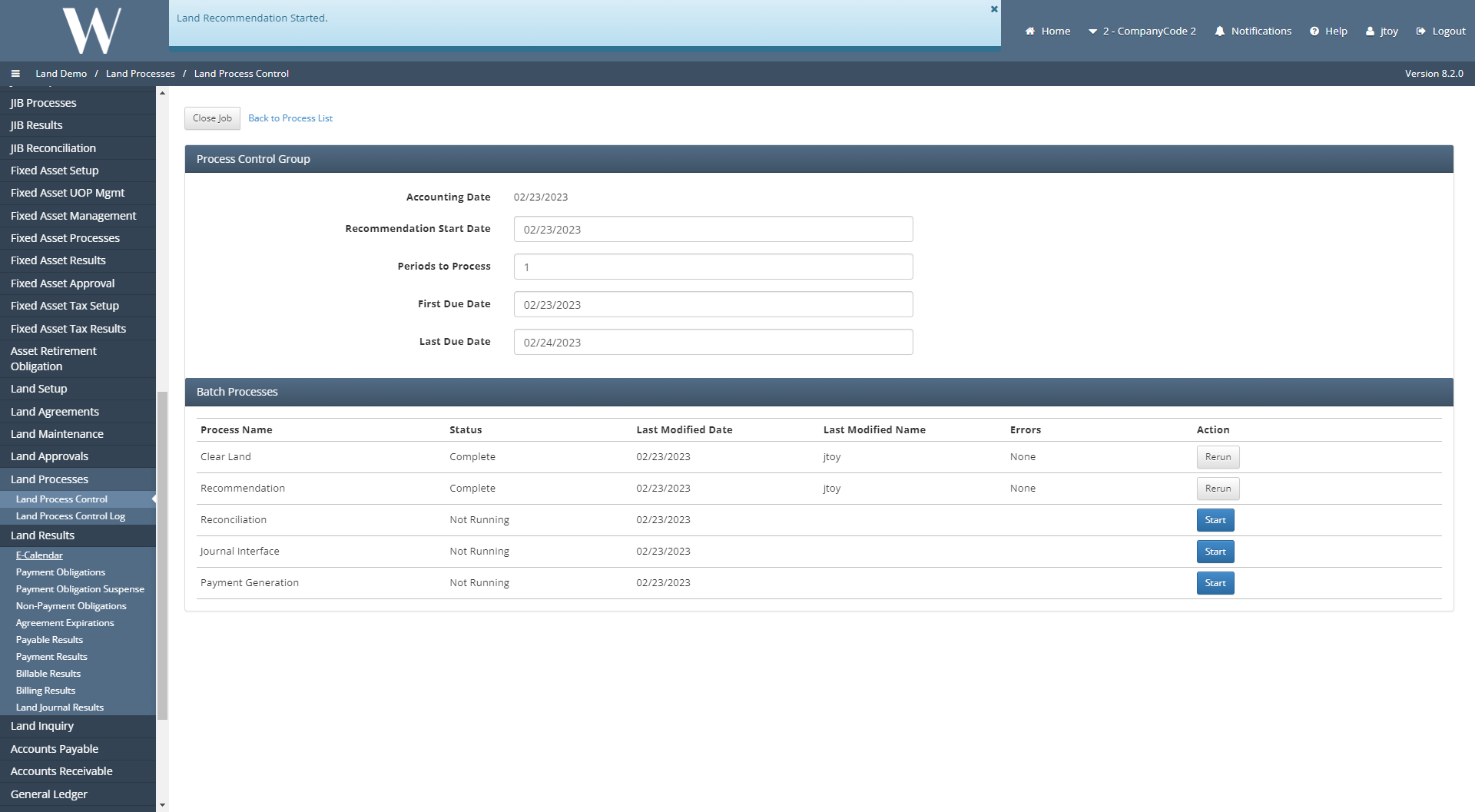
Set the First Due Date and Last Due Date to values that encompass the Initiation Date on the Payment Obligation that was created.
Run Clear Land then Recommendation.
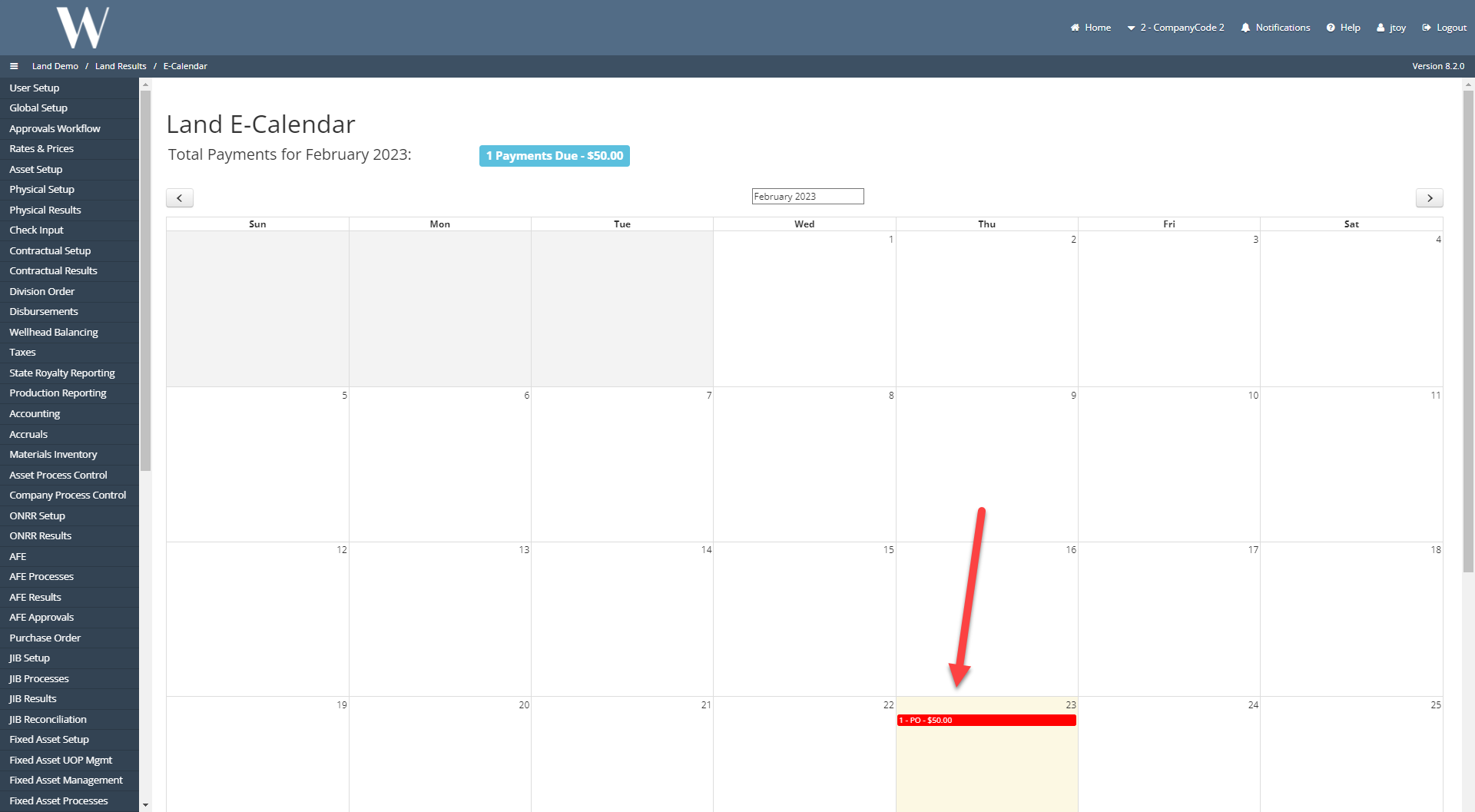
Navigate to Land Results / E-Calendar. Click on the Payment Obligation that was posted to the E-Calendar.
Uncheck Toggle Default Filter and submit the Payment Obligation to the approval workflow. The Payment Obligation - Workflow Status should have been updated from Draft to Review.
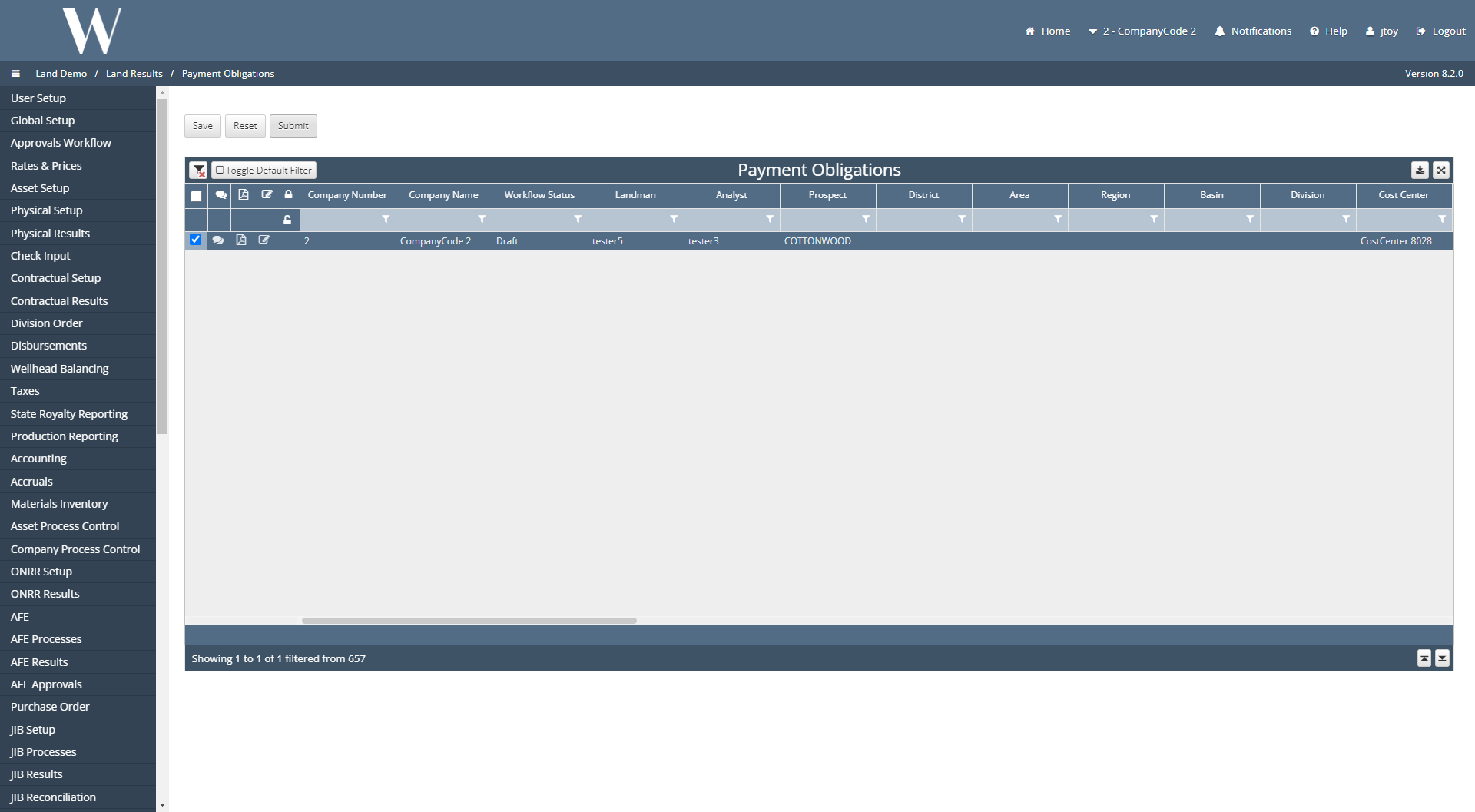
The Payment Obligation has now been submitted to the approval workflow. Open a New Incognito Window and login as tester3.
Navigate to Land Approvals / Obligations to Approve. The obligation appears under this screen for tester3.
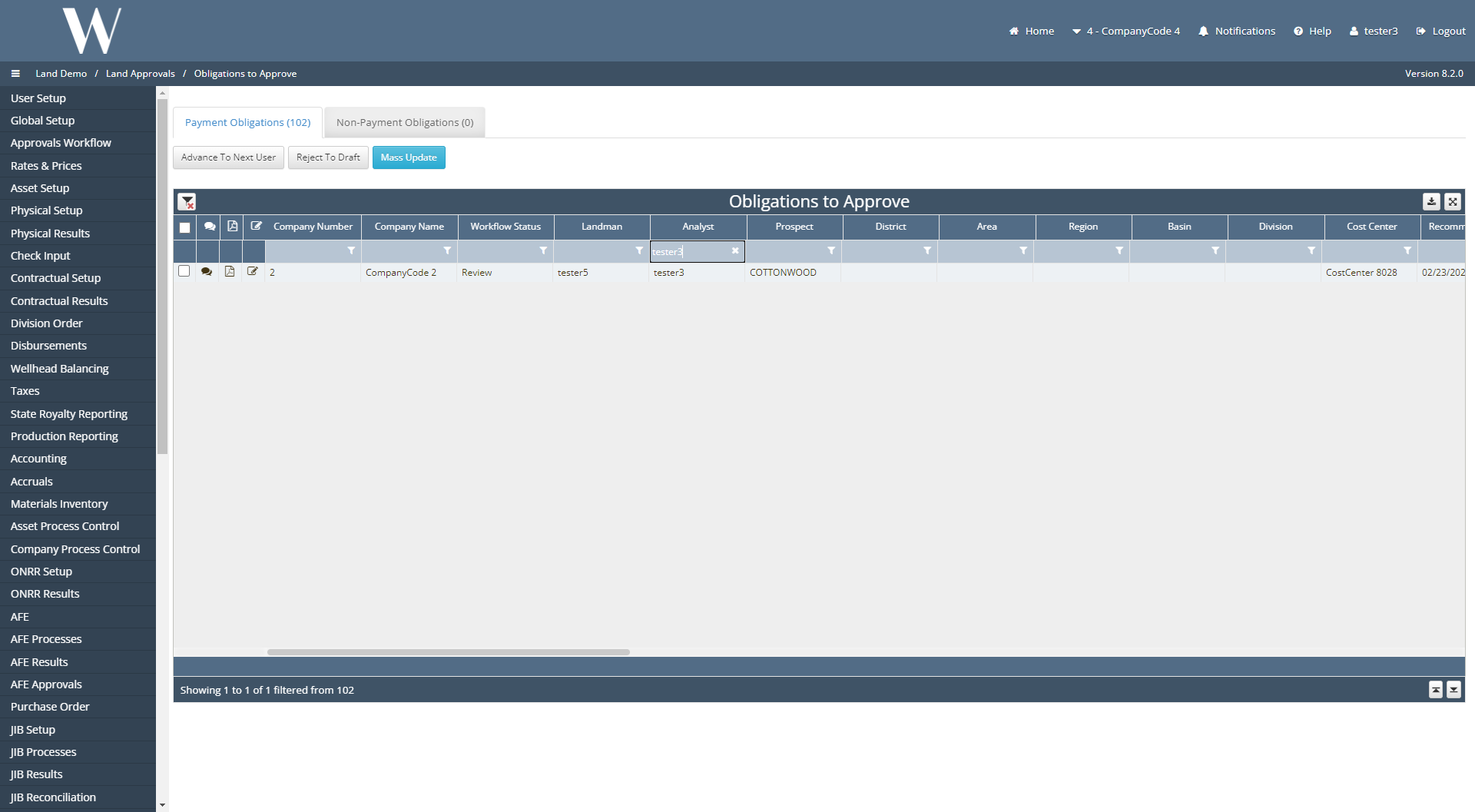
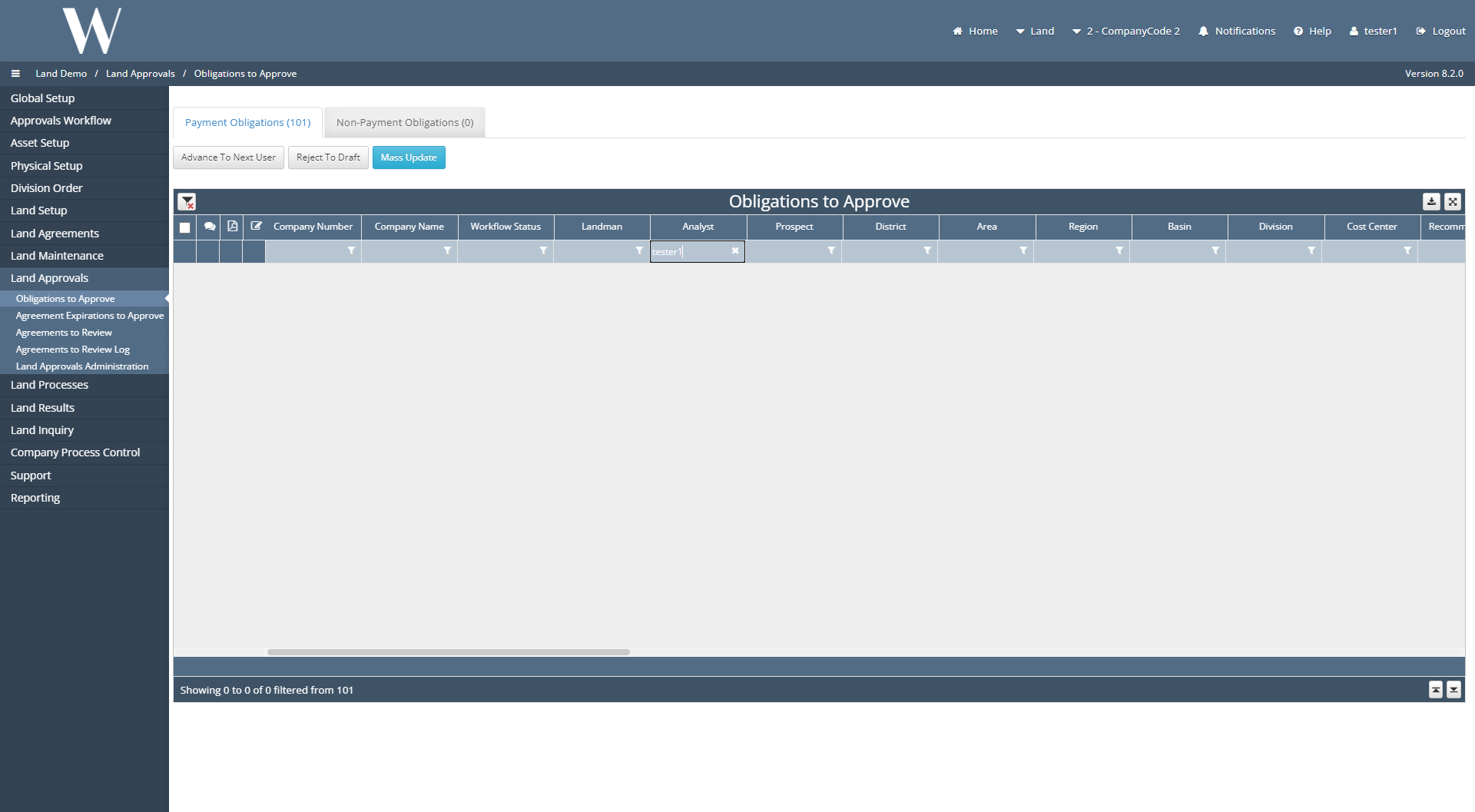
In the incognito window, log out of tester3 and log in as tester1 which also has the title of Analyst. Navigate to Land Approvals / Obligations to Approve.
Notice how the obligation that was submitted to the approval workflow does not appear under this screen. That is because tester3 was set as the Analyst to approve the obligation on the Agreement. We will now reassign the obligation from tester3 to tester1.
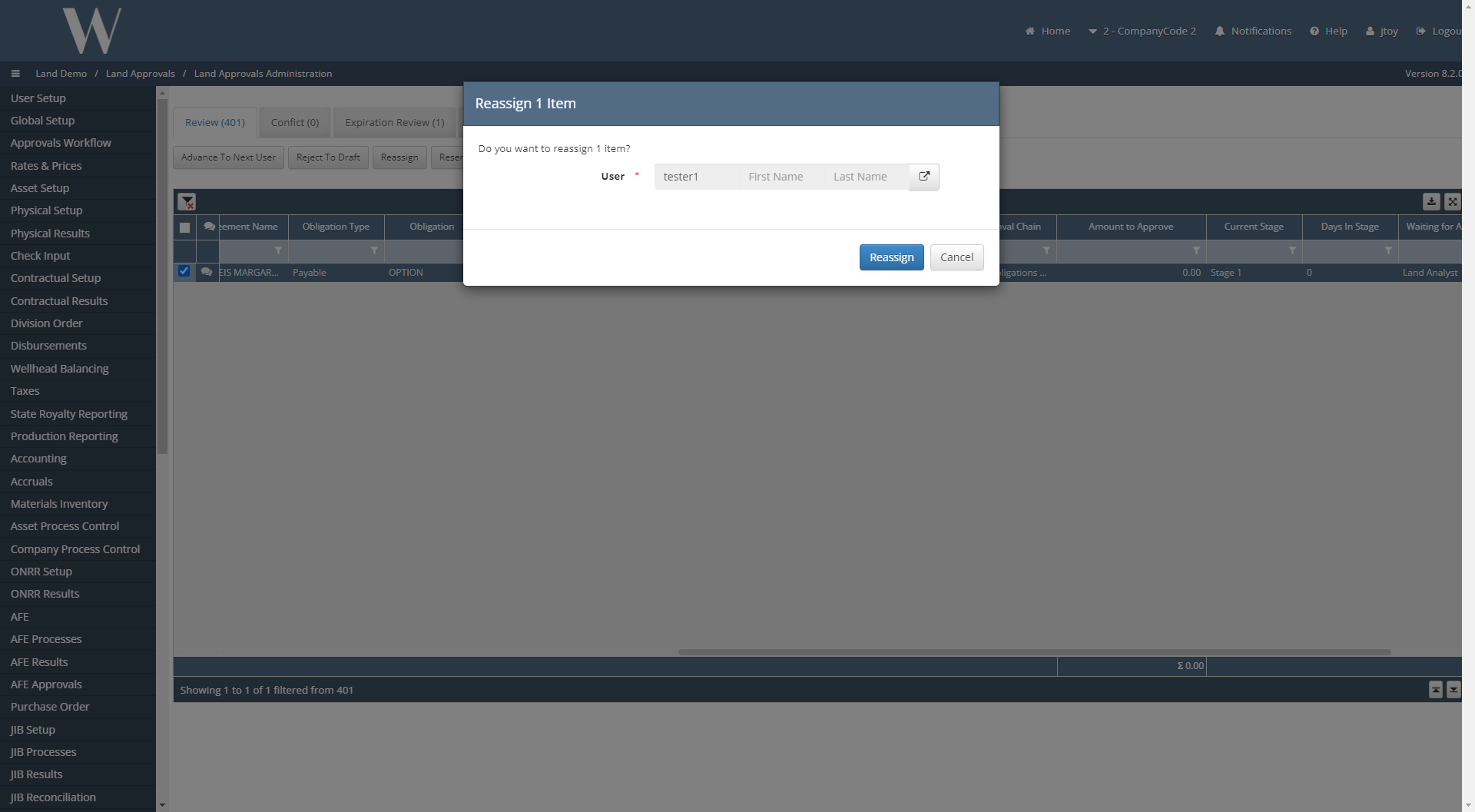
Reassigning the Obligation
Back in the original window (not the incognito window), navigate to Land Approvals / Land Approvals Administration. Select the obligation that we submitted to the approval workflow and click Reassign. Reassign the obligation to tester1.
In the incognito window, log back in as tester1. Navigate to Land Approvals / Obligations to Approve. The obligation should now be under this screen for tester1 to approve and advance to the next user.
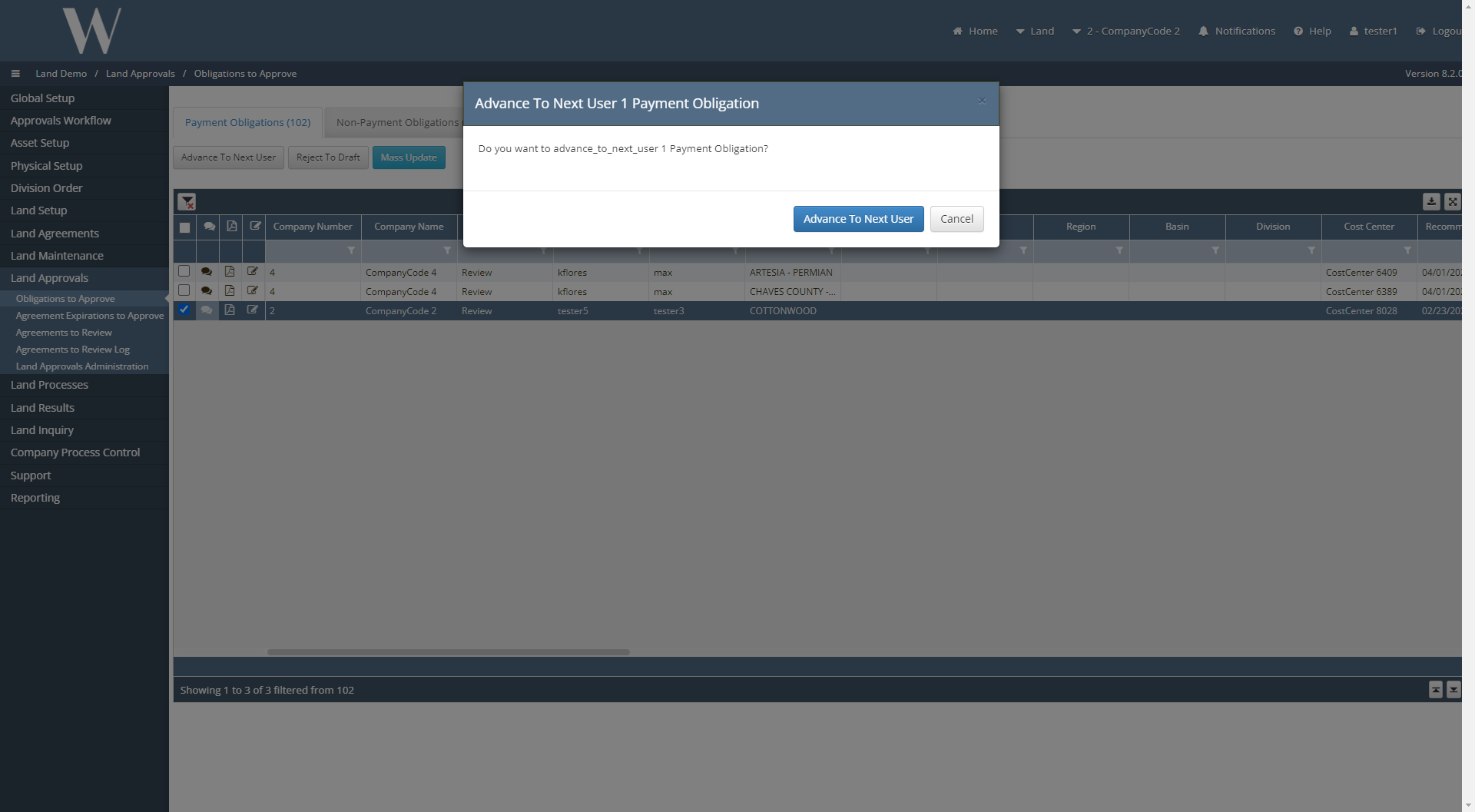
The same reassignment workflow can be applied for the next stage in the titles to approve which is the Landman title for tester2 and tester5.
Other items worth noting that would impact the process.
Changes coming soon
Known issues with the process
WEMAIN-6498