
Reading Types and Views
What is a Reading Type and Reading View
A Reading Type is a form that enables an Operator to take different kinds of readings in the form of attributes. A reading type is tied to a Stop Object through Object Type (well, meter, tank, equipment) and Subtypes.
Reading views allow different teams to have different views of the same reading type on their JOYN FDG mobile app. Readings views allow you to have different configurations based on the attributes based on the reading type.
JOYN O&G provides both core and custom reading types.
Core Reading Types - System provided predefined set of core reading types. The following are the core reading types supported.
LACTMeterReading
SinglePhaseOilTankReading
SinglePhaseWaterTankReading
DualPhaseOilWaterTankReading
MeterLACTTicket
TankRunTicket
Custom Reading types- These are custom reading types that can be created by admin from scratch.
Why would a client use a Reading Type or Reading View
Creating a reading type allows operators to capture information/data that is used for allocations and reporting.
Creating reading views provide the customer the capability to create a form in a way that makes sense for their field operators to easily and correctly capture data on their assets.
What Configurations apply when creating a new Reading View
XYZ: true
XYZ: upstream
Include any explanation needed for these configs, if not needed, you can remove this section
The following are steps to create a new reading View and adding it to a Team. Please note, these instructions are for a custom reading view. For Core reading types and views, new attributes cannot be added.
1. Create Custom Reading Type
Click on Components on the Left menu and then Reading Formats
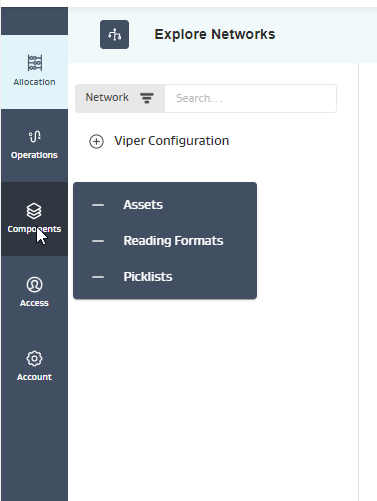
Click on + New button and then Reading Type

Update reading type attributes in the form
Below are descriptions of each of the attributes available to set up a reading type.
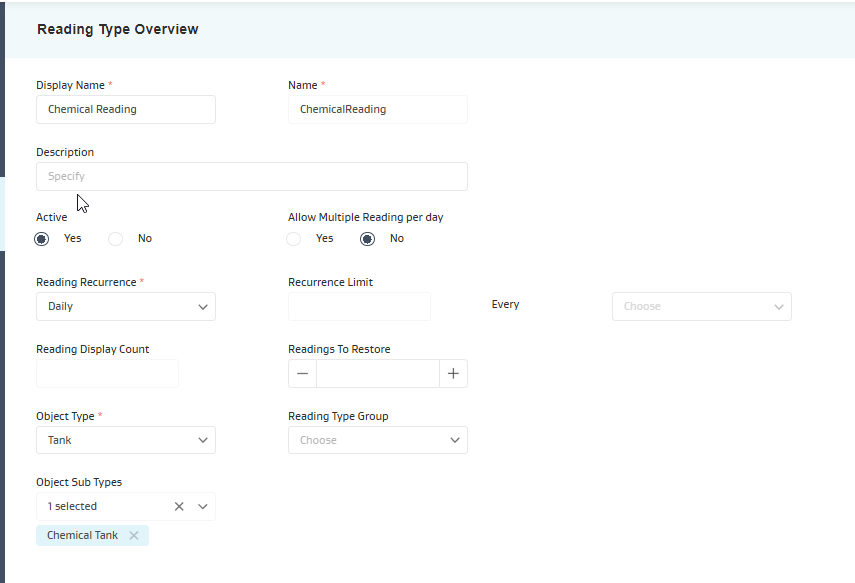
Attribute | Description |
|---|---|
Display Name | Name of Reading Type. |
Name | Auto-generated name based on Display Name. Will remove spaces and special characters when generating the name. Once saved, this name cannot be changed |
Description | Any description for reading type |
Active | Set the reading type as active or inactive |
Allow Multiple Readings Per Day | Determines if multiple readings per day are allowed for the reading type |
Reading Recurrence | Determines the frequency of the reading (daily, as required and infrequent). As Required is typically used for event type readings. Daily readings will have a placeholder reading for every day whereas for As Required-Infrequent, it only shows days where there is a reading. |
Recurrence Limit | Only enabled when Reading Recurrence=As Required-Infrequent |
Readings Display Count | Determines how many readings to show on Analytics in the app. |
Readings To Restore | |
Object Type | Reading types must be associated to an 1 object type (well, meter, tank or equipment). Readings can only be captured on an object/asset. For meters, tanks and equipment, an object subtype can be defined even further. Below are the steps to create |
Reading Type Group | To group multiple reading types together in Analytics |
4. Click Add Reading Type
5. Click + Add Attribute. For every new reading type, Comments is already configured by default
6. Fill out attribute information
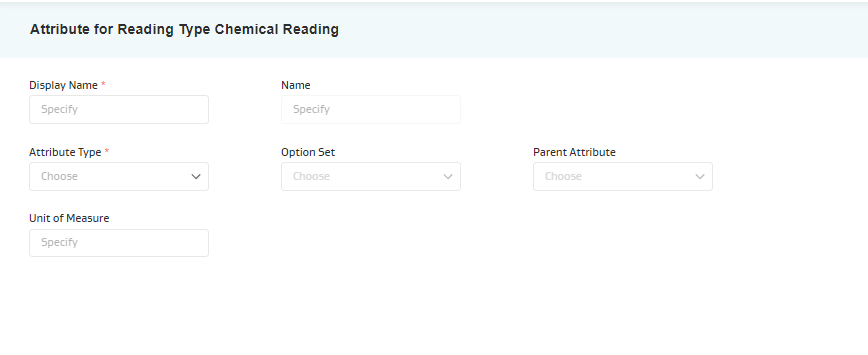
Attribute | Description |
|---|---|
Display Name | Name of attribute |
Name | Auto-generated name based on Display Name. Will remove spaces and special characters when generating the name. Once saved, this name cannot be changed |
Attribute Type | Defines the type of data held in the attribute on the reading type. Data types available are:
|
Option Set | This will show the available picklists that can be used when selecting Picklist or Button as the attribute type. It will show Dynamic lookup options if Lookup is selected at the attribute type. |
Parent Attribute | If the attribute is dependent on another attribute, the parent attribute can be selected here. This only applies to picklists. There is also a dependency to set up the parent-child relationship for the picklist. |
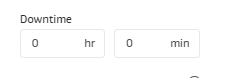
Unit of Measure | Primarily for informational purposes. There are two settings/values that will impact data entry for users on the app and admin.
|
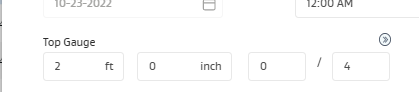
7. Click Add Attribute
Please note that the following attributes are always available for any new custom reading and they cannot be removed.
Reading Date
Reading Time
Comments
Created On and Created By
Modified On and Modified By
Reading Number
Data Input Method
Calculation Type
8. Repeats steps 5-7 to create additional attributes needed in the reading type.
2. Create Reading View
In Readings Format module, click +New button and click Reading View. Note- One reading view will automatically be generated after a new Reading Type is created.
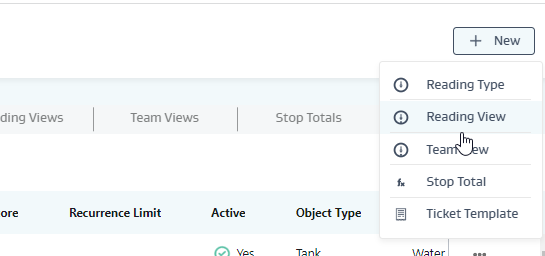
Complete required Reading view attributes
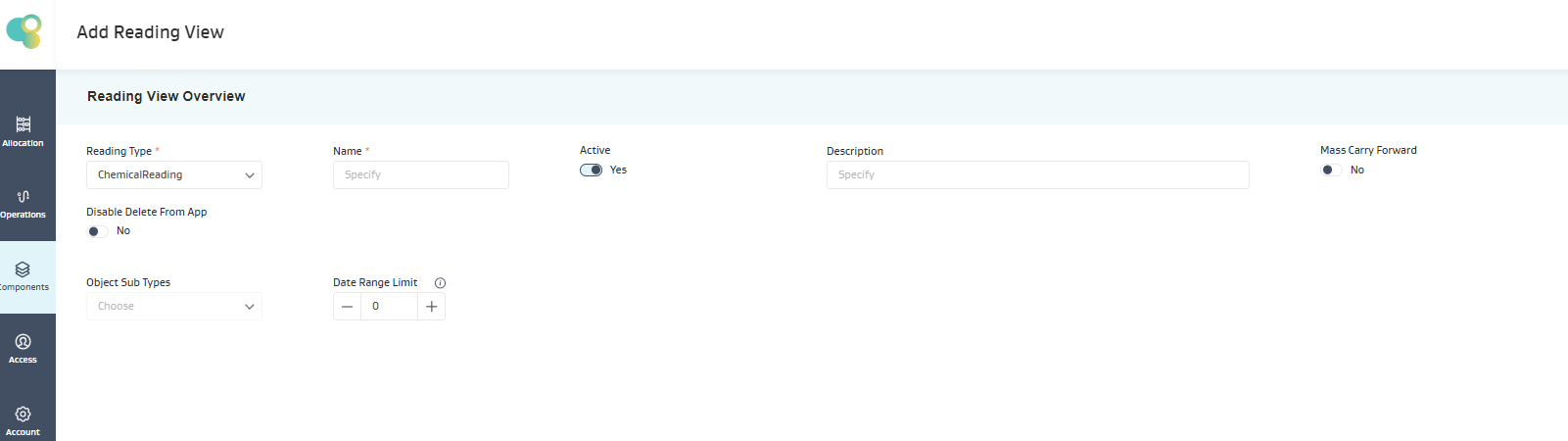
Attribute | Description |
|---|---|
Reading Type | |
Name | |
Active | |
Description | |
Mass Carry Forward | |
Object Sub Types | |
Date Range Limit |
3. Add team view
How does this module impact/feed other areas in the application?
For example, Check input is required for Revenue to to allocate funds to correct owners.