
Provisions
What is a Land Provision?
A provision is a clause within a lease that outlines the contractual agreement between the lessee and lessor.
Why would a client use Provisions
Provisions are the terms within the lease that outline the contractual agreement within the lease itself. These clauses. By abiding by these clauses, both the lessee and lessor can prevent any form of misunderstandings or legal issues from occurring. By utilizing the provisions tab in the land module, you can quickly identify any rules that are to be followed, obligations to be paid and what the lessee has to abide by during the life of the lease. If these rules aren't followed or abided by, the lease can be released and be null and void.
What Configurations apply when using XYZ
XYZ: true
XYZ: upstream
Include any explanation needed for these configs, if not needed, you can remove this section
How Add a Provision to a Land Agreement
Below are the steps to adding a provision to a land agreement. Please review the sections below on setting up the provision template which is a pre-requisite prior to adding provisions.
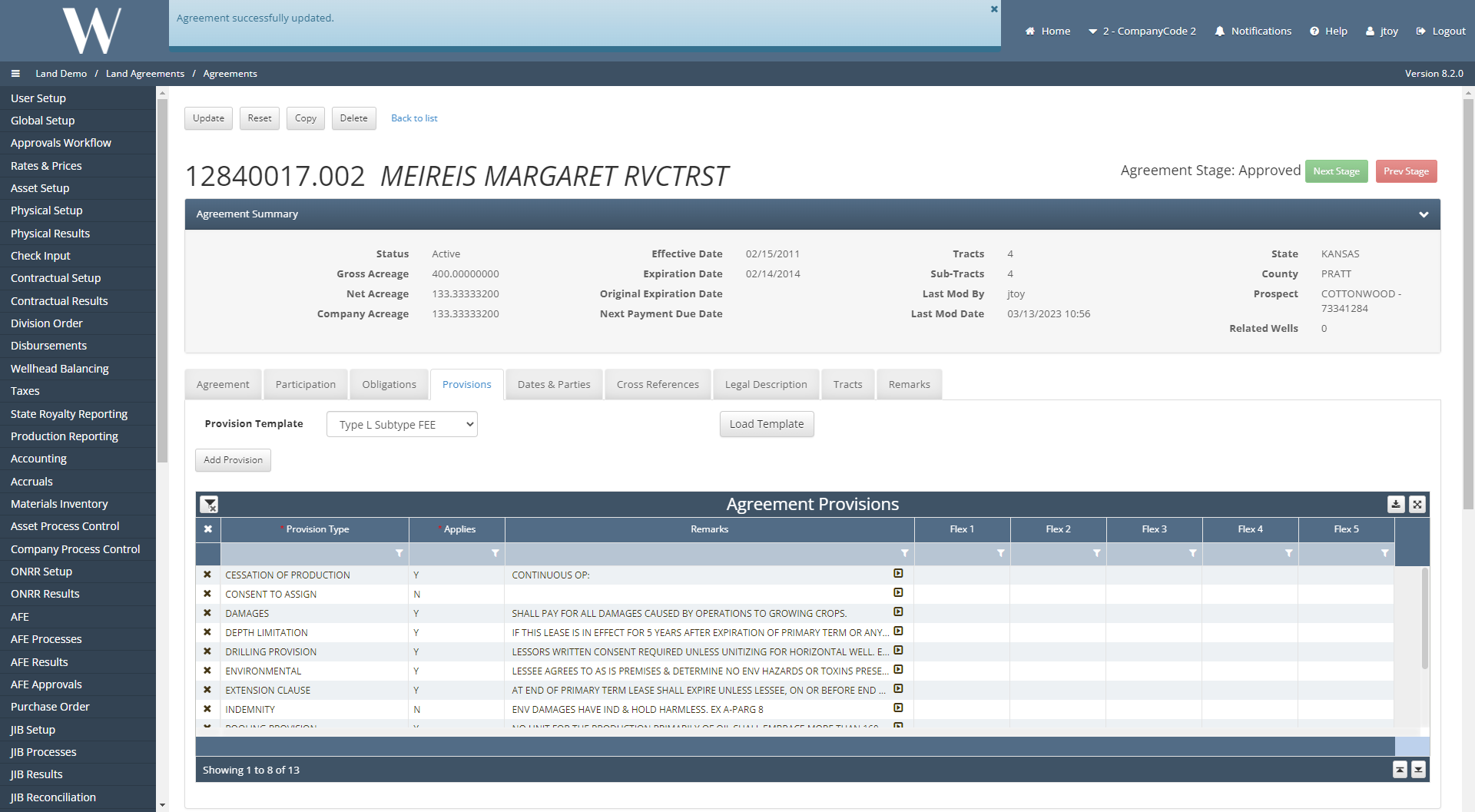
Navigate to Land Agreements / Agreements.
Click into an Active Agreement.
Toggle to the Provisions tab.
Specify the provision template.
Click Load Template which populates the fields under the Agreement Provisions grid based on the fields specified in the template chosen.
Select Add Provision which adds a blank line item under the Agreement Provisions grid.
Fill in the required fields and optional fields as necessary.
Select Update to save the Provision.
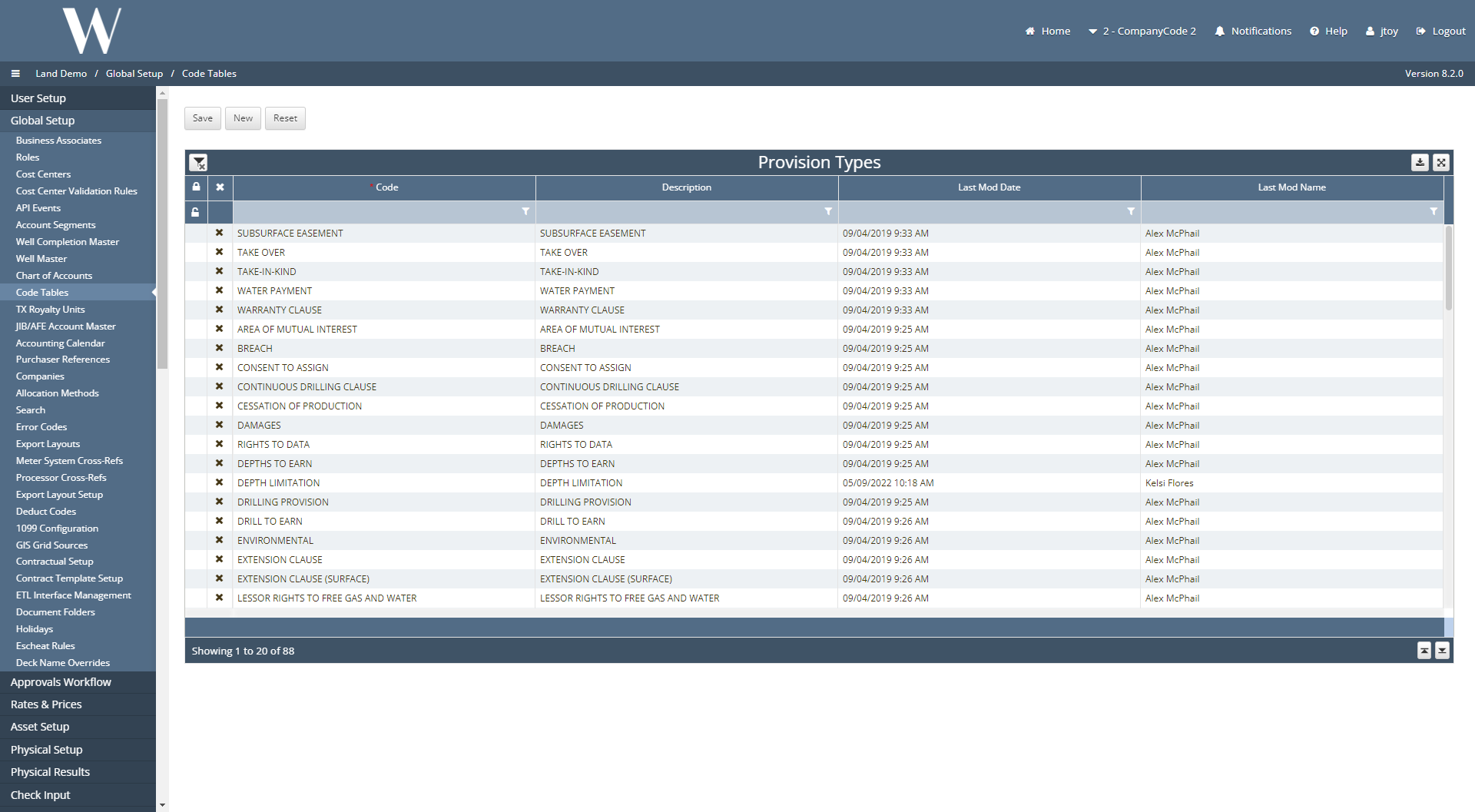
Provision Types
Provision Types is an external code table that controls the variety of provisions that can be selected from the Provision Setup table and the Provision Attribute Definitions code table.
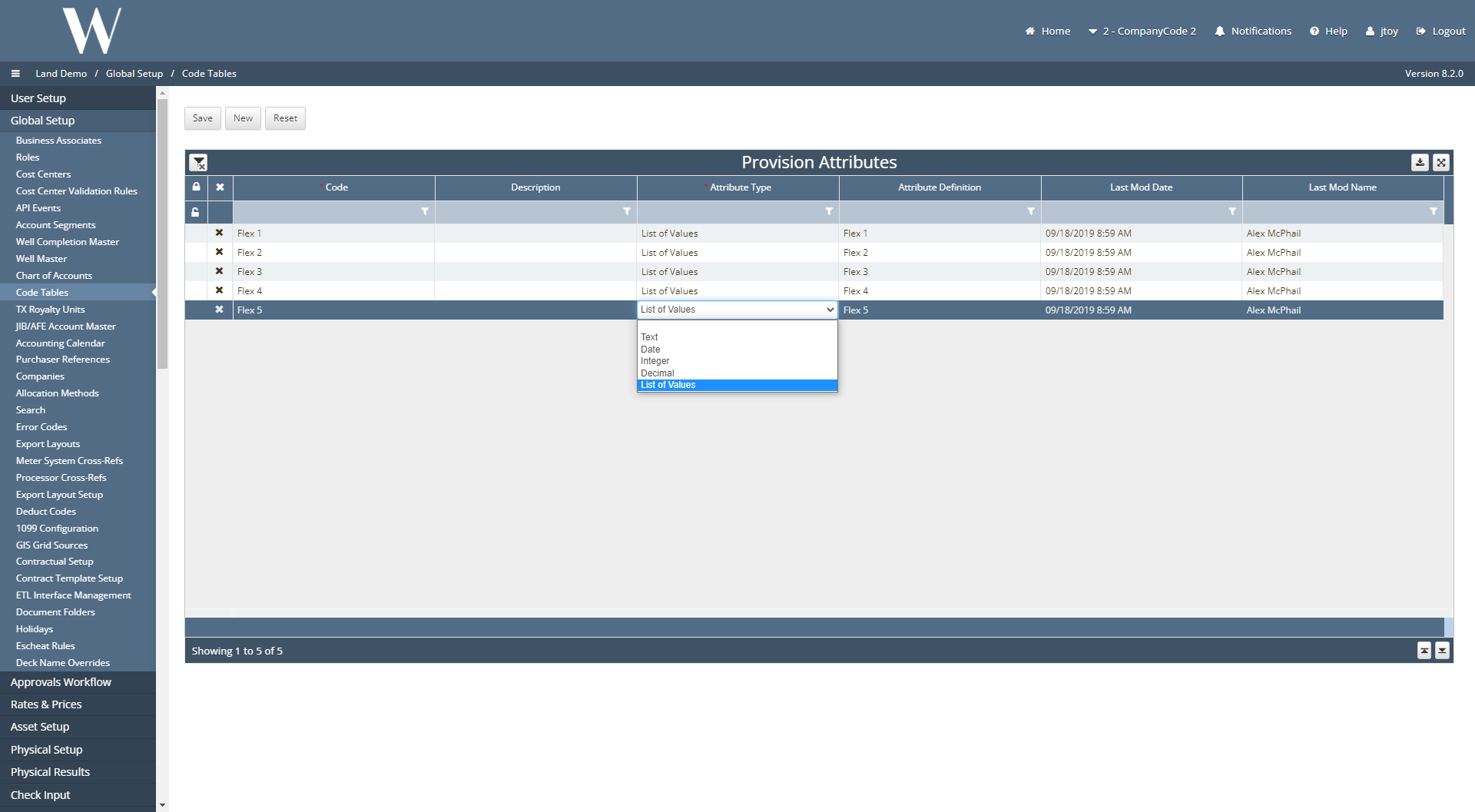
Provision Attributes
Provision Attributes defines the columns shown on the Provision Setup tab and types of columns to be shown in the Agreement Provisions grid of an Agreement. Below are the fields of this code table and their significance:
Code: this value determines the title of that field under the Agreement Provisions grid
Description: optional field for notes/commentary of this provision attribute
Attribute Type: determines what type of field this attribute will be under the Agreement Provisions grid whether this will be a text, integer, list of values, etc.
Attribute Definition: defines the drop-down values that will appear in the customized grid columns created by the Provision Attributes table
The code and description fields must match between the Provision Attribute Definitions and Provision Attributes tables
Provision Attribute Definitions
This table defines the drop-down values that will appear in the customized grid columns created by the Provisions Attributes table. The code and description fields must match between the Provision Attribute Definitions and Provision Attributes tables. Below are the fields of this code table and their significance:
Code: Additional field that appears under the Agreement Provisions grid that was created under the Provision Attributes code table
Description: optional notes/commentary on the provision attribute definition
Provision Type: optional field with picklist drop-down options created from the Provision Attributes code table
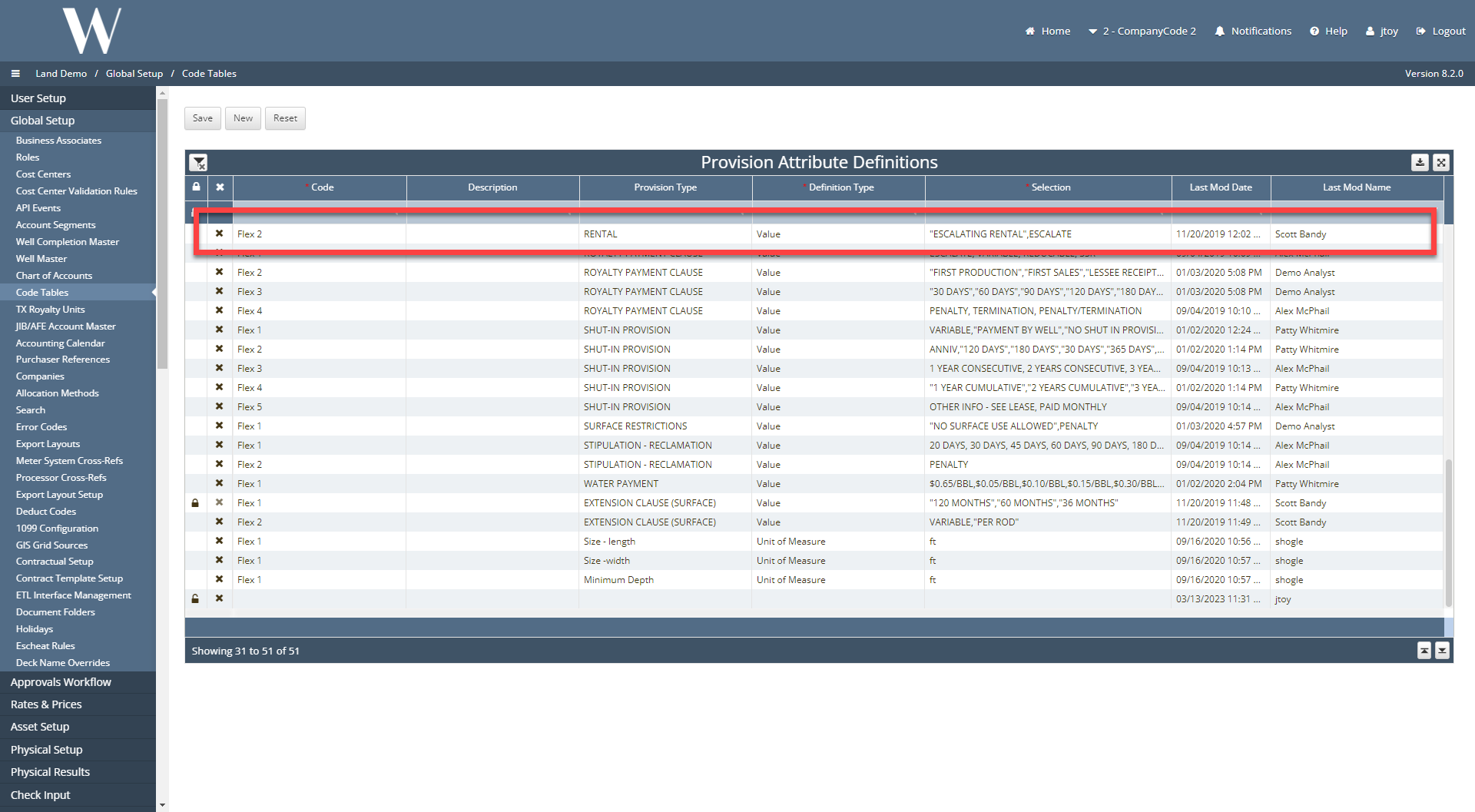
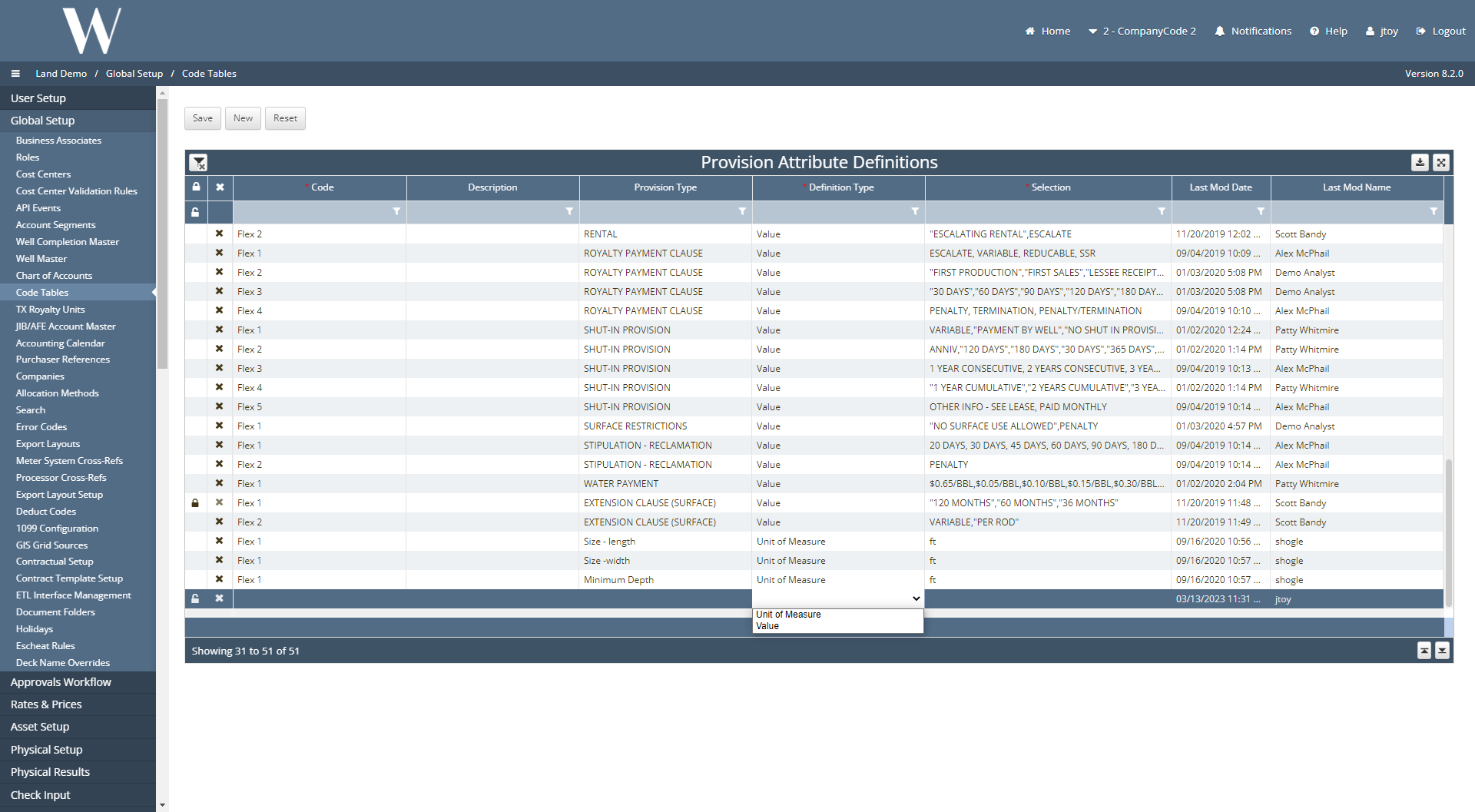
Definition Type: internal code table that determines if the provision attribute definition is a value or unit of measure
Selection: determines the picklist drop-down options for that provision attribute definition
Value: if the definition is a value, then the options are user-defined and can be added
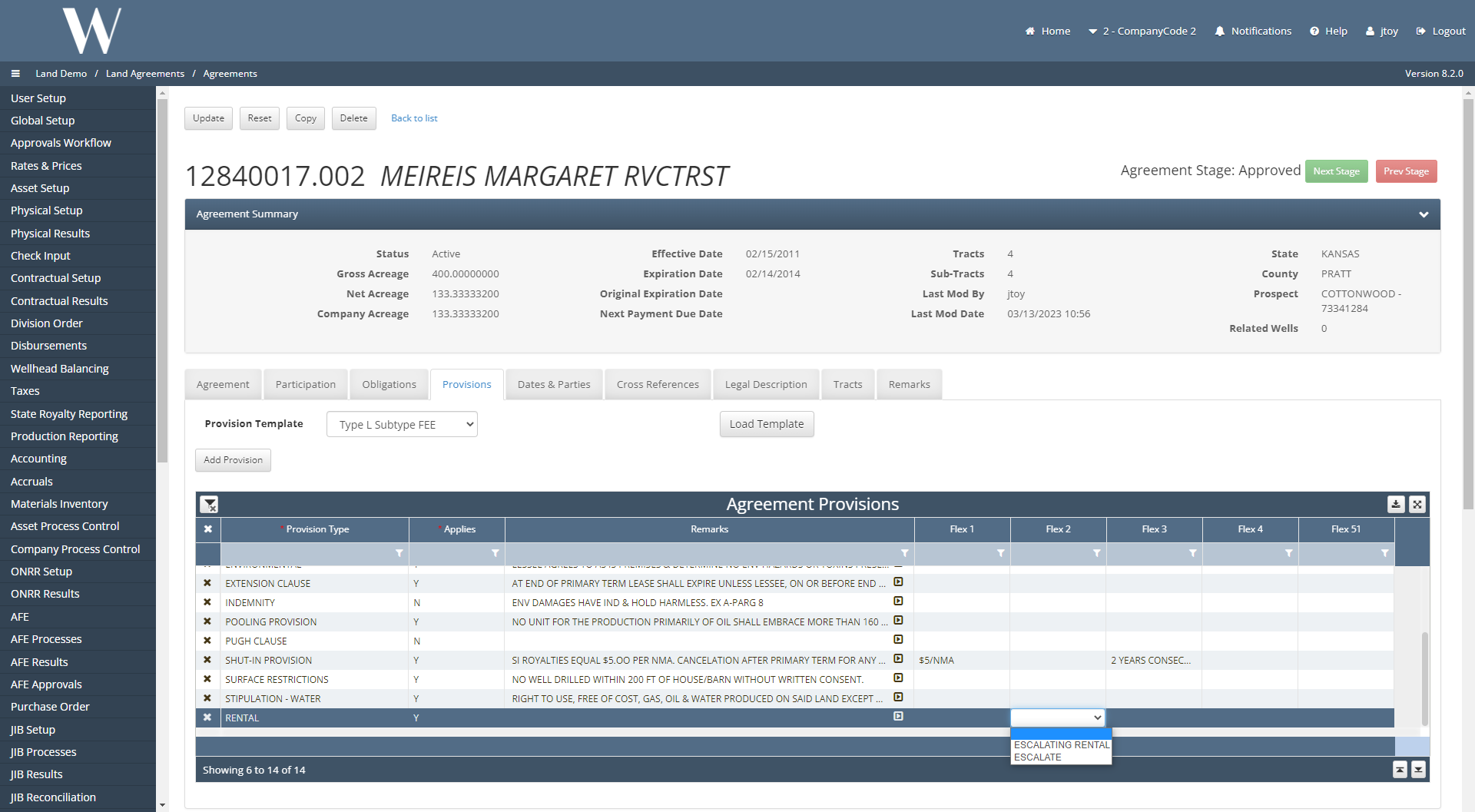
Ex. Flex 2 - Rental has two picklist dropdown options to select from under the Agreement Provisions grid in the screenshot below because these are option specified in the 2nd screenshot below:
Units of Measure: same concept as if the Selection were set to Value, the options specified here determine the picklist drop-down options of that code and provision type combo under the Agreement Provisions grid
Provision Layouts
Provision layouts define the set list of provisions to be populated by default on an agreement with a given type and sub-type. These populate when a new agreement is created. A provision type may exist in more than one layout.
For example, the below Agreement is an Oil & Gas Lease with a subtype of fee lease. This agreement only has one provision template to select from.
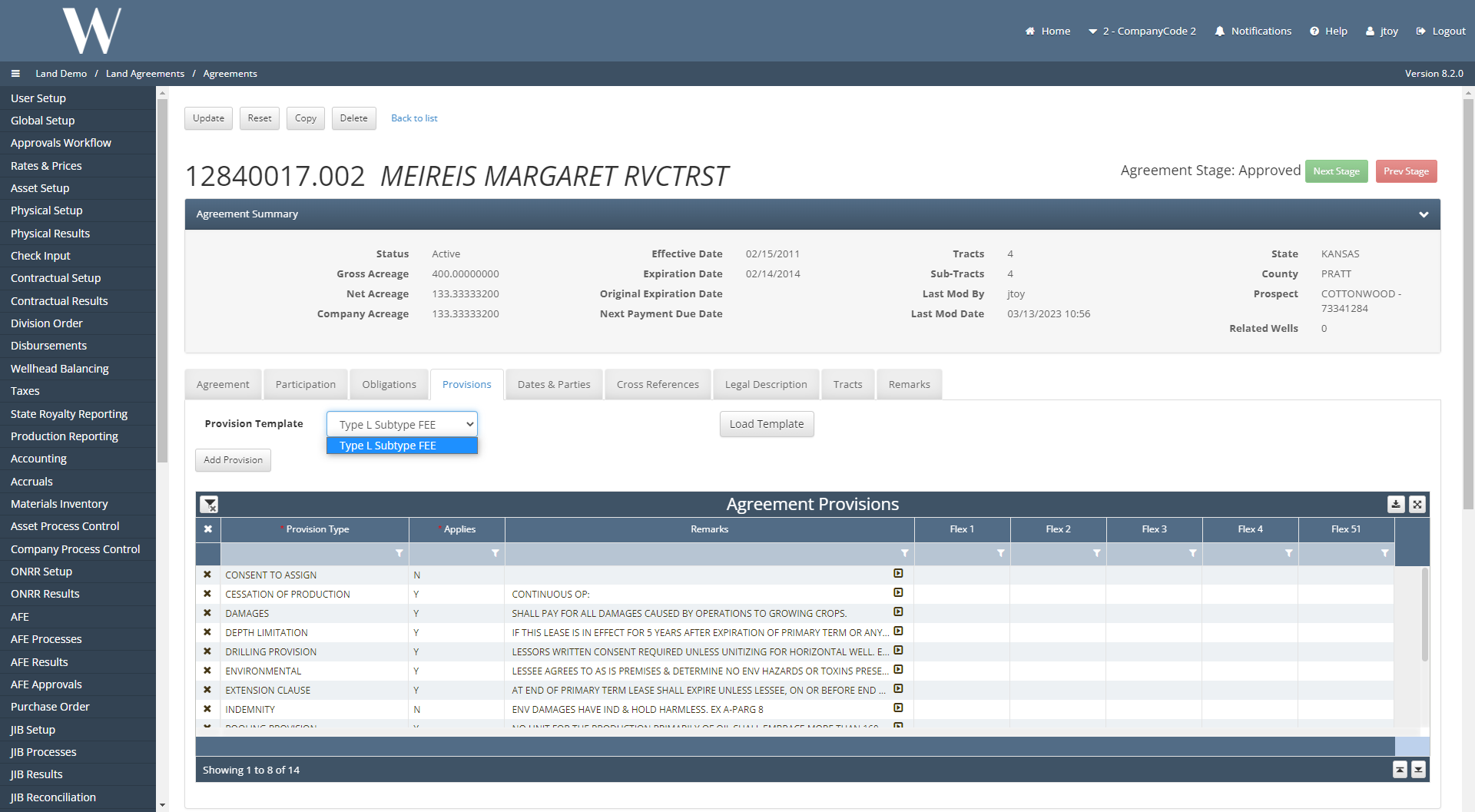
This is because under the Provision Layouts code table, there is only one provision layout for that agreement type and subtype.
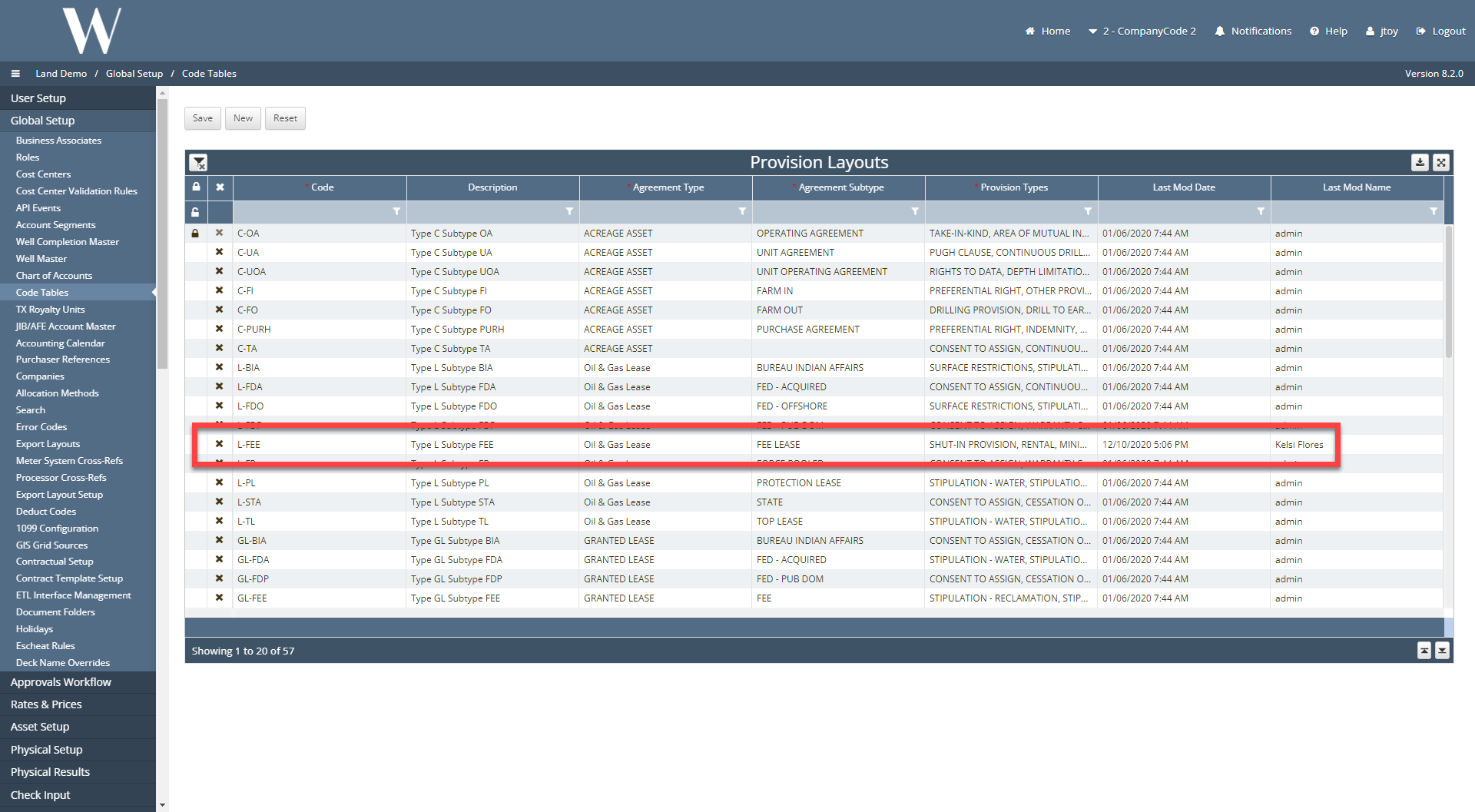
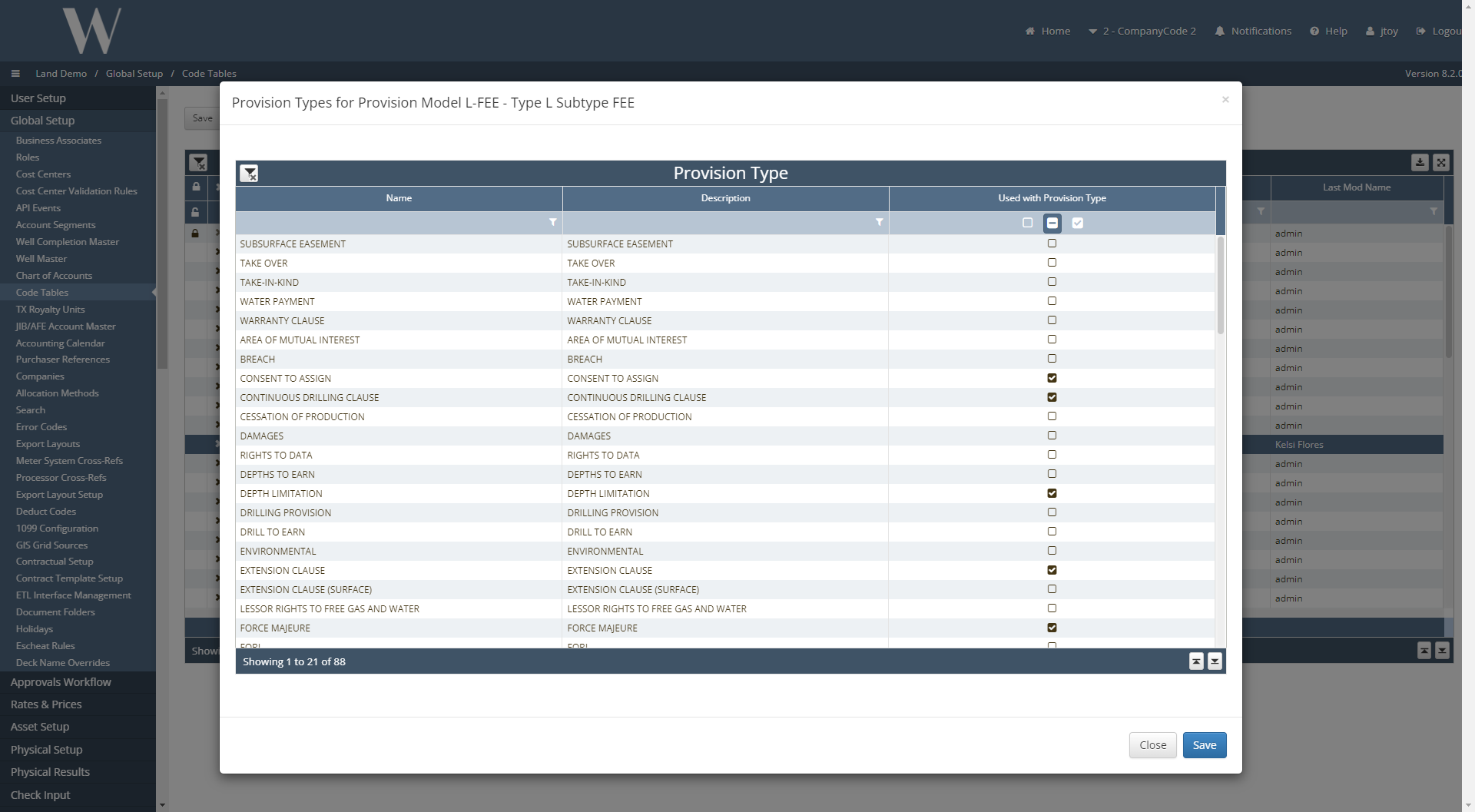
Under this provision layout, the different provision types are specified. Once the provision layout is specified on the agreement, the different provision types appear in the picklist drop-down as shown in the first screenshot below based on what is populated in the second screenshot below from the Provision Layouts code table.
Provision Application Statuses
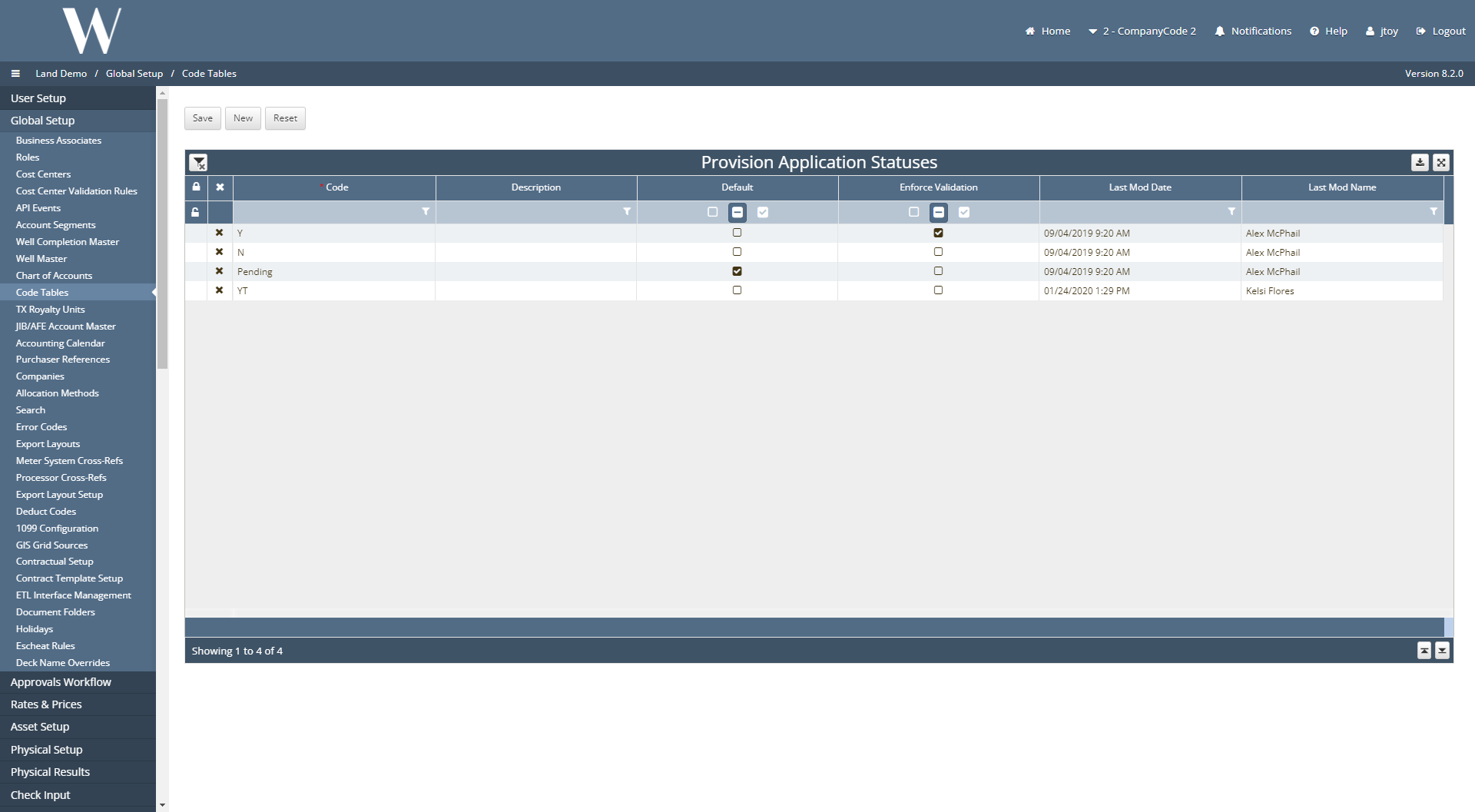
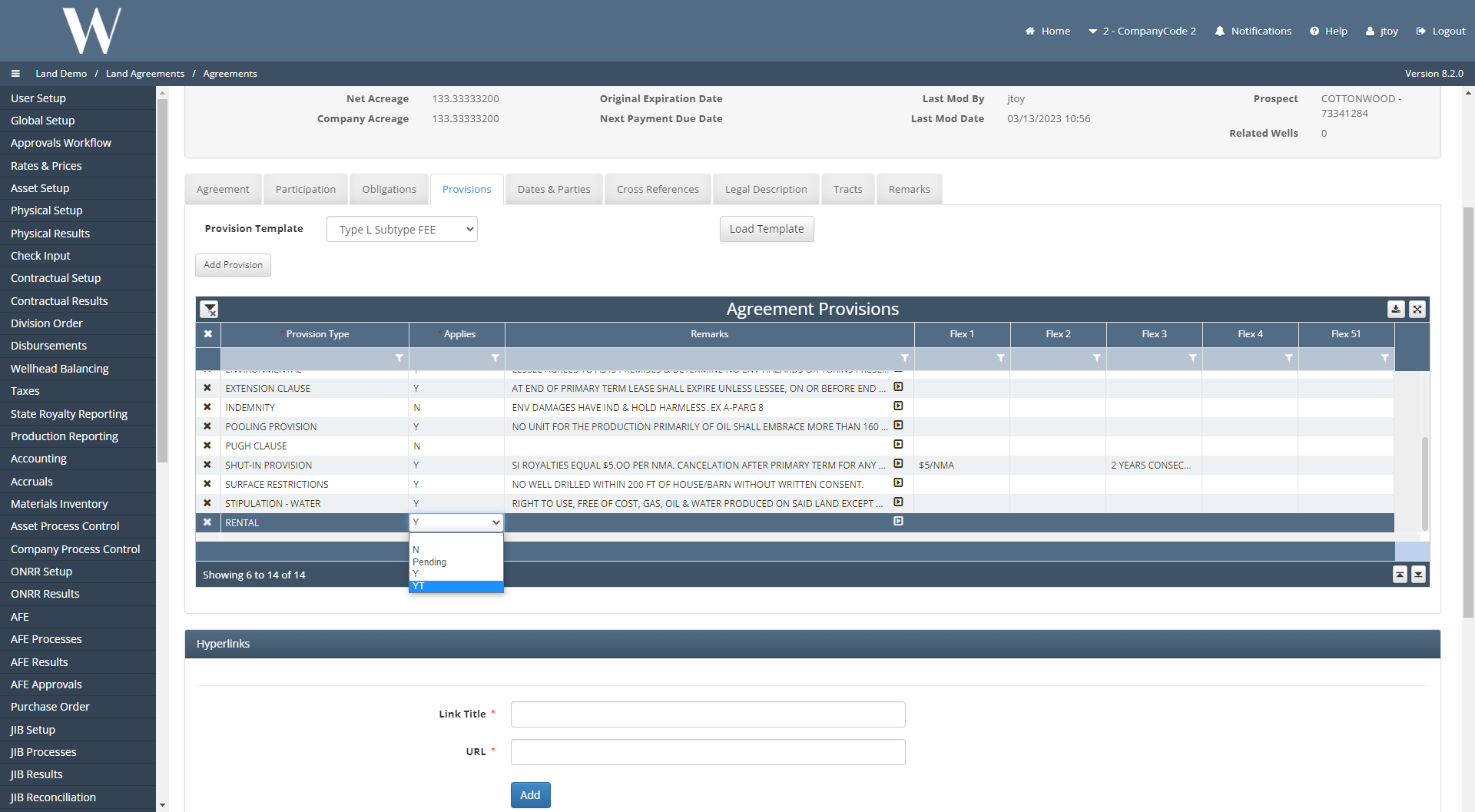
Provision Application Statuses is the code table that determines the picklist drop-down options under the Applies field in the Agreement Provisions grid.
Provision Setup
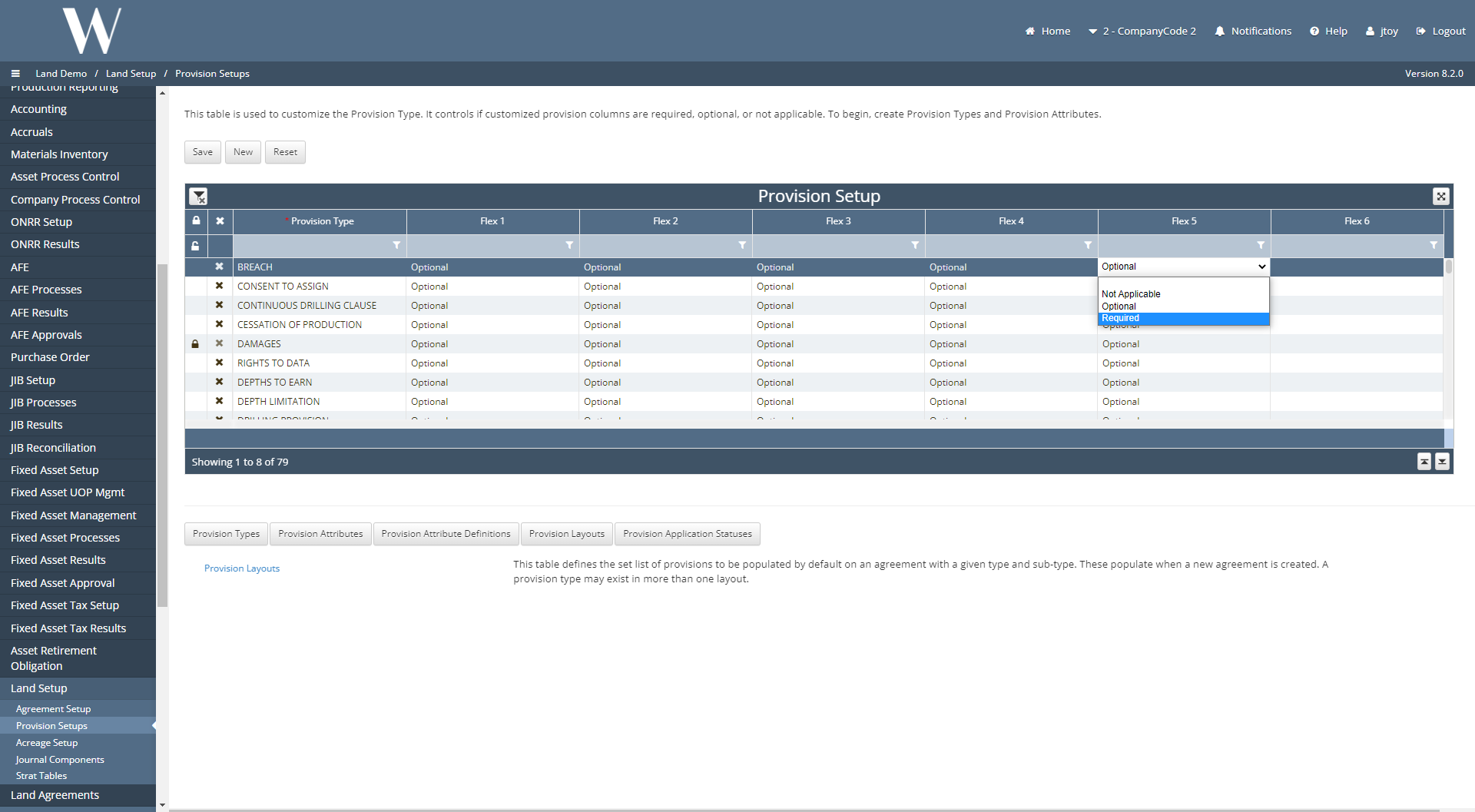
The Provision Setup is used to customize the Provision Type. It controls if customized provision columns are required, optional, or not applicable. The Provision Types and Provision Attributes must be created first before entries can be made into this table.
📘 Alternative Method to Populating Agreement Provisions
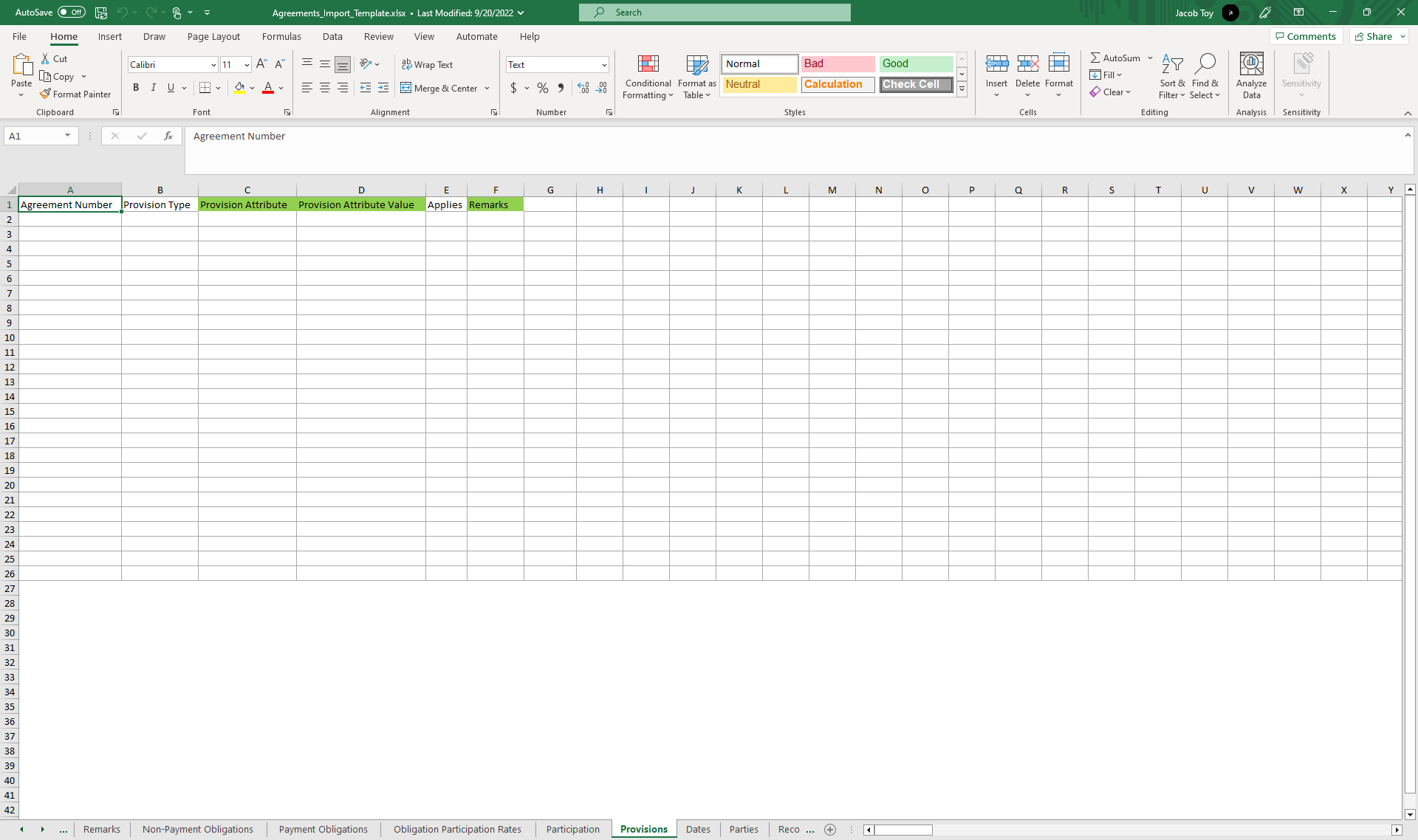
Adding Provisions can also be completed through the Land Agreements uploader template.
Agreements_Import_Template.xlsx
How does this concept impact/feed other areas in the application?
For example, Check input is required for Revenue to to allocate funds to correct owners.
Other items worth noting that would impact the process.
Changes coming soon
Known issues with the process
Frequently Asked Client Questions
Links provided are from W Energy Software Support Confluence Space @a user