
Liquid Trans Setup / Transport Summaries
What are Transport Summaries
Transport summaries are used in cases where shippers are nominating to a location, and not one specific meter. Transports summaries roll the volume up to a “Parent” meter. In Shipper allocations and movements the results will be listed under the “Parent” meter.
Why would a client use Transport Summaries
A client would use Transport Summaries if they wanted to show nominations at a location level rather than a meter level
How to setup Transport Summaries in the system
To be able to use Transport Summaries, you will need to create a new “Parent” meter which will be used for the shippers to nominate. The child meters will then need to be added to the “Transport Summary Items” section. The shipper/client will then enter their nomination using the “Parent” meter.
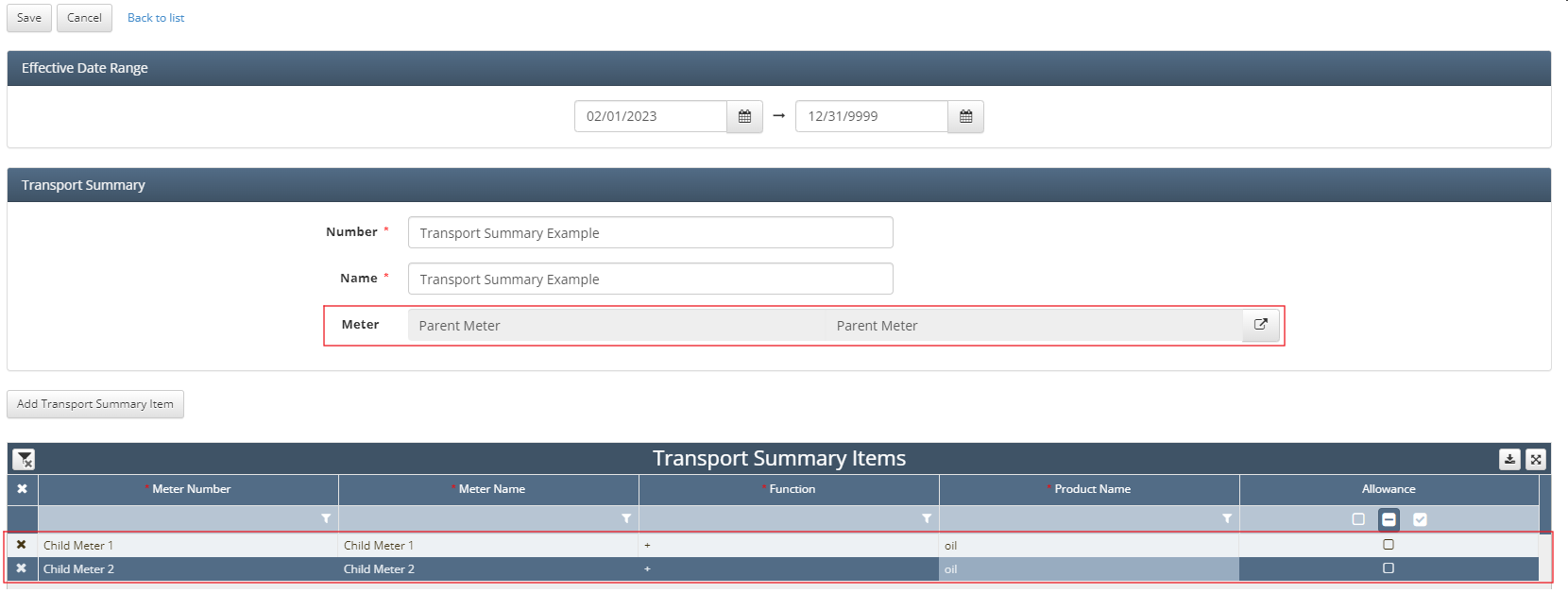
Firstly navigate to Liquid Trans Setup / Transport Summaries
Click the Add Summary button in the top left hand corner and it will bring up setup page show above
Select a Number and Name for the Transport Summary
Select the Parent Meter
Next click Add Transport Summary Item, this will add line items to the lower grid
From there add the Child Meter(s) that will be apart of this Transport Summary
If the meters are adding up to the parent meter, then the user must select the “+” as the function. Please note that if there are multiple products that are using the same transport Summary, there will need to be a new transport summary for every product combination.
How does this concept impact/feed other areas in the application?
Transport Summaries will effect what meter will be shown under Shipper Allocations and Movements result screens.