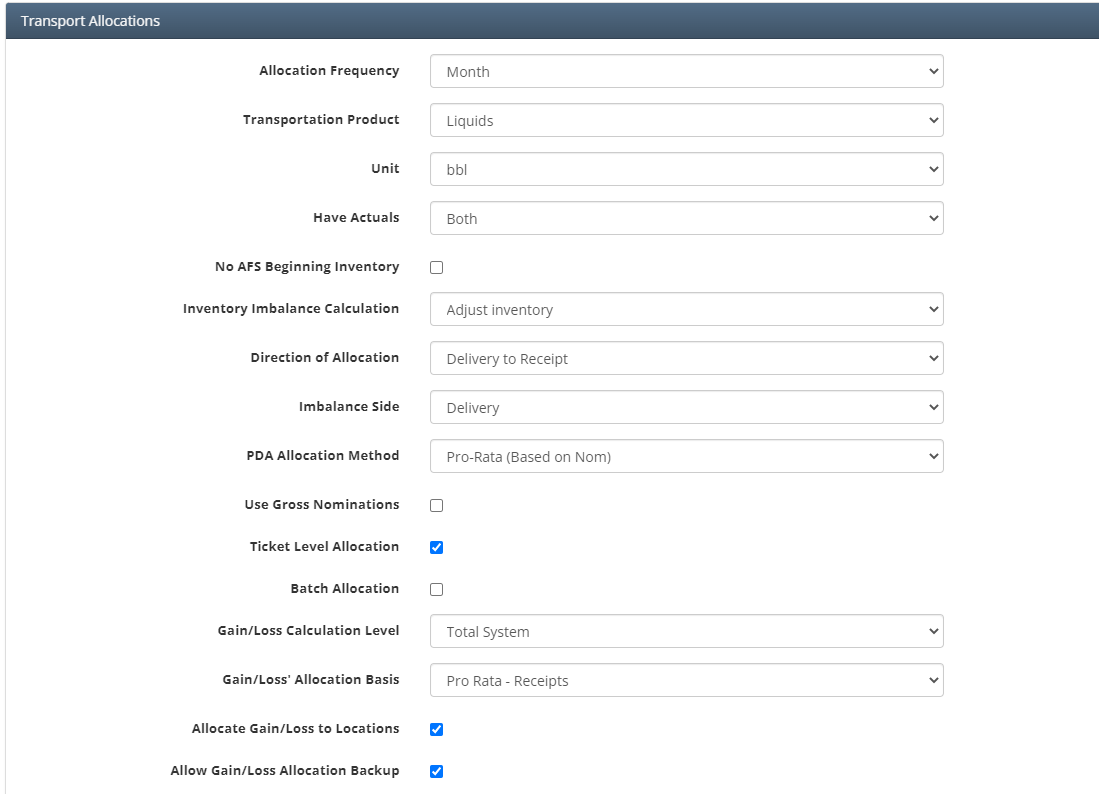
Transport Allocations Screen is used to configure the allocations at the Asset Level. This is where you can configure the assets allocation method to be “Pro-Rata” (Based on Nominations) or use Available for Sale. This is also the screen where the allocation frequency can be set to ‘Day’ or 'Month'.
Why would a client use Transport Allocations
Why would a client request to use this specific functionality
This screen is necessary to setting up any Liquid Transportation asset as it drives how the application will allocate volumes. This is a one time setup screen but does come with the time-slice functionality so that if a client wishes to change their allocation method at some point then they can use that to track what accounting periods were using what allocation method.
How to setup Transport Allocations in the system
Allocation Frequency
Month or Day
Have Actuals
Both: Select this option if there are both receipt delivery actuals being entered in the run ticket or volume tables
Receipt: Select this option if there are only receipt actuals being entered in the run ticket or volume tables
Delivery: Select this option if there are only delivery actuals being entered in the run ticket or volume tables
Inventory Imbalance Calculation
Adjust inventory: The inventory will be adjusted based on receipts and deliveries
Allocate to shippers: Allocating inventory to shippers (not typically used)
Do not calculate: Does not calculate inventory imbalance (not typically used)
Direction of Allocation
Delivery to Receipt: If this option is selected then the Transport Allocate Process will allocate delivery volumes back to receipt volumes, creating movements that equal to the delivery volumes
Receipt to Delivery: If this option is selected then the Transport Allocate Process will allocate receipt volumes back to delivery volumes, creating movements that equal to the receipt volumes
Imbalance Side
Determines what side the imbalance should be calculated on, Receipt or Delivery
PDA Allocation Method
Pro-Rata (Based on Nom): If this option is selected the allocation to delivery points will be based on the shipper’s receipts
Available for Sale: If this option is selected the movements will be based on the AFS volumes (show in the Available for Sale Screen) which is the shipper’s receipts plus beginning inventory minus any deductions
Ticket Level Allocation
If checked, allocations will be done by ticket and Shipper Allocations will show how each ticket was allocated to the shippers
Batch Allocation
If checked, this allocation method will attach the corresponding batch number to the ticket. The batch number will be displayed to the corresponding shipper allocation and movements. The Batch allocation will calculate the linefill volume when the batch is not complete and will also calculate the over/short within the specific batch when the batch has been completed. AFS allocation method must be used when utilizing “Batch Allocation”.
Gain/Loss Calculation Level
Total System: Calculate gain/loss at an asset level
Pipeline Segment: Calculate gain/loss for each pipeline segment, will allocate gain/loss back to the points that are within each given pipeline segment
Gain/Loss Allocation Basis
Determines whether gain/loss should be allocated to the selected party (in Inventory Adjustment Setup section) based on either receipts or deliveries.
Allocate Gain/Loss to Locations
When Checked, this will allocate gain/loss to the shipper/meter level.
Allow Gain/Loss Allocation Backup
When checked, this will enable the backup method which forces gain/loss to always be allocated. For example, if gain/loss was based on a receipts but one product has no receipts for the month, it would not allocate if Allow Gain/Loss Allocation Backup was not checked. However, when this is checked, the allocation will instead use deliveries to allocation split. If there are no receipts or deliveries, it will use beginning inventory. If there are no receipt, deliveries, or beginning inventory then it will allocate all of the gain/loss to the assigned pipeline contract on the Asset Setup page.
Ticket Level Deductions
Gravity Deduction
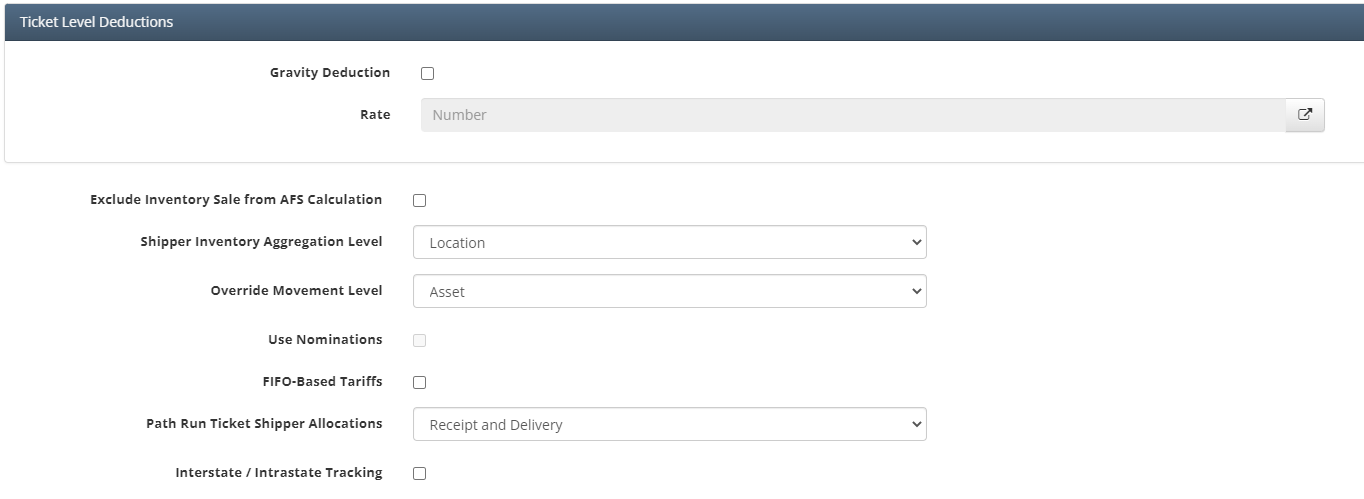
If checked, then a rate can be selected to set what volume will be deducted from Net Volume on tickets based on the gravity. Typically the rate would be setup as a tiered rate.
Exclude Inventory Sale from AFS Calculation
If checked Inventory Sale will be excluded from AFS Calculation.
Shipper Inventory Aggregation Level
Location: If this option is selected then inventory will be stored at the meter level
Aggregate: If this option is selected then inventory will be stored at the shipper level and the meter columns will be null
Override Movement Level
Asset: If this option is selected then when a Movement is overridden the total volume that is delivered must be equal over the whole asset
Meter: If this option is selected then the override quantity must be equal to the volume that was delivered on that meter before overriding the movement
Use Nominations
Must be checked to enable the use of nominations
FIFO-Based Tariffs
Applies the Tariffs based on “First In First Out” accounting
Path Run Ticket Shipper Allocations
Enables the use of Path Run Tickets, which is where the receipt volume equals that delivery volume and both receipt and delivery meters are on the same ticket
Interstate / Interstate Tracking
If checked, Inter/Intrastate Tracking checkbox also enables Inter/Intra meter column in the FlowCal Meter Ticket Interface. Also, Associated Intrastate Meter picker field will appear on each meter. This field is only available to meters that are marked as “interstate”.
How does this concept impact/feed other areas in the application?
How Transport Allocations is configured will impact how the system evaluates and allocates volumes. It also plays a roll in how inventory fields will be calculated based on how this screen is configured.