
Liquid Trans Setup / Tariffs
What are Tariffs
Tariffs are used to apply rate(s) to all shippers within an asset. They are setup to apply a rate(s) for a specific product on a specific meter, typically on the receipt or delivery meter. Tariffs can also have multiple tiers using Commitment Tests and can be based off a volume or value depending on what the basis is set to.
Why would a client use Tariffs
A client would use Tariffs if all of the shippers in a given Liquid Transportation asset have the same charge structure. If the rate for a particular product is independent of the shipper then a tariff will be used to apply that rate for the given product/meter combination.
What Configurations apply when using Tariffs
show_movement_data: true
When set to false, these columns will not be displayed in Movements result screen: Firm Tariff Quantity, Firm Tariff Price, Firm Tariff Value, Interruptible Tariff Quantity, Interruptible Tariff Price, Interruptible Tariff Value, Sale Price, Sale Value, Fees Price, Fees Value, Net Price, Net Value
tariff_product_nom_only: falseWhen true it only displays products for the asset usages that have a usage of ‘nom’. If false it will display all products in the product code table.
Setup Items for Tariffs in the system
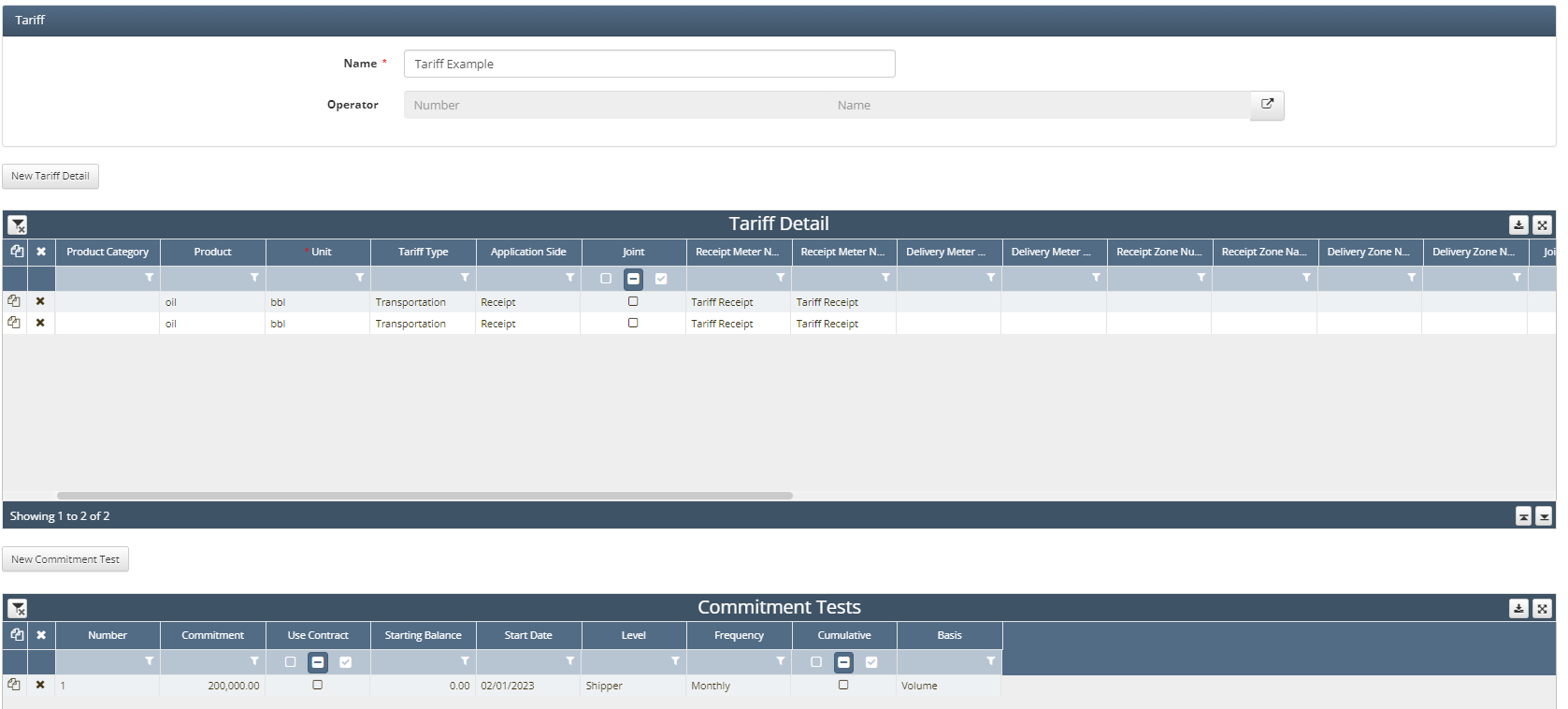
How to Setup a Tariffs in the system with Example
For this example we will be using a tiered tariff as this includes additional functionality that the Tariff screen offers that is also used for non-tiered tariffs. A tiered Tariff will use the lower grid titled Commitment Tests seen in the photo above. The information for this tariff is as follows:
A shipper will be charged a rate of 0.2959$/bbl for a product of oil on the receipt side
Once a shipper has moved +200,000bbl of oil in a month they will not longer be charged for any volume over that 200,000 bbl commitment
The steps to setup this tariff can be seen below:
Navigate to Liquid Trans Setup / Tariffs
Select New Tariff
Above the Tariff Detail grid select New Tariff Detail
Before setting that up you will want to identify your Commitment Tests in the lower grid
Select New Commitment Test
Populate Number with 1
Populate Commitment with 200,000
Starting Balance of 0 (set to this as it is a monthly commitment and will reset each month)
Populate Level with Shipper (Using shipper as the commitment is at a shipper level not asset level)
Populate Frequency with Monthly
Populate Basis with Volume
Now that our commitment test is setup and identified by the Number column we can setup the tariff detail
Populate product with oil
Populate unit with bbl
Populate Tariff Type with the necessary tariff type (client defined)
Populate Application Side with Receipt
Populate Receipt Meter Number with the Receipt Meter (delivery meter not needed to be populated as this tariff is based on receipt volumes)
Next we will need to navigate to columns farther left, these fields can be seen below

On the first line we will populate Fixed Rate with the starting rate of 0.2959, next we set the Commitment Test Number to 1 as that is what we set in the Commitment Test grid. From there we use the Commitment Operators to setup the tariff, since we are applying a rate of 0.2959 to all bbls of oil less than or equal to 200,000 we set that as the Commitment Operator
Next you can use the copy functionality for the second line item and only the fields discussed under step 6 need to be updated. Since anything over 200,000 bbls is not charged for we will set the Fixed Rate to 0 and update the Commitment Operator to be greater than our commitment test of 200,000 bbls
Any fields that were not populated are not required to setup a tariff but may be needed based on the exact tariff and what it is aiming to accomplish
How does this concept impact/feed other areas in the application?
Tariffs are used for the system to populate valuation results. Depending on how they are setup will determine what volume gets billed (receipt or delivery) and what products will get charged. With that it also determines the rate that will be applied to said volumes.