
Liquid Trans Setup / Physical Inventory
What is Physical Inventory
Physical Inventory is used to enter a physical measurement for a particular shipper/meter pair. It is typically used to provide a gain/loss calculation for the purposes of inventory management and/or invoicing. If a shipper has multiple meters that hold data needed for Inventory then they can use an inventory meter override to roll inventory onto a single meter and track it at a total level.
Why would a client use Physical Inventory
A client would use this functionality if they wished to track gain/loss for a given shipper/product or as a correction to carry over the correct opening inventory to the following months opening inventory level
How to setup Physical Inventory in the system
Physical Inventory can be entered into the system two different ways, the first is a manual entry into the Physical Inventory screen under Liquid Trans Setup. The other is using the Physical Setup / Run Ticket screen and uploading a file as you would for Run Tickets. This setup piece will go over how to upload entries into the system using the Run Ticket template:
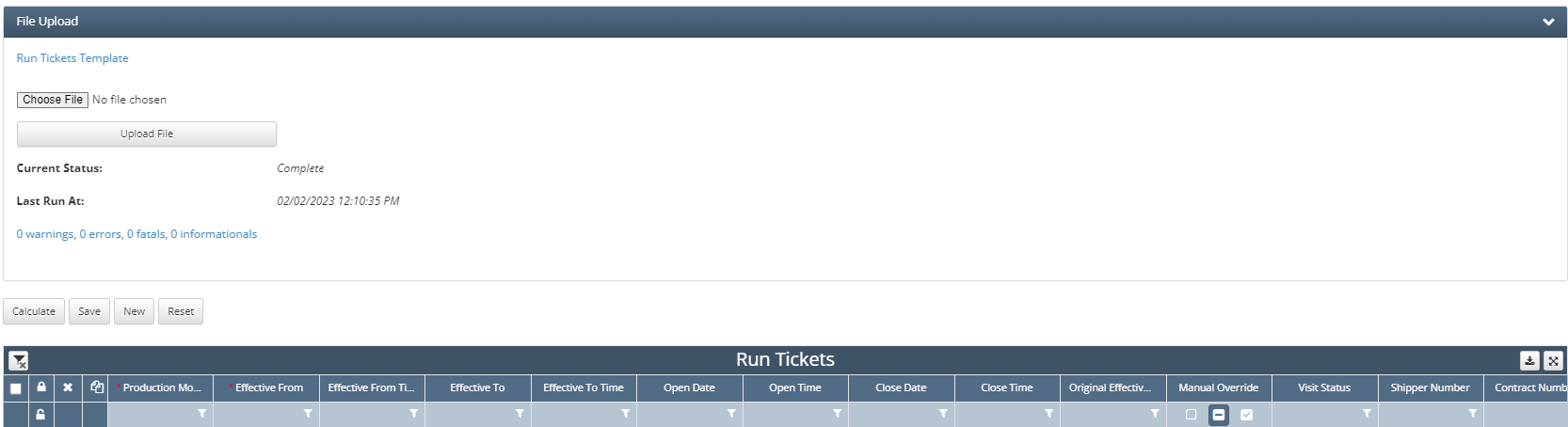
Navigate to Physical Setup / Run Tickets
Click the File Upload button in the top left hand corned and it will open up the prompt seen above, from there click on Run Ticket Template . This will download the template onto your computer.
The screen shot below outlines the necessary fields needed in order to upload physical inventory volumes
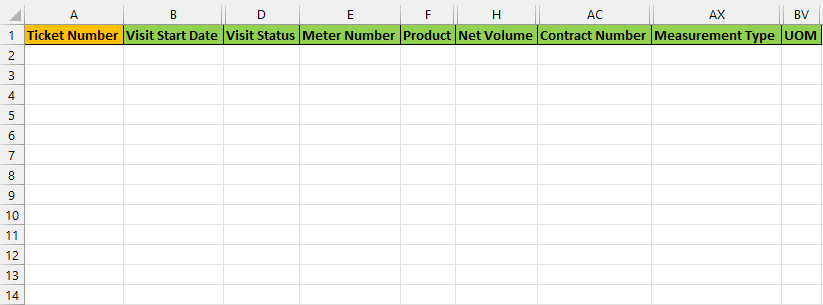
a. Ticket Number: This field is not required but if the user wishes to upload volumes in both barrels and gallons then this field will need to be populated. Important to note that the ticket number for every line item must be unique across all periods within a given asset
b. Visit Start Date: This is the date that the physical inventory volume will be applied to
c. Visit Status: Is a required field that is setup in the Visit Statuses code table
d. Meter Number: The meter that the given physical inventory volume will be assigned to
e. Product: The corresponding product for the given physical inventory volume
f. Net Volume: The Net Standard Volume
g. Contract Number: The corresponding contract that this physical inventory reading is for
h. Measurement Type: This must be set to ‘tank’ or ‘linefill’ depending on the type of inventory reading it is. Setting this field to tank or linefill tells the system that that is a physical inventory reading and should not be evaluated as a run ticket.
i. UOM: The unit of measure that the volume is in
4. If the client wishes to upload volumes in two units then they will need to make sure they populate ticket number as well as using the ‘Component Volumes’ sheet of the run ticket template as seen below:
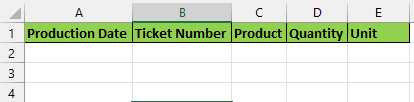
a. Production Date: Same value that was entered for Visit Start Date for the corresponding ticket number
b. Ticket Number: Same ticket number for the given physical inventory volume
c. Product: Same product for the given physical inventory volume
d. Quantity: This would be the Net Standard Volume in the other unit that the user wishes to enter
e. Unit: The unit of measure that corresponds to what the volume was measured in

If a volume to volume conversion is setup or the client/user only wish to record invvneotry in one unit then ticket number and the component volume sheet are not required.
How to setup Physical Inventory Manually
The user/client can also setup physical inventory volumes by navigating to Liquid Trans Setup / Physical Inventory and manually adding the line items:
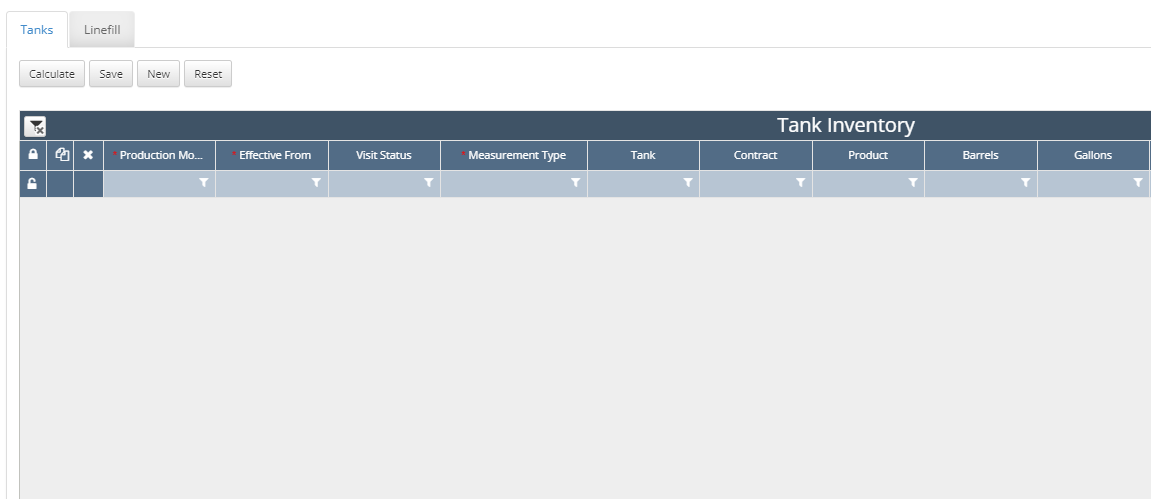
The key fields that are needed to setup manually can be seen above and outline below:
Production Month: The month that the physical inventory volume is within
Effective From: The date of the physical inventory volume (Visit Start Date from run tickets)
Visit Status: Is a required field that is setup in the Visit Statuses code table (Visit Status from run tickets)
Measurement Type: tank or linefill (Measurement Type from run tickets)
Tank: The meter that the physical inventory volume is assigned to (Meter from run tickets)
Contract: The contract that the physical inventory volume is associated with (Contract Number from run tickets)
Product: The product that the physical inventory volume is for (Product from run tickets)
Barrels: The volume in units of barrels (Net Volume if UOM = bbl on run ticket)
Gallons: The volume in units of gallons (Using Component Volume sheet where Unit = gal)
How does this concept impact/feed other areas in the application?
For Transportation assets, Physical Inventory impact how inventory is calculated for a given shipper/product. A Physical Inventory volume is needed for the system to calculate gain/loss. If there is no Physical Inventory volume then the system assumes that Ending Physical Inventory (Physical Inventory) = Ending Book Inventory and the system will show 0 gain/loss. Important to note that if a physical inventory volume is entered on 2/17 then this will be used as the opening physical inventory for 2/18. What is setup under Physical Inventory directly impacts the results in Book Inventory Transactions.