
Fixed Asset Category Setup
What is Fixed Asset Category Setup/Why would a client use this screen:
Fixed Asset Categories are to categorize the assets depending on what the client is wanting to see.
How to setup Fixed Asset Categories, Cost Basis Groups, and Fixed Asset Category Setup in the system:
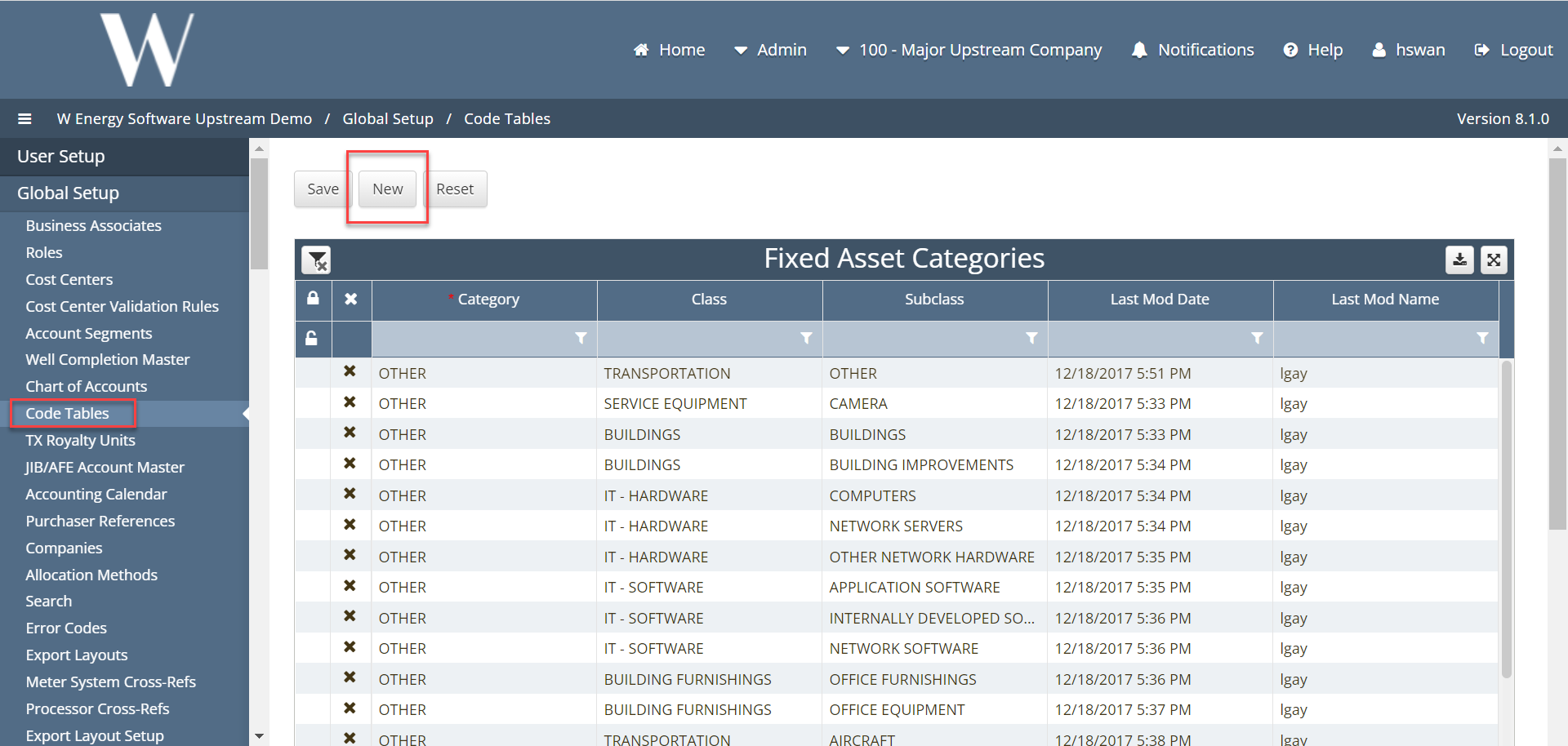
Under Global Setup > Code Tables > Fixed Asset Categories
Start by clicking “new”. Scroll down in the grid to the blank line that has been generated. Next, enter a list of categories for all assets that will be shown under fixed assets screen. Click “save” when complete.
* = Required Field: Category
Optional Fields = Class and Subclass, to help further distinguish assets
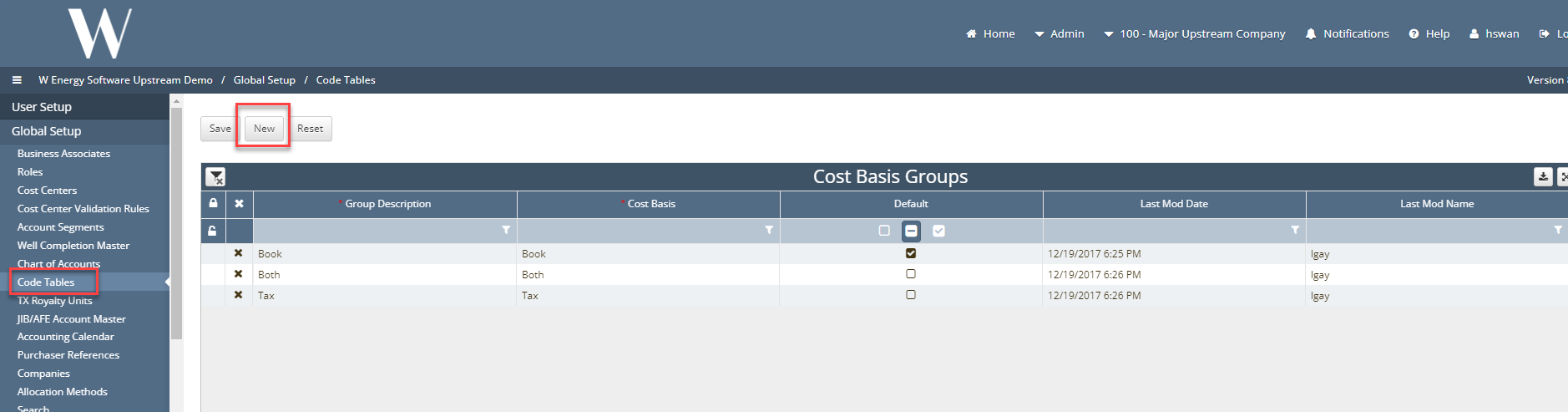
Under Global Setup > Code Tables > Cost Basis Groups
Click “new” to create a line where the system will populate. This setup will define the schedules that will be generated, i.e. Book, Both, or Tax.
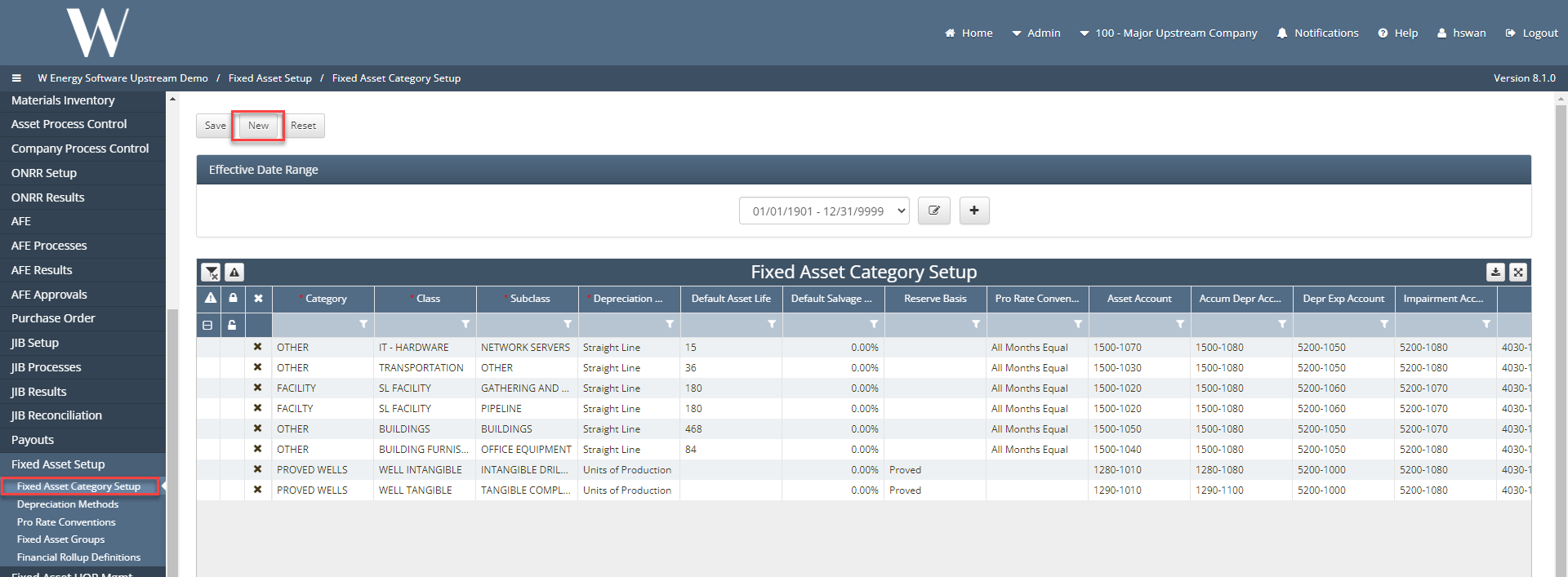
6. Then, populate Fixed Asset Setup > Fixed Asset Category Setup. This will drive a majority of the Fixed Asset Module. Clients will populate the categories in the setup page based Chat of Accounts (COA). Start by clicking “new” to fill in the following fields.
a. Required Fields: Category, Depreciation Method, Asset Account, Accumulated Depreciation account, Depreciation expense account, Impairment account, Gain/Loss Account, Cost Basis Group, and Tax Category
How does this concept impact/feed other areas in the application?
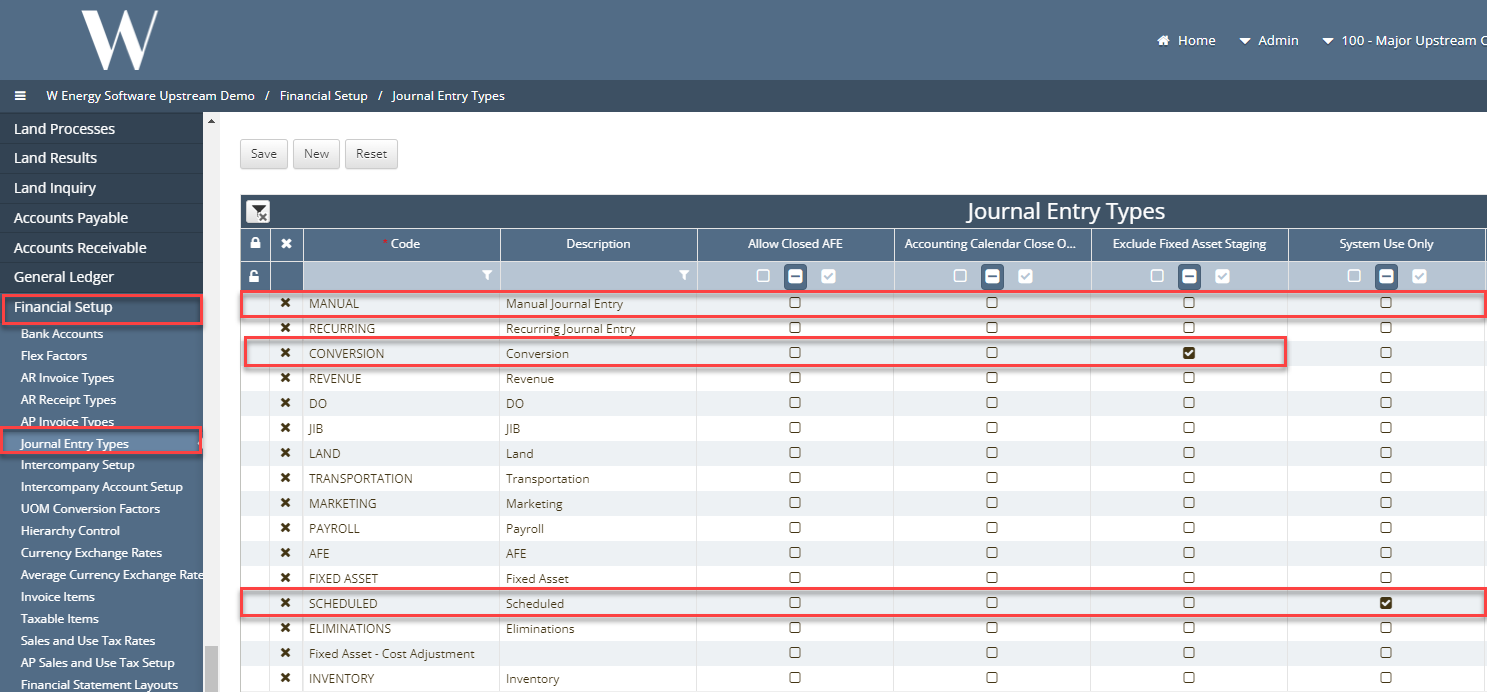
Under Financial Setup > Journal Entry Types which will need to be created before running any monthly processes. To prevent specific journal entries from interfacing into the Fixed Asset Module, click the exclude the Fixed Asset staging box in the grid.
Other items worth noting that would impact the process
Under Fixed Asset Category Setup > Default Asset Life field is going to be in months
Category is a required field but not class and subclass even though they are marked as required fields.
Category – High level of detail
Class – more detailed
Subclass – most detailed
The effective date range for this screen should begin with 01/01/1901.