Distribution PPAs
What is a Distribution PPA
A Distribution PPA is a Distribution Prior Period Adjustment.
In its simplest form, it is the term used to describe the action of creating (1) reversal gross Payable Results and disbursing them through ownership in an Archived Division Order version and creating (2) adjustment gross Payable Results and disbursing them through ownership in the Posted Division Order version.
It is most often used when ownership has changed and previously paid owner amounts must be recouped from the prior owners and paid to the new owners from a certain date forward.
It is also used in the case of Fee Exemption changes whereby a fee was either previously collected or was not collected and the terms have now changed thus causing a need to reverse and reallocate fees.
How does this differ from an Asset PPA
Asset PPAs involve changes to contracts, volumes, pricings for a meter (as an example). When these changes are corrected through an Asset PPA, the changes (reversals and adjustments) in the gross values sourced from Accounting are both processed through the current Posted Division Order version.
Ownership is not impacted in the Asset PPA.
What Configs and Permissions drive Distribution PPA Functionality
The following feature configurations must be set.
dist_ppa_triggers: true
do_archived_transfer: true
Users should be given access to the following screens under Define Profiles.
Distribution PPA Staging
Pending Payables
How to trigger a Distribution PPA
Distribution PPAs can be triggered by 1 of the 4 means.
Transfer
DO Maintenance (i.e. DO Revision)
Manual selection of Payable Results
Fee Exemption Group change
Distribution PPA Transfer

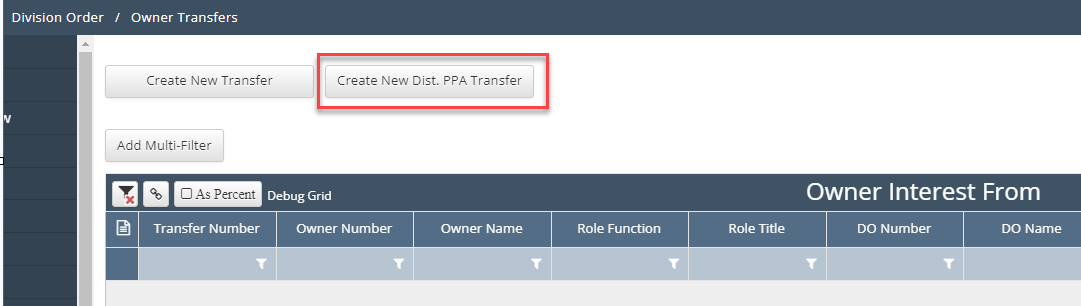
Transfer Distribution PPA functionality is controlled by a specific button on the Owner Transfers screen. If this button is not present, confirm configuration settings.
📘 Distribution PPA Transfer Step-by-step Instructions
Click [Create New Dist. PPA Transfer] button to create and open a drafted transfer
Click the DO Selection tab to navigate to the DO Selector
Filter for the DOs in the DO Selector grid for which the Dist. PPA is needed, check the box to select and click [Add to Staging]
Once the DOs are in the ‘DO Staging’ grid, click [Check Out All to Queue] button
The code will validate that the DO(s) is unlocked and available for checkout
If the DO or any lines of interest are locked, it will not be added to the DO Selection Queue. It will remain in the DO Staging grid with a lock explanation provided in the Note field.
Once the DOs are checked out, click the Transfer tab to navigate to the DO Lines of Interest grid
Enter a filter to start and add the Transfer From lines to the Transfer Queue
Populate either the Standard or Advanced tab depending on the type of transfer being completed
Do NOT select owner amounts as these will be corrected via the PPA revenue actions
Return to the top of the page and update the As of Date
This will serve as the effective date of the PPA Distribution
Select a Transfer Level, Comment and Comment Text as necessary and click [Submit for Approval]
Distribution PPA DO Maintenance
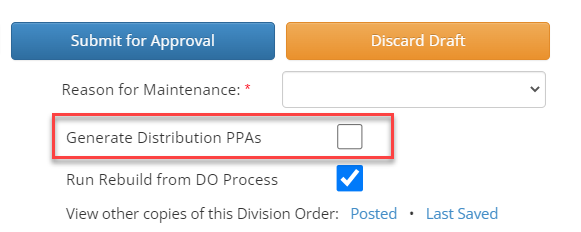
Distribution PPA functionality sourced from a Division Order revision is controlled by a check box located under the Submit for Approval button. If this check box is not present, confirm configuration settings.
📘 Distribution PPA DO Maintenance Step-by-step Instructions
Complete the Revision to change the ownership in need of a Dist. PPA
Check the box located in the DO Header to Generate Distribution PPAs prior to clicking [Submit for Approval]
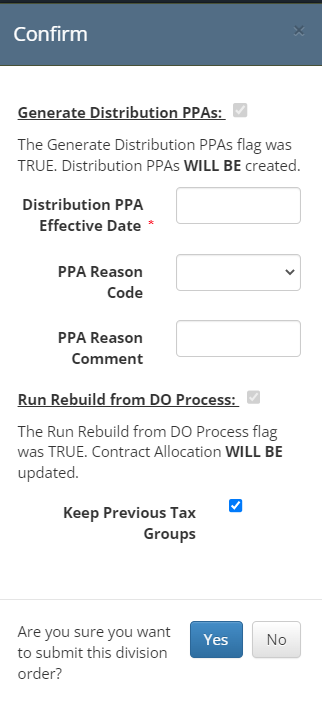
The effective date for the Distribution PPA is controlled by the pop-up that should appear after the user clicks [Submit for Approval]
Manual Distribution PPA
Distribution PPA functionality sourced from manually selecting payable results is controlled by a [Generate Distribution PPAs] button located above the Payable Results screen under the Disbursements menu. If this check box is not present, confirm configuration settings.

📘 Manual Distribution PPA Step-by-step Instructions
Select the Payable Result records that need a Distribution PPA
Click [Generate Distribution PPAs] button
Only Original and Adjustment Payable Result records (row code O or A) may be selected
If a user tries to select a Reversal Record (row code R), an error message will appear
If a user selects a Payable Result that was not disbursed because of a prior Apply DO error, an error message will appear

Fee Exemption Group change
Distribution PPA functionality sourced from a Fee Exemption Group change is controlled by a [Generate Distribution PPAs] checkbox located above the Fee Exemption Group Properties within a Fee Exemption Group. If this check box is not present, confirm configuration settings.
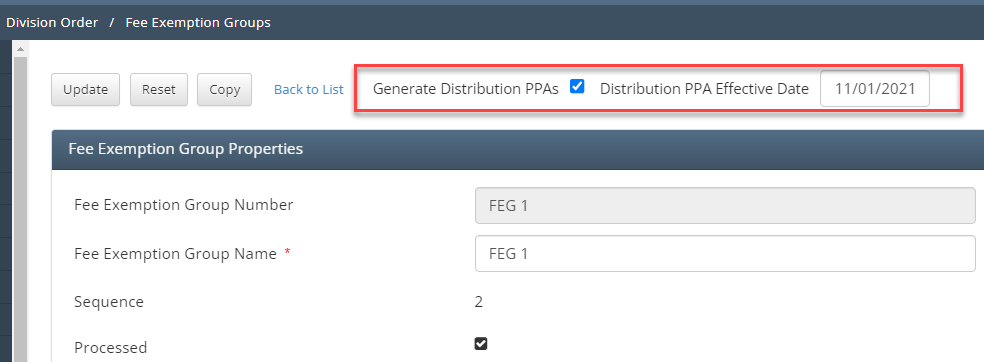
📘 Fee Exemption Group Distribution PPA Step-by-step Instructions
Select the Fee Exemption Group that needs a Distribution PPA and open to edit
Make the necessary changes to the Fee Exemption Group tab / Items grid
Check the [Generate Distribution PPAs] box and input an Effective Date
Click [Update]
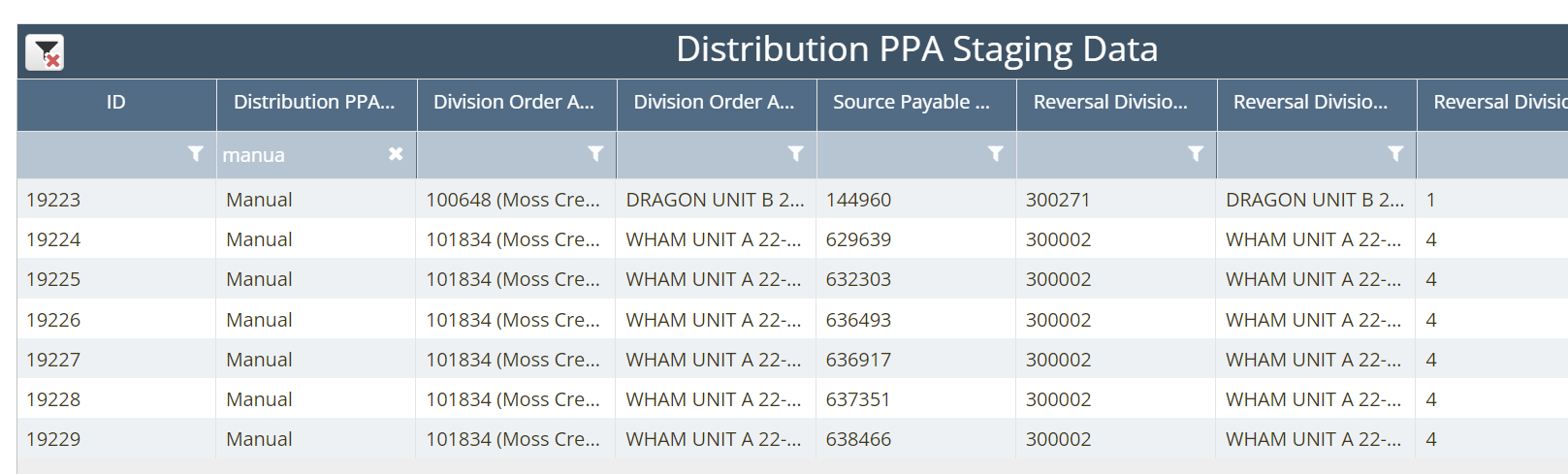
Distribution PPA Staging Records
🧭 Navigation → Division Order / Distribution PPA Staging
Each action used to source or initiate a Distribution PPA ultimately generates records in the Distribution PPA Staging grid. These records are referred to as Payable Triggers and are sourced from payable_triggers table.
There are 4 versions of Distribution PPA code currently in use across clients.
Version 1 (Basic Logic) - All clients not noted in versions 2 and 3
Version 1-p (Basic Plus) - Surge (in progress); story exists to pick code to Laredo
Version 2 (Intermediate Logic) - AEC
Version 3 (Advanced Logic) - Terra (in progress)
Version 1 (Basic Logic)
Transfer and DO Maintenance Payable Trigger Creation
Individual Staging Record Triggers are generated for each DO Asset linked to the DO(s) involved in the Transfer or DO Revision
Each Staging Trigger is displayed in the grid with a [Distribution PPA Date From] equal to either the Transfer as of Date or the Effective Date of the DO Revision
The grouping key used to generate these Staging Records is Dist PPA Effective Date, DO Asset, DO


Manual Payable Trigger Creation
Staging Record Triggers are generated 1:1 for each qualified Payable Result selected
Payable Results that do not qualify include
Payable Results with row code = R
Payable Results with Distribution PPA flag marked True
Payable Results that did not previously generate owner amounts due to Apply DO Errors
There is no value for the [Distribution PPA From Date] field because the payables selected will be the payables reversed
There is no grouping key used to generate the Staging records because they exist as 1:1 with the qualified Payable Results
The source Payable Result db id is provided in the staging grid as reference