
Business Associate / Business Associate Upload
What is a Business Associate?
A Business Associate is any counter party that a client would interact with for any business transaction. For example, this could include a vendor, customer, land owner or even an employee. Business Associates are used throughout the software for varies screens. Each Business Associates (BA for short) needs the correct role associated with the BA to use it in specific circumstances in the application.
Why would a client use a Business Associate?
Every transaction the client does requires an understanding or who the counter part is, where their business is located, how to send or receive funds, who will be the main point of contact, etc.
What Configurations apply when using Business Associates (none that I am aware of??) I am sure there are some
XYZ: true
XYZ: upstream
Include any explanation needed for these configs, if not needed, you can remove this section
How to setup a Business Associate in the system
Business Associates
The Business Associates (“BA”) screen is used to create a record for any person or entity that has any contractual or other business relationship with the client. Each Business Associate record includes address information, bank account numbers, descriptions of what kind of relationship the associate has to the client, and more. To view existing BA’s or to create a new BA, navigate to Global Setup / Business Associates. | 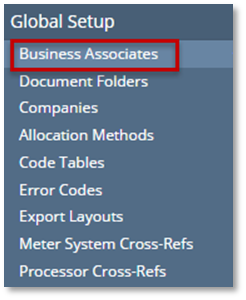 |
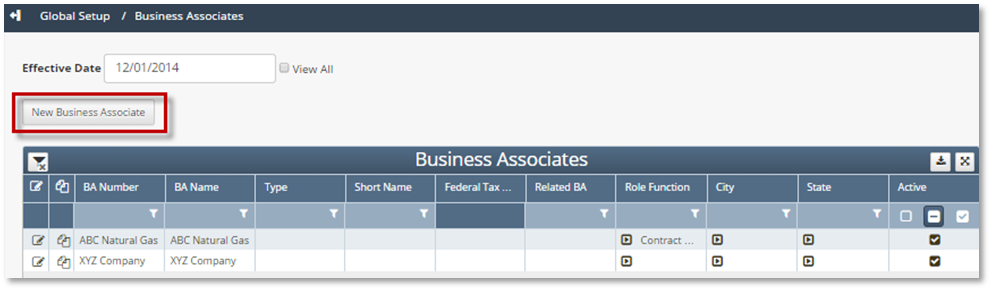
The Business Associate grid displays all available BAs with their BA number, type and other information. From this screen, it’s possible to add a new BA using the New Business Associate link, edit an existing BA using the Edit icon to the left of the BA number, or copy an existing BA using the Copy icon to the left of the BA number.
Creating a New Business Associate
To create a new BA, click on the “New Business Associate” button. A blank BA page will appear. There are many fields on this page, but only a few are required.
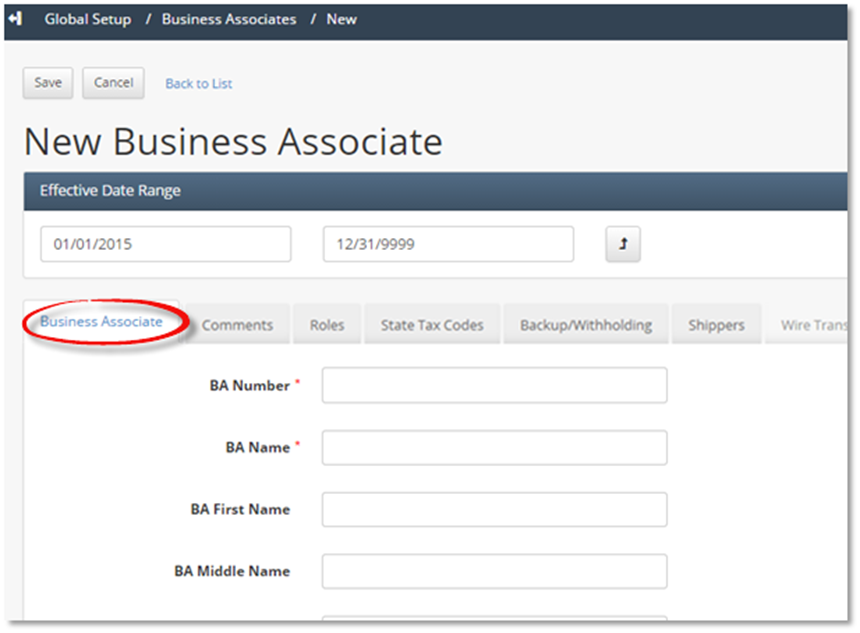
Required Fields
Field | Description |
Effective Date Range | The Effective Date Range will default to today’s date through 12/31/9999. This is the most common date choice when creating a new BA. However, there may be a reason to have the date range begin on a previous date, or a date in the future. To change the date, click in the box and a calendar will appear. Select the date desired. |
BA Number | The BA Number is an alpha-numeric field for uniquely identifying a Business Associate. |
BA Name | The BA Name is also an alpha-numeric field which stores the BA name. The BA Name can be the same as the BA Number. |
Optional Fields
Field | Description |
BA First Name | If the BA is a person, use this field for the first name. |
BA Middle Name | If the BA is a person, use this field for the middle name. |
BA Last Name | If the BA is a person, use this field for the last name. |
Short Name | This field can be used to store an abbreviated version of the name which may be useful for reporting or grouping BA’s. |
Entity Type | Dropdown field which is populated from the Business Associate Type code table. |
Additional BA Name | Use this field if the entity is known by another name. |
Minimum Payment Amount | A value in this field will prevent payments going to this BA which are under this amount. Payment owed is accumulated and paid once its value is above the minimum threshold. |
CDEX Company | CDEX code in use for this BA |
Other B/A Number | Field used to track an additional BA number from a different system. |
Federal Tax ID Number | Code used to report tax information for the BA. User must have Security access to change this field. |
Tax Code Type | Dropdown field containing these choices: blank, “FEIN” or “SSN” |
Related Business Associate | This field is used to document relationships with another BA. |
Escheatable | Tracks whether this BA is escheatable. Used in rules for Division Order transfers. |
Description | Free form field to hold additional information regarding the BA’s escheat status. |
Escheated | Tracks whether this BA has escheated. |
Escheat State | Dropdown box of states. Select the state which has legal authority over the BA’s property. |
Netted Owner | Check box that determines how the BA will be treated in disbursements. If checked, any amounts payable will not automatically create payments in W. Which can, instead, be netted against invoiced fees and expenses. |
Government Entity | Dropdown field which is populated by the Government Entity code table. Select government entities that will utilize backup/withholding. |
EBS ID (for AR) | EBS ID used in Accounts Receivable process |
EBS Supplier Number (for AP) | EBS Supplier number used in Accounts Payable process |
EBS Supplier Site | Site tied to the EBS supplier number |
Export for Revenue? | Include this BA in the Revenue Export (default is “yes”) |
Active | Flag to indicate that a BA is active (default is “yes”) |
Date Inactivated | Date field to show when the BA became inactive. |
Credit Limit Dollar Value | Field to indicate credit limit amount for the BA. |
Credit Limit Rating | Dropdown field which is populate by the Credit Limit Rating code table. |
Operator Name | Freeform field to hold operator name for this BA. |
Operator Code | Freeform field to hold operator code for this BA. |
Company or Facility Code | Freeform field to hold the Company or Facility Code for this BA. |
Group Code | Freeform field to hold the Pay Group Code for this BA. |
BA Reporting Company Group | Can be used to group companies at a parent company level. Populated by the BA Reporting Company Groups code table. |
Payment Cycle Months | If this BA has particular months to be included in a payment cycle, select those months. If none are selected, then this field is ignored. |
Setting up a Payment Cycle
Check the boxes for the appropriate months. The system will then reference the Business Associate’s effective time slice and determine if, for the current accounting period, the Business Associate is scheduled to receive a payment.

Keep in Mind…
If no cycles are selected, payments will be processed for the Business Associate for all dates.
If cycles are selected and the month selected is not the same as the Company Accounting Date, then that Business Associate’s payment will have a status of “Out of Cycle” and payments will not be made.
Comments Tab
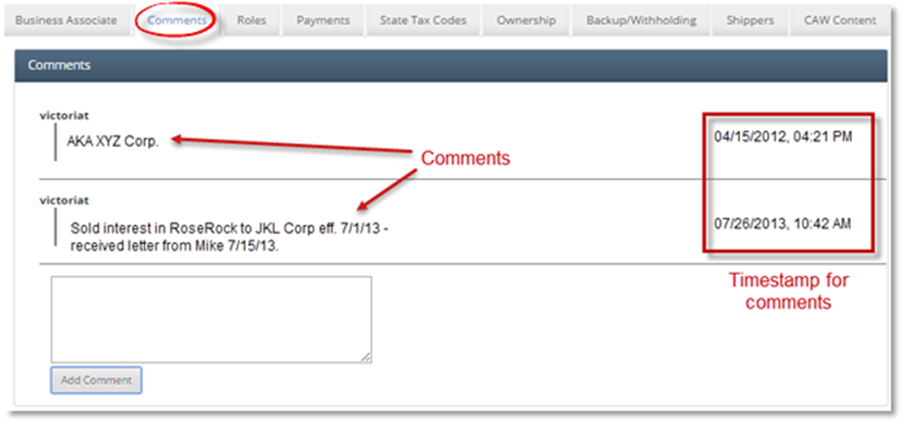
The BA Comments tab keeps a running thread of comments pertaining to this BA.
Roles Tab
The Roles tab is used to manage the contacts at a company. For instance, Jane Williams may be the contact for Operations, while John Smith is the contact for Deliveries.
Creating a New Role
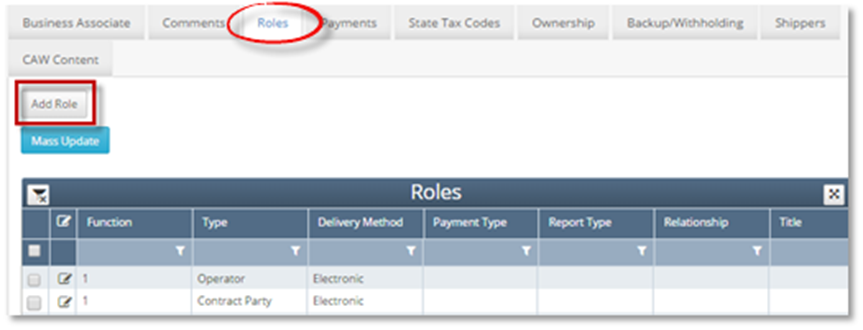
To create a new Role, click on the “Add Role” button. A blank role page will appear. Note that there is now a tab for Role, Payments, and Financial Defaults. Use the Payments tab to select the type of payment associated with the role being created and the Financial Defaults tab for setting payment term and distribution defaults.
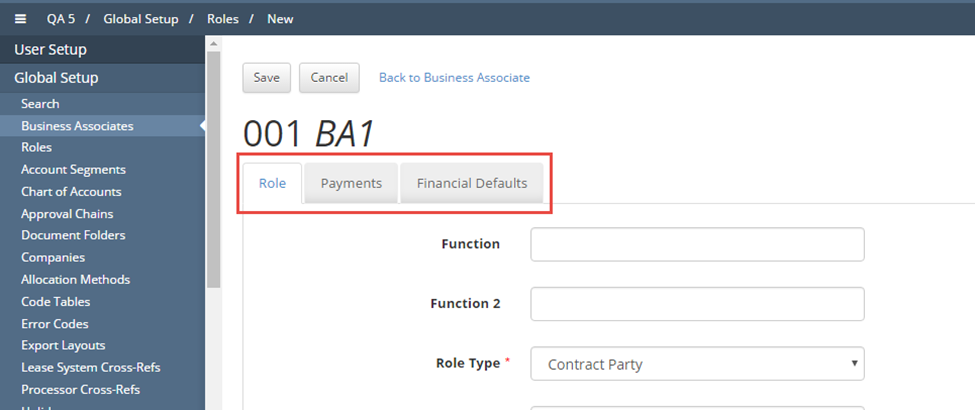
Required Fields
Field | Description |
Role Type | Drop down field populated by the “Role Type” code table. |
Optional Fields
Field | Description |
Function | Descriptive function for the role being created |
Delivery Method | Drop down field populated by the “Delivery Methods” code table. |
Report Type | Drop down field populated by the “Report Type” code table. |
Lockbox Remit to Address | Free Form Field |
Relationship | Drop down field populated by the “Relationships” code table. |
Title | Title for the role being created |
Office Phone | Phone number can be entered in these formats: 5554333231, (555) 433-3231, or 555-433-3231. |
Mobile Phone | |
Fax | |
Fax Delivery Start Time | If this contact has limits on when their fax machine is functional, specify the start and end time that the machine is available. Drop down field of start times. Provides 5 minute intervals. |
Fax Delivery End Time | |
System confirms that email entered contains an “@” sign | |
Attention | These fields are all used when addressing something to be delivered to this contact. Example:
Attention: John Smith(Attention) ABC Pipeline Company (BA Name) 4217 Main Street (Address 1) Williams Tower 1 (Address 2) Suite 415 (Address 3) Tulsa, OK 74105 USA (City, State, Zip and Country) |
Address 1 | |
Address 2 | |
Address 3 | |
City | |
State | |
Postal Code | |
Country | |
Notes | Free form field where notes for this contact can be saved. |
Payment Term | Dropdown for term of payment populated by code table |
AR Number | If there is an AR number associated with this contact, enter it here. |
Escheated (chkbx) | Tracks whether this BA has escheated. (Role Type must be set to Interest Owner to check) |
Escheat State | Dropdown box of states. Select the state which has legal authority over the BA’s property. |
Send 1099 (chkbx) | Options to send 1099 Form |
Mass Update Role Information
To update information for multiple roles at the same time, click the box to the left of the role to be updated and click the “Mass Update” button.
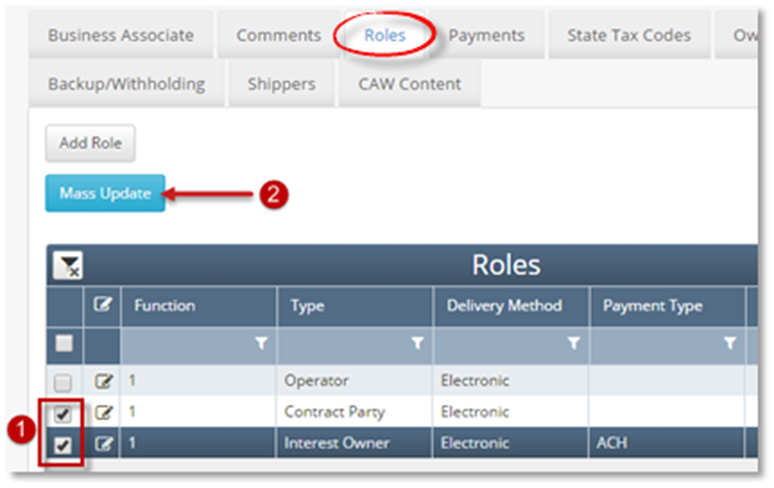
A popup will appear providing all fields that can be mass updated.
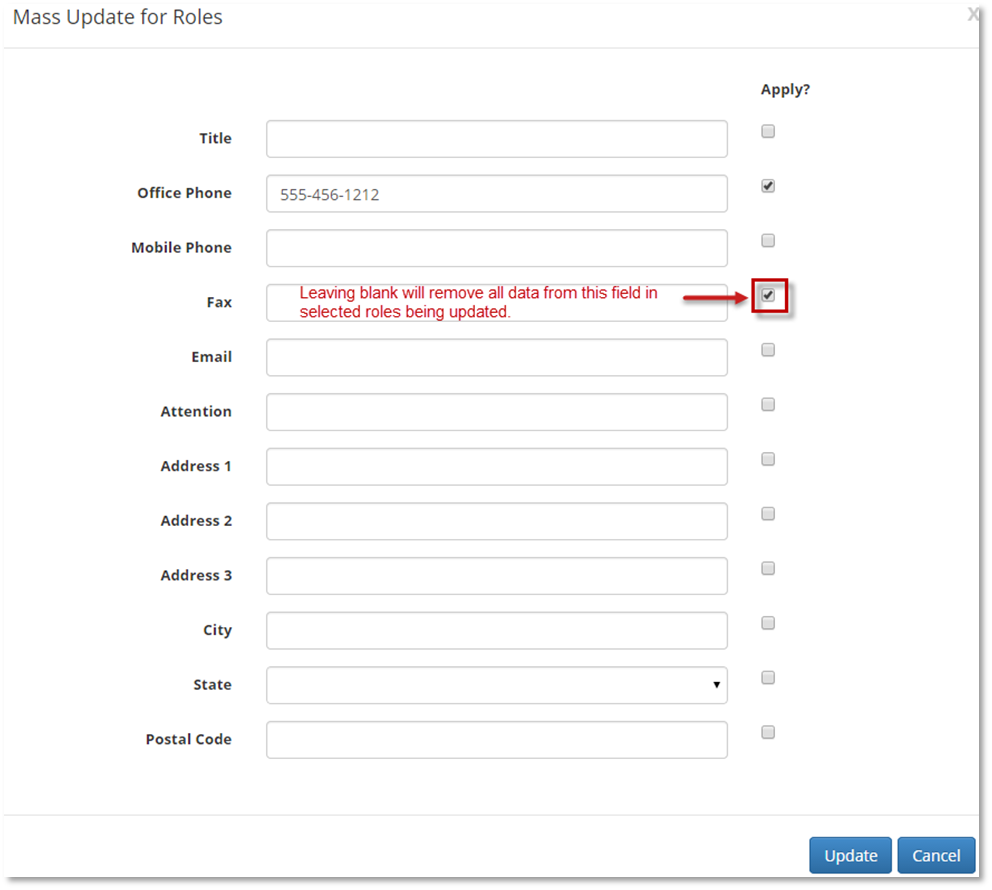
Fill in the information to be included in the mass update. Click the “Apply” box to the right of the field. If information in a field needs to be removed, such as a Fax Number, leave that field blank but click the “Apply” box. Click the “Update” button to save the changes for the selected roles. A Confirm popup will appear. Click “Okay” to proceed, or “Cancel” to discard changes.
Payments Tab
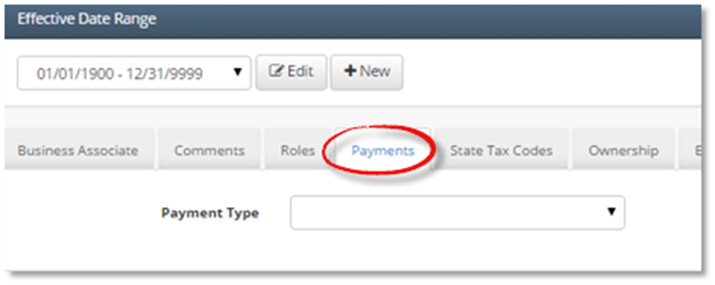
The Payments tab is used to specify the type of payment this BA wants to receive. The dropdown has the following choices: ACH, Check, Manual, or Wire.
State Tax Codes Tab
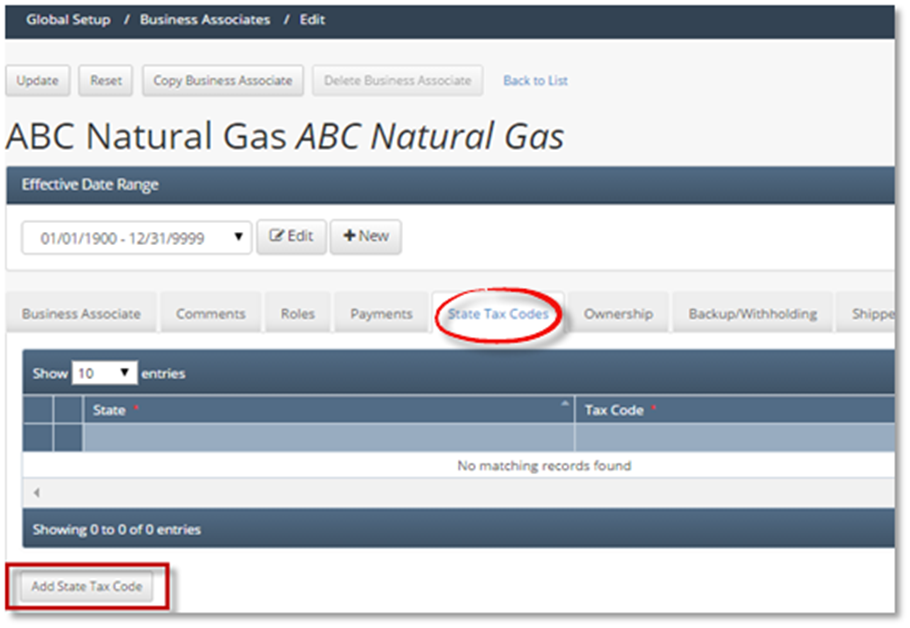
The State Tax Code tab is used to specify the tax code for each state the customer does business in.
Creating a new State Tax Code
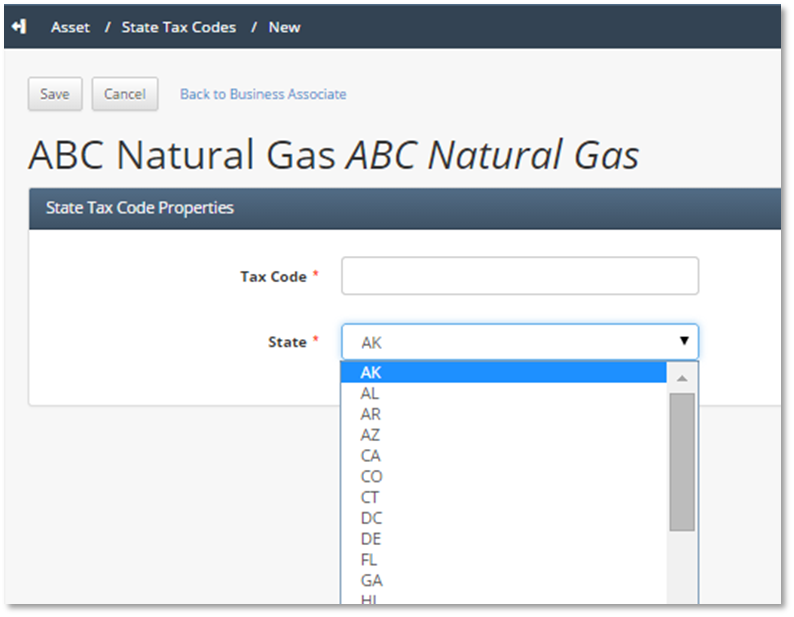
To create a new State Tax Code, click on the “Add State Tax Code” button. Enter the Tax Code and select the state. Both fields are required. Then click the “Save” button.
Ownership Tab
The ownership tab is a very useful page which provides all associated Division Order information tied to this BA. It is a read-only page. The following sections are included on this tab:
· Associated Division Orders
· Associated Division Orders – Summary Owner Information
· Transferor
· Transferee
· Suspense Activity
· Release Activity
Backup/Withholding Tab
The backup/Withholding tab lists all government entities that have been attached to the current BA.
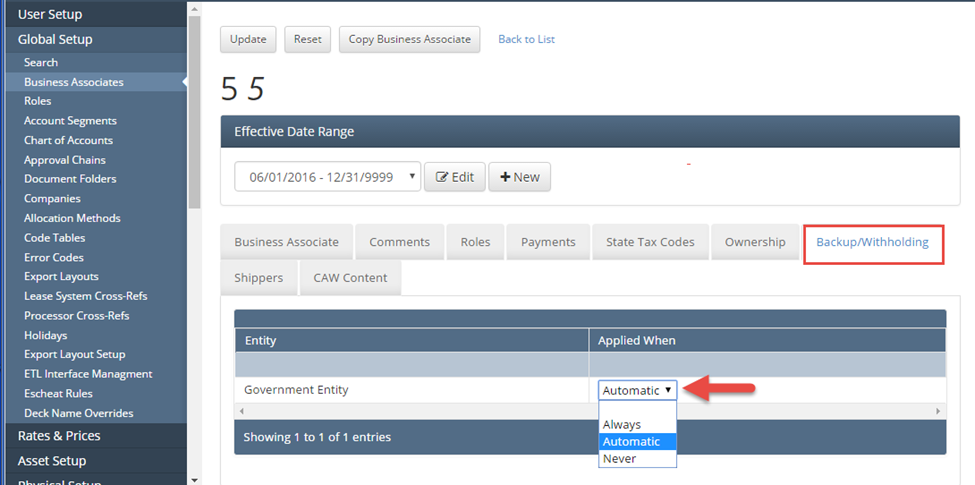
To trigger BU/WH, the “Applied When” column must be set”. The value toggles between “Always,” “Automatic,” and “Never” when clicked on.
Shippers Tab
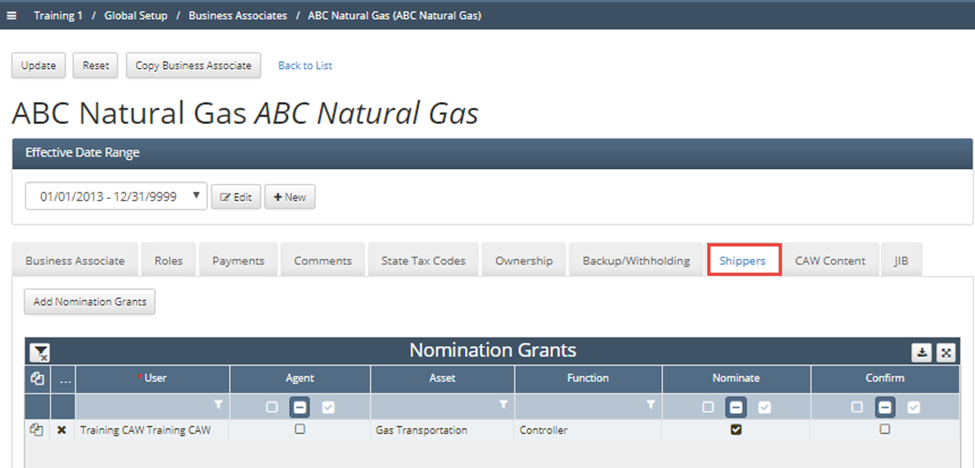
The shippers tab allows for Nomination Grants to be added to a Business Associate. Allowing for an external user to nominate or confirm nominations on all contracts the Business Associate is marked as a listed party, unless restricted to an asset from the asset drop down menu.
To add a Nomination Grant, the user must press the “Add Nomination Grant” button, which will create a new row in the bottom of the grid. The user is now able to select the desired user by choosing in a pop-up once the user column is clicked in. The Agent column allows for users to select “Yes” or “No.” While the Asset column determines which asset, if any, the user is allowed to nominate or confirm nominations. Which is also depended on the check box from the Nominate and Confirm columns.
CAW Content Tab
The Customer Activity Website Content tab allows for Document Grants and CAW Links to be added.
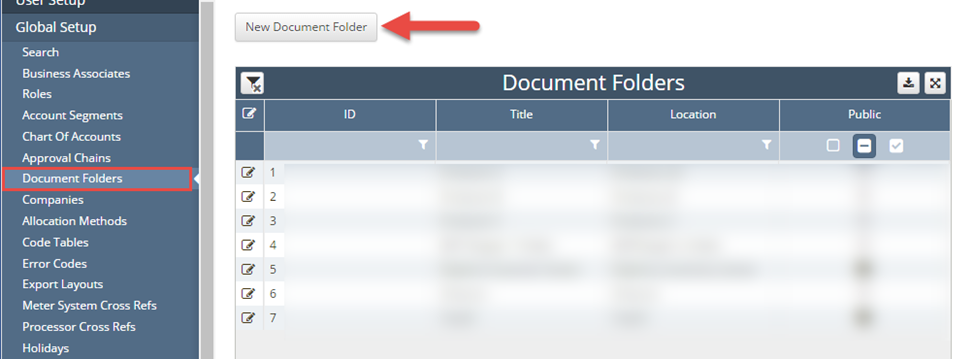
Adding a Document Grant can be done by pressing “Add Document Grant,” which allows for a user to click within the Folder or Location column and pick from the pop-up of Folders and Locations that are populated from the Global Setup / Document Folders screen.

CAW Links can also be added on the CAW Content Tab. When creating a new CAW Link, by pressing “Add CAW Link,” a new line will be entered into the grid, which contains two columns. These two columns are Name and Address. These two fields are not required, as they are used to keep track of links needed for CAW users.
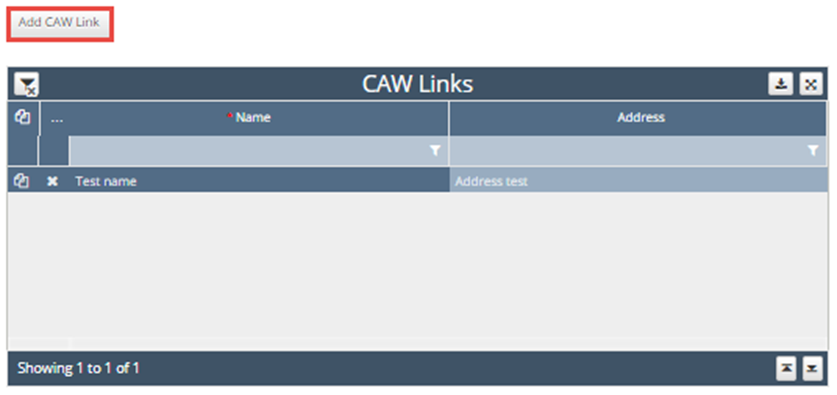
NOTE: To save either field, the “Update” button must be pressed at the top of the screen.
Roles
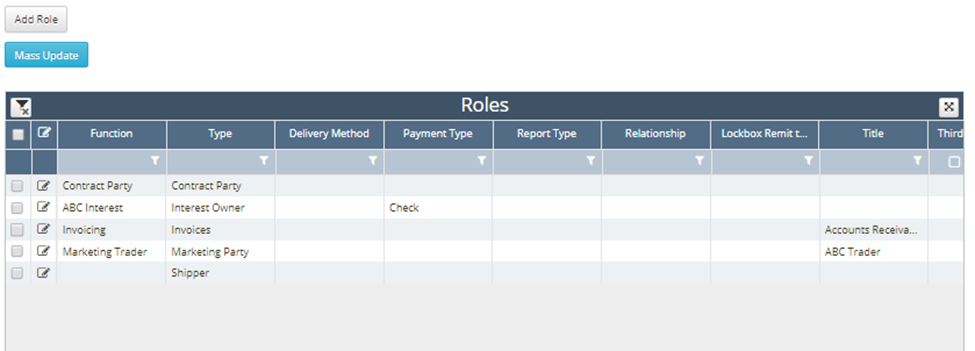
The Roles page is where all roles created within the Business Associates page can be viewed together and edited. To edit a role, click the “edit” icon next to the desired role.
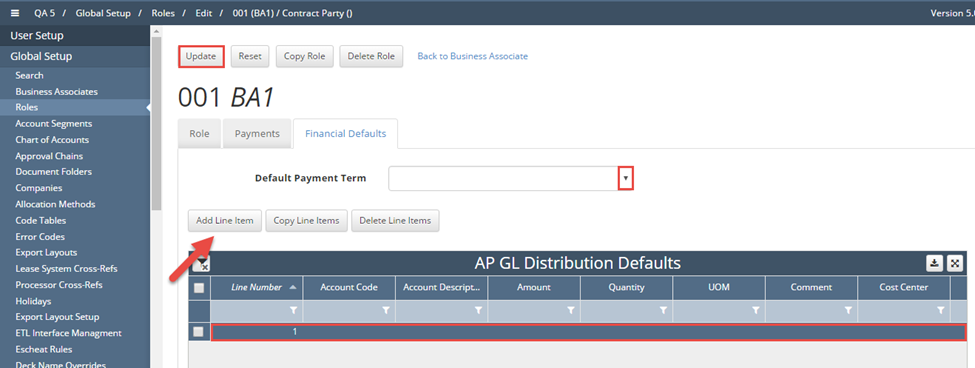
The edit page has four tabs. The tabs for “Role” and “Payments” function the same as on the edit Business Associates page. On the “Financial Defaults” tab, AP GL Distribution Defaults can be set by clicking the “Add Line Item” button. The Default Payment Term is a dropbox also configured on this page, populated by the “Payment Terms” code table. Save changes by clicking “Update” in the top left corner.
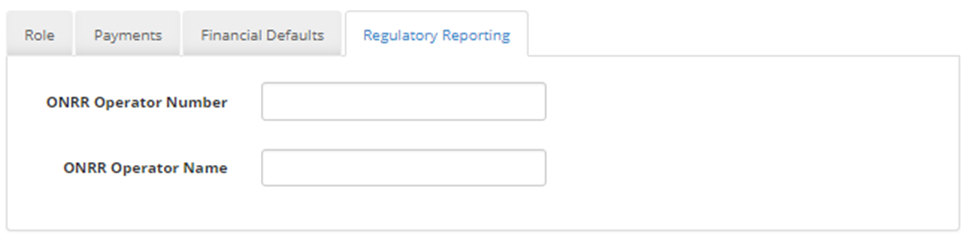
The fourth tab, Regulatory Reporting, is used for ONRR purposes. This tab allows for users to enter the ONRR Operator Number and Name. These fields are free-text fields.
Document Folders
The Document Folders page provides mapping from BA’s to a location within a network share.
How does this concept impact/feed other areas in the application?
Every place in the application that has a picker button to choose a BA, the correct role for each BA must to setup and saved in the system to be able to accurately complete the setups. For example, on a Division Order, the correct role of “Interest Owner” must be setup as a role to complete the selection of the BA on the Division Order.
Other items worth noting that would impact the process.
Frequently Asked Client Questions
Links provided are from W Energy Software Support Confluence Space @a user