
Process Schedules
This quick reference guide will describe the Process Schedule functionality within the main app. The scheduler is used by many clients to either automate a process run daily, such as OpenInvoice AP Interface, or to load data, such as a ticket importer. This guide will also describe the process for naming the files and moving them to the application so that the scheduled job can pick them up.
Schedule Tab
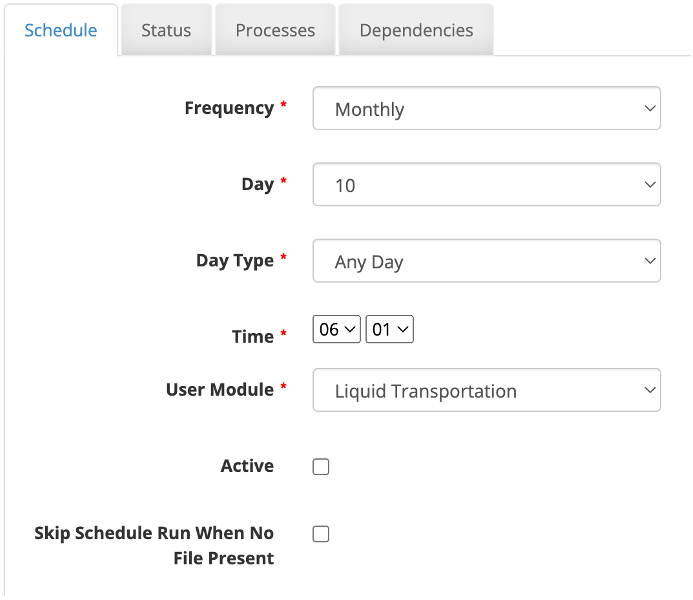
Described below are the options on the scheduler header tab of a process schedule.
Frequency – define how often the schedule will run
One-time
Monthly
Weekly
Daily
Hourly
Minute
Day – enter the day of the month to run the process
Day Type- determine which days the schedule will be active
Any Day - runs on any day
Work Day – only active on work days
Time – enter the time of day to run the schedule job
User Module – select the user module to which the process is related
Active – indicates if the schedule is active and will run based on the settings
Skip Schedule Run When No File Present (new in v10) – if the process requires a file, the scheduled job will be skipped when there is no file present instead of running and producing an error
Status Tab
This tab tracks when the scheduled job runs and its current status.
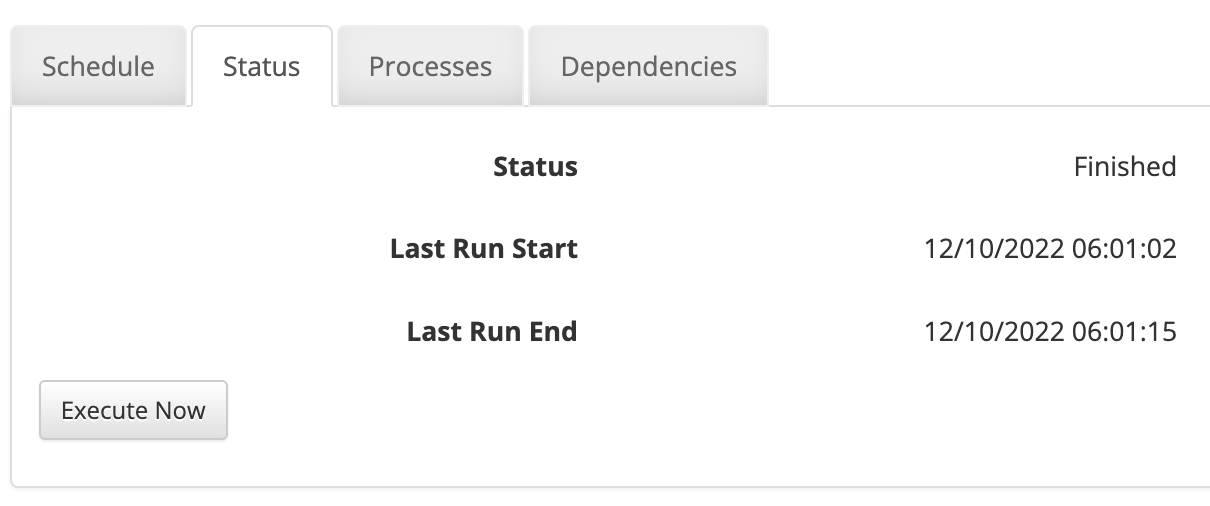
Status – current status of the scheduled job
Last Run Start – start time of the last scheduled job run
Last Run End – end time of the last scheduled job run
Kill Process Schedule – kills an active scheduled job and skip any remaining process in the schedule
Execute Now – will be displayed when a schedule is inactive allowing the user to restart the scheduled job
Processes Tab
This tab will show all processes that are included in the Schedule. Multiple processes can be run in sequence in a single schedule.
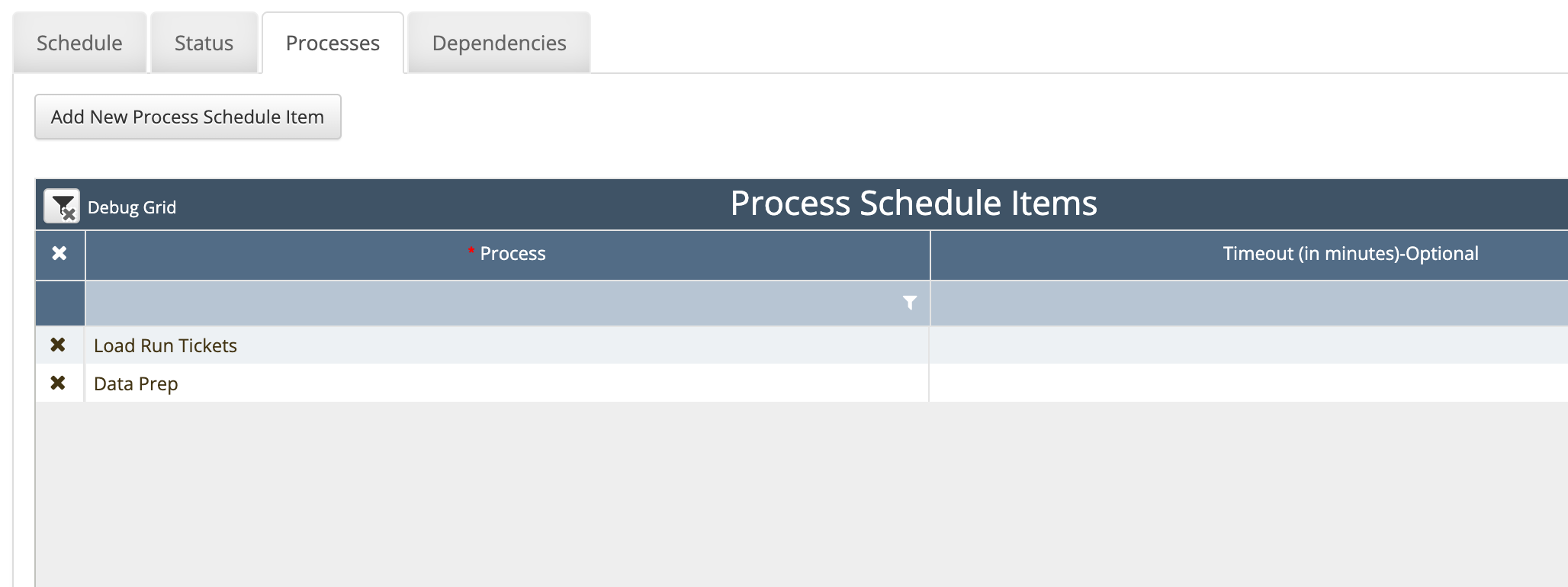
Timeout – allows the user to specify a max time to allow a process to be run. If the process exceeds this time, the process will be killed, and the schedule will say “Failed”
A new tab will be created for each process in the process list of the schedule. On this tab the user will provide the specifics for running the process on the tab. Below is a list of the items and how they are used.
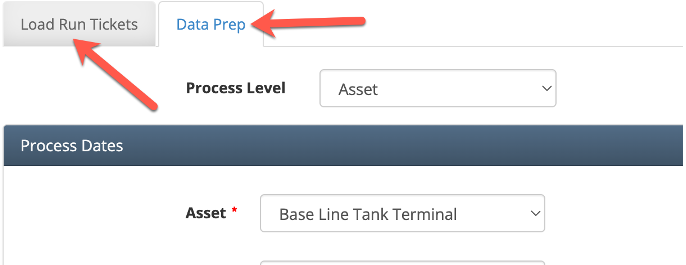
Process Level – define if this is an asset or company level process. The selection here will determine the options in the next box
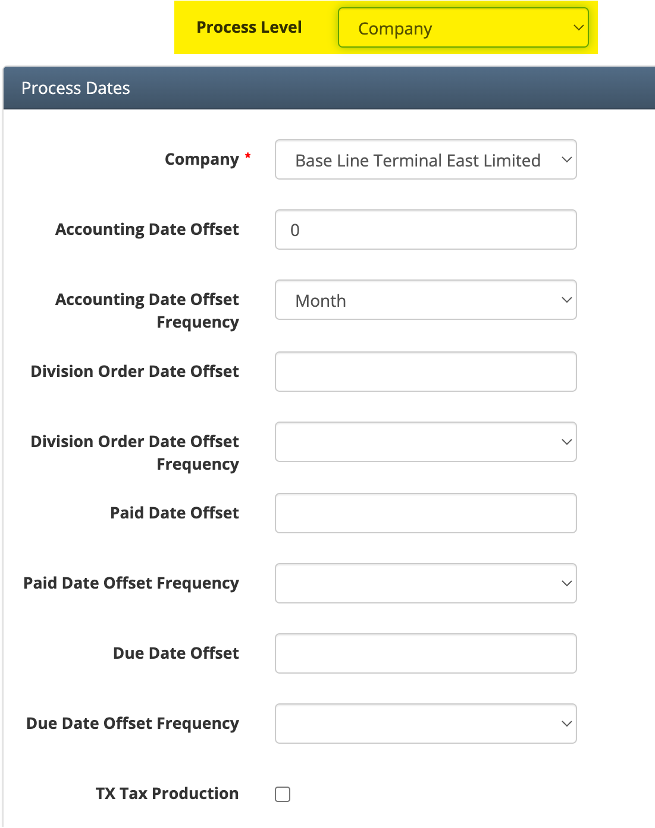
Company Level Processes
Company – define the company in which the process will be run
Accounting Date Offset – used in conjunction with the Accounting Date Offset Frequency to determine for which accounting date the process will be run
0 – first of the month of current calendar day month
-1 – first of the month of prior month from current calendar day month
Accounting Date Offset Frequency – Month or Day – there is no current valid use case for day. This should always be “Month”
Division Order Date Offset – used in conjunction with the Division Order Date Offset Frequency to determine what DO date will be used in the process run.
0 – first of the month of current calendar day month
-1 – first of the month of prior month from current calendar day month
Division Order Date Offset Frequency – Month or Day – this determines if the offset applies to the current calendar date or only to the current calendar month (assumes the first of the month)
Paid Date Offset – used in conjunction with the Paid Date Offset Frequency to determine what payment date will be used in the process run.
0 – first of the month of current calendar day month
-1 – first of the month of prior month from current calendar day month
Paid Date Offset Frequency – Month or Day – this determines if the offset applies to the current calendar date or only to the current calendar month (assumes the first of the month)
Due Date Offset – used in conjunction with the Due Date Offset Frequency to determine what due date will be used in the process run.
0 – first of the month of current calendar day month
-1 – first of the month of prior month from current calendar day month
Due Date Offset Frequency – Month or Day – this determines if the offset applies to the current calendar date or only to the current calendar month (assumes the first of the month)
TX Tax Production – when exporting a Texas Tax EDI File, this checkbox determines whether the generated .xml follows Texas' requirements for a Production EDI File or a Test EDI File
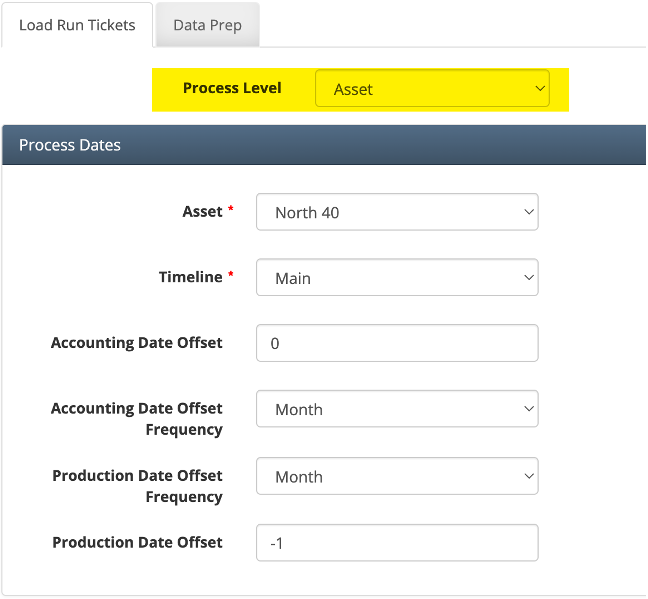
Asset level Processes
Asset – define the asset in which the process will be run
Timeline – define the timeline to use in the process. Only Main and Accrual (if the client has this setup) are valid timeline options here
Accounting Date Offset – used in conjunction with the Accounting Date Offset Frequency to determine what accounting date the process will be run.
0 – first of the month of current calendar day month
-1 – first of the month of prior month from current calendar day month
Accounting Date Offset Frequency – Month or Day – there is no current valid use case for day. This should always be “Month”
Production Date Offset – used in conjunction with the Production Date Offset Frequency to determine for which production date the process will be run
0 – first of the month of current calendar day month
-1 – first of the month of prior month from current calendar day month
Production Date Offset Frequency – Month or Day – there is no current valid use case for day. This should always be “Month”
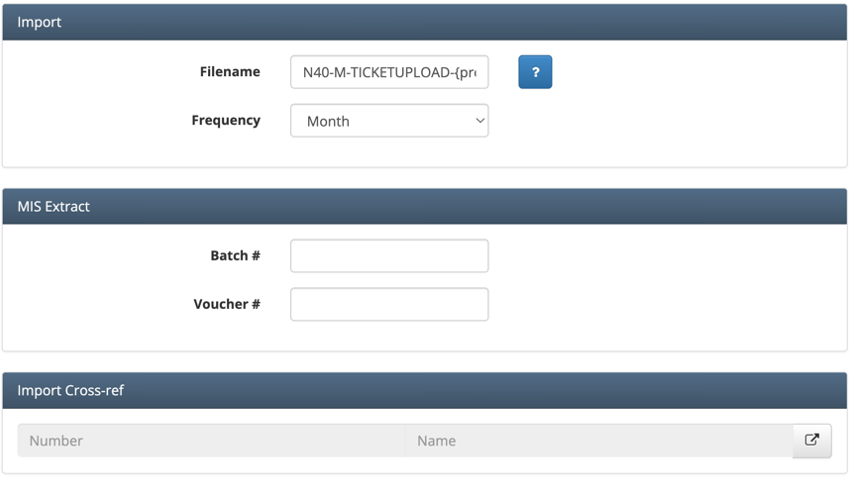
Below the asset or company selections are three static options that may or may not be used in your setup depending on the process being run.
Import
Filename – define the filename of the file that the process will be using during its run. There are options for making this dynamic as described below
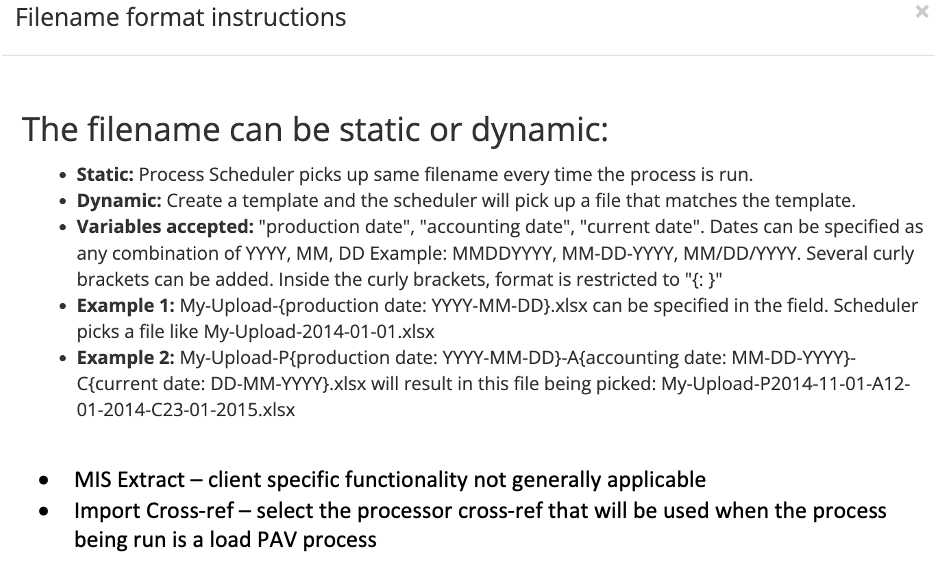
Static – define a filename with no dynamic values and a file with that static filename will be used every time the schedule is run
Dynamic – allows the filename to change based on variables to allow for unique files with different filenames to be consumed
Variable – “production date” – using the date format options described in the popup, this option requires the production date in the filename to match the production date that the schedule is using based on the production date offset values
Variable – “accounting date” – using the date format options described in the popup, this option requires the accounting date in the filename to match the accounting date that the schedule is using based on the accounting date offset values
Variable – “current date” – using the date format options described in the popup, this option requires the current date to be included in the filename. Only files with the current calendar date in the filename will be picked up when this option is used
Frequency – used to define the file data frequency whether daily or monthly. This option is used on only a few process such as Volume Upload to indicate the volumes are either daily or monthly records.
MIS Extract – client specific functionality not generally applicable
Import Cross-ref – select the processor cross-ref that will be used when the process being run is a load PAV process
Dependencies Tab
This tab allows you to chain multiple schedules together when they are dependent on a prior schedule to be run first. Note: the logic may be changing in a future version to be more intuitive.
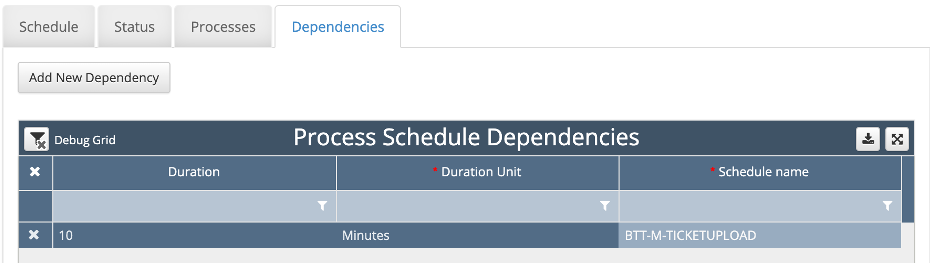
Duration – requires the dependent schedule, defined in the setup, to have completed within this amount of time of the start time of the current schedule
Duration unit – unit of time for the duration value
Beginning of Day – the schedule requires the dependent schedule to have run and completed within the current calendar date
Loading Files
When a process schedule requires a file to be run, that file must be located on the app server in a particular location (/srv/www/apps/files/imports). Clients at AWS can only have files loaded to the correct directory via a CloudOps ticket or sync job, see below. The schedule will pick up any file that matches the naming convention in the schedule and use that for the process. If no file matches the filename convention, the schedule will run as if no file is loaded and produce errors or warnings that are appropriate.
Creating A Sync Job
Many clients will use a scheduled job with in-app file uploads to act as a simple interface with no user interactions. This is done by the client placing a file on the WES SFTP server. This file is the one needed by the process and must be moved to the app server so it can be picked up by the scheduler. In order to do so, a simple sync job needs to be created between out outward facing SFTP and the app server.
See the linked Confluence page describing the architecture setup of the SFTP and the service to move files to the app server FTP Architecture . See this linked ticket for a simple example of a CloudOps task to create the sync job WEDEVOPS-9054 .
Loading Multiple Files a Day
There are two main options for setting up a scheduled job that will run multiple times a day for the same process.
Single schedule set to run multiple times a day
This option uses a single schedule process setup and runs at a frequency less than daily.
This approach requires the filename to always be the same for each run within a single day.
If no new file is loaded overwriting the previous file, then the process schedule will load the same file multiple times daily.
This option makes troubleshooting unique files difficult as the schedule is always loading the same filename whether a new file or not.
Multiples schedules set to run at varying times a day
This option uses multiple schedule process setups that are scheduled to run daily but have offset times from each other.
This approach allows the filenames to vary for each unique schedule process.
Only files with filenames matching the format in each unique schedule will be run at each time.
This allows multiple files to loaded daily but with unique names to help identify if any had an issue.
Daily Files With Month Overlap
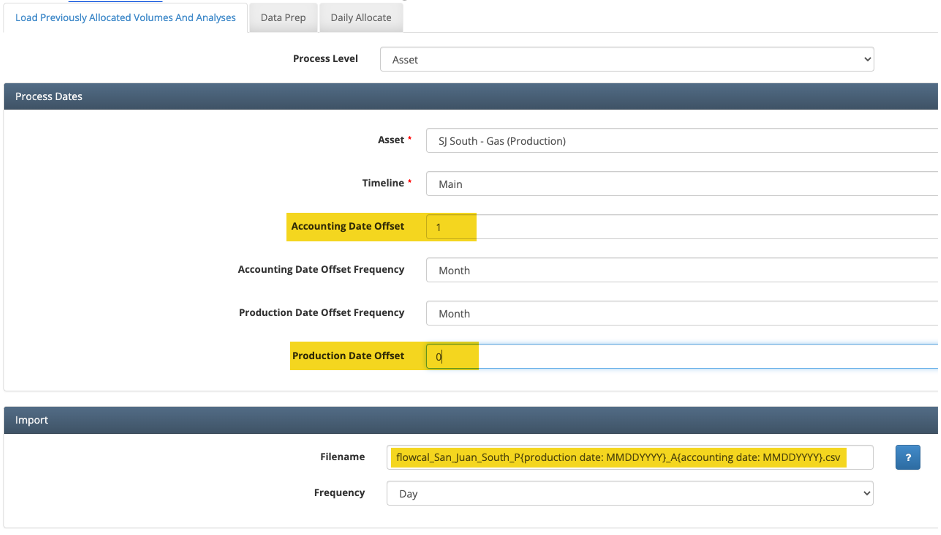
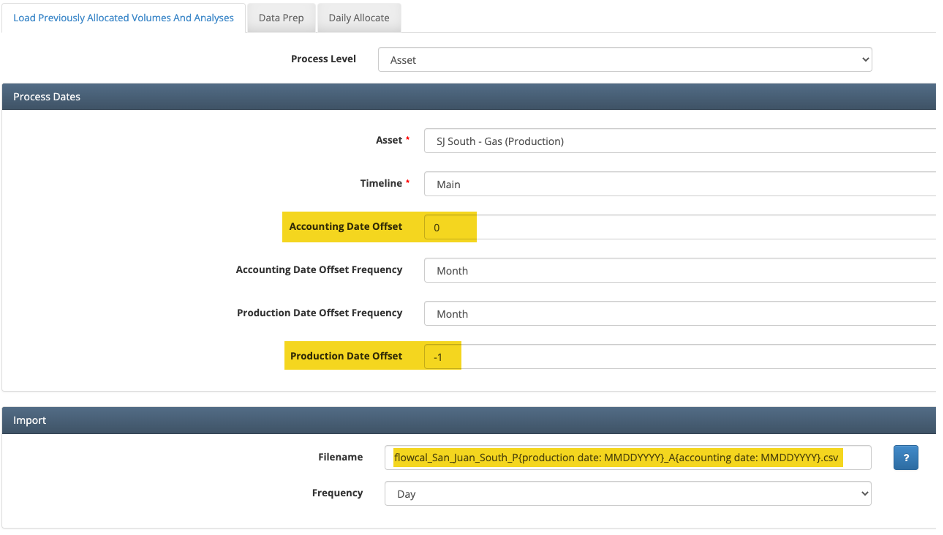
When daily files are being loaded that are tied to a production date for a Process Schedule, there can be a few days of overlap between files with data for a previous production month being loaded in the subsequent month. To handle this case, two separate schedules will need to be created.
The below screenshot is the example schedule setup for loading the file for the Current Month with a +1 month offset for the Accounting Date.
The next screenshot is the example schedule setup for loading the file for the Prior Month (last couple days of the month) during the following month.
The data would be consumed as seen in the examples below.
Date Loaded Thru | Actual Data Date | Production Date | Accounting Date | Filename | Schedule Used |
12/29/22 | 12/27/22 | 12/1/22 | 1/1/23 | flowcal_San_Juan_South_P12012022_A01012023.csv | Current Month Schedule |
12/30/22 | 12/28/22 | 12/1/22 | 1/1/23 | flowcal_San_Juan_South_P12012022_A01012023.csv | Current Month Schedule |
12/31/22 | 12/29/22 | 12/1/22 | 1/1/23 | flowcal_San_Juan_South_P12012022_A01012023.csv | Current Month Schedule |
1/1/23 | 12/30/22 | 12/1/22 | 1/1/23 | flowcal_San_Juan_South_P12012022_A01012023.csv | Prior Month Schedule |
1/2/23 | 12/31/22 | 12/1/22 | 1/1/23 | flowcal_San_Juan_South_P12012022_A01012023.csv | Prior Month Schedule |
1/3/23 | 1/1/23 | 1/1/23 | 2/1/23 | flowcal_San_Juan_South_P01012023_A02012023.csv | Current Month Schedule |
Notifications for Scheduled Jobs
The following notification types can be used in conjunction with scheduled jobs to allow the users to know the status of a scheduled run.

Failed Schedule – provides user notification that a Process Schedule failed. This indicates the schedule itself failed and did not execute or that a process within it fataled.
Completed Schedule (new in v10) – provides user notification that a Process Schedule completed successfully and no processes within the schedule contained errors or warnings.
Completed Schedule with Errors (new in v10) – provides user notification that a Process Schedule completed successfully but that process within the Schedule contained errors or warnings. This notification will also provide a link to the Error Log for the process that had errors.