
OpenInvoice Interface Setup and Configure
Integration Flows
OpenInvoice Setup Items
These items need coordination with open invoice reps for new clients. All items must be completed before QA testing can begin.
OPEN INVOICE - Provide WE with the
companynameanddunsnumberfor the client that is set up to interface with them - to be added in WE config (this is for AFE/CC sync)OPEN INVOICE - Create the export job in the test environment so the service status on invoices will get set to pending in OI
OPEN INVOICE/DEVOPS- Need
.pemfiles created/placed in the location specified in the config. It is most commonly stored in/etc/revenue_accounting/DevOps generates the public key and then gives them to OI, who gives us the
.pemandkeyfiles. Note: WE Internal environments use the same certs that client test environments use.Files must be placed in the config-specified directory and have permissions set to read-only.
chmod 400Config will be updated with the specific filenames of the
keyand.pemfiles as shown here:YAMLkey_path: "/etc/revenue_accounting/client-openinvoice.key" cert_path: "/etc/revenue_accounting/client-openinvoice.pem" ca_cert_path: "/etc/revenue_accounting/oildexca.pem"
OPEN INVOICE - AFE Types and Cost Center Types need to be set up in the OI Staging environment before the AFE/CC sync. AFE types set up in OI should have their “Name” field match the W Energy AFE types code table and "Code" field value.
OPEN INVOICE - Set up Sites to match Company Names for all the companies setup in the WE App. Note: Sites in OI must match capitalization and punctuation exactly with the company name in WE. (this is for AFE/CC sync, but we have code where we can default to all sites if needed).
OPEN INVOICE – Add WE IP, 104.6.16.177, to OI whitelist - If you need the IP of an AWS box, run the following command on the server as the user wti:
dig +short txt ch whoami.cloudflare @1.0.0.1
WE App Setup Items
The WE application needs the following items setup before running the OpenInvoice Sync Processes.
Global Setup/Companies: Create a company with name/number = OI provided companyname if it does not already exist
Global Setup/Chart of Accounts: Add company from step 1 to applicable CoAs
Financial Interface/Interface Sources: Add Code/Description= OpenInvoice/OpenInvoice
Financial Interface/Interface Setup:
Add Journal = AP Invoice and Source = OpenInvoice
Populate the following fields with client-preferred values:
Resolves to Type
Approval Control
Default Role Function
Default Role Type
Code tables/Role Types: Add financial screens to the 'screen uses' for the role type set up in Item 4
GL UOM Code Table: Set a default so if the unit sent in the interface is not in the code table, it will default to one instead of getting rejected
Global Setup/Roles: Vendor Role for Purchase Order must have Delivery Method=OpenInvoice
Notes: CC and AFE MUST be synced from WE before OI Invoices can be created for testing
Config Settings
A top-level config block is needed to enable the OpenInvoice interface with the following information for the specific client.
Config Options
Production and Non-Production Options
payment_response: true
The 'Send Paid Status' button will be shown on the Financial Interface/OpenInvoice Interfaces page and will have the following functionality when the process is run:
A response is sent to OI for invoice records that have external_id populated, status=paid, paid_response_paid=null
A response is sent to OI for invoice records that have external_id populated, status=voided, paid_response_void=null
sync_invoice_documents: true
From pivotal story #158875603 - If any of the invoices retrieved from OpenInvoice have documents attached, the sync will retrieve the document, unzip, and attach it to its corresponding invoice
Non-Production Options
mimmick_prod: true
This config will mimic the production environment behavior when connecting to one of the non-production OpenInvoice environments, which would only sync each invoice once. running would only sync new invoices.
Only 1 environment per client should have this setting enabled
When connecting to the prod environment (https://api.openinvoice.com), this happens automatically, and this config option is not needed
fake_server: true
This setting will import invoices from a directory on the VM server. To use this for testing, place invoice files in the import directory under files. The existing implementation of OI that supports multiple OI Companies and DUNS numbers requires a directory per OI Company. For example, it would like this for Terra /srv/www/apps/files/open_invoice/473501850/import. This folder must be created before running the OpenInvoice AP Sync.
Example Settings
Non-Production OI Interface
Note: check if using the onboard-api or uat-api OI sites and replace in URLs.
oildex:
flavor: <client>
payment_response: true
sync_invoice_documents: true
afe_url: "https://onboard-api.openinvoice.com/docp/supply-chain/v1/afes"
cost_center_url: "https://onboard-api.openinvoice.com/docp/supply-chain/v1/cost-centers"
invoice_url: "https://onboard-api.openinvoice.com/docp/supply-chain/v1/invoices"
purchase_order_url: "https://onboard-api.openinvoice.com/docp/supply-chain/v1/purchase-orders"
user_url: "https://onboard-api.openinvoice.com/docp/supply-chain/v1/users"
key_path: "/etc/revenue_accounting/client-openinvoice.key"
cert_path: "/etc/revenue_accounting/client-openinvoice.pem"
ca_cert_path: "/etc/revenue_accounting/oildexca.pem"
dunsnumber: "OI Provided"
companyname: “OI Provided”
mimmick_prod: false
fake_server: falseProduction OI Interface
oildex:
  flavor: <client>
  payment_response: true
  sync_invoice_documents: true
  afe_url: "https://api.openinvoice.com/docp/supply-chain/v1/afes"
  cost_center_url: "https://api.openinvoice.com/docp/supply-chain/v1/cost-centers"
  invoice_url: “https://api.openinvoice.com/docp/supply-chain/v1/invoices”
  purchase_order_url: "https://api.openinvoice.com/docp/supply-chain/v1/purchase-orders"
  user_url: "https://api.openinvoice.com/docp/supply-chain/v1/users"
  key_path: "/etc/revenue_accounting/client-openinvoice.key"
  cert_path: "/etc/revenue_accounting/client-openinvoice.pem"
  ca_cert_path: "/etc/revenue_accounting/oildexca.pem"
  dunsnumber: "OI Provided"
  companyname: “OI Provided”
OpenInvoice Sync Functionality
The OpenInvoice Sync processes can be run manually from the Financial Interface/OpenInvoice Interfaces page in the WE App or be included in a process schedule set up on the Company Process Control/Process Schedules page in the Application.
Cost Centers Sync to OpenInvoice
From the Financial Interface/OpenInvoice Interfaces page in the WE App, clicking the ‘Sync Cost Centers to OpenInvoice’ button will send Cost Center Information to OpenInvoice for any cost center that has a sync status = NULL or Updated.
Once synced, the following occurs:
The Sync Status on the Cost Center is set to ‘Sent’ (cost_centers.sync_status)
Note: If OI reports any issues in their response file, the sync status will not be changed to ‘Sent,' allowing the cost center to attempt to sync successfully after the issues are resolved. n example issue would be if they did not have the cost center type defined in their system.
The response from OpenInvoice is in XML format. t provides the status of the Sync’d cost center. the response is stored on the application server in the directory
/srv/www/apps/files/open_invoice
Example file: response_20200521115111_00039.xml
<?xml version="1.0"?>
<DOResponse application="OpenInvoice" xmIns="http://ww.digitaloilfield.com/ocp">
  <Status>Success</Status>
  <DocumentType>CC</DocumentType>
  <ProcessingDatetime>2020-05-21T10:51:11</ProcessingDatetime>
  <Partner PartnerType="B2BDocumentSender">
    <Company>
      <CompanyCode CompanyCodeType="DUNSnumber">062889134</CompanyCode>
      <CompanyName>Vernon E. Faulconer, Inc.</CompanyName>
    </Company>
  </Partner>
</DOResponse>
AFE Sync to OpenInvoice
From the Financial Interface/OpenInvoice Interfaces page in the WE App, clicking the ‘Sync AFEs to OpenInvoice’ button will send AFE Information to OpenInvoice for any AFE that has a sync status = NULL or Updated AND has a Status of Open, Completed, Closed, or Rejected.
Once synced, the following occurs:
The Sync Status on the AFE is set to ‘Sent’ (afe_header.sync_status)
Note: If OI reports any issues in their response file, the sync status will not be changed to 'Sent,' allowing the AFE to attempt to sync successfully after the issues are resolved. n example issue would be if they did not have the AFE type defined in their system.
The response from OpenInvoice is in XML format. t provides the status of the Sync’d cost center. the response is stored on the application server in the directory
/srv/www/apps/files/open_invoice
Example file: response_20200521121142_00001.xml
<?xml version="1.0"?>
<DOResponse application="OpenInvoice" xmIns="http://ww.digitaloilfield.com/ocp">
  <Status>Success</Status>
  <DocumentType>AFE</DocumentType>
  <ProcessingDatetime>2020-05-21T11:11:42</ProcessingDatetime>
  <Partner PartnerType="B2BDocumentSender">
    <Company>
      <CompanyCode CompanyCodeType="DUNSnumber">062889134</CompanyCode>
      <CompanyName>Vernon E. Faulconer, Inc.</CompanyName>
    </Company>
  </Partner>
</DOResponse>
OpenInvoice AP Sync
From the Financial Interface/OpenInvoice Interfaces page in the WE App, there are two ways the user can initiate the AP invoice Sync.
The ‘OpenInvoice AP Sync’ button will pull all available invoices from OpenInvoice through the interface and create matching AP Invoices in the WE Application. The Sync’d invoice.xml files are saved on the application server in the
/srv/www/apps/files/open_invoicedirectory.The ‘Retrieve Single Invoice’ button will pull a single invoice from OpenInvoice through the interface and create a matching AP Invoice in the WE Application. The user is prompted via a pop-up for the OpenInvoice Invoice ID when this button is clicked. The value to enter in the field depends on the config setting as follows:
Config setting of
fake_server: true- Enter the Invoice XML filename without the extension.
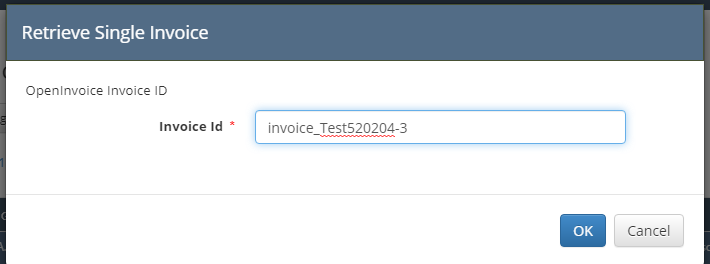
Example for invoice named invoice_Test520204-3.xml
Config setting of fake_server: false (default) - Enter the ImageInvoice ID from the invoice XML file. This value matches the ID that OpenInvoice uses to identify the invoice.
<?xml version="1.0" encoding="UTF-8"?>
<SupplierConnectInvoice xmlns="http://www.digitaloilfield.com/xml/ns/ocp" type="APINVOICE">
  <ImageInvoice id="59460263">
    <InvoiceHeader>
      <InvoiceNumber>Test 520204</InvoiceNumber>
      <Partner PartnerType="Supplier" />
      <Company>
        <CompanyCode CompanyCodeType="VendorNumber">123456789</CompanyCode>
        <CompanyName>Vernon E Faulconer Supplier Test</CompanyName>
      </Company>
    </InvoiceHeader>
    ...
  </ImageInvoice>
</SupplierConnectInvoice>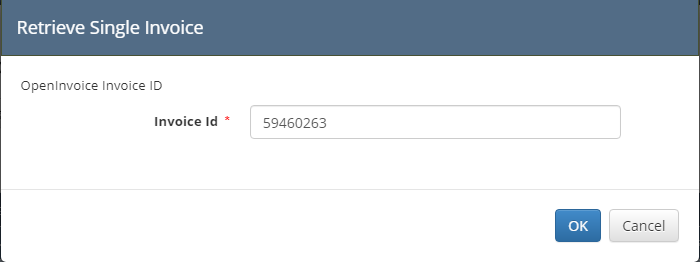
Invoice ID copied from XML document’s ImageInvoice/id.
Sent Paid Status
From the Financial Interface/OpenInvoice Interfaces page in the WE App, the ‘Send Paid Status’ button will send an updated JSON file to OI for any AP Invoice that was synced from OI and has been paid or voided.
AP Payment released for an AP Invoice with source = OpenInvoice, status= Paid, external ID = OpenInvoice Invoice ID.
WE sends updated json to OI:
update_20200521155337-1.json
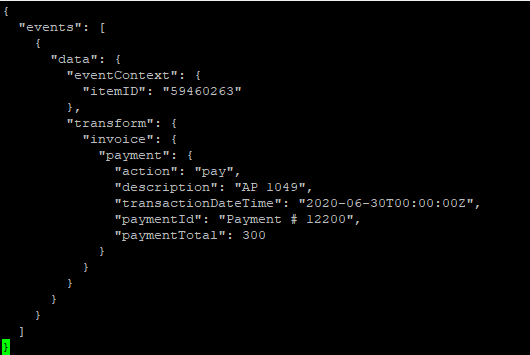
OI sends response XML back: response_20200521035338_00001.xml

Previous AP Payment Voided and released.
WE sends updated json to OI: update_20200521161827-1.json
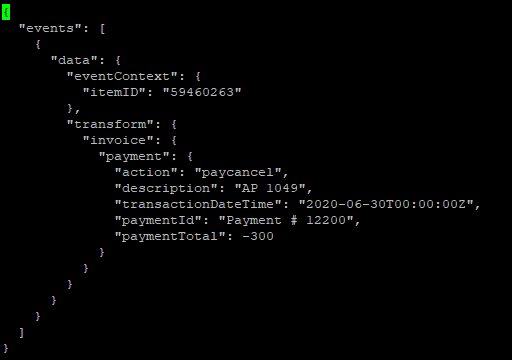
OI sends response XML back: response_20200521041828_00001.xml

Additional OpenInvoice Sync Functionality
AFE - DOI Sync (Pivotal Story #163037544): The process button is on the AFE/AFEs page
User Sync (Pivotal Story #163461083): The sync button is on the OpenInvoice /Interfaces page
It can only be used if a client uses the Labor Distribution module because users will not sync if they do not have the required fields:
AuthorizationDollarLimit
approval_title_users.dollar_limitParentApprover
exd_ap_employees.supervisor_id
Purchase Order Sync (Pivotal Story #172342135): No ‘Sync’ Button – XML file is created when the PO has status = sent and vendor role has delivery method = OpenInvoice
On the Purchase order, the Instruction Type will need to be one of the following values (they are added via migration to the Purchase Order Instruction Type code table):
CarrierInstructions
ConsigneeInstructions
DriverInstructions
EmptyReturnInstructions
InspectionsInstructions
RoutingInstructions
ShipperInstructions
ShortLeadTime
ShortLeadTimeInstructions
Tolerances
Other
Internal testing with
fake_serverconfig enabledEven with Fake Server enabled, the Vendor Role on the PO must have its Delivery Method set to OpenInvoice (‘OpenInvoice’ is added via migration to the Delivery Method code table) to generate the XML.
In Fake Server mode, it will always return no errors and report as the PO being accepted by OpenInvoice.
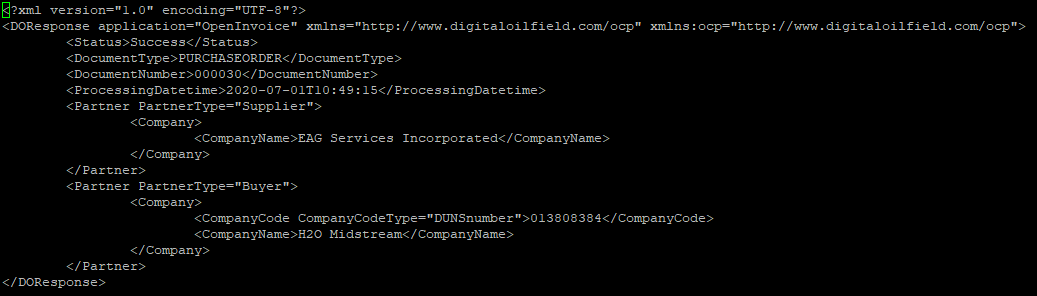
When PO meets the OpenInvoice criteria and is sent, an XML file is created and sent to OI. the XML file that WE sends to OI can be found on the server:
/srv/www/apps/files/open_invoice/purchase_orderWhen OI receives the PO, they will send back a status XML with the status.
Various Functionality for Possible Cherry Pick
There have been some customizations on specific client branches that may need to be considered as an addition to code branches depending on what the resulting code branch was branched from. Or example, if the client is one of EAG’s clients, their flavor would branch from an EAG branch, and the functionality listed below with (7.5.3.eag) denoted would already be in their code, so no cherry-pick would be needed.
#172096094 - Create an open_invoice directory if it does not exist (7.5.3.flywheel)
#172386312 - Send Time with Payment Date on OI Paid Status Sync (7.5.4.flywheel)
#171934512 - Flywheel AP Invoice Activity Date and UOM Mapping Adjustment (7.5.3.flywheel)
GL Dist activity date is pulled from the ServiceDate or the Value of the override (AdditionalData) Service Date from the invoice details sections of the XML
The Header activity date is the earliest of the GL Dist activity dates
#172090058 - Do not remove characters from Invoice Number (7.5.3.eag)
#172213671 - Allow creation of Invoice Number with more special characters (7.5.3.eag)
#172257459 - Change Company Source from OpenInvoice (8.1.0.water)
Change the mapping of the Company Code to pull from SiteName instead of CompanyName
Currently, this is only implemented if the DB clients.name= H2O
#172383540 - Update POs and AP Invoices for OI Integration (8.1.1.water)
Config driven.
features.bypass_po_matching: true
PO/AP Invoice matching is not done in WE when the config is true. PO will be attached to the Sync’d AP Invoice if it exists in WE, and there will be no matching validations when submitted.
#173503527 - Modify AP Invoice OI Sync Logic (8.1.1.water)
Config driven
Oildex.use_earliest_account_period: true
Modify accounting date on AP Invoice Sync, set to the last day of the month based on open accounting periods (current month +/- 1 month)
If the Invoice fails to be created in WE, do not send the json response file.
Example CURL Command
curl -v -k \
  "https://onboard-api.openinvoice.com/docp/supply-chain/v1/invoices?$filter=status+eq+approved+and+lastActionDate+ge+2018-12-31&$count=true" \
  --key /etc/revenue_accounting/dugan-openinvoice.key \
  --cert /etc/revenue_accounting/dugan-openinvoice.pem \
  --cacert /etc/revenue_accounting/openinvoice-ca.pem
Its output
* About to connect() to onboard-api.openinvoice.com port 443 (#0)
*   Trying 161.38.178.130...
* Connected to onboard-api.openinvoice.com (161.38.178.130) port 443 (#0)
* Initializing NSS with certpath: sql:/etc/pki/nssdb
* skipping SSL peer certificate verification
* NSS: client certificate from file
* 	subject: E=devops@wenergysoftware.com,CN=dugan.wenergysoftware.com,OU=Dugan,O="W Energy Software, LLC",L=Tulsa,ST=Oklahoma,C=US
* 	start date: Aug 16 16:36:24 2022 GMT
* 	expire date: Sep 17 16:36:24 2023 GMT
* 	common name: dugan.wenergysoftware.com
* 	issuer: E=apsitrequest@adp.com,CN=P2P Certificate Authority,OU=Procure-To-Pay,O=ADP Inc.,L=Calgary,ST=Alberta,C=CA
* SSL connection using TLS_ECDHE_RSA_WITH_AES_128_GCM_SHA256
* Server certificate:
* 	subject: CN=api.openinvoice.com,O="Enverus (Enverus, Inc.)",L=Austin,ST=Texas,C=US,serialNumber=155356300,businessCategory=Private Organization,incorporationState=Texas,incorporationCountry=US
* 	start date: Apr 18 00:00:00 2022 GMT
* 	expire date: Apr 18 23:59:59 2023 GMT
* 	common name: api.openinvoice.com
* 	issuer: CN=DigiCert SHA2 Extended Validation Server CA,OU=www.digicert.com,O=DigiCert Inc,C=US
> GET /docp/supply-chain/v1/invoices?=status+eq+approved+and+lastActionDate+ge+2018-12-31&=true HTTP/1.1
> User-Agent: curl/7.29.0
> Host: onboard-api.openinvoice.com
> Accept: */*
>
< HTTP/1.1 200
< Set-Cookie: DO2SESSIONID=2319750FC049A29A9E9F9C12C95FB44D; Path=/docp; Secure; HttpOnly
< Cache-Control: no-cache, no-store, max-age=0, must-revalidate
< Pragma: no-cache
< Expires: 0
< Strict-Transport-Security: max-age=31536000 ; includeSubDomains
< X-XSS-Protection: 1; mode=block
< X-Frame-Options: DENY
< X-Content-Type-Options: nosniff
< vary: accept-encoding
< Content-Type: application/json;charset=UTF-8
< Content-Length: 6918
< Date: Wed, 02 Nov 2022 14:40:27 GMT
< Server: REDACTED
<
{"invoices":[ ... ]}