
Well Statuses tab missing in Global Setup.
🤔 Problem
Normally, clients use the Well Statuses tab to indicate when a well is Producing (Active) or Shut-in (Inactive), by setting the status and specifying the date range. It’s a key part of how they track production periods and apply updates like prior period adjustments (PPA).
Lately, we’ve seen cases where this tab simply doesn’t show up in the UI. When that happens, users aren’t able to:
Enter or adjust well statuses,
Define producing/shut-in periods.
Or manage changes using the standard workflow.
Without that tab, it becomes harder for teams to keep production data accurate or reflect operational changes in the system.
🌱 Solution
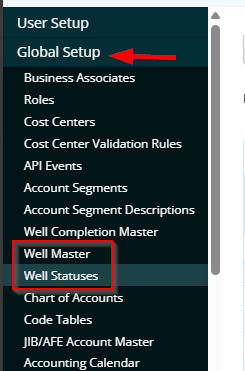
The fix is straightforward. The visibility of the Well Statuses tab (and the Well Master screen in general) is controlled by a config setting.
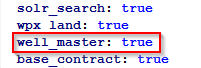
To bring it back, just update the config file and set the well_master feature flag to true.
This setting is what enables or disables the Well Master and Well Statuses screens under Global Setup. When it's set to false, the UI hides those options entirely.
Download the config file from WeManage.
Go to the environment in WeManage, locate the appropriate environment, and download the current configuration file.
Open the file in a text/code editor.
Use any editor (e.g., Notepad++, VS Code) to view and edit the contents of the config file.
Find the well_master setting.
Search for the line that includes well_master. It might look like this:
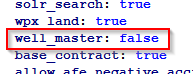
Change the value from false to true and save the change.
Create the WEDEVOPS ticket to upload the new config file.
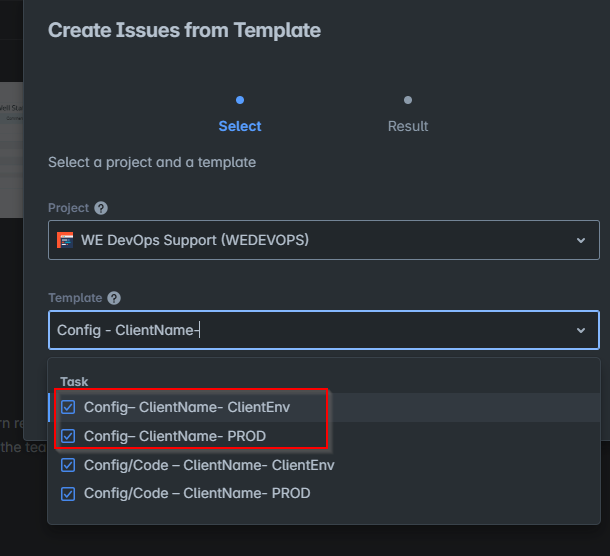
Fill out the form, attach the new file, and move the WEDEVOPS ticket to "Approved and Ready to Action" if the client has already approved the change (make sure to attach their approval).
Once the WEDEVOPS ticket is completed, review the change, verify everything is working as expected, and confirm with the client.
Close ticket.

If this is an internal environment (Support-Porject box) it doesn’t require approval; if this is a non-prod environment you might update the config file with client approval.