
Rerun Payouts on finalized periods via SQL
This how-to article explains how to use a SQL script to unlock or enable finalized payout periods, so users can recalculate payouts when the system doesn’t offer other ways to do it. It helps fix payout data issues quickly and safely after a software bug.

Use this procedure only when absolutely necessary to unlock finalized payout periods. Avoid making manual changes to information or calculations in the database to prevent unintended issues.

Payouts Results table is a transactional table often used as input for calculations of JIB/Revenue Data, but not the official source for accounting totals or financial module.
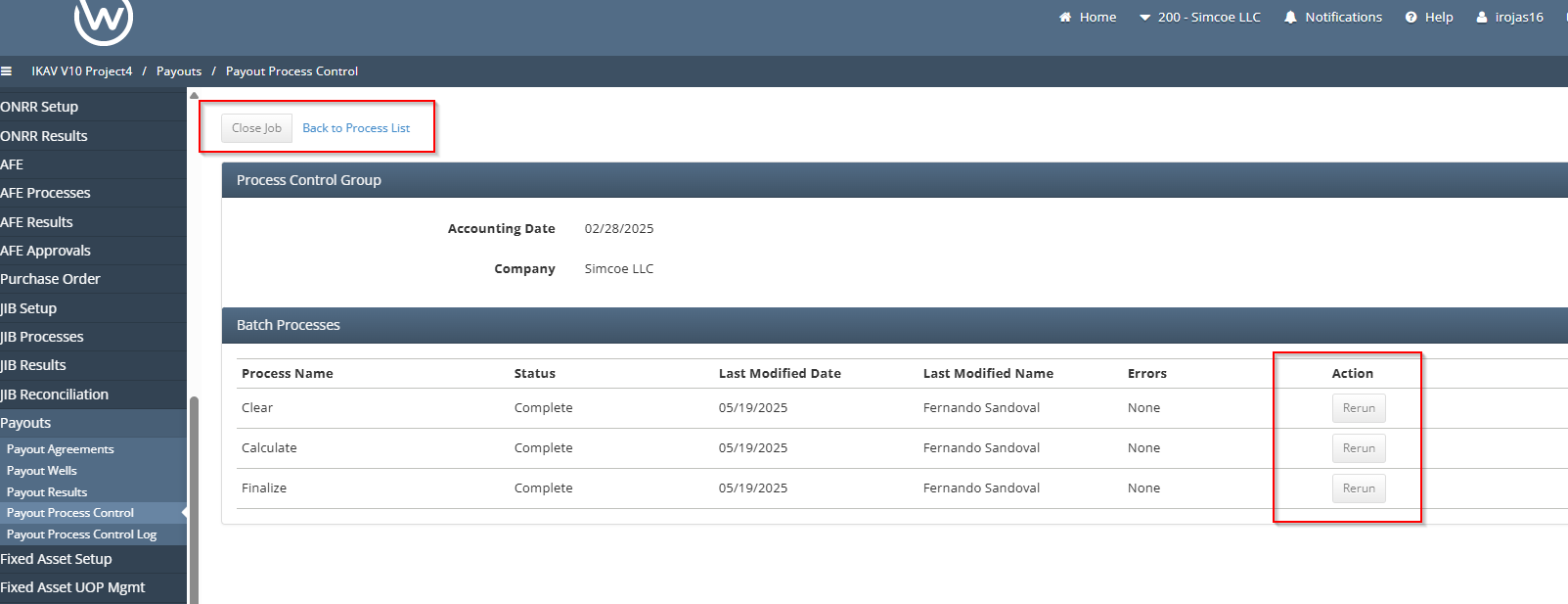
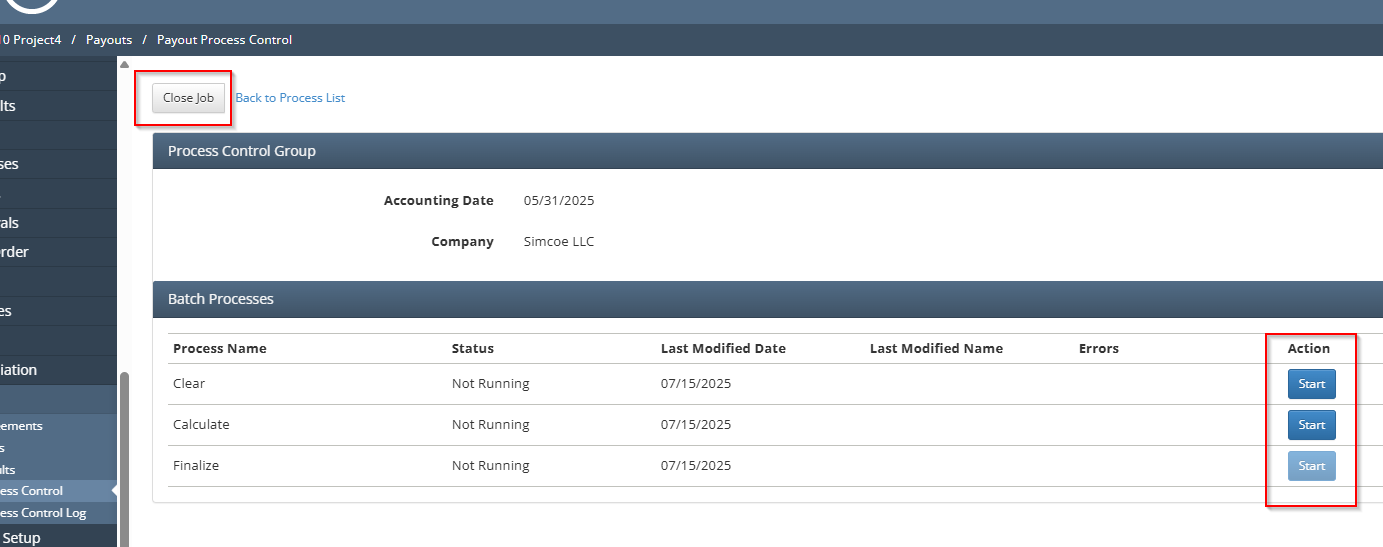
This is what a finalized period looks like; typically, the buttons are grayed out and disabled.
Instructions
This entire process should be performed first in a project box, then in non-prod, and once the client approves it, pushed into production. Please follow the steps below to apply the script correctly.
Validation before deployment:
Verify the Payouts Results table to confirm the accounting date, company, and if the results are finalized.
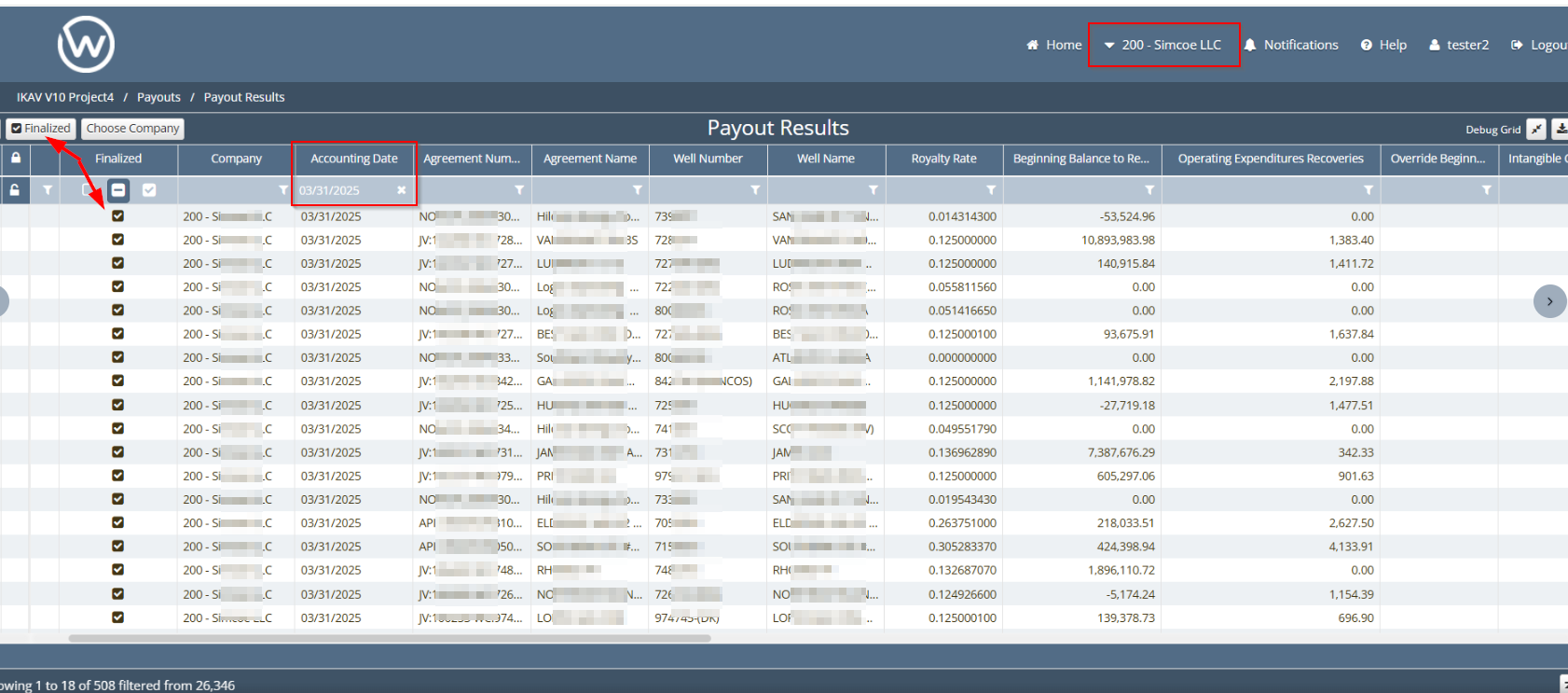
Verify if the
batch_groupsor the Payout Process Control groups (Job) for that accounting date and company are closed.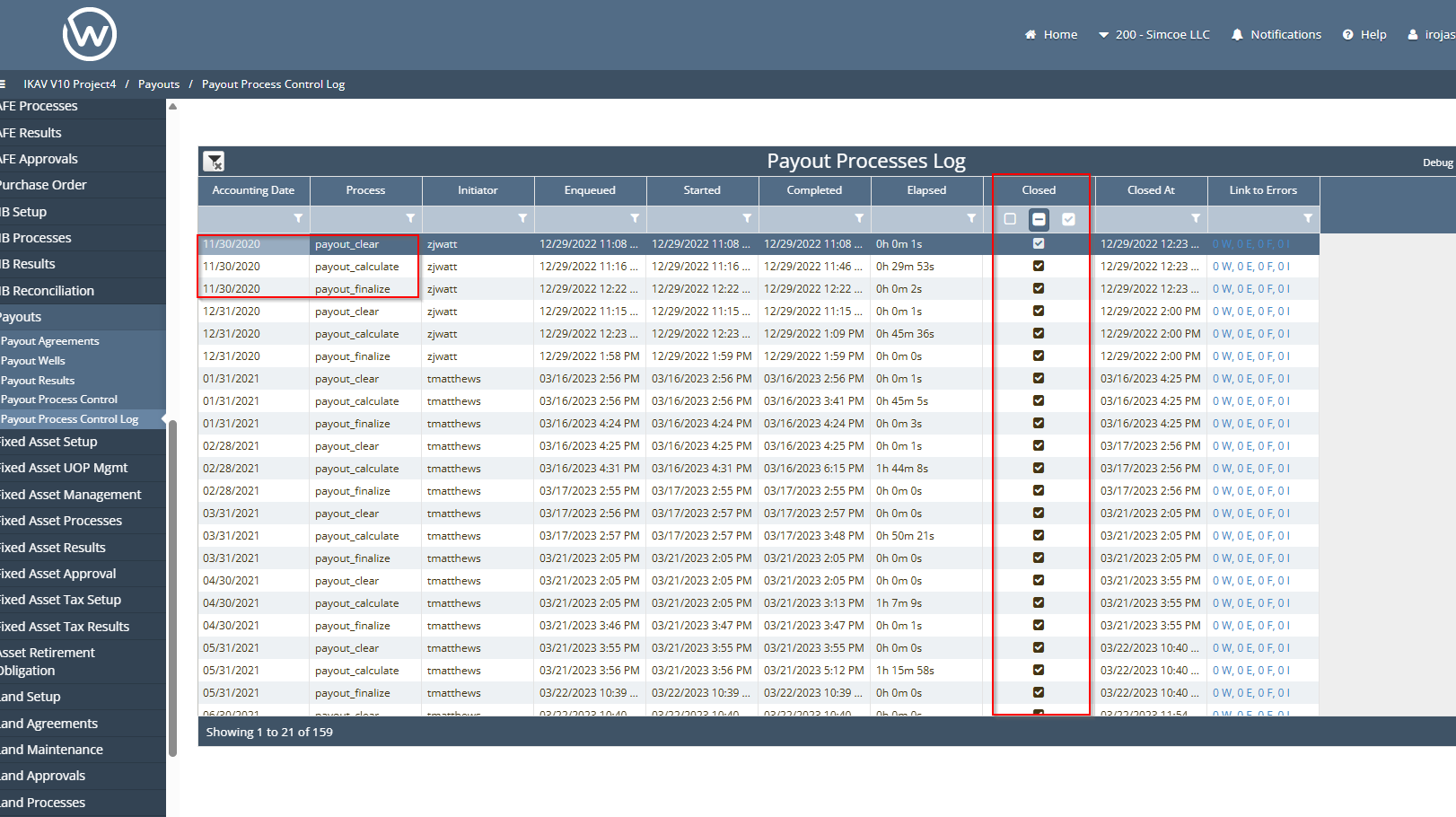
c. Verify if the
batch_processesor Payout Processes for the same accounting date and company are closed or executed. This can also be reviewed through the Company Process Control (CPC) through the Process Control Log tab and filtering by Process and Accounting date.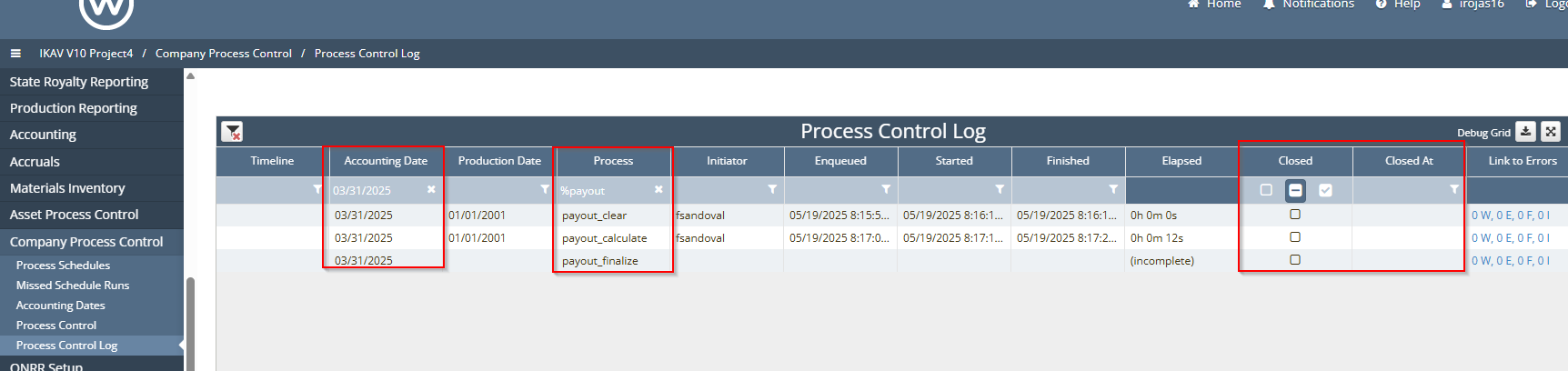
In the UI, the “Job” can be found as batch_group with a specific ID, same for the processes that have an ID but also are linked to this batch_group by the batch_group_id field.
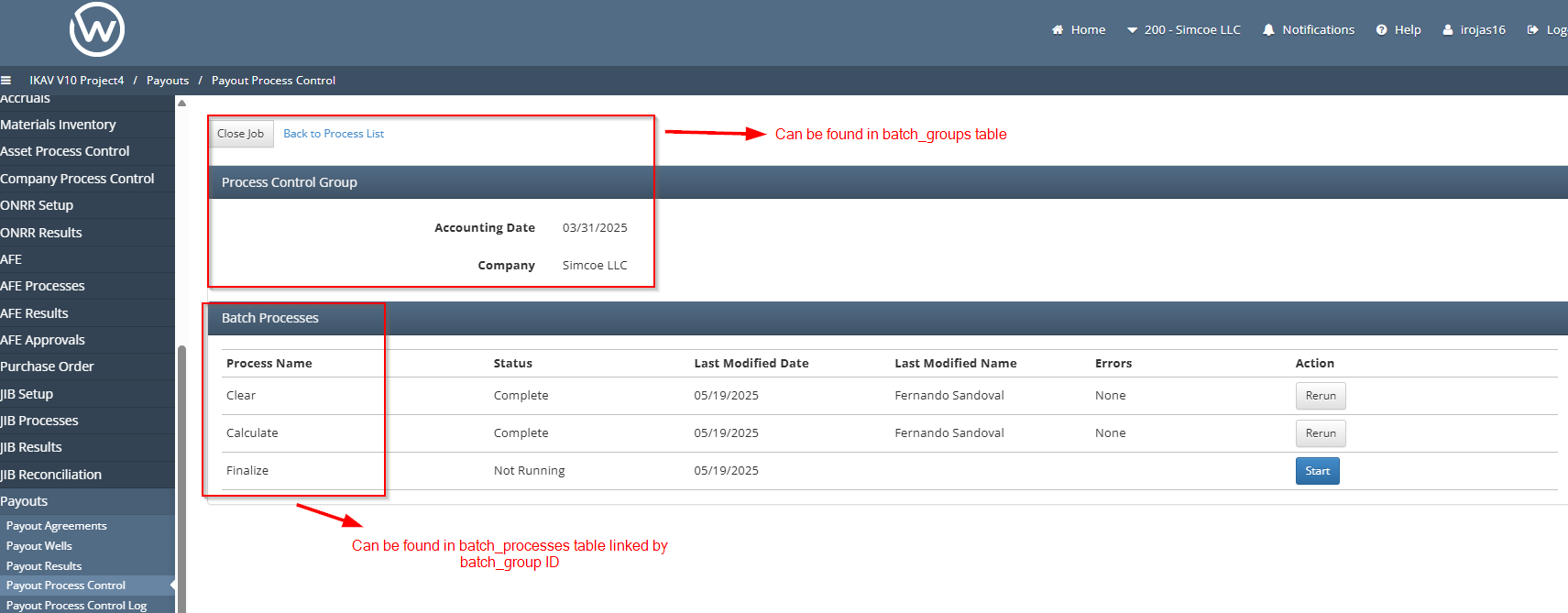

Close the processes and jobs through the UI if this option is feasible; if not, run the UPDATE statements in the scripts below.
You can use your own criteria to select which records to delete.
Once you’ve made the verifications and confirmed the accounting date, company and verified the records to delete, proceed by running the scripts below in the project environment first.
Scripts
In the Accounting_date field, enter your date. Do the same for the company_code_id field.
Verifications:
-- Select statements for verification.
SELECT * FROM batch_groups bg
WHERE bg.control_type LIKE 'Payout%'
and bg.closed=0
and bg.accounting_date >= '2024-04-30'
and bg.company_code_id=2;

-- Verify how many batch_groups have been closed as of the given accounting date.
SELECT count(*) FROM batch_groups bg
WHERE bg.control_type LIKE 'Payout%'
AND bg.closed=1
AND bg.accounting_date >= '2024-04-30'
AND bg.company_code_id=2;

-- Check if there are any processes still open.
SELECT * FROM  batch_processes bp
JOIN batch_groups bg
ON bp.batch_group_id=bg.id
WHERE  bp.process_name LIKE 'Payout%'
and bg.control_type LIKE 'Payout%'
and bg.accounting_date >= '2024-04-30'
and bg.closed=0;

-- Check if there are any Payout Results still open.
select count(*) from payout_results
where accounting_date >= '2024-04-30'
and company_code_id=2
and finalized=0;
Update the Batch_groups, Batch_processes, and Payout_results that are still open, in cases where the client was unable to complete them through the UI.
--Close Jobs – Batch_groups that are still open.
--(Always close batch_groups before deleting batch_processes to avoid leaving orphaned data.)

UPDATE batch_groups
SET closed = 1, closed_at='2025-06-26 08:00:00.000'
WHERE control_type LIKE 'Payout%'
AND accounting_date >= '2024-04-30'
AND company_code_id=2
AND closed = 0;

--- Update Payout Results; this will help us to clean bad data and the table
for the new calculations.

UPDATE payout_results
SET finalized = 1
WHERE accounting_date >= '2024-04-30'
AND company_code_id=2;
Once you’ve completed all the steps above, you can proceed to delete the processes, batch_groups, and payout_results.
When deleting data, always include a WHERE clause in your query and make sure to request a backup of the data before deletion.
---- Delete the processes linked to closed batch groups.
-- RUN THE BELOW SELECT QUERY AND TAKE THE EXPORT IN EXCEL AND ATTACHED TO THE TICKET

SELECT * FROM batch_processes bp
JOIN batch_groups bg
ON  bp.batch_group_id=bg.id
WHERE  bp.process_name LIKE 'Payout%'
and bg.control_type LIKE 'Payout%'
and bg.accounting_date >= '2024-04-30'
and bg.company_code_id=2
and bg.closed=1;

DELETE bp FROM batch_processes bp
JOIN batch_groups bg
ON bp.batch_group_id=bg.id
WHERE  bp.process_name LIKE 'Payout%'
and bg.control_type LIKE 'Payout%'
and bg.accounting_date >= '2024-04-30'
and bg.company_code_id=2
and bg.closed=1;

---- Delete Batch groups.
-- RUN THE BELOW SELECT QUERY AND TAKE THE EXPORT IN EXCEL AND ATTACHED TO THE TICKET


SELECT * FROM batch_groups bg
WHERE control_type LIKE 'Payout%'
AND bg.accounting_date >= '2024-04-30'
AND bg.company_code_id=2
AND bg.closed=1;

DELETE bg FROM batch_groups bg
WHERE bg.control_type LIKE 'Payout%'
AND bg.accounting_date >= '2024-04-30'
AND bg.company_code_id=2
AND bg.closed=1;

--------- Delete all the Payouts since 2024-04-30 up to date.
-- RUN THE BELOW SELECT QUERY AND TAKE THE EXPORT IN EXCEL AND ATTACHED TO THE TICKET

SELECT  * from payout_results
WHERE accounting_date >= '2024-04-30'
AND finalized = 1
AND  company_code_id=2;

DELETE FROM payout_results
WHERE accounting_date >= '2024-04-30'
AND company_code_id=2
AND finalized = 1;
Once all the steps above are completed, verify that the processes were deleted, no batch_groups (jobs) remain open for the given criteria, and that the payout_results table has been properly cleared.
Finally create a new process control group, input the required accounting date, company and click on Create.
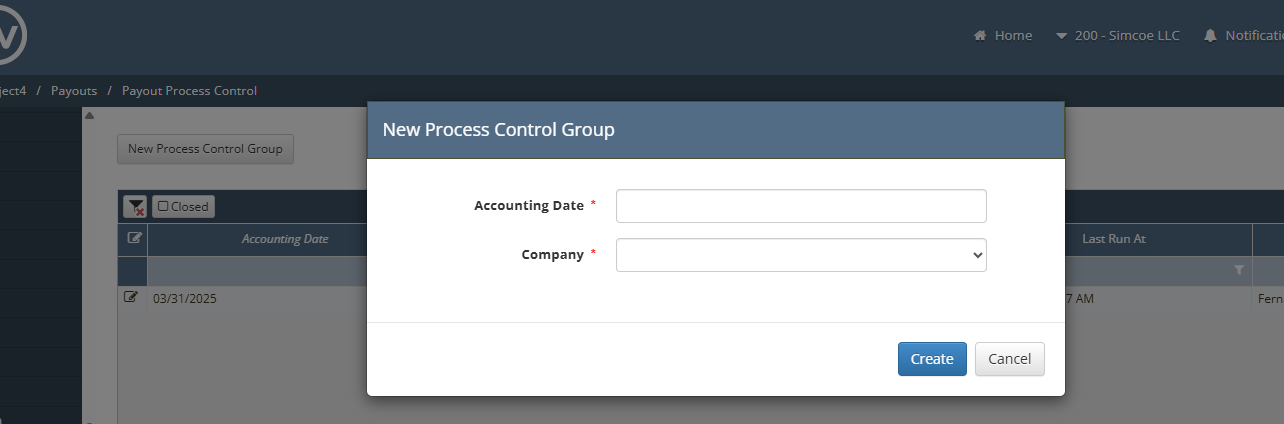
To conclude, the system will enable the steps to process the payouts for the specified date that was previously finalized by mistake or contained errors.
Please refer to the ticket below to get more context and details on how to proceed with this procedure.