
How to troubleshoot issues with export files
🤔 Problem
Clients often report issues such as:
“I tried exporting a file using the export button, but it just keeps loading and nothing happens.”
“I clicked the export button and it eventually stopped loading, but nothing was downloaded.”
“I downloaded the export file, but some records are missing from the document.”
🌱 Solution
Most of these issues can be investigated through the network tab looking at the progress of the request.
go to the page you need to troubleshoot.
open the developer tools (CTRL + SHIFT + I)> click on the network tab > click on the export button to see the request
You should see a request with the following format ${name_of_the_page}.${file_extention(csv or xlsx)}?gridserver=true. You will likely see the request with the status pending and you can analyze it after it has finished.
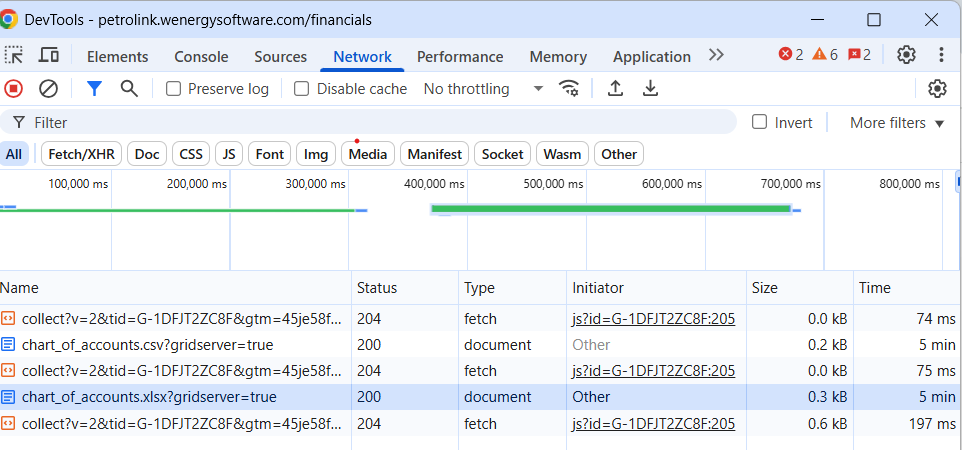
In this example, the request returned a 200 status (success), but it took 5 minutes to receive a response from the server. The ‘Time’ column is a key detail when troubleshooting HTTP requests.
In our application, you'll typically encounter two different timeout thresholds: one set to 50 seconds and another to 5 minutes. If the value in the Time column matches either of these, it's likely the request has timed out—even if a 200 status is returned.
If you encounter any other status response codes—especially those in the 400 or 500 range—be sure to escalate them to the Engineering team. These typically indicate a bug or server-side issue that will likely require a code fix.

Highlight important information in a panel like this one. To edit this panel's color or style, select one of the options in the menu.