
Changes after code deploys
🤔 Problem
If you come across a ticket where a client recently deployed code and reports issues such as lost access to a page, renamed pages in the profiles section, or any other changes occurring after the deployment, it's likely related to their recent code push.
🌱 Solution
One effective way to identify what has changed is by comparing release versions to see if any stories align with what the client is reporting.
Navigate to the Releases page in Jira, where you can search all code branches and check their release status.
For example, you might compare versions
24.2.12.9.mand24.2.13.15.m.
As shown in the image below, you’ll see that two additional versions were released between them.
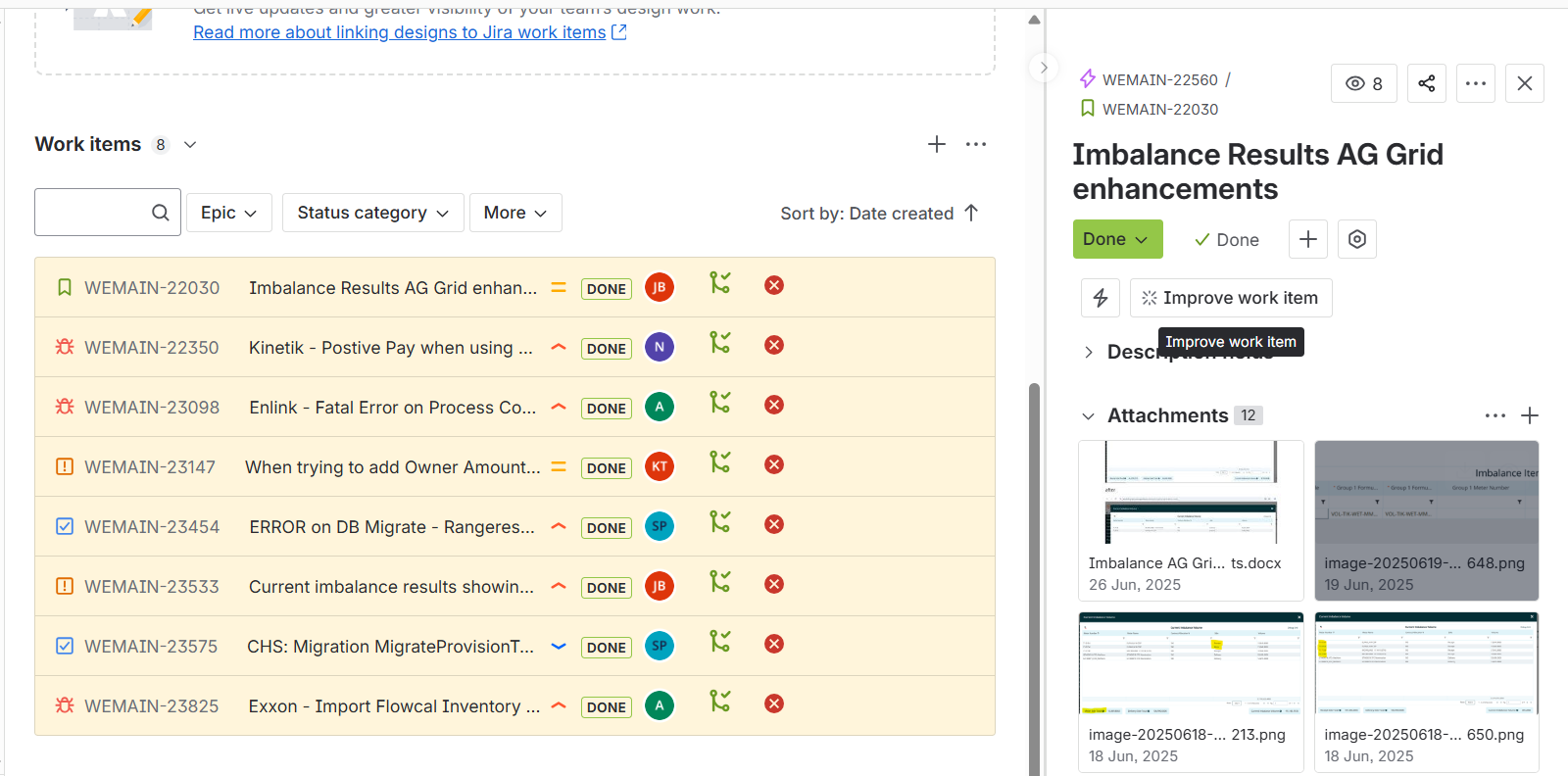
Click on a specific release version to view its release page. This will display all the stories included in that release.
Review each story individually to determine whether it’s related to the issue reported by the client.
🔍 Tip: To narrow down your search, look for stories that include the organization name in the title — these are often directly related to client-specific changes.
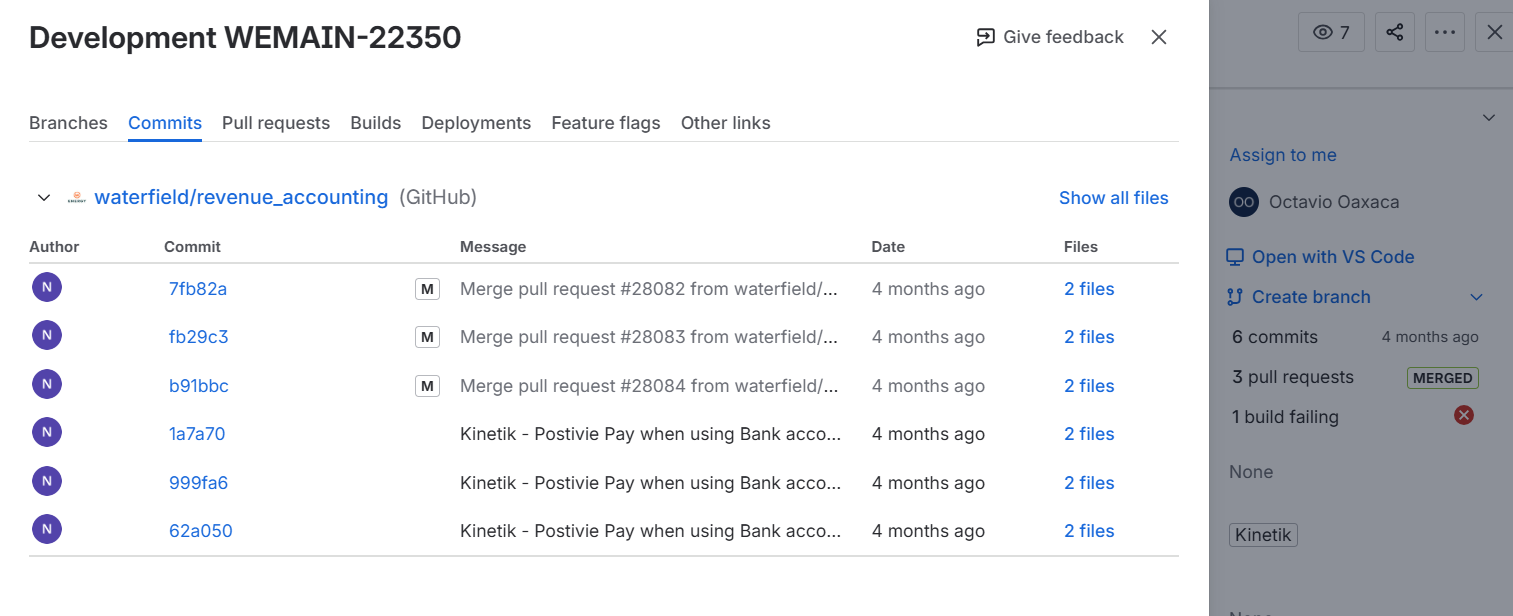
If you want to see exactly what was changed, click on “Commits”. This will open a modal showing all code changes for that story, including the specific lines of code that were added, removed, or modified.

Highlight important information in a panel like this one. To edit this panel's color or style, select one of the options in the menu.