
Approval Workflow: How to Set Approval Limits and Chains
Approval Workflow:
An approval workflow system is a fundamental component in financial governance, enabling structured oversight, compliance assurance, and process standardization across key operational activities. This system orchestrates the required number of approvers for diverse financial transactions, including Accounts Payable (AP) and Accounts Receivable (AR) invoices, journal entries (JE), Authorizations for Expenditures (AFE), fixed asset acquisitions, and land agreements exceeding predefined monetary thresholds.
The different type of workflow routes – based on Business Associate role types (i.e. Vendor, Customer, Operator, etc.) – and invoice types will also be handled in this module. In this article, we will use the approval process for an AP invoice. However, the process will be similar and parallel to AR and JE submission to workflow [ref. 1].
📘 Configuration of Approval Chains and Limits
To illustrate the configuration of approval chains and the enforcement of limits, we present a practical use case involving the G&A approval hierarchy of one of our customers.
1. Initial Configuration
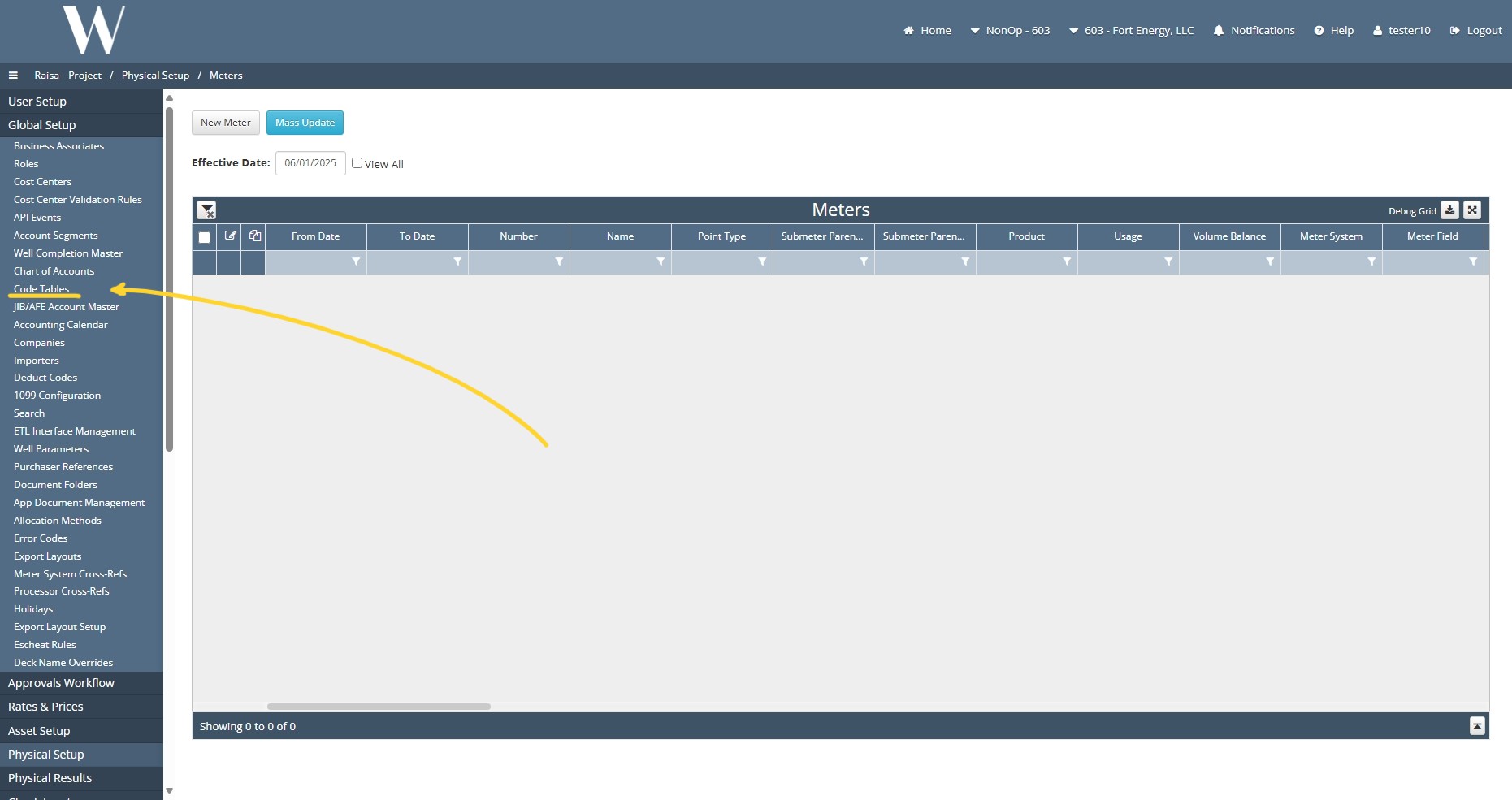
Step 1: Under Global Setup → Code Tables → Approval Titles, a new title can be created with the desired code and description. In the example bellow, both were set to G&A Management.
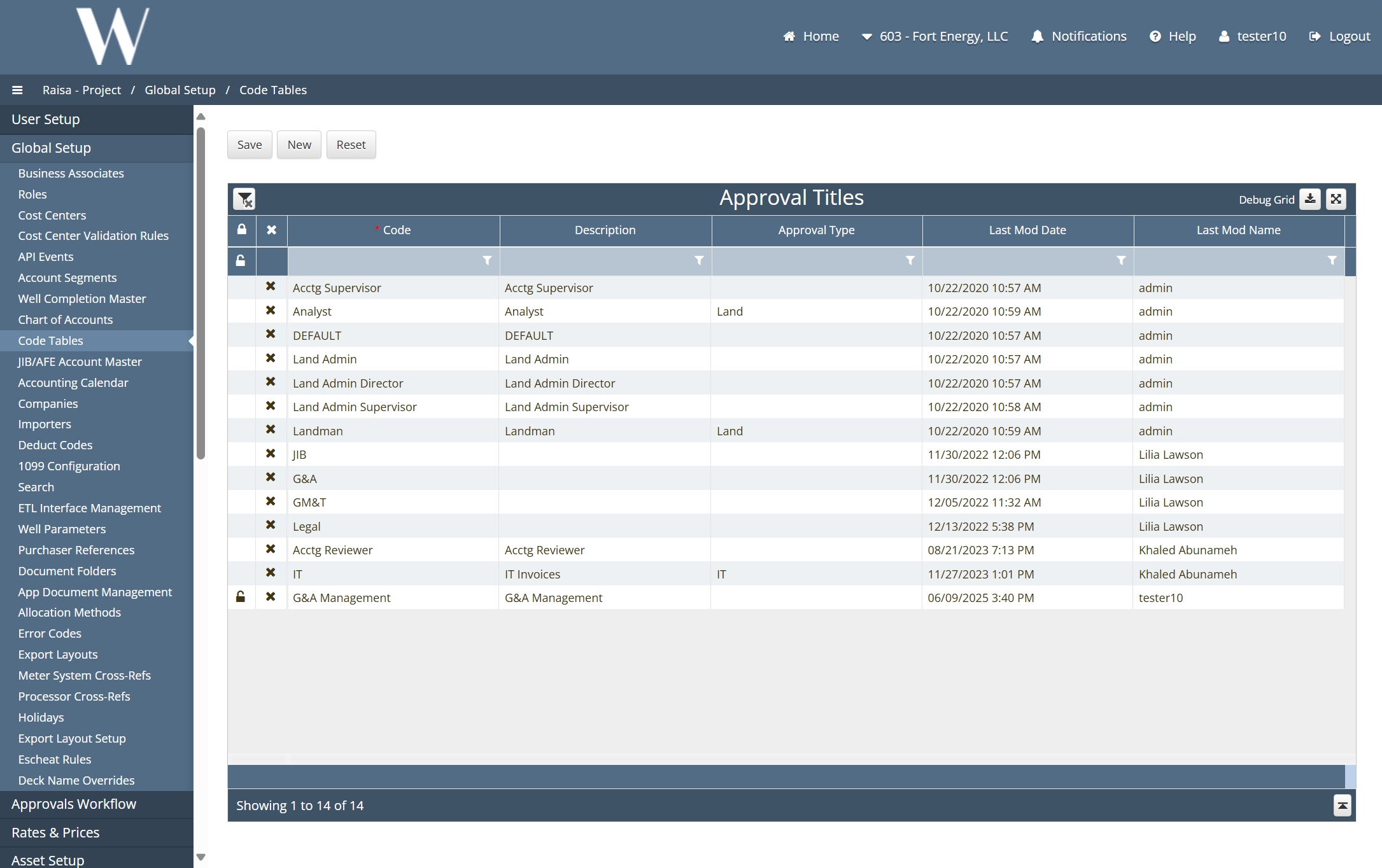
Step 2: After creating an Approval Title with the desired code and description, it is essential to assign at least one user to that title. Failure to do so will result in workflow interruptions. Specifically, if an approval title with no associated users is included in any stage of a workflow, the system will be unable to resolve the approver for that stage. As a result, invoices routed through this workflow will become non-payable, and the following error will be triggered:
“Error: AP Invoice submit failed: Approval Chain [Approval Type] is not approvable for the amount X”.
Approval Limits:
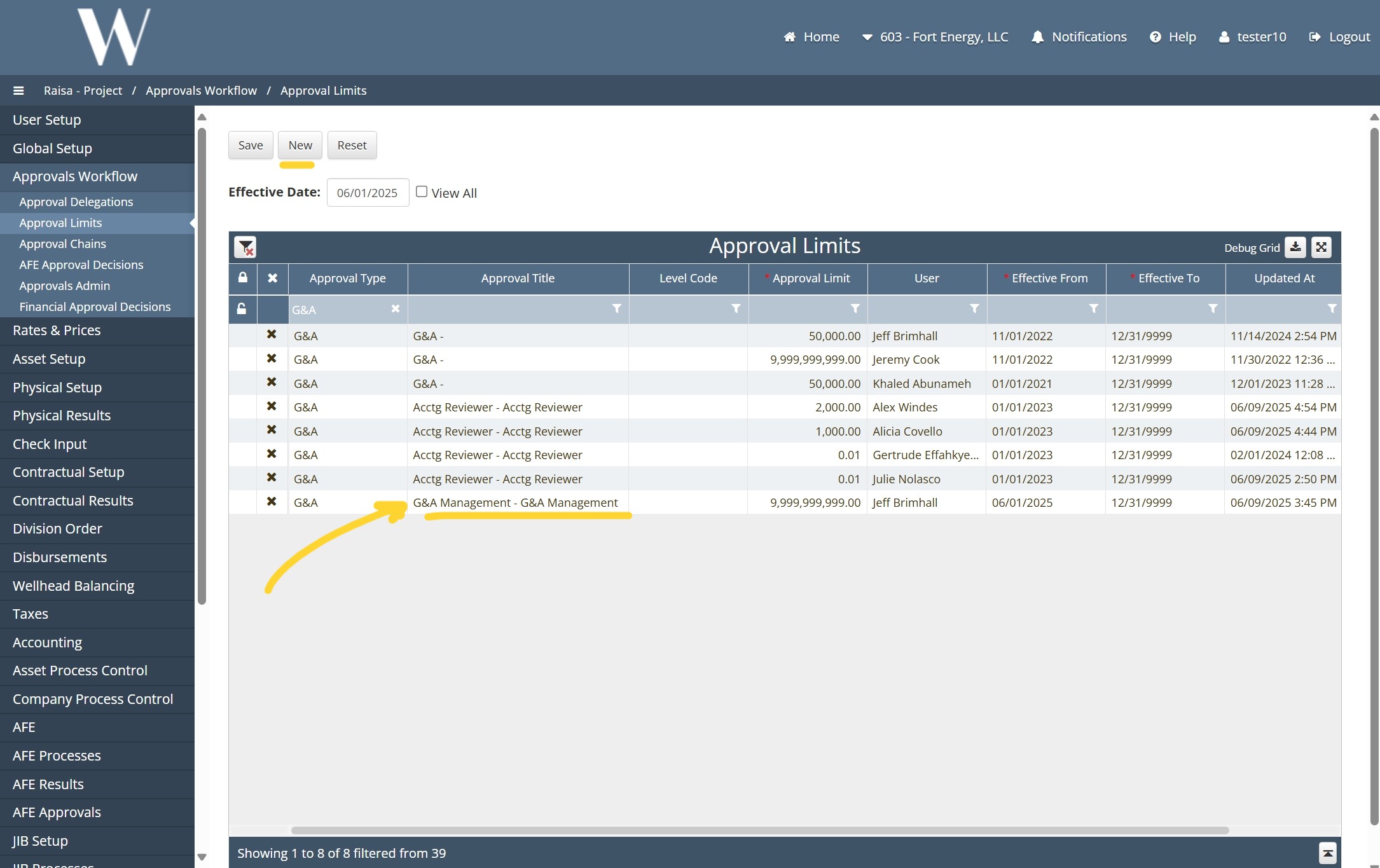
Under the Approval Limits section, create a new entry by assigning a specific user to an appropriate Approval Title, selecting the corresponding Approval Type, and defining the Approval Limit in USD. This configuration determines the maximum transaction amount the user is authorized to approve within the workflow.
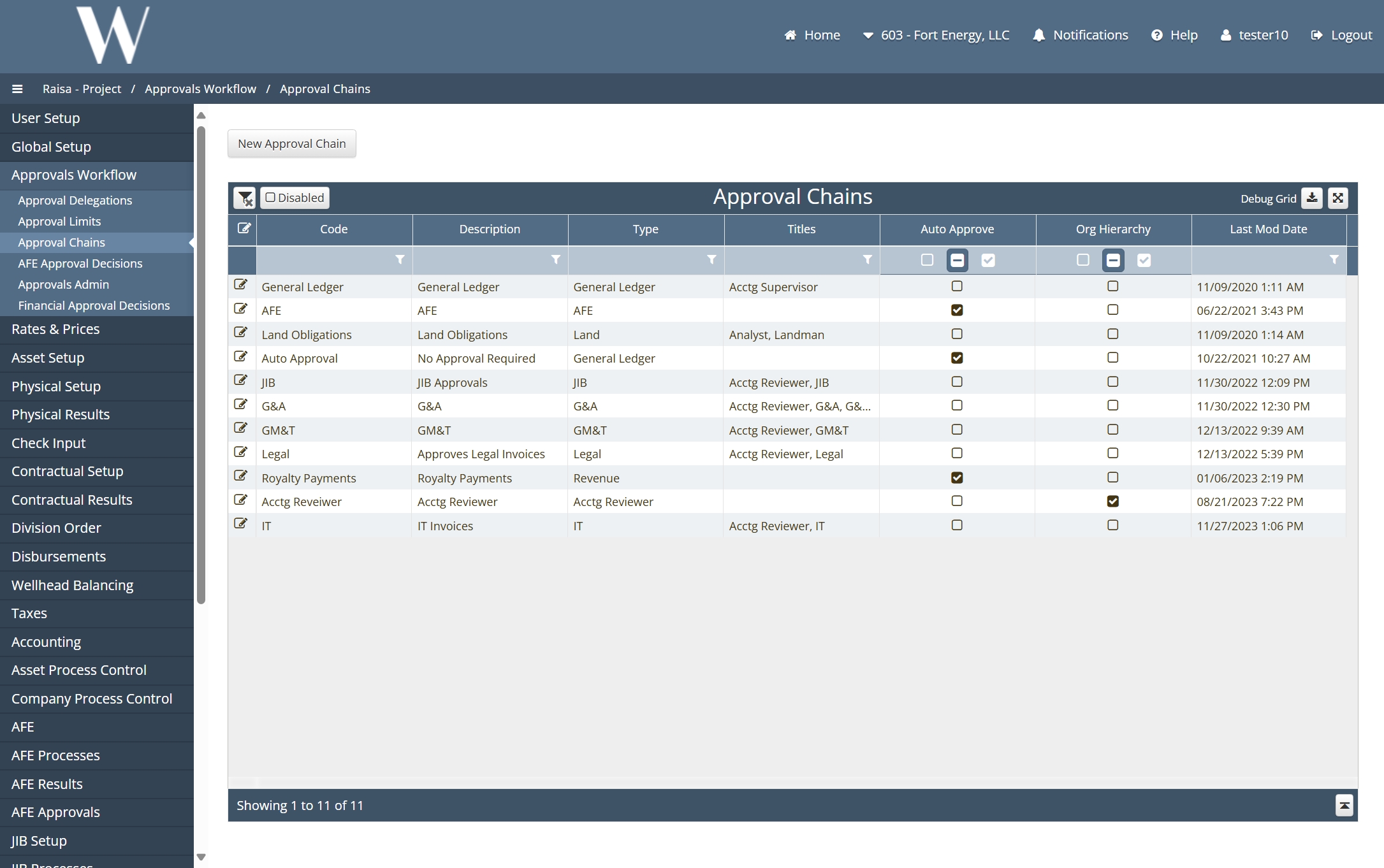
Step 3: Under Approval Workflow → Approval Chains → Edit Approval Type – G&A in this example – a three-stage approval workflow was defined:
Stage 1: The approval title was set to Acct Reviewer.
Stage 2: The approval title was set to G&A -.
Stage 3: The approval title was set to G&A Management.
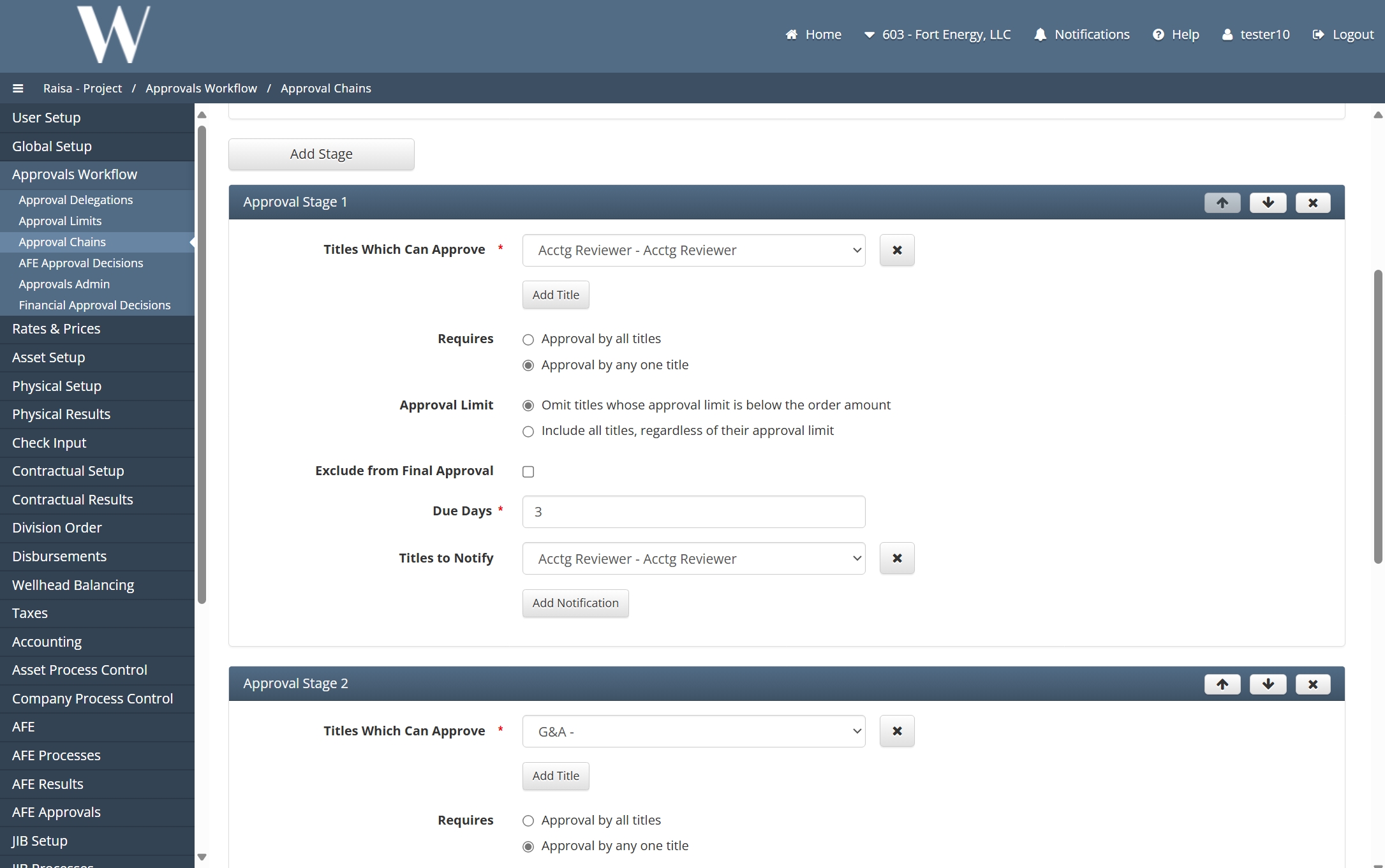
Based on the configuration of Approval Titles and corresponding Approval Limits, customers can construct highly flexible and hierarchical approval workflows. One key feature supporting this flexibility is the “Omit titles whose approval limit is below the order amount” option. When enabled, this setting ensures that users whose approval limit is lower than the invoice amount will neither see nor be prompted to act on that invoice within the workflow.
Consider the following workflow configurations:
Key Constraint:

Submitter ≠ Approver (separation of duties).
Scenario 1: Omitting An Approval Title in the Chain
Configuration:

Stage 1 (Acct Reviewer): Alicia (No limit set; all invoices pass through her).
Stage 2 (G&A): Khaled (assigned to G&A and an approval limit of 50K).
Stage 3 (G&A Management): Jeff (assigned to G&A Management and no approval limits).
For the Stage 1, we will check the box for “Exclude from Final Approval“. Without this checked, the Acct Reviewer would be able to be final approver in all invoices she receives since for Stage 1 we are using “Include all titles, regardless of approval limits“.
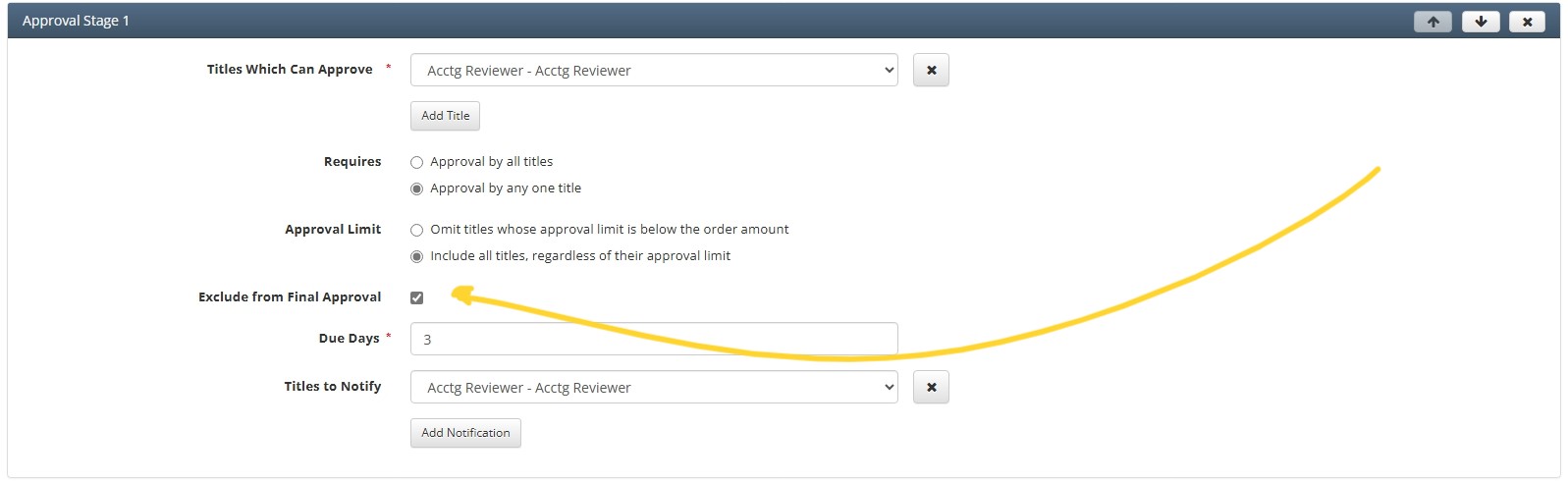
We are setting limits only on Stage 2, because we want the following:
Under 50K, Alicia → Khaled
If over 50K, Alicia → Jeff
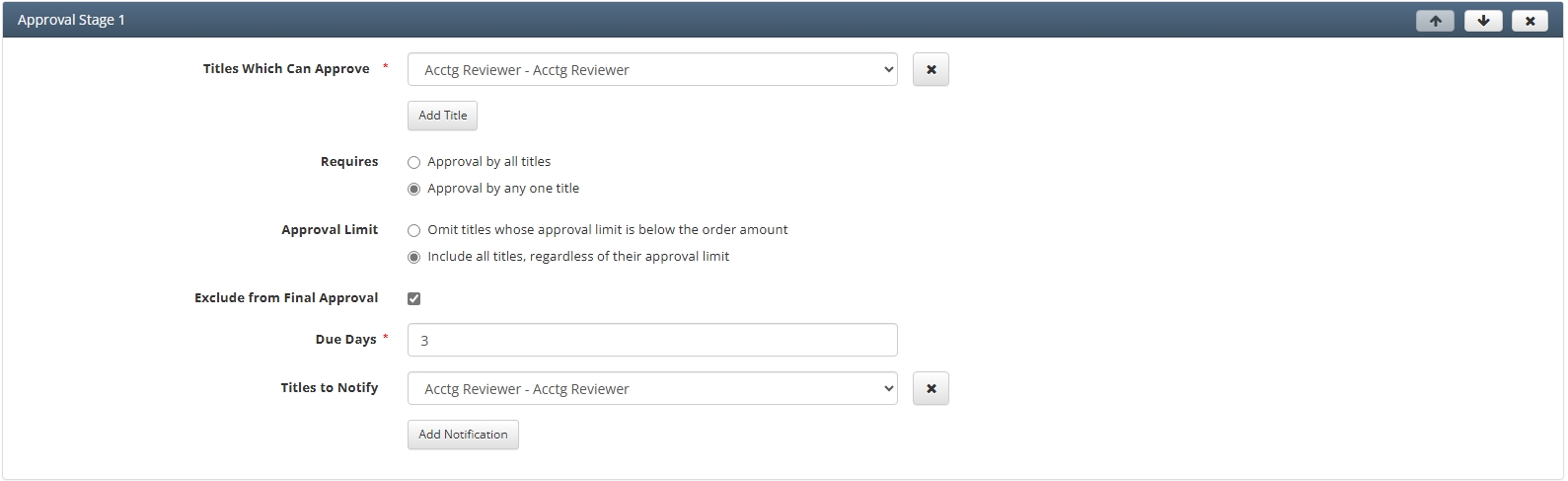
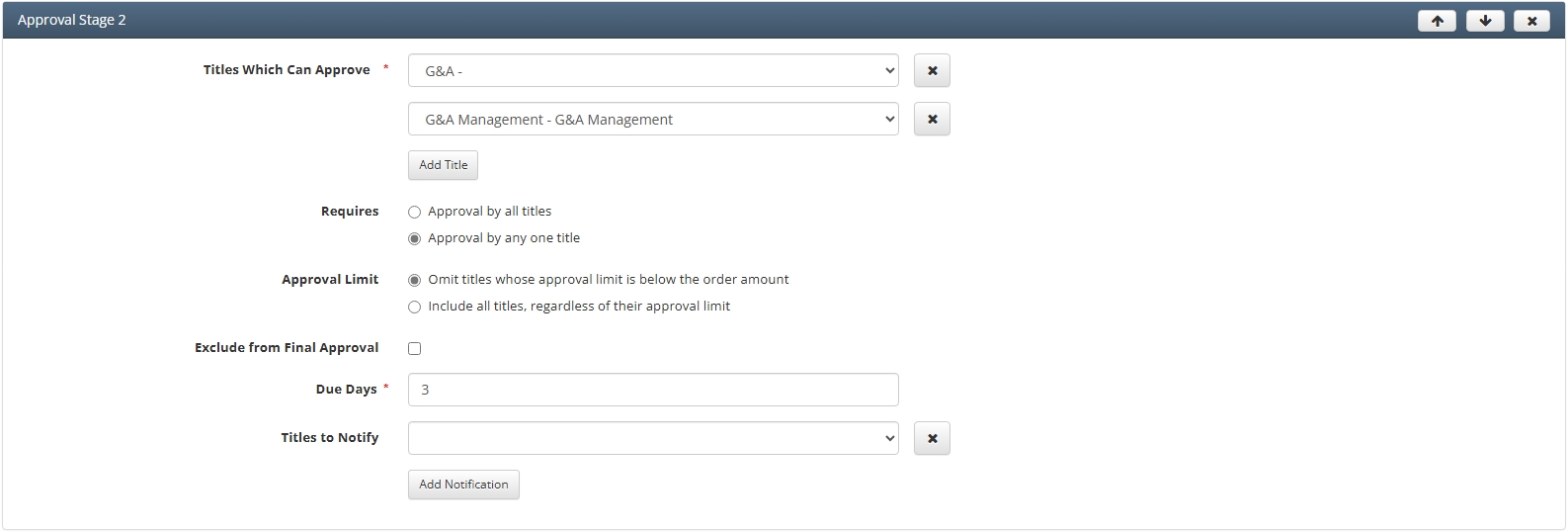
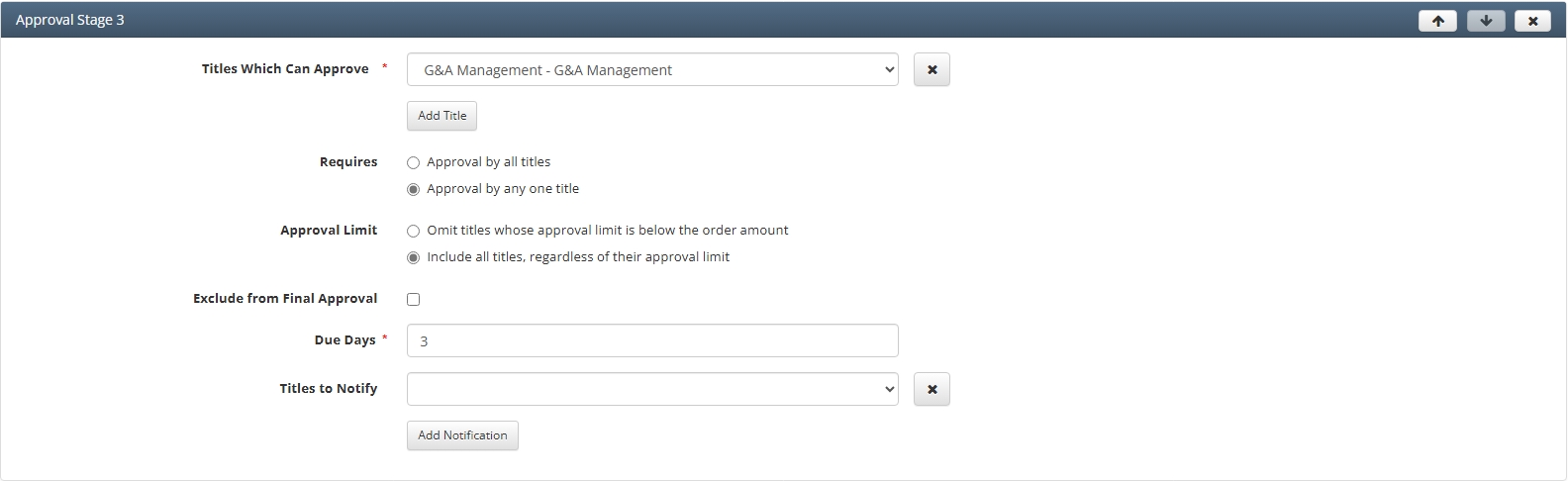
Rules:
Invoices ≤ $50K:
Alicia approves (Stage 1) → Khaled approves as G&A (Under $50K) (Stage 2) → Stage 3 is also approved by Khaled, even though he is not under the G&A Management title, because the “Exclude from all Final Approval” is not set to Stage 2 and he has enough limit to approve anything bellow 50K.
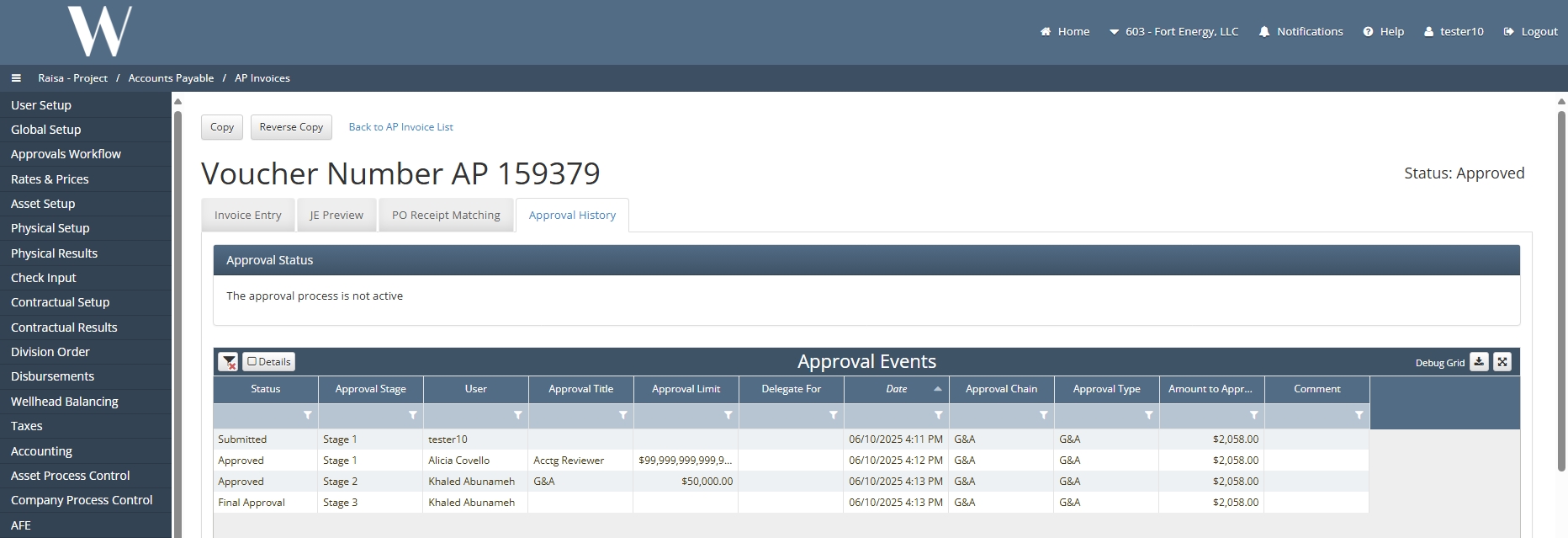
Invoices > $50K:
Alicia approves (Stage 1) → Forwarded to Jeff (Stage 2 and 3) for approval as G&A Management (Over $50K). Khaled is skipped, because he does not have the approval limits needed.
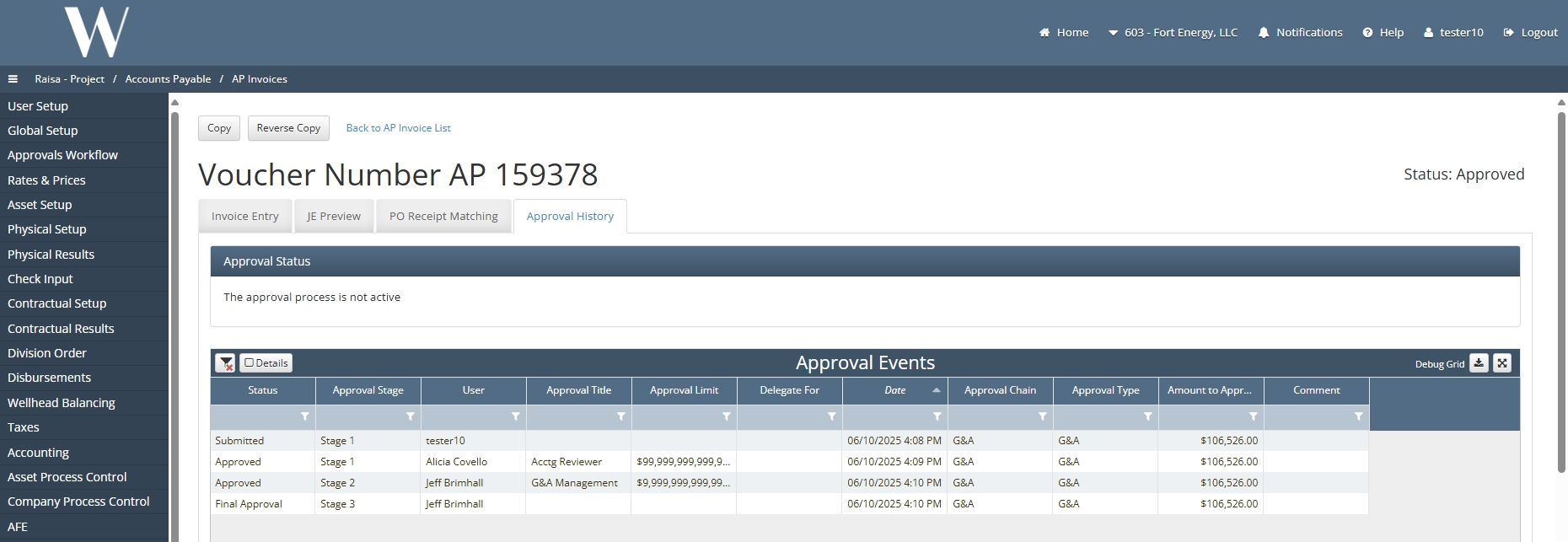
Scenario 2: Final Approver based on the Limits
In this scenario, the goal is to route approvals as follows:
For invoices under $50K → Alicia → Khaled
For invoices over $50K → Alicia → Khaled → Jeff
To support this logic, we do not enable the option:
“Omit titles whose approval limit is below the order amount.”
Instead, we configure the Approval Chain as follows:
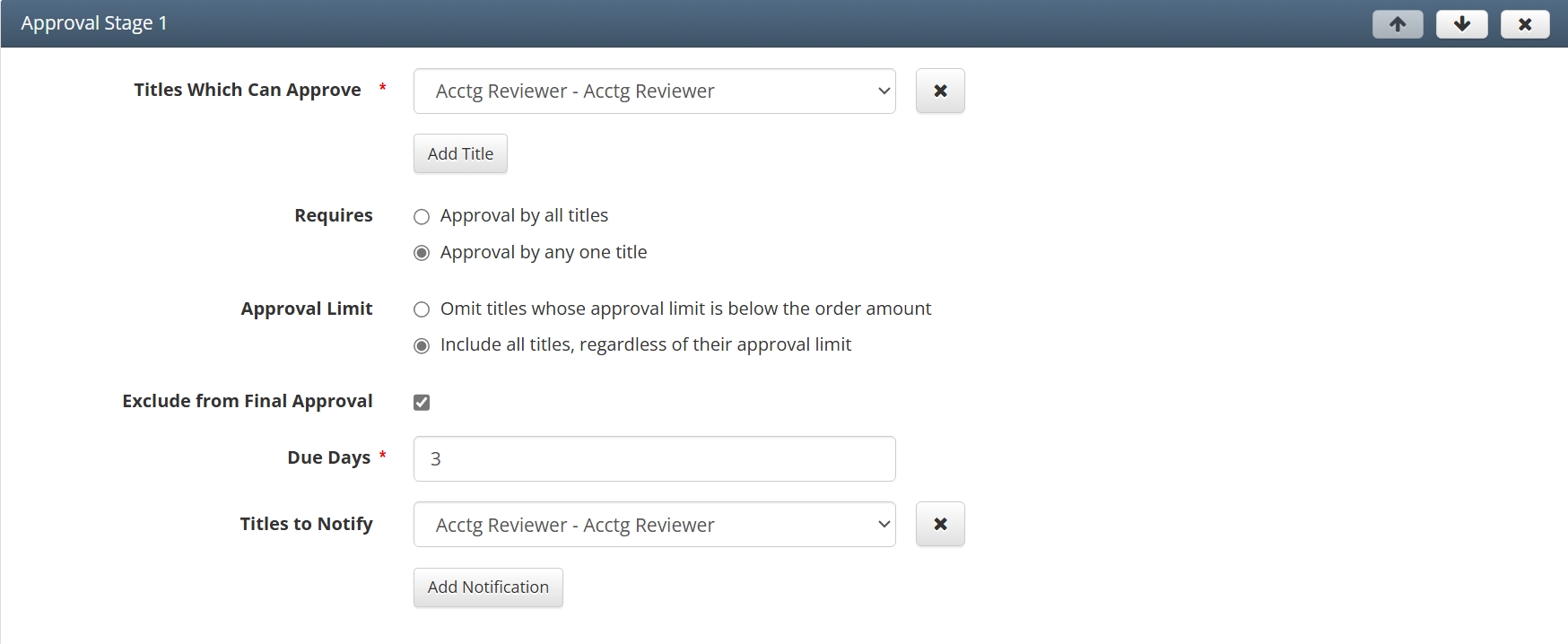
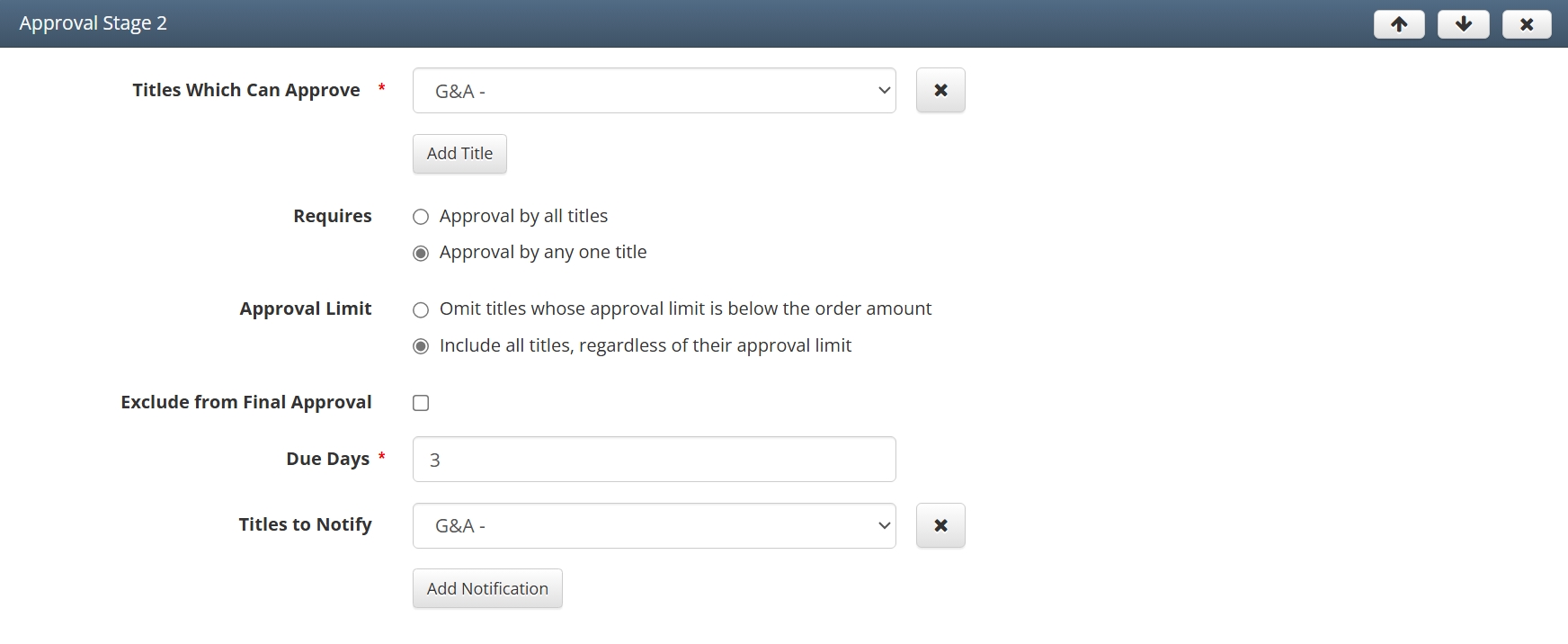
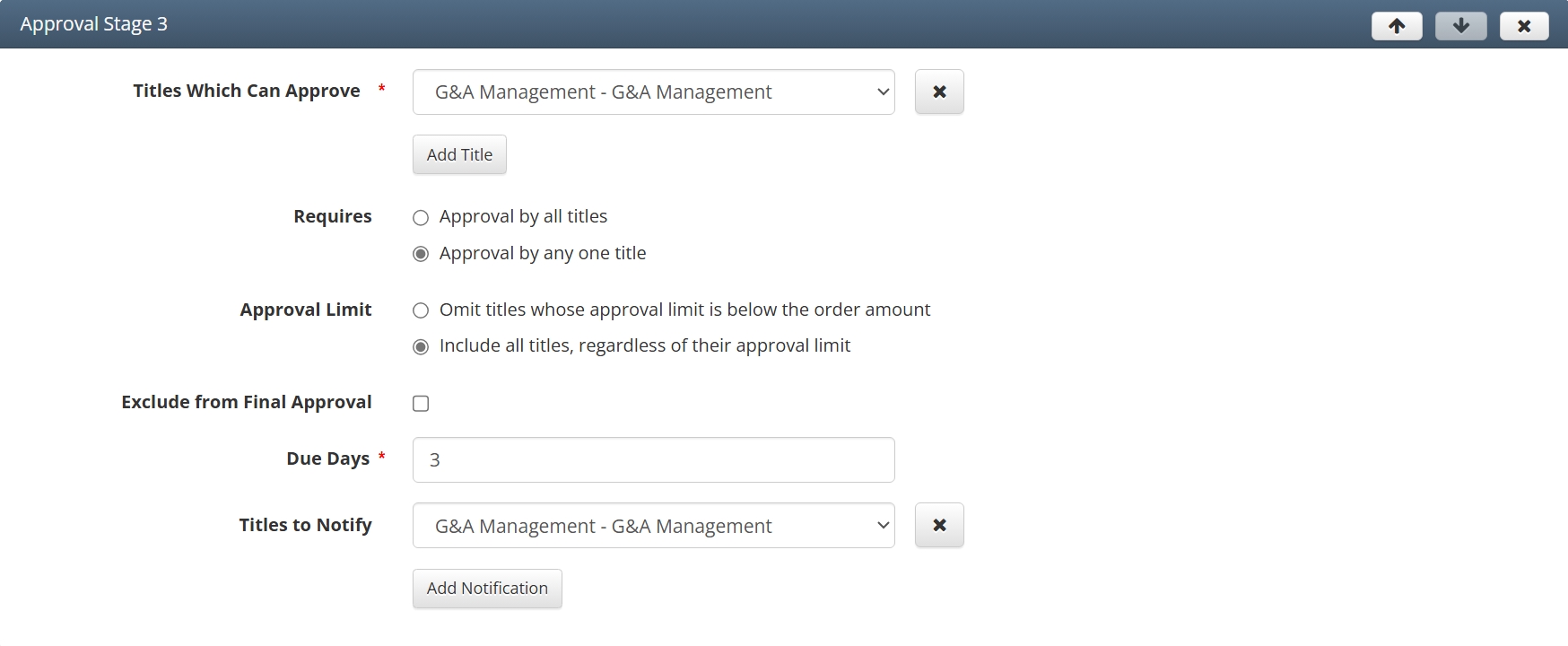
✅ This setup ensures that Khaled remains in the approval flow regardless of the invoice amount.
If the invoice amount is under $50K, Khaled not only participates in the approval flow, but also serves as the final approver. This eliminates the need for additional review by Jeff in Stage 3. With that said, the Approval History will look like the following for an invoice that has an amount bellow $50K:

However, if the invoice amount exceeds $50K, the workflow continues through to Jeff as an additional approver. The Approval History for an invoice over $50K will appear as:

This approach gives the customer the flexibility to design approval chains that align with Delegation of Authority (DOA) policies, while ensuring the right individuals are engaged based on invoice value.
📋 References
Ref. 1: W Energy Software User Manual 8.1 Approval Workflow.pdf